Troubleshooting Common Windows 11 Issues: A 2026 Guide
Listen to this article
Windows 11 remains one of the most widely used operating systems in 2026, powering laptops, desktops, and workstations across West Palm Beach and all of Palm Beach County. But even this advanced OS isn't immune to glitches. If you're experiencing slow performance, error messages, update failures, or random crashes, you're not alone. In this guide, the Windows repair experts at Fix My PC Store break down the most common Windows 11 issues and walk you through troubleshooting steps. Whether you’re an individual user or managing business devices, these solutions will help keep your systems running smoothly.
Windows 11 Troubleshooting: Common Problems in 2026
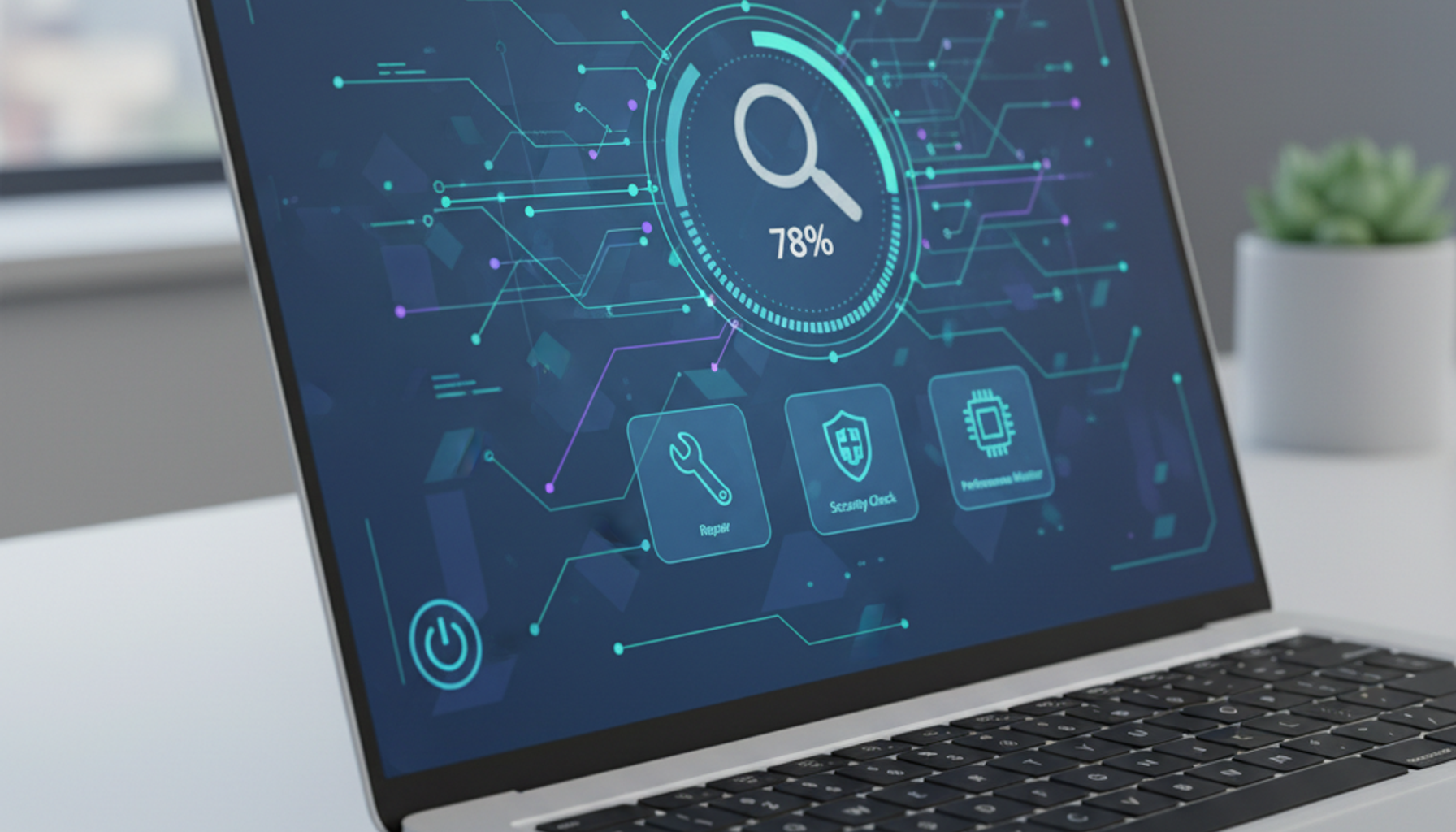
Windows 11 troubleshooting diagnostic tools on laptop screen
Before you start exploring advanced fixes, it's important to identify the most frequent Windows 11 troubleshooting scenarios we see in our computer repair shop in West Palm Beach:
- Slow boot times or sluggish performance
- Update installation failures
- Blue screen or system crashing
- Wi-Fi & network connectivity issues
- Printer problems and device driver errors
- Virus and malware infections
Diagnosing and Improving Windows 11 Performance

Computer technician fixing Windows update issues
Step 1: Check for Resource-Hungry Programs
Open Windows Task Manager (Ctrl+Shift+Esc) and sort by CPU, memory, and disk usage. Close unused applications that consume excessive resources. If persistent, consider upgrading hardware or consulting a PC repair technician.
Step 2: Manage Startup Apps
Disable unnecessary startup programs via Task Manager → Startup to accelerate boot time. Fewer programs launching on startup means more resources for your daily work.
Step 3: Clean Up System Files
Use the built-in Disk Cleanup or Storage Sense utility (Settings → System → Storage) in Windows 11. Regularly remove junk and temporary files to prevent slowdowns.
Fixing Windows 11 Update & Upgrade Issues
Professional malware scan and virus removal process
Windows 11 updates keep your system secure, but failed installs or looping restarts frustrate many users. Here are practical troubleshooting tips:
Step 1: Run the Windows Update Troubleshooter
Navigate to Settings → System → Troubleshoot → Other troubleshooters → Windows Update. Let the tool diagnose and automatically fix common update problems. For detailed guidance, see the official Microsoft Support page.
Step 2: Clear the Windows Update Cache
If updates still fail, stop the Windows Update service and delete contents from C:\Windows\SoftwareDistribution. Restart your computer and try updating again.
Step 3: Ensure Device Drivers Are Up to Date
Outdated drivers may block updates. Use Device Manager to check for errors and install the latest drivers from Microsoft's device driver support.
Resolving Blue Screen Errors & Crashes in Windows 11
Blue screen errors (BSODs) can result from software conflicts, faulty drivers, or failing hardware. Steps to fix:
- Note the STOP code displayed on the blue screen—it offers clues for the root cause.
- Uninstall recent apps or updates if the issue started after installation.
- Update all device drivers, especially graphics and chipset drivers.
- Run built-in diagnostics: Go to Settings → System → Recovery → Advanced startup.
- Check hardware health. If you suspect a faulty RAM module or SSD, consult a professional repair technician.
Windows 11 Network & Wi-Fi Connectivity Troubleshooting
Wi-Fi and Ethernet issues remain common. Here’s how to troubleshoot network connectivity on Windows 11 devices:
Step 1: Use the Network Troubleshooter
Go to Settings → Network & Internet → Network troubleshooter and follow on-screen prompts.
Step 2: Reset Network Settings
Settings → Network & Internet → Advanced network settings → Network reset. Reconnect to Wi-Fi and test connectivity.
Step 3: Update or Roll Back Network Drivers
Device Manager → Network adapters—right-click your Wi-Fi/Ethernet adapter to update or roll back the driver.
Printer and Peripheral Issues with Windows 11
Printer not appearing, showing offline, or not printing at all? Try these steps:
- Disconnect then reconnect the printer’s USB cable or re-pair via Bluetooth/Wi-Fi.
- Remove and reinstall the printer from Settings → Bluetooth & devices → Printers & scanners.
- Download the latest manufacturer drivers from their official site.
Protecting Windows 11 Against Viruses and Malware
In 2026, malware threats are still a major risk. Symptoms include slowdowns, pop-ups, or unauthorized system changes. When in doubt:
- Run a full scan with Windows Security (Defender).
- Consider a second opinion scan using Malwarebytes or another reputable antimalware tool.
- For advanced detection and secure removal, use our virus removal services in Palm Beach County.
Data Backup and Recovery for Windows 11
Always back up your data before any major troubleshooting or Windows reset! Use built-in File History or OneDrive, or contact our data recovery specialists for expert assistance in recovering lost files.
Remote Windows 11 Troubleshooting in Palm Beach County
Many issues can be resolved via secure remote support. Our remote IT support technicians can help you:
- Diagnose and repair Windows errors
- Remove malware
- Assist with updates and drivers
If you need fast, professional troubleshooting in West Palm Beach, Wellington, Jupiter, or elsewhere in Palm Beach County, Fix My PC Store is your local expert resource.
More Helpful Windows 11 Guides
Need Expert Computer Support?
Get professional help from Palm Beach County's trusted computer repair specialists.
Get Help Today