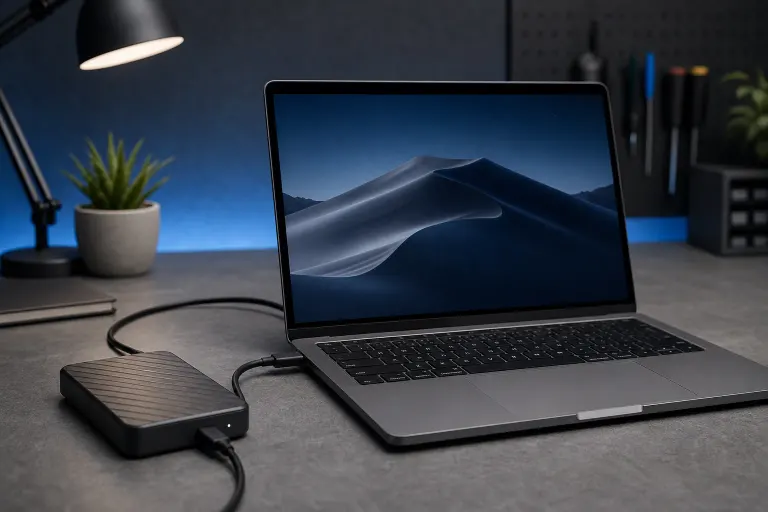
Why Is My Mac Not Recognizing an External Drive After Plugging It In?
TL;DR: A Mac that won't mount an external drive is usually dealing with a bad cable, a wrong format, a Finder preference, or a drive that needs a push from Disk Utility. Work through the sequence below before assuming data loss. If the drive makes clicking or grinding sounds, stop immediately.
What Happened
You plugged an external drive into your Mac and nothing appeared on the Desktop. No icon, no notification, nothing. This is one of the most common Mac support calls, and the cause is almost never catastrophic.
The most frequent culprits, roughly in order of likelihood:
- Finder may be hiding a mounted volume. Whether an external-drive icon appears on the Desktop or in the sidebar depends on your Finder settings. Check those settings before treating a missing icon as a missing drive. Apple explains how to choose which connected devices Finder displays.
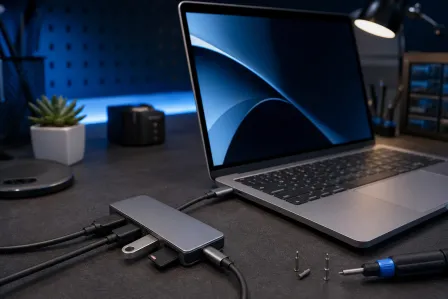
- The cable or port is flaky. USB-C cables especially can look fine while delivering zero data.
- The drive is formatted for Windows (NTFS). A Mac may be able to read an NTFS drive but cannot write to it natively. Read-only access is different from the drive not being detected.
- The drive needs to be initialized or repaired. Disk Utility can see volumes that Finder won't show.
- The USB controller or bus is overwhelmed. Too many devices on one hub, or a hub with no external power, can starve the drive.
- The drive itself is failing. Mechanical drives fail. SSDs fail. It happens.
Why It Matters
If this is a backup drive, you may not know your backups have been silently failing. If it's a working drive with irreplaceable files, every wrong move, like forcing a reformat or running aggressive repair tools on a dying drive, can make recovery harder or impossible.
Fast diagnosis matters. So does knowing when to stop.
Computer acting up? Get a real diagnosis. Book a diagnostic
What We Don't Know Yet
The sequence below can't tell you how healthy the drive actually is without running diagnostics. It also can't tell you whether the drive has been physically dropped, got wet, or was improperly ejected. Those details change the response completely.
If you hear clicking, grinding, or repeated spin-up attempts: power the drive off and do not plug it back in. That's a hardware failure in progress, and every spin-up risks more damage to the platters.
What To Do About It
Step-by-Step Diagnostic Sequence
Step 1: Fix Finder's display settings first. Open Finder, go to Finder menu, then Settings (or Preferences on older macOS), click the General tab, and make sure "External disks" is checked under "Show these items on the Desktop." Also check the Sidebar tab and confirm external drives are enabled there. This alone solves the problem for a surprising number of people.
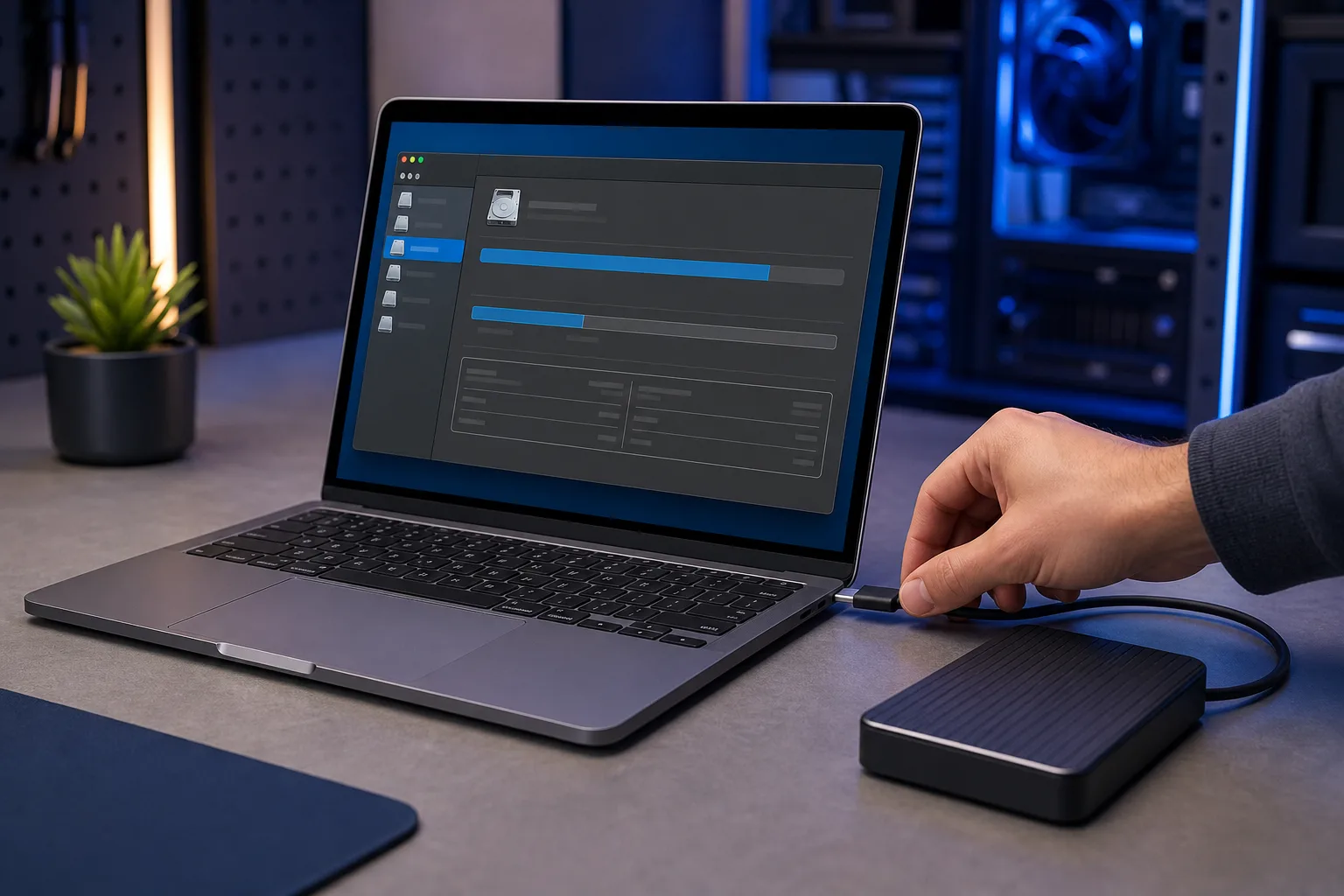
Step 2: Check Disk Utility. Open Disk Utility (Applications, Utilities, Disk Utility). Look in the left sidebar. If your drive appears there, even greyed out, it's being detected at the hardware level. Select it and click Mount. If it mounts, you're done. If it shows up with a "First Aid" option that reports errors, run First Aid and see if it clears.
Step 3: Swap the cable and the port. Unplug the drive, try a different cable, plug into a different port or directly into the Mac instead of a hub. USB-C cables marketed as "charging cables" often carry no data. Use a cable rated for data transfer. If you're on a hub, bypass it entirely.
Step 4: Check the format. If the drive shows in Disk Utility and you can see the filesystem type, confirm it. APFS and Mac OS Extended (Journaled) mount natively. Apple explains that a Mac may read an NTFS drive but cannot write to it natively. That limitation does not by itself mean a drive needs an additional driver just to be detected or read. For NTFS write access, Microsoft NTFS for Mac by Paragon Software is third-party software published by Paragon; check its macOS compatibility before installation. exFAT is an option for use with Mac and Windows. Back up any accessible files before considering a format change: reformatting erases the drive.
Step 5: Try on another computer. Plug the drive into a Windows PC or another Mac. If it shows up there, the problem is on your Mac side (software, port, or settings). If it doesn't show up anywhere, the drive is the problem.
Step 6: Reset SMC and check for macOS updates. On Intel Macs, resetting the System Management Controller can clear USB power issues. On Apple Silicon Macs, simply shut down fully and restart. Also check Software Update. A macOS bug affecting drive recognition is not unheard of, and patches do fix them.
Decision Table: What You're Seeing and What It Means
| What you observe | Most likely cause | Next move |
|---|---|---|
| Nothing in Finder, nothing in Disk Utility | Cable/port failure, power issue | Swap cable, bypass hub, try another Mac |
| Shows in Disk Utility but won't mount | Filesystem error or format mismatch | Run First Aid, check format type |
| Shows in Disk Utility, greyed out | Drive failed to mount cleanly | Click Mount; if it fails, run First Aid |
| Clicking or grinding sounds | Mechanical failure | Power off, stop all attempts, seek data recovery |
| Mounts on Windows but not Mac | Format, filesystem, or Mac connection issue | Check Disk Utility and format; back up files before considering any reformat |
| Works sometimes, drops connection | Flaky cable, underpowered hub | Replace cable, use powered hub or direct port |
When to Call It
If Disk Utility can't repair the drive and it won't mount, or if you're hearing bad sounds, DIY tools stop being helpful and start being risky. Data recovery from a failing drive is a professional job. Attempting to clone a failing drive with consumer tools can overwrite the very sectors you need.
For Mac-specific hardware questions or a drive that isn't responding to any of the above, the team at Fix My PC Store can take a look. Initial checks for most in-store repairs are free, with any diagnostic fees disclosed before work starts. Stop by the shop at 10140 Okeechobee Blvd, Suite B, West Palm Beach, or check out Mac repair for more on what's covered. You can also reach them at 561-819-9999 during shop hours, Monday through Friday 9 a.m. to 6 p.m. and Saturday 9 a.m. to 5 p.m.
Need a remote walkthrough instead? Remote support is available if you want someone to walk through your Mac's Disk Utility and settings with you live.
Computer acting up? Get a real diagnosis.
Fix My PC Store has repaired thousands of machines across West Palm Beach. Honest pricing, no upsell games, and a free diagnostic for new customers with our email coupon.