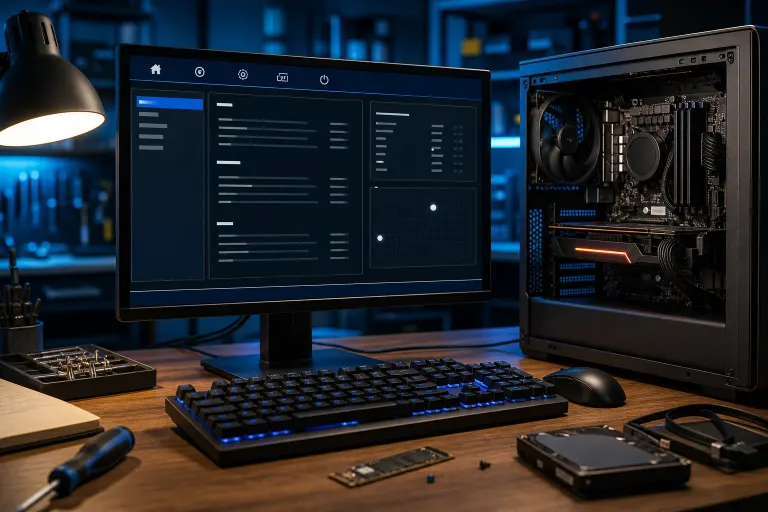
Why Is My Gaming PC Booting to BIOS Every Time I Restart?
TL;DR: A gaming PC that lands in BIOS on every restart is almost always caused by a dead CMOS battery, a corrupted or misconfigured boot order, a dying storage drive, or a recent hardware change confusing the firmware. Most of these are fixable in under 30 minutes with the right checklist. If the drive itself is failing, stop and get data off it first.
What Happened
Your rig posts fine, gets through the initial splash screen, and then instead of loading Windows it just... drops you into the BIOS menu. Every. Single. Time. That is the firmware saying it either cannot find a bootable device or it has been told to stop there and wait for you.
The BIOS (or UEFI on any modern board) runs before your OS and is responsible for handing control off to your boot drive. When that handoff fails or is skipped, you end up staring at firmware menus instead of your desktop.
A few things commonly break that chain:
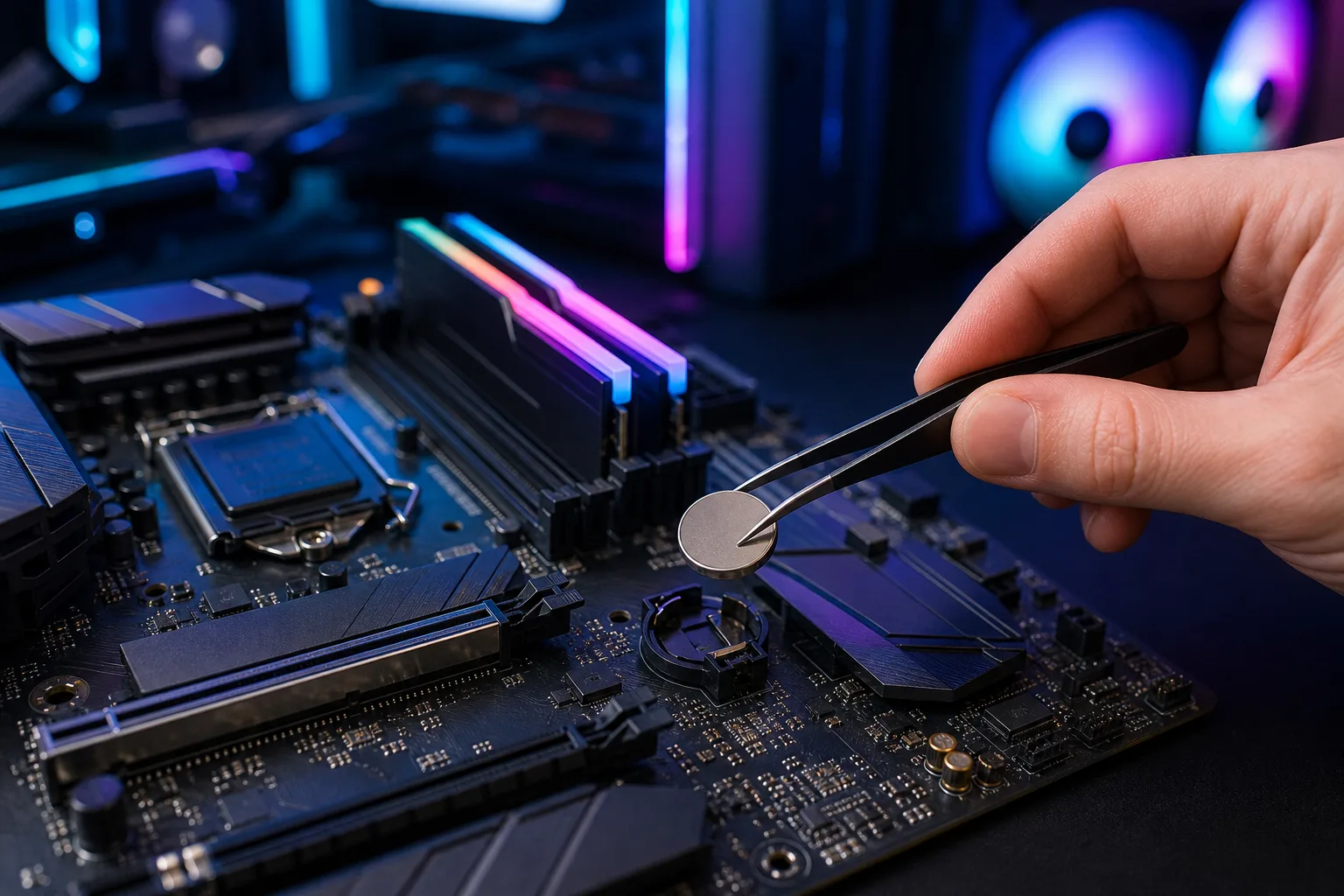
- Dead CMOS battery. That small coin-cell battery on your motherboard keeps BIOS settings alive when the PC is unplugged. When it dies, BIOS resets to defaults every power cycle. Defaults often have no boot drive selected, or they prioritize the wrong device.
- Corrupted or wrong boot order. Windows updates, a new SSD install, or even a USB drive left plugged in can shuffle which device the board tries first.
- Failing or undetected storage drive. If the NVMe or SATA drive holding Windows is not being detected by the board, BIOS has nowhere to hand off to.
- Recent hardware swap. New RAM, a new GPU, or a freshly installed drive can sometimes trigger a "setup mode" that drops you into BIOS intentionally.
- Fast Boot or CSM setting mismatch. Some boards with aggressive Fast Boot settings can get into a loop where they skip normal detection and then fail.
Why It Matters
This is not just an annoyance. If the root cause is a failing drive, every restart you do without backing up is gambling with your game saves, clips, and any other data on that machine.
A dead CMOS battery is cheap and harmless to replace. A corrupted boot record is fixable from Windows Recovery. But a drive that is physically failing needs to be treated as an emergency, not a BIOS setting to tinker with.
Speed matters here too. On a gaming build, you want that POST-to-desktop time as tight as possible. Repeatedly dropping to BIOS means something in the boot chain is genuinely broken, not just slow.
Ready to build a rig that actually rips? Start your build
What We Don't Know Yet
The tricky part is that all of these causes look identical from the outside: BIOS appears, you did not ask for it. You have to run through a short diagnostic sequence to find the actual culprit.
One thing worth noting: if the PC only does this after a full power loss (unplugged, power cut, long time off) and works fine through normal restarts, the CMOS battery is almost certainly the problem. If it happens on every single restart regardless, the boot order or drive detection is more likely to blame.
What to Do About It
Work through this sequence in order. Stop when you find the fix.
Step 1: Check the boot order right now. While you are in BIOS, navigate to the Boot tab (exact name varies by board brand). Confirm your Windows drive appears in the list and is set as the first boot device. If it is missing entirely from the list, skip to Step 4.
Step 2: Remove any USB drives or external devices. Eject everything. Some boards default to trying USB devices first, and a thumb drive with no bootable partition will cause this exact loop. Reboot with nothing plugged in except monitor, keyboard, and mouse.
Step 3: Check if the boot entry is actually valid. In BIOS, look for your Windows drive by name (usually the brand and model of your NVMe or SSD). If it shows up in the storage/drive list but not the boot priority list, you may have a corrupted boot record. Boot from a Windows USB installer, choose Repair Your Computer, then Startup Repair. Microsoft documents this process at support.microsoft.com.
Step 4: Replace the CMOS battery. If the drive appears fine but BIOS keeps resetting, pull the coin-cell battery (usually a CR2032) from the motherboard, wait 30 seconds, and replace it with a fresh one from any hardware or electronics store. Cost is usually under $5. After replacing it, re-enter your boot order and save settings.
Step 5: Check drive health before anything else if you are seeing errors. If BIOS throws a warning like "No bootable device" or the drive does not appear in the storage list at all, boot from a live USB and run a SMART check on the drive. Tools like CrystalDiskInfo (free, crystalmark.info) will flag reallocated sectors, pending sectors, or other red flags that mean the drive is on its way out. If you see those, back up immediately before doing anything else.
Step 6: Reset BIOS to optimized defaults, then re-configure. If you have been overclocking or tweaking BIOS settings (yeah, I know, it is fun), a bad setting can absolutely cause this. Load Optimized Defaults, save and exit, then only re-apply changes you know are stable. If it boots clean after that, re-add your OC settings one at a time to find the culprit.
Decision Table: Most Likely Cause by Symptom
| Symptom | Most Likely Cause |
|---|---|
| Only happens after full power loss | Dead CMOS battery |
| USB drive was plugged in | Boot order picking wrong device |
| Drive missing from BIOS storage list | Failing drive or loose cable |
| Happens after Windows update | Corrupted boot record |
| Happens after new hardware install | Setup mode or boot order reset |
| OC settings were active | Unstable BIOS config |
If you have worked through all six steps and the PC still drops to BIOS on every restart, or if the drive health check came back ugly, that is the point where professional eyes save you time and potentially save your data. Fix My PC Store's team handles exactly this kind of diagnosis at our West Palm Beach shop, and initial checks for standard in-store repairs are free. You can also reach us at 561-819-9999 or book a time online.
For builds you are actively working on or want advice about, the custom gaming PC wizard is worth a look too.
Ready to build a rig that actually rips?
Custom gaming PCs built and tuned by people who game. Tell us your budget and target frame rate.