Why Your PC Is Loud: Fan, Drive, and Other Noise Causes
TL;DR: A PC that suddenly gets loud is usually dealing with heat, dust, a struggling fan, vibration, or a mechanical hard drive. Identify the type and location of the sound before changing settings or opening the case. A steady fan rush is often manageable. Grinding, repeated clicking, or a new electrical buzz deserves prompt attention.
What you need
Before troubleshooting, gather a few basic items:
- A clean, well-lit workspace
- A flashlight or phone light
- A can of compressed air designed for electronics, if you plan to clean the system
- A soft brush for exterior vents
- A backup destination for important files, especially if a hard drive is making unusual noises
- A small screwdriver only if your desktop case is designed for easy access
You do not need to remove a laptop bottom cover just to investigate a noise. Modern laptops have delicate clips, short cables, and compact cooling assemblies. If the noise is severe or the machine is under warranty, start with observation and backup rather than surgery.
For a desktop, shut the PC down, turn off the power supply switch if it has one, and unplug it before touching internal components. Static damage is not a hobby anyone needs.
1. Identify what kind of noise you are hearing
The sound itself narrows the likely cause quickly. Let the PC sit idle for a minute, then listen from the front, rear, side panel, and underneath. Note whether the sound changes when you open a game, video call, browser tab, or demanding application.
Air rushing or a loud whoosh
This is usually fan noise. It may be normal under a heavy workload, but it should calm down after the workload ends. Constant high fan speed while the PC is doing little can point to dust buildup, blocked airflow, high background CPU use, or an overheating component.
Rattling, ticking, or a sound like something touching a fan
A cable, label, loose screw, or damaged fan blade can contact a spinning fan. Vibration from a loose case panel, drive bracket, or fan mount can make a similar sound. This often changes pitch when fan speed changes.
Grinding, scraping, or rough bearing noise
This commonly indicates a worn fan bearing. A fan may still spin, but it can slow down or stop without much warning. Treat this as a repair item, not a sound system feature.
Repeated clicks, chirps, or spin-up and spin-down sounds
If your PC has a traditional spinning hard disk drive, these noises may come from that drive. A brief spin-up can be normal. Repeated clicking, rhythmic seeking noises that are new, or a drive that repeatedly starts and stops can indicate trouble. Back up important data immediately.
High-pitched whine or buzz
This may be coil whine from the graphics card, power supply, or motherboard power circuitry. Coil whine is an electrical vibration, not a fan rubbing against something. It is often more noticeable during gaming or very high frame rates. It can be annoying without meaning the part is failing, but a sudden loud buzz, burning smell, or instability is not normal.
2. Check whether heat or workload is driving the fans
Fans are supposed to get louder when your PC produces more heat. The useful question is whether the fan response matches what the computer is actually doing.
On Windows, press Ctrl + Shift + Esc to open Task Manager. In the Processes tab, sort by CPU, Memory, Disk, or GPU usage. If a process is consuming a large share of CPU resources while the computer appears idle, that may explain the noise.
Common causes include:
- A Windows update, security scan, cloud sync, or file indexing task running in the background.
- Too many browser tabs, especially tabs playing video, running web apps, or showing advertisements.
- A game, editing application, virtual machine, or AI workload using the CPU or graphics card.
- Malware or unwanted software consuming resources without a clear reason.
- A stuck application that continues using CPU after you close its visible window.
If usage is high, give known maintenance tasks time to finish. Restarting can clear a stuck process, but do not use a restart as a substitute for figuring out why the system is busy.
For a business computer, repeated high utilization may be a management issue rather than a one-time nuisance. Proper monitoring, patch scheduling, endpoint protection, and hardware lifecycle planning are part of a stable environment. That is the sort of preventive work covered through managed IT services, where problems are handled before the fans start narrating the workday.
If usage is low but fans remain loud, focus on airflow and cooling next.
3. Inspect airflow before changing any fan settings
South Florida heat does not help an already marginal cooling setup. A PC cannot cool itself effectively if its vents are blocked, its filters are packed with dust, or it is sitting in a cabinet with no room to breathe.
With the PC powered on, look at the exterior vents. You may see dust collecting at the front intake, bottom intake, rear exhaust, laptop hinge area, or side vents. Do not insert objects through vents while the system is running.
Then check the PC’s location:
- Move a desktop away from walls, furniture, and enclosed cubbies. Leave several inches around intake and exhaust areas.
- Keep a laptop on a hard, flat surface. Beds, couches, blankets, and laps can block underside vents quickly.
- Do not stack paper, routers, external drives, or decorative items against the PC’s vents.
- Check room temperature. A hot office or garage can make fans work much harder than expected.
- Confirm that a desktop tower is standing as intended. Some cases have bottom-mounted vents that become restricted if placed directly on thick carpet.
If the noise began after moving the computer, look for a shifted cable, loose panel, or an object pressed against a vent. A simple placement problem is pleasantly boring, which is often the best kind of fix.
4. Clean dust safely and thoroughly
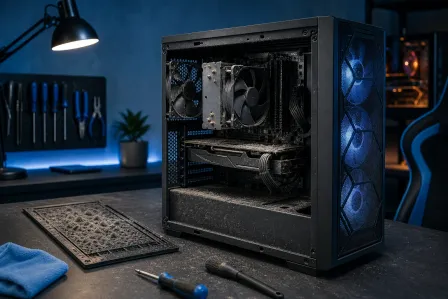
Dust acts like insulation on heat sinks and fan blades. It reduces airflow, raises temperatures, and forces fans to run faster. Pets, carpet, open windows, construction dust, and Florida humidity can make buildup happen sooner than people expect.
Start with the system fully powered down and unplugged. For a desktop, remove the side panel only if you are comfortable doing so and can access it without forcing anything.
Use compressed air in short bursts. Hold the can upright. Work from intake areas toward exhaust areas, and clean case filters separately if they can be removed. Use a soft brush gently on exterior grilles or filters.
When blowing air near a fan, keep the fan from spinning wildly with a non-metallic tool or a finger placed carefully on the hub area, not the blades. Overspinning a fan with compressed air is unnecessary wear and can create voltage back through the fan circuit.
Avoid these methods:
- Household vacuums inside the computer. They can create static and can easily knock small components loose.
- Wet cloths, cleaners, or compressed air cans that have been shaken or tilted enough to spray liquid propellant.
- Blasting a laptop through every opening until dust disappears somewhere inside. This can compact debris into the heat sink.
- Removing a heat sink or applying thermal paste unless you know the exact procedure. A minor cleanup should not become an accidental no-boot event.
After cleaning, reconnect the system and test it. If the fans are quieter, make cleaning part of the maintenance schedule. If they are still loud, the issue may be a failing fan, poor thermal contact, a software workload, or hardware that is simply undersized for the job.
For systems that need a proper internal inspection, thermal service, or fan replacement, computer repair is usually safer than treating YouTube confidence as a certification.
Computer acting up? Get a real diagnosis. Book a diagnostic
5. Rule out a failing fan or a loose component
A failing fan has a fairly recognizable pattern. It may rattle at startup, grind at certain speeds, wobble, intermittently stop, or become quieter when the case is positioned differently. The sound can change as the bearing warms up.
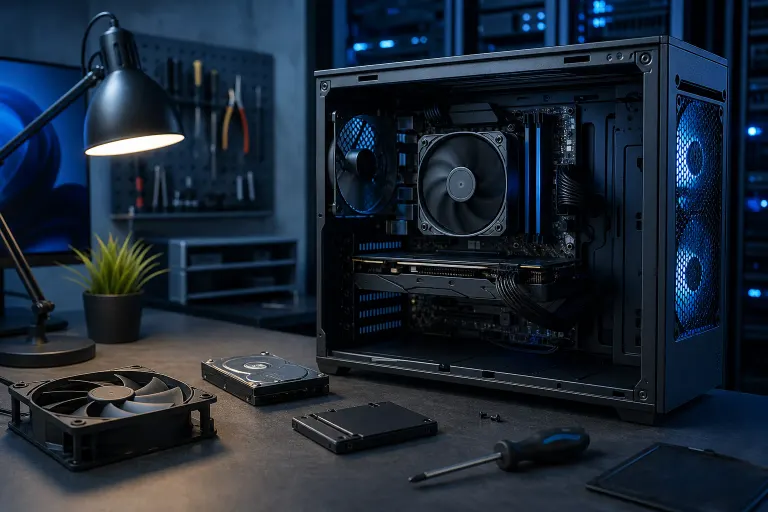
On a desktop, inspect visible fans with the power off. Look for:
- A cable resting against a fan blade.
- Dust clumps causing imbalance.
- A loose fan screw or loose case panel.
- Cracked blades, missing blades, or a fan that sits at an odd angle.
- A fan that feels rough when gently turned by hand after shutdown.
- A loose hard-drive cage, graphics card bracket, or power supply mount contributing vibration.
Do not open a power supply. Even unplugged units can retain hazardous electrical charge. If you suspect a power supply fan or hear a noise clearly coming from the power supply, stop there and have the unit assessed.
Laptop fans are harder to inspect and replace because the cooling assembly may be buried below the battery, keyboard, or motherboard. If your laptop is making a scraping noise, overheating, or shutting down, a dedicated laptop repair service can determine whether the issue is the fan, heat sink, battery swelling, or something else competing for space inside the chassis.
Mac systems have their own compact layouts, sensors, and service considerations. A Mac that runs loud all the time can be dealing with dust, demanding software, indexing, a failed fan, or thermal sensor issues. For hands-on diagnosis, use Mac repair rather than relying on generic PC teardown instructions.
6. Treat hard drive noises as a data-protection issue
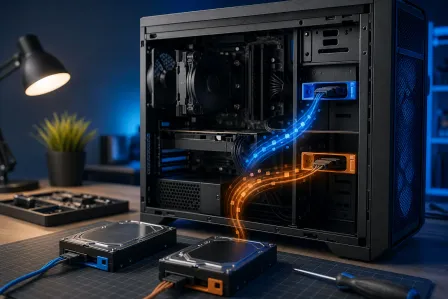
Solid-state drives have no moving parts, so they do not make mechanical drive noise. Traditional hard disk drives do. If you hear clicks, repeated recalibration sounds, unusual scraping, or a drive repeatedly spinning up and down, protect your files first.
Do this in order:
- Stop unnecessary work on the computer. Do not run games, large downloads, disk cleanup tools, or repeated restart cycles.
- Copy your most important files to another drive or a reputable cloud service if the drive remains accessible.
- Do not run aggressive repair utilities on a drive that is making severe mechanical noises. They can add stress without solving a physical failure.
- Make a note of the noise, error messages, and whether files are missing or slow to open.
- Arrange diagnosis before the drive becomes unreadable.
A healthy backup turns a drive failure into an inconvenience. No backup turns it into a negotiation with physics. For businesses, tested backups and recovery planning are core infrastructure, not an optional add-on. Review backup and disaster recovery options before the next disk decides it has done enough work.
7. Understand coil whine and other electrical noise
Coil whine is typically a high-pitched squeal, chirp, or electronic buzz that changes with frame rate, GPU load, or power draw. It can come from a graphics card, motherboard, or power supply. It is especially common to notice during game menus, benchmark screens, and other situations where the graphics card renders hundreds of frames per second.
First, confirm it is not a fan. With the case closed, listen for whether the pitch changes instantly when a game starts or when you change frame rate settings. If you cap frame rates, enable vertical sync, or reduce unnecessary GPU load and the pitch changes, coil whine is plausible.
Coil whine alone does not automatically mean a component is unsafe or about to fail. However, stop using the PC and seek help if the noise comes with any of these signs:
- A burning smell, smoke, heat that seems excessive, or discoloration
- Random shutdowns, reboots, display loss, or failed startup
- A new loud buzzing from the power supply area
- Visible sparking or popping
Never attempt to repair a power supply internally. Replacement is the proper answer when a power supply is faulty.
If a gaming PC has always been loud, its cooling layout, fan curves, component choice, or case airflow may not match the hardware load. A properly planned system does not need to sound like it is preparing for liftoff every time a game opens. For a build designed around real performance and cooling requirements, see the custom gaming PC builder.
8. Know when remote troubleshooting is enough, and when it is not
Remote support can help identify runaway processes, update problems, startup applications, malware symptoms, driver behavior, and fan-control settings. It is useful when the sound is clearly workload-related and the computer is otherwise stable.
Remote support cannot clean dust, replace a grinding fan, secure a loose cable, or determine whether a mechanical drive is physically failing by sound alone. Those require an in-person inspection.
Use remote support when the fans become loud after a software change, during specific applications, or while CPU and memory usage look abnormal. Seek hands-on service promptly for grinding, clicking drives, overheating, unexpected shutdowns, burning odors, or physical vibration.
Common mistakes
Ignoring a new sound because the PC still works. Hardware often provides an early warning period. Back up and investigate while the machine is still usable.
Changing fan curves before checking temperatures and airflow. Slowing fans can make a noisy PC quieter briefly while allowing components to run hotter. Diagnose the reason for the speed first.
Using a vacuum inside the case. Exterior vent cleaning is one thing. Putting a household vacuum nozzle among motherboard components is another.
Assuming all clicking means a hard drive is failing. Fans, cables, and loose panels can click too. Identify the sound source before drawing conclusions, but back up if a mechanical drive is involved.
Opening the power supply. Do not. This is one of the few computer repairs where curiosity can be genuinely dangerous.
Keeping a laptop on fabric. Soft surfaces block airflow and recycle heat. A cooling pad may help in some cases, but it cannot compensate for a clogged heat sink or failed fan.
Running disk scans repeatedly on a noisy drive. If the noise suggests physical damage, prioritize copying data and professional assessment.
Bottom line
A loud PC is usually giving you useful information. Fan noise points toward heat, dust, airflow, or workload. Rattling suggests vibration or a failing fan. Clicking from a mechanical drive means protect your data now. Electrical whine may be harmless, but any noise paired with smell, smoke, shutdowns, or instability deserves immediate attention.
Start with the safe checks: identify the noise, review system load, inspect airflow, and clean accessible dust. If the issue persists or the sound is mechanical, get it diagnosed before a preventable repair becomes a recovery job. In West Palm Beach and across South Florida, contact Fix My PC Store for a clear assessment and a practical repair plan.
Computer acting up? Get a real diagnosis.
Fix My PC Store has repaired machines across West Palm Beach. Honest pricing, no upsell games, and a free diagnostic for new customers with our email coupon.