Why Is My Desktop PC Slower After Adding More RAM?
TL;DR: Adding RAM can make a PC slower if the sticks are mismatched, running in single-channel mode, or clocked lower than the original. A BIOS that reset to conservative defaults after the upgrade is also a common culprit. Check the channel configuration and memory speed profile before assuming anything is broken.
What Happened
You cracked open the case, seated new RAM, booted up, and now everything feels like you are running through wet cement. Frustrating. The machine should be faster. It is not.
This happens more often than people expect, and the reasons are usually one of a small set of fixable problems.
The most common culprits:
- Single-channel instead of dual-channel. Modern CPUs have a memory controller that works best with two matched sticks in the correct slots. If you added one stick to the wrong slot, or now have three sticks total (an odd number), the system may have dropped from dual-channel to single-channel mode. That is roughly a 20-40% drop in memory bandwidth depending on the workload.
- XMP or EXPO profile was reset. Many motherboards reset memory clock settings to a safe, slow default (often 2133 MHz) after any hardware change. If your original RAM was running at 3200 MHz under an XMP profile, your new combined kit is now crawling at the base JEDEC speed.
- Mismatched timings or voltages. Two kits from different manufacturers, or even different batches of the same brand, can fight each other. The board may negotiate the slowest common settings to stay stable.
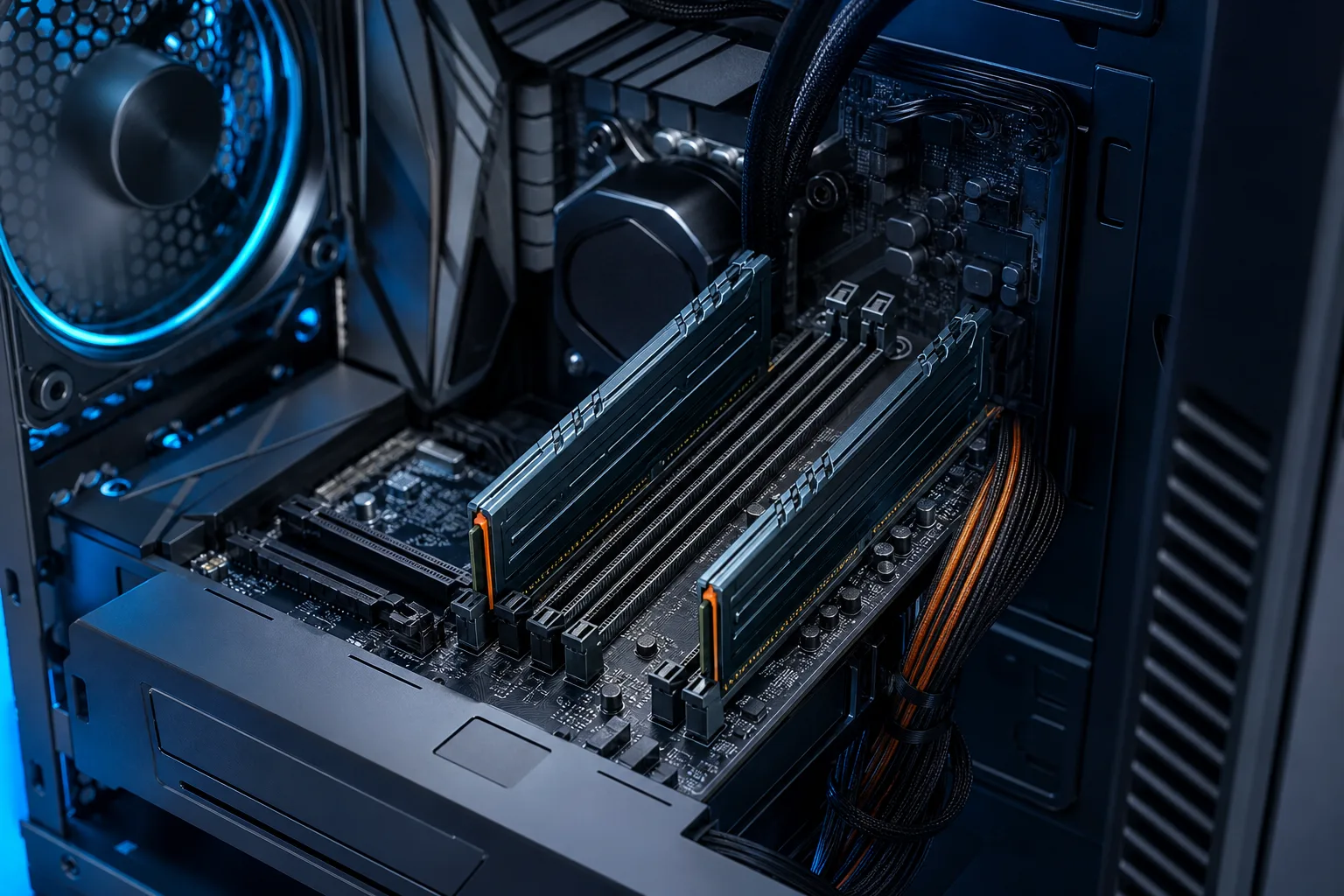
- Wrong slots populated. Check your motherboard manual. Most boards want RAM in slots 2 and 4 (sometimes labeled A2 and B2), not 1 and 2. Putting sticks in adjacent slots forces single-channel on many platforms.
- Faulty stick causing errors. A bad RAM module does not always refuse to boot. Sometimes it boots fine and causes subtle slowdowns, stutters, or application crashes instead.
Why It Matters
RAM speed and channel configuration affect real-world performance more than the spec sheet suggests, especially on systems where the CPU shares memory bandwidth with integrated graphics, or on productivity workloads that move large amounts of data around.
A machine running in single-channel at 2133 MHz with 32 GB of RAM will feel noticeably slower than the same machine running in dual-channel at 3200 MHz with 16 GB. More capacity does not automatically mean more performance. Configuration matters as much as the number on the label.
There is also a subtler issue: if the new RAM introduced instability, Windows may have enabled memory diagnostic retries or the system may be experiencing micro-stalls that do not trigger a visible crash but do drag everything down.
Computer acting up? Get a real diagnosis. Book a diagnostic
What We Do Not Know Yet
Without seeing your specific motherboard, RAM kit, and BIOS version, it is hard to say exactly which of the above is biting you. Some boards handle mixed RAM well. Others are picky to the point of absurdity. AMD Ryzen platforms in particular are sensitive to memory configuration and benefit significantly from matched kits in the correct slots.
It is also worth noting that some slowdowns appear right after boot and clear up after a few minutes as Windows finishes background indexing triggered by the hardware change. If you have only rebooted once or twice since the upgrade, give it a full day of normal use before concluding something is wrong.
What to Do About It
Work through this in order. Do not skip steps.
- Check which slots your sticks are in. Pull up your motherboard manual (the model is usually printed on the board itself). Confirm you are using the recommended slots for your number of sticks.
- Open CPU-Z or HWiNFO64 and look at the Memory tab. Confirm the channel mode shows "Dual" and the DRAM frequency matches what your kit is rated for (divided by two on DDR4, since it shows the base clock).
- Reboot into BIOS and re-enable XMP or EXPO. Look for it under advanced memory settings or an AI overclocking section depending on your board. Save and exit.
- If you have three sticks, remove the odd one. Run two matched sticks in the correct dual-channel slots. Upgrade to a full kit if you need more capacity.
- Run Windows Memory Diagnostic or MemTest86 overnight if you suspect a faulty module. A clean pass does not guarantee all is well, but failures confirm a bad stick.
- Reseat everything. RAM that is not fully clicked into the slot can cause unstable behavior that masquerades as a performance problem.
If you have worked through all of that and the machine is still sluggish, the issue may not be RAM at all. A dying hard drive, a thermal problem, or background software can produce similar symptoms and would have been there before the upgrade without you noticing.
For a proper diagnosis without the guesswork, the team at Fix My PC Store on Okeechobee Blvd offers free initial checks for most standard in-store repairs. Bring the machine in and they can run diagnostics, verify the memory configuration, and sort out whether anything else is quietly misbehaving. You can also start with remote support if you want a technician to look at software-side issues without leaving the house. Or book a time to bring it in if you want hands-on help with the hardware.
Computer acting up? Get a real diagnosis.
Fix My PC Store has repaired thousands of machines across West Palm Beach. Honest pricing, no upsell games, and a free diagnostic for new customers with our email coupon.