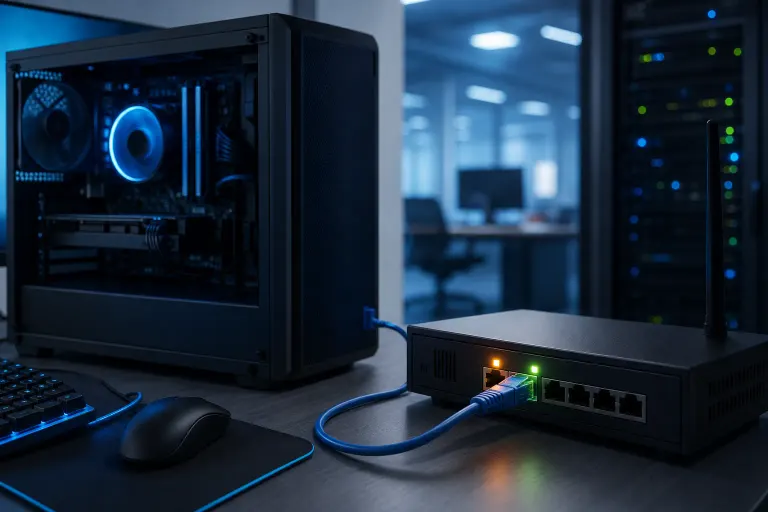
Why Is My PC Running Fine but Ethernet Is Showing No Internet?
TL;DR: An Ethernet connection with no internet usually means the problem is upstream of your PC: your router, modem, ISP, or a misconfigured IP address. The PC itself is almost certainly fine. Work outward from the wall and you'll find it.
What Happened
Windows reports two separate things when it shows that Ethernet icon: whether your network adapter sees the cable (local connection) and whether it can actually reach the internet. You can have one without the other.
When there's no internet despite a solid wired connection, something in the chain between your network adapter and the wider web broke. That chain is: PC adapter, Ethernet cable, switch or router port, router, modem, then your ISP's line.
The most common culprits, in rough order of frequency:
- Router or modem needs a reboot. These devices can get stuck in a bad state without any warning lights telling you so.
- IP address conflict or DHCP failure. Your PC got assigned an address it can't use, or didn't get one at all.
- DNS isn't resolving. You have a valid IP but the domain name system isn't translating website names into addresses.
- ISP outage. Nothing you can fix locally, but easy to confirm.
- Bad or damaged Ethernet cable. A cable that passes basic link detection can still have errors under load.
- Corrupted or outdated network driver. Less common but possible, especially after a Windows update.
Why It Matters
This symptom is deceptive. The PC shows no obvious errors, apps open normally, and even Windows Troubleshooter sometimes shrugs and says "no issues found." That makes people assume something serious is wrong with their machine when most of the time it's a 30-second router reboot away from being solved.
For home users it's annoying. For a business running remote sessions, cloud backups, or VoIP, even a few minutes of lost connectivity causes real disruption.
Computer acting up? Get a real diagnosis. Book a diagnostic
What We Don't Know Yet
Without running diagnostics you can't tell whether the break is on your side of the wall or the ISP's side. You also can't tell from the icon alone whether your PC got a valid IP address or a self-assigned one (169.254.x.x), which is a completely different fix than a DNS problem.
Windows 11 and Windows 10 both show the same "no internet" indicator for very different root causes. The icon is a signal to investigate, not a diagnosis.
What to Do About It
Work through this sequence in order. Stop when internet is restored.
Step 1: Check the basics
- Look at your router and modem. Are the lights normal? A flashing or red WAN/internet light usually means the problem is upstream.
- Try loading a site on your phone using the same Wi-Fi network. If it also fails, the router or ISP is the problem, not your PC.
Step 2: Reboot the hardware
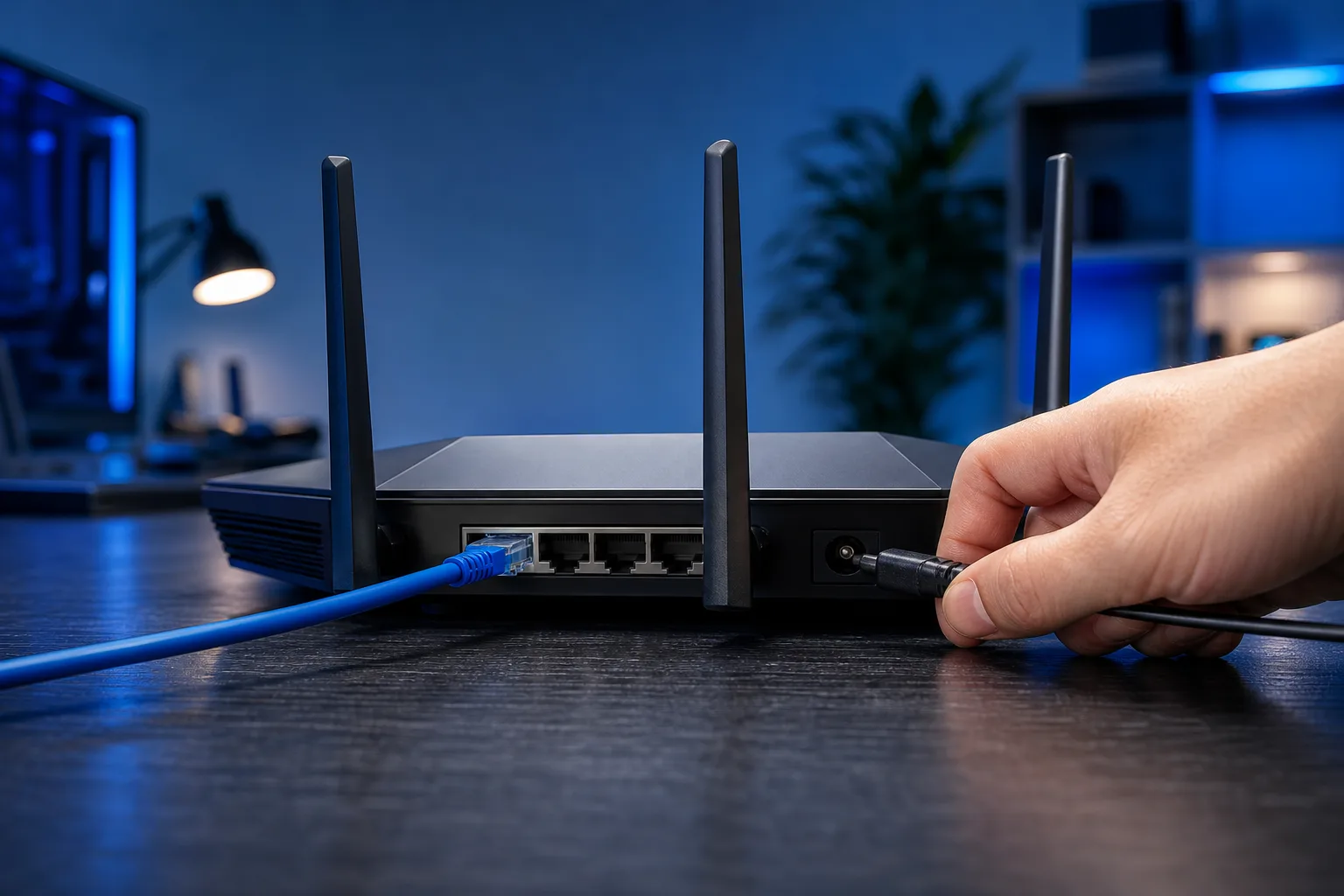
- Unplug your modem first, wait 30 seconds, plug it back in.
- Once modem lights stabilize, reboot your router.
- Then reboot your PC.
This resolves the majority of cases.
Step 3: Check your IP address
Open Command Prompt (search cmd) and run:
ipconfig /all
Look at the IPv4 address under your Ethernet adapter. If it starts with 169.254, your PC didn't get a valid address from the router. Try:
ipconfig /release
ipconfig /renew
If that fails, your DHCP server (usually the router) may not be responding.
Step 4: Test DNS
In Command Prompt, run:
ping 8.8.8.8
If that succeeds but websites still don't load, DNS is the problem. You can temporarily switch to Google's DNS (8.8.8.8 and 8.8.4.4) or Cloudflare's (1.1.1.1) in your adapter settings under Network and Internet, then Ethernet, then adapter properties, then IPv4.
Step 5: Swap the cable
Plug a different Ethernet cable in. A crimped or damaged cable can maintain the physical link signal while dropping packets. This is easy to miss.
Step 6: Check the driver
Open Device Manager, expand Network Adapters, right-click your Ethernet adapter, and choose Update Driver. If a recent Windows update rolled out, rolling back the driver is also worth trying.
Decision table: who's the suspect?
| Symptom | Likely culprit |
|---|---|
| Wi-Fi devices also have no internet | Router or ISP |
| Only your wired PC is affected | Cable, adapter, or PC config |
| IP starts with 169.254 | DHCP failure (router or adapter) |
| Ping 8.8.8.8 works, sites don't load | DNS misconfiguration |
| Ping fails entirely | IP routing or ISP outage |
| Happened right after Windows update | Driver issue |
When to call your ISP: If rebooting doesn't restore service and other devices are also affected, call your ISP before spending time on the PC. Check their outage map first if they offer one.
When to get professional help: If you've worked through every step and the problem persists only on this one machine, there may be a hardware-level issue with the network adapter, a corrupted network stack, or a misconfigured firewall. Remote support can walk through the deeper diagnostics without you leaving home. For business networks where connectivity is critical, managed IT and business networking support can monitor and address these issues before they cost you work hours.
Computer acting up? Get a real diagnosis.
Fix My PC Store has repaired thousands of machines across West Palm Beach. Honest pricing, no upsell games, and a free diagnostic for new customers with our email coupon.