Why Is My Gaming PC Crashing to Desktop With No Error Message?
TL;DR: Silent CTD crashes happen when your system quits before Windows can write an error. The usual suspects are thermals, RAM instability, bad GPU drivers, and an underpowered or failing PSU. Work through the diagnostic steps below in order before spending money on parts.
What Happened
You're mid-match, frames are flying, and then, nothing. The game vanishes. Windows desktop stares back at you like nothing happened. No blue screen, no error pop-up, no event-viewer entry that makes any sense.
This is called a crash-to-desktop, or CTD, and the "silent" version is actually the hardest to pin down. When Windows itself crashes, you get a BSOD with a stop code. When a game crashes silently, it usually means the process was killed or quit before the error-handling layer could catch it and log anything useful.
That distinction matters because it narrows the suspect list.
Why It Matters
Silent CTDs are not random. Something specific is pushing your hardware or software past a threshold. Left unchecked, some of those causes, particularly voltage instability and thermal stress, can shorten component lifespan. Others, like a driver bug, are a five-minute fix.
Here is what is actually causing most silent CTDs, ranked by how common they are:
1. GPU driver instability. A bad driver version or a corrupted install will drop a game without logging a clean error. This is the single most common cause and the easiest to rule out.
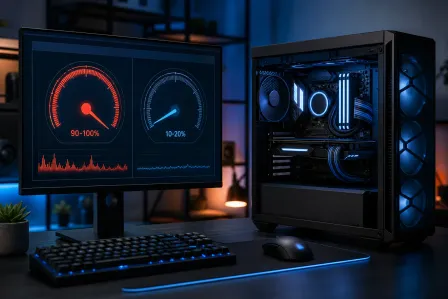
2. Overheating GPU or CPU. When a chip hits its thermal limit, it throttles hard or shuts the process down to protect itself. No BSOD, just a dead game window.
3. Unstable RAM. Loose sticks, wrong XMP/EXPO profile, or marginal modules produce random crashes that look completely unrelated to memory.
4. Underpowered or failing PSU. A PSU that can't hold its voltage rails under load will cause the GPU to stutter and crash the game. This gets worse as PSUs age.
5. Windows or game file corruption. Less common but real. Corrupted DirectX, Visual C++ runtimes, or game files can kill a session silently.
Ready to build a rig that actually rips? Start your build
What We Don't Know Yet
Silent CTDs are tricky because the same symptom maps to very different root causes. A few things you won't know until you dig in:
- Whether the crash is reproducible at a specific in-game moment, a certain load level, or completely random. Reproducible crashes point more toward software or specific GPU workloads. Random crashes often point to hardware.
- Whether your PSU is actually delivering what its label claims. A cheap or aging unit can test fine at idle and fall apart under full GPU and CPU load simultaneously.
- Whether an overclock you set months ago and forgot about is now causing problems as ambient temps rise heading into a South Florida summer.
What to Do About It
Work through this diagnostic sequence in order. Stop when you find the problem.
Step 1: Check temperatures while gaming
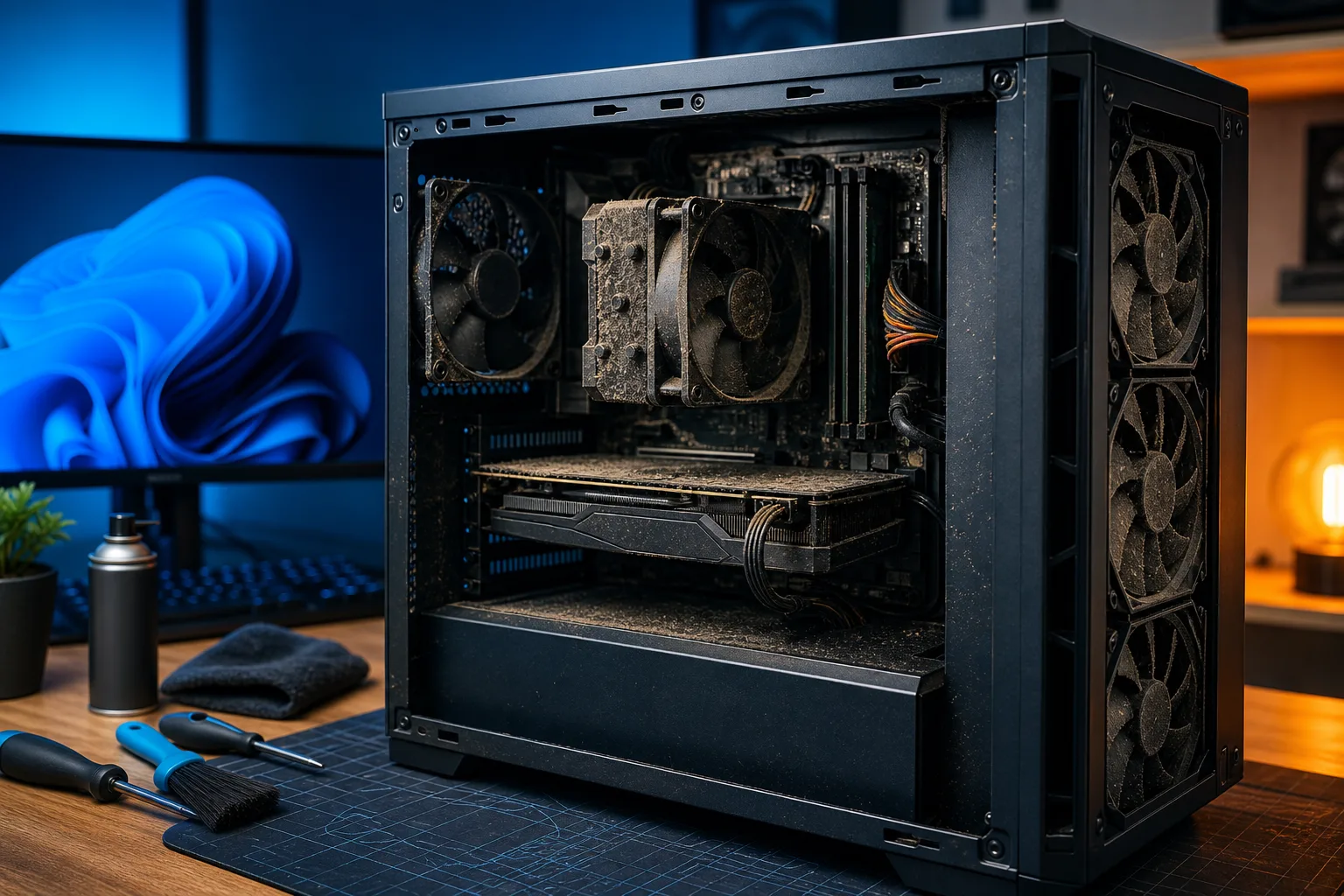
Download HWiNFO64 or MSI Afterburner and log temps during a session. GPU core temps above 90°C are thermal throttle territory for most cards. For CPUs, safe operating thresholds vary by model, consult your CPU's datasheet or manufacturer specifications, as some modern processors (such as Intel 13th/14th gen and AMD Ryzen 7000 series) are designed to operate at or near 95°C without throttling, while others throttle at lower values. Clean your fans and heatsinks, reseat thermal paste if the CPU is running genuinely hot relative to its rated limits, and make sure your case airflow is not choked.
Step 2: Do a clean GPU driver reinstall
Use DDU (Display Driver Uninstaller) in safe mode to fully strip your current GPU driver. Then install the latest stable driver from NVIDIA or AMD directly. Skip "Game Ready" or "Adrenalin" versions that just dropped if the crash started after a driver update, and try the previous release instead.
Step 3: Test your RAM
If you are running XMP or EXPO in BIOS, try disabling it temporarily and running at stock JEDEC speeds. If crashes stop, your XMP profile is the problem, either dial back the frequency or tighten the voltage. Run MemTest86 overnight for a thorough test. Also reseat your sticks and try one stick at a time if you have multiple.
Step 4: Check the Event Viewer
Open Windows Event Viewer, go to Windows Logs, then Application, and look for errors timestamped at the moment of the crash. Look for entries from sources like "Application Error," "ESENT," or the game executable. This won't always give you a clear answer, but it can point to a DLL, runtime, or specific module that failed.
Step 5: Stress-test the PSU under full load
Run a combined CPU and GPU stress test using something like OCCT or Furmark alongside Prime95 for 15 to 20 minutes. Note: this combination can push power draw and temperatures far beyond real-world gaming loads and beyond what some PSUs or cooling solutions are rated to handle. Monitor temperatures closely and stop immediately if temps exceed safe thresholds for your specific components. Use this method with caution on marginal or aging hardware. If the crash happens under stress testing but not at idle, your PSU is the most likely culprit. Check the PSU's wattage against your system's actual draw, including GPU TDP, CPU TDP, and storage.
Step 6: Verify or reinstall game files
Steam, Epic, and most launchers have a file verification option. Use it. If the game still crashes after a clean reinstall, the issue is not the game files.
Decision Table: What Your Symptoms Point To
| Symptom | Most Likely Cause |
|---|---|
| Crashes only after 20-30 min of play | Thermal throttling |
| Crash happens at same in-game location | GPU driver or VRAM issue |
| Crashes vary wildly, no pattern | RAM instability or PSU |
| Started right after a driver update | GPU driver |
| Other apps crash too, not just games | RAM, PSU, or OS corruption |
| Crash under any heavy GPU load | PSU underpowered or failing |
If you've run through all six steps and the PC is still dropping games silently, the fault is likely a hardware component that needs bench testing. That means isolating the GPU, PSU, or RAM with known-good parts, which is easier done in a shop with spares on hand.
The team at Fix My PC Store on Okeechobee Blvd in West Palm Beach can run diagnostics on gaming systems and help isolate whether a component is the problem. Initial checks for most standard in-store visits are free. Call 561-819-9999 or book a time online. If you can't make it in, remote support is available for software-side troubleshooting.
And if this is the nudge you needed to finally build a machine that doesn't have these headaches, check out the custom gaming PC wizard to spec something built right from the start.
Ready to build a rig that actually rips?
Custom gaming PCs built and tuned by people who game. Tell us your budget and target frame rate.