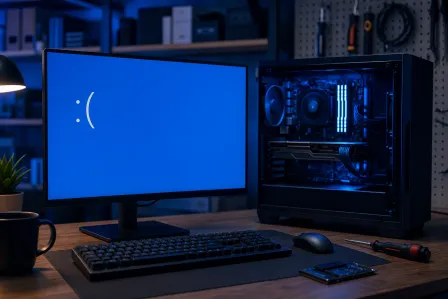
Why Is My Computer So Slow? Here's How to Actually Fix It
TL;DR: Slow computers can have several causes, including: too many startup programs, not enough RAM, a failing or full hard drive, or malware doing whatever it wants in the background. Work through these steps in order, and you will either fix it yourself or know exactly what to tell a tech.
What You Need
- A working keyboard and mouse (obviously)
- About 30 to 60 minutes of patience
- Administrator access to your own machine
- A notepad or phone to write down anything weird you notice
- Optionally, a USB drive with at least 8GB free
You do not need any paid software for most of this. If someone is trying to sell you a "PC optimizer" app, close that tab. (Those things are almost always garbage, and some are outright scams.)
Step 1: Figure Out What Is Actually Using Your Resources
Before you start randomly deleting things, open Task Manager. Press Ctrl + Shift + Esc. Click the "Processes" tab.
Sort by CPU, then by Memory. Watch it for about 30 seconds.
Look for processes using substantial CPU, memory, or disk when you are not actively using them; there is no single percentage that proves a problem. Write down the names. Common offenders: antivirus scans running at the worst possible time, Windows Update doing its thing mid-morning, browser extensions gone rogue, and random startup apps nobody remembers installing.
If you see something called something vague like "svchost.exe" hogging everything, that is usually Windows doing legitimate background work. If it never lets up after 10 minutes, that is worth a closer look. If you see something you flat-out do not recognize, do not delete it yet, just write it down.
Step 2: Gut Your Startup Programs
This can improve startup time when unnecessary apps launch automatically. Every time you install software, half of it wants to start itself when Windows boots. After a few years, your startup list looks like a party nobody was invited to.
Open Task Manager again, go to the "Startup" tab. Right-click and disable anything you do not need running at boot. Spotify does not need to start with Windows. Neither does Discord, Zoom, OneDrive sync (unless you actually use it), or that printer utility from 2019.
Disabling startup entries does not uninstall anything. The program still works when you open it yourself. You are just telling it to stop being pushy.
Restart after you do this and see how boot time changes. Compare the result after restarting; improvement depends on what caused the delay.
Step 3: Check Your Storage Drive
This is the one people skip, and it is often the whole problem.
If your computer has a traditional spinning hard drive (HDD) instead of a solid-state drive (SSD), that is likely your biggest bottleneck. HDDs are mechanical. They wear out, they slow down, and compared to an SSD they feel like loading a webpage on dial-up.
To check your drive, open "This PC" in Windows Explorer. Right-click your C: drive, choose Properties. If free space is low, Windows updates and temporary files may struggle; there is no universal 90% cutoff. Windows needs free space to breathe.
To check drive health, download CrystalDiskInfo, it is free and legitimate. Run it. If the drive reports a warning, stop unnecessary tests and protect important files promptly. A drive can fail without warning; a clean status does not replace backups.
For laptop repair customers especially, we see a lot of machines that feel impossibly slow simply because the HDD has been failing quietly for months. Replacing it with an SSD is usually the single most cost-effective upgrade you can do on an older machine.
Step 4: Check Your RAM
Open Task Manager, go to the Performance tab, click Memory. Look at the percentage in use while you are doing normal tasks, not running anything heavy.
If memory stays near capacity during normal work and the system slows, RAM may be a bottleneck; check the specific workload and whether the device is upgradeable.
Memory needs depend on Windows version, apps, and workload. Eight gigabytes can be limiting for heavier multitasking. If you are running 4GB, you are going to feel it. Browsers especially are memory hogs. Having 15 Chrome tabs open on a 4GB machine is like asking someone to carry 15 grocery bags with two fingers.
Adding RAM is one of the cheaper hardware upgrades, depending on your machine. Some laptops have soldered RAM that cannot be upgraded at all, which is why it matters to check before buying. If you are not sure what your machine supports, bring it in and we can check.
Computer acting up? Get a real diagnosis. Ask about an initial check
Step 5: Scan for Malware Properly
Not with whatever "free scan" popped up in your browser. (That is almost certainly the malware.)
Microsoft Defender Antivirus is built into Windows Security. Microsoft recommends a full scan when unwanted software is suspected. Open Windows Security from the Start menu and run a full scan. Not the quick scan, the full one. It takes longer but it checks more.
If Defender comes back clean but something still feels off, download Malwarebytes Free. Run a scan with that too. It catches adware and potentially unwanted programs that traditional antivirus sometimes misses.
Malware can quietly run crypto miners, send spam, or exfiltrate your data while your machine struggles to load a spreadsheet. If you are a business and you are dealing with this, that is not a "restart and hope" situation. That is a call to someone who handles business cybersecurity.
Step 6: Deal With Windows Update and Power Settings
Two things that quietly strangle performance and almost nobody checks.
First, updates. Go to Settings, Windows Update. If you have updates sitting uninstalled, they often run background processes that drag everything down. Install them, restart, see if things improve. Keeping Windows patched also closes security holes, which is not nothing.
Second, power settings. On a laptop especially, if you are set to "Power Saver" mode, Windows is deliberately throttling your CPU to save battery. Go to Control Panel, Power Options, and switch to "Balanced" or "High Performance" when plugged in. You would be amazed how often this is the whole issue.
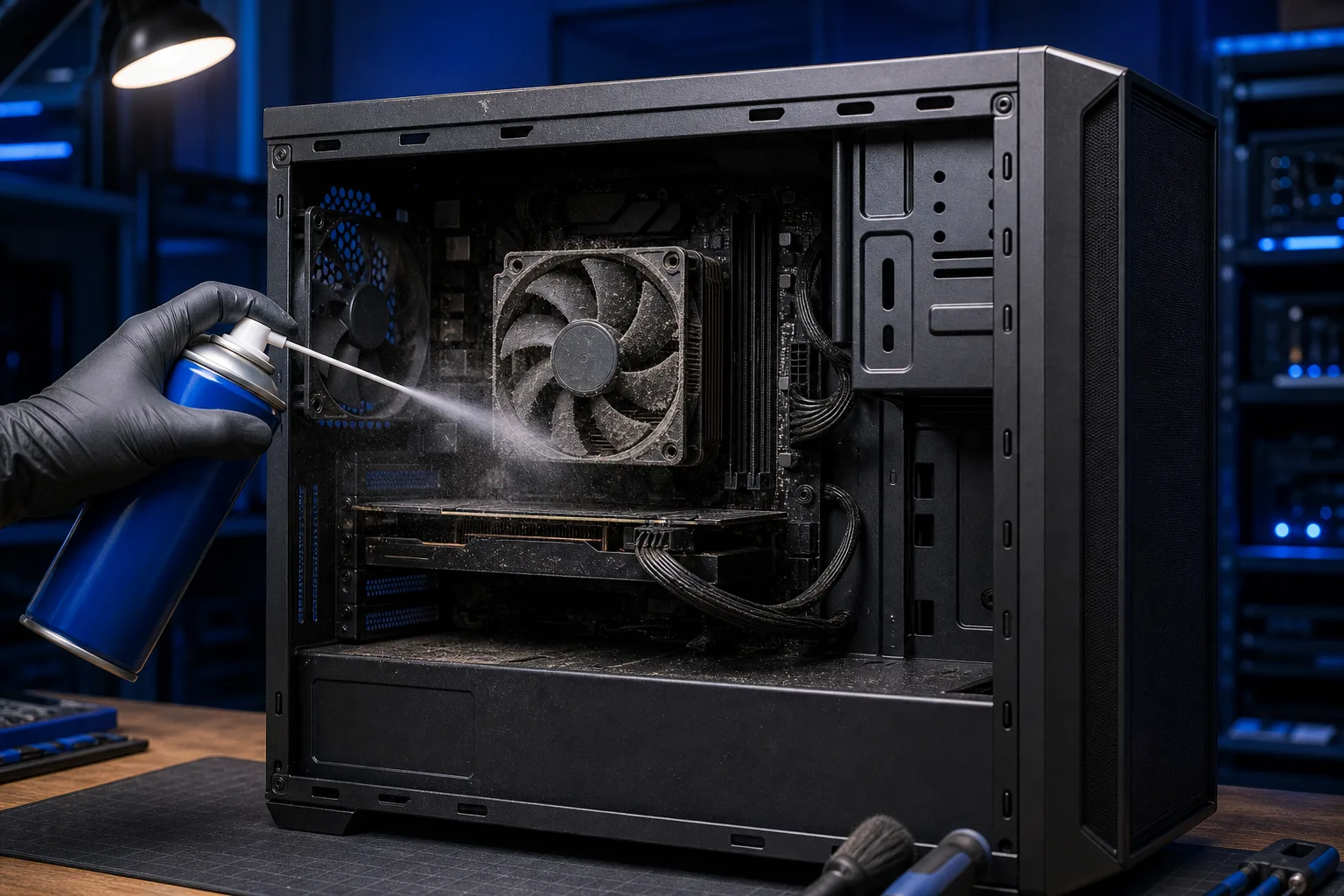
Step 7: Clean Out the Thermal Dust (Yes, Physically)
Heat kills performance. When a CPU gets too hot, it throttles itself to avoid damage. This is called thermal throttling, and the performance impact varies by system and workload.
If vents are blocked or fans are visibly dusty, cleaning may help. Age or South Florida location alone does not prove dust is the cause.
For desktops, you can open the case and use canned air to blow out the dust, especially around the CPU cooler and GPU fans. Do it outside or over a trash can. Do not use a vacuum, the static can damage components.
For laptops, it is more involved. Most require disassembly to properly clean the heatsink and fan. If you are not comfortable with that, this is a reasonable thing to bring to a computer repair shop rather than risk cracking a ribbon cable.
Common Mistakes
Deleting random system files. Do not start yanking things out of the Windows folder because a YouTube video said so. You can turn a slow computer into a broken computer pretty fast that way.
Relying on "disk cleanup" tools from unknown sources. The built-in Windows Disk Cleanup (search it in the Start menu) is fine. Third-party registry cleaners are mostly theater at best, harmful at worst.
Assuming slow means old and buying a new machine. A lot of machines we see at the shop that customers think are dead just need an SSD swap and a RAM bump. Compare a written repair quote with the device’s age, condition, and replacement cost.
Ignoring warning signs. If your computer is slow AND making clicking sounds AND occasionally failing to boot, that is not "just slow." That is a drive failing. Stop messing around with startup tabs and back your files up right now.
Not restarting regularly. Windows machines that run for weeks without a restart accumulate memory leaks and other garbage. Restart at least every few days. It is not glamorous advice but it helps.
If you have been through all of this and the machine is still crawling, or if you found something alarming in CrystalDiskInfo, that is when to get a second set of eyes on it. We offer remote support if you want someone to look at it without leaving your house, or you can book a drop-off at the shop.
Bottom Line
Many slow computers can be improved, but some have failing or uneconomical hardware. Start with Task Manager, clean up your startup list, check your drive health, make sure you have enough RAM, and scan for malware properly. Do the steps in order before jumping to conclusions.
If you hit a wall, or if something you find looks serious, do not guess. Guessing with a hard drive that is showing bad sectors is how people lose years of photos and documents with no backup to fall back on.
We have been fixing computers in West Palm Beach for years. The problems are almost always the same. The solutions usually are too.
Computer acting up? Get a real diagnosis.
Fix My PC Store has repaired thousands of machines across West Palm Beach. Initial checks are free for most standard in-store repairs. Advanced diagnostics and data-recovery work may have a fee disclosed before work begins.