RAM or SSD First? How to Decide Which Upgrade Your PC Needs Most
TL;DR: If your PC has a spinning hard drive, replace it with an SSD first. Almost every time. If you already have an SSD and your machine still crawls under load, then look at RAM. Buying the wrong one wastes money and leaves you just as frustrated.
At a glance
| Symptom | Likely fix |
|---|---|
| Everything is slow, even after boot | SSD |
| Boot takes 2+ minutes, file opens lag | SSD |
| Apps crash or freeze when switching tasks | RAM |
| Browser tabs cause slowdowns | RAM |
| You have an HDD and under 8 GB RAM | SSD first, RAM second |
| You have an SSD and 8 GB RAM | Probably RAM next |
| You have an SSD and 16 GB RAM | Look elsewhere (GPU, thermals, malware) |
What each upgrade actually does
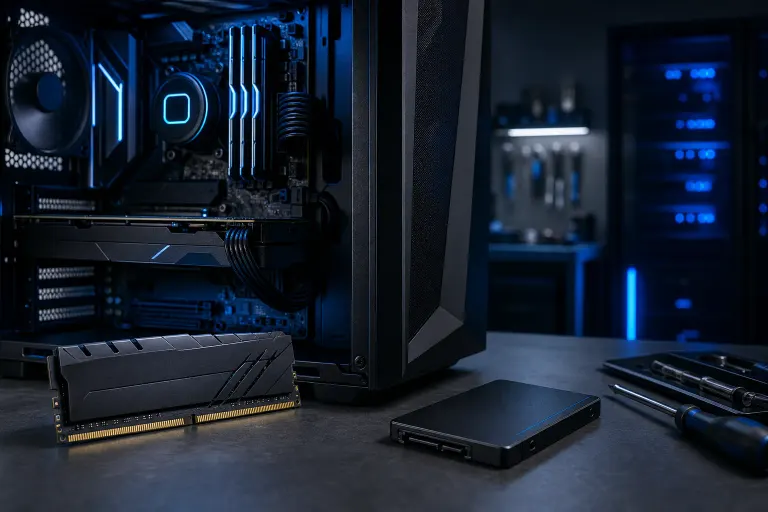
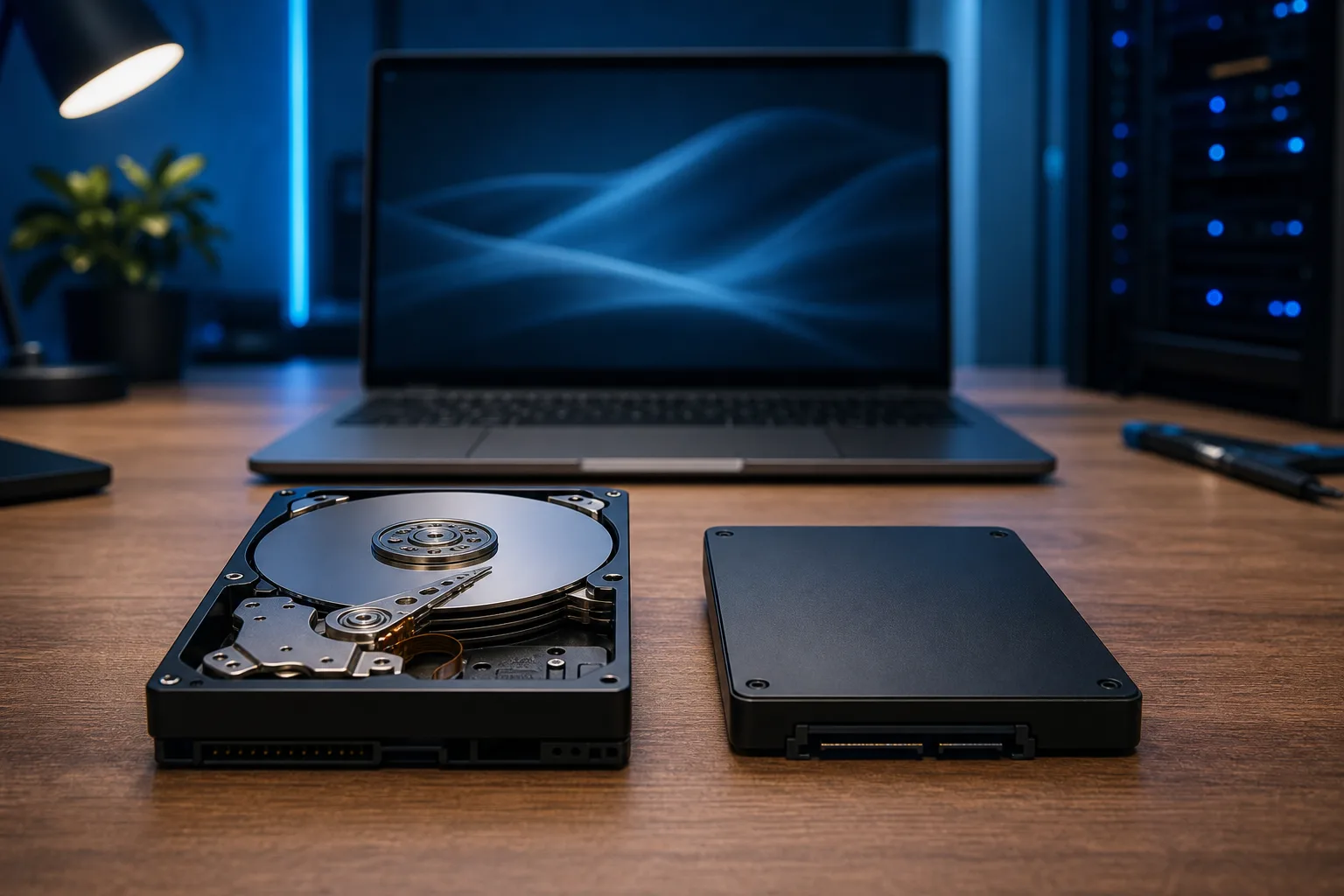
An SSD replaces slow mechanical storage with flash memory. Reading a file from a spinning hard drive typically takes anywhere from 5–15 milliseconds (combining seek time and rotational latency). A typical SATA SSD handles the same request in around 0.1 milliseconds on average, though real-world access latency varies depending on the operation. That gap is enormous. Windows boots faster, apps open faster, files copy faster. It fixes the single biggest bottleneck in most older machines.
RAM gives your processor more workspace. When you run out of RAM, Windows starts using the hard drive (or SSD) as overflow, which is called paging. More RAM means fewer trips to storage, smoother multitasking, and less stuttering under load.
They solve different problems. Mixing them up is like buying new tires for a car with a dead battery.
How to check what you actually have
Before buying anything, spend three minutes checking your current setup.
Check RAM:
- Press
Ctrl + Shift + Escto open Task Manager. - Click the Performance tab, then Memory.
- Look at "In use" versus total available. If you are consistently above 85-90% while doing normal tasks, you need more RAM.
Check storage type:
- Still in Task Manager, click Disk under Performance.
- Look at the top. It will say "Disk 0 (C:)" followed by the drive model.
- Google the model number. Takes 20 seconds. If it says HDD or RPM in the specs, it is a spinning drive and an SSD will transform your machine.
Alternatively, open the built-in Optimize Drives utility (press the Windows key, search for "Defragment and Optimize Drives," and open it). It will explicitly label each drive as either "Solid State Drive" or "Hard Disk Drive" in the Media Type column. (Yes, Windows buries this. Not my fault.)
Computer acting up? Get a real diagnosis. Book a diagnostic
The case for SSD first
Most machines older than four or five years still have a spinning hard drive. If yours does, upgrading to an SSD is the highest-impact upgrade available, period. The difference is not subtle. It is the kind of change that makes people think they got a new computer.
A 500 GB SATA SSD will fix boot time, application launch speed, file transfer speed, and the awful grinding lag you get when Windows decides to do background tasks while you are trying to work. All of that, from one part swap.
If you also have low RAM, you may still notice some slowdown after adding an SSD, because paging to storage is faster now but still slower than having enough RAM. But the SSD upgrade gives you more improvement per dollar in most HDD-equipped machines.
The case for RAM first
If your machine already has an SSD and you are running 4 GB or 8 GB of RAM, adding more RAM is the right call. Modern Windows with a browser open, a PDF viewer, and a handful of background apps will chew through 6-8 GB without blinking. Chrome alone is notorious for eating RAM like it is a competitive sport.
Signs you need RAM more than storage:
- Task Manager shows RAM consistently near or above 90% in use.
- You have an SSD but still get stuttering when switching apps.
- Your browser slows down noticeably after you open more than a few tabs.
- Windows warns you about low memory.
For most home and office users, 16 GB is the practical sweet spot right now. Gamers and anyone running video editing or virtual machines should aim for 32 GB.
Tradeoffs and edge cases
Budget is tight: Do the SSD if you have an HDD. It is almost always the bigger improvement.
You have an HDD and only 4 GB RAM: Add the SSD first. The SSD will help paging performance too, which softens the RAM shortage until you can address it.
You have an SSD and 16 GB RAM and it is still slow: Stop. Neither upgrade will fix a thermal throttling issue, a malware infection, or a failing drive. Diagnose the actual problem before spending money. (This is where people waste a lot of money buying parts that do nothing.)
Laptop considerations: Some laptops, especially thin models from the last few years, have soldered RAM that cannot be upgraded at all. Check your model before buying anything. An SSD swap may be your only option, which is fine because it still helps a lot.
Mac users: Apple Silicon Macs (M1 and later) have unified memory that cannot be upgraded after purchase. Storage on those models is also soldered. If you have an older Intel Mac with a spinning drive, an SSD swap can extend its life significantly. See Mac repair for what is feasible on your specific model.
Verdict
Spinning hard drive? Buy the SSD. Not next month, now. It is the single most impactful upgrade for the most machines, and it is not close.
Already have an SSD? Check your RAM usage in Task Manager. If you are running under 12 GB total or consistently near the ceiling, more RAM is your next move.
If you have done both and the machine still drags, the problem is something else entirely. Could be thermals, could be software, could be a failing component. That is when a proper diagnosis saves you from throwing more parts at a problem that parts will not fix.
If you are in West Palm Beach or the surrounding area and want someone to take a look before you buy anything, Fix My PC Store offers free initial checks on most in-store repairs. Call us at 561-819-9999 or schedule a repair. We will tell you what your machine actually needs, not what sounds good.
Computer acting up? Get a real diagnosis.
Fix My PC Store has repaired thousands of machines across West Palm Beach. Honest pricing, no upsell games, and a free diagnostic for new customers with our email coupon.