Why Is My PC Slow Only After It Sits Idle for a While?
TL;DR: A PC that slows down only after idle is almost always caused by background processes waking up, thermal throttling from poor cooling, Windows maintenance tasks running on a schedule, or memory leaks in long-running apps. A quick look at Task Manager and your thermals will usually point to the culprit within minutes.
What Happened
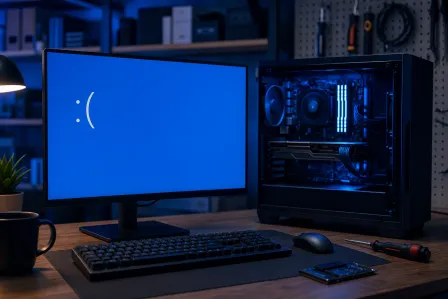
Your machine boots up fast. You restart it, everything feels normal. Then you walk away, come back an hour later, and it feels like you're running apps through wet concrete.
This is not random. Something specific is happening during that idle window.
The most common triggers:
- Windows scheduled tasks. Windows Update downloads, Defender scans, indexing, and telemetry uploads are deliberately scheduled to run when your PC is idle. They don't stop the moment you return.
- Background apps accumulating memory. Some apps leak memory over time. The longer they run without a restart, the more RAM they quietly consume. Browsers are frequent offenders.
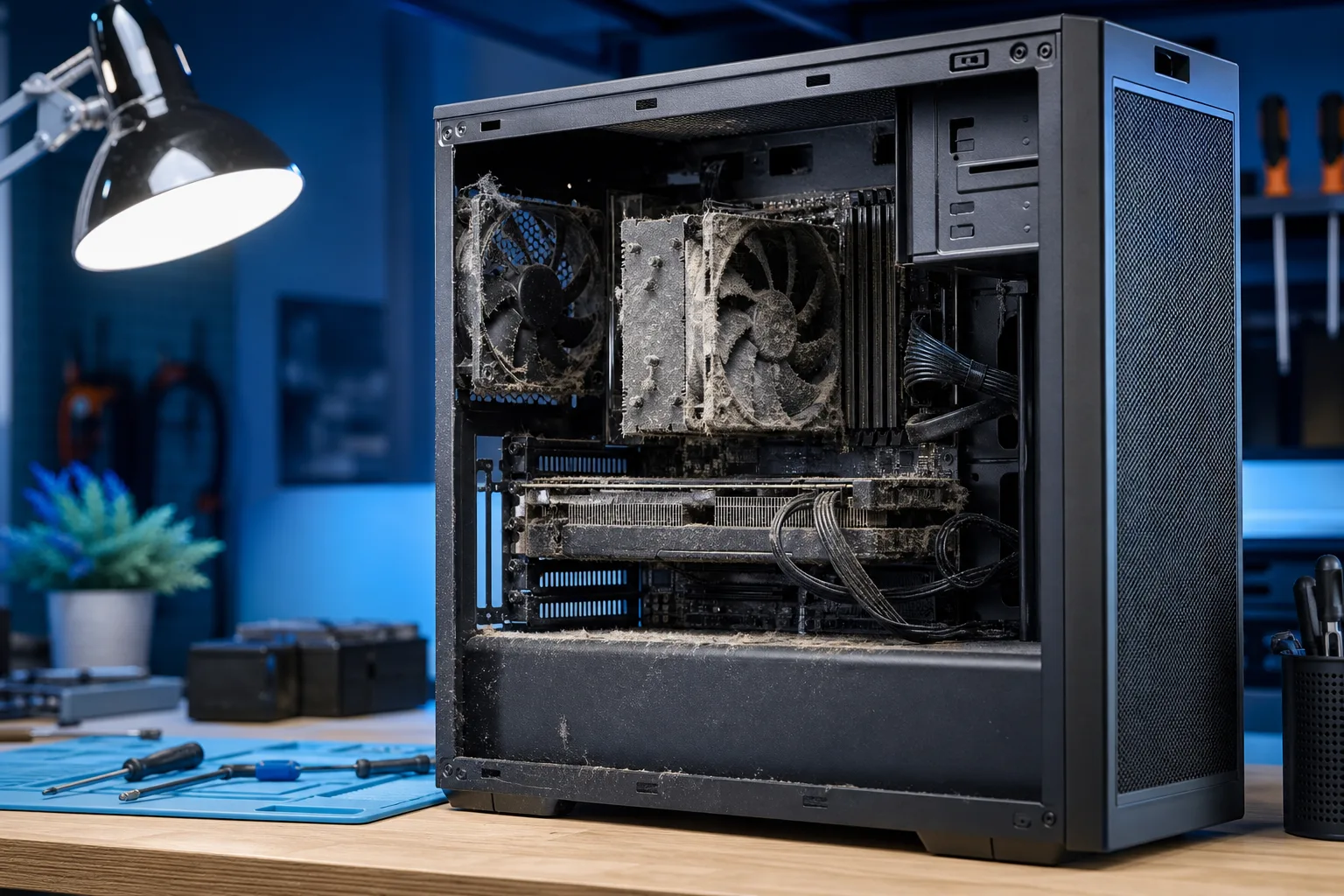
- Thermal throttling. If your CPU or GPU heats up and the cooler can't keep up, the processor deliberately slows itself down to avoid damage. Dust buildup is a very common reason this gets worse after the system has been running for a while.
- Power plan switching. If your PC drops into a balanced or power-saver plan after idle, CPU clock speeds get reduced. Waking it up doesn't always snap it back immediately.
- Hard drive activity. If you still have a spinning hard drive (HDD), Windows queuing background reads and writes during idle can saturate it. Coming back to a busy HDD feels brutal compared to an SSD.
Why It Matters
The idle-specific pattern is actually useful. It narrows the cause significantly. A PC that's slow all the time has a different set of problems than one that degrades after sitting.
Ignoring it tends to get worse over time, especially if the cause is thermal. Dust accumulates. Memory leaks compound. A machine that's 20% slower after an hour today can become 50% slower after 30 minutes in six months.
For anyone working from home or running a small business in West Palm Beach, this kind of creeping slowdown costs real time.
Computer acting up? Get a real diagnosis. Book a diagnostic
What We Don't Know Yet
Without looking at your specific machine, it's hard to say which cause is dominant. Several of these can stack. A dusty system running Chrome with 40 tabs open while Windows Update downloads in the background is hitting three triggers at once.
Also worth noting: some legitimate background work (Defender scans, backup software) is intentional and not worth eliminating entirely. The goal is to identify what's excessive, not to turn off everything.
What to Do About It
Here's a practical diagnostic sequence you can run yourself.
Step 1: Reproduce the slowdown, then open Task Manager immediately.
Press Ctrl + Shift + Esc. Click "More details" if it's in compact mode. Sort by CPU, then by Memory, then by Disk. Take a screenshot of each. You're looking for anything using more than 10-15% of a resource unexpectedly.
Step 2: Check your thermals. Download a free tool like HWMonitor or Core Temp. Let the PC sit idle for 30-60 minutes, then check CPU temperature. If you're seeing above 90°C at idle or light load, thermal throttling is almost certainly involved.
Step 3: Check your power plan. Search for "Power plan" in the Start menu. Switch to "High performance" temporarily and see if the post-idle slowdown improves. If it does, your power plan was pulling clock speeds down.
Step 4: Look at your RAM usage after a long session. Task Manager's Performance tab shows total RAM in use. If you're consistently above 85-90% usage after a few hours with normal workloads, you either need more RAM or something is leaking memory. Check which app is consuming the most under the Processes tab.
Step 5: Check for Windows Update activity.
In Task Manager, look for TiWorker.exe, WaasMedicSvc, or MsMpEng.exe (Defender) running high. These are usually temporary but can last 30-60 minutes after your PC wakes from idle.
Decision Table: Likely Cause by Symptom
| What you see in Task Manager | Likely cause |
|---|---|
High CPU from MsMpEng or TiWorker |
Windows Defender scan or Update |
| High Memory, no obvious CPU spike | Memory leak in an app |
High Disk from svchost or SearchIndexer |
Indexing or Windows Update download |
| Low CPU/disk usage but still sluggish | Thermal throttling or power plan |
| Everything looks normal but it's slow | Possible HDD saturation, check Disk column |
When to Get It Looked At
Self-diagnosis covers most of these. But if thermals are high and cleaning the vents yourself isn't something you're comfortable with, or if the slowdown keeps happening after you've ruled out software causes, it's worth having someone take a look.
Fix My PC Store in West Palm Beach offers free initial checks for most in-store repairs. Bring it in, and they can run diagnostics on both the hardware and software side. The shop is at 10140 Okeechobee Blvd, Suite B, and is open Monday through Friday 9 a.m. to 6 p.m. and Saturday 9 a.m. to 5 p.m. You can also reach them at 561-819-9999.
If you'd rather not leave your desk, remote support is also an option for the software-side causes.
Computer acting up? Get a real diagnosis.
Fix My PC Store has repaired thousands of machines across West Palm Beach. Honest pricing, no upsell games, and a free diagnostic for new customers with our email coupon.