Why Is My PC Not Outputting Sound Through HDMI to My TV?
TL;DR: When a PC sends no audio through HDMI, the most common cause is Windows routing sound to the wrong output device. Changing the default playback device in Windows settings fixes it most of the time. Driver issues and TV input settings cover the remaining cases.
What Happened
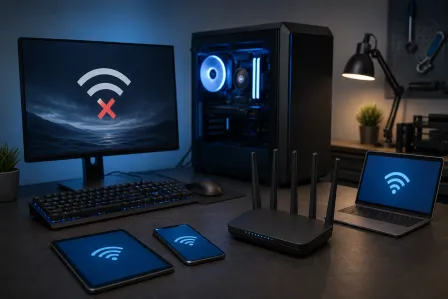
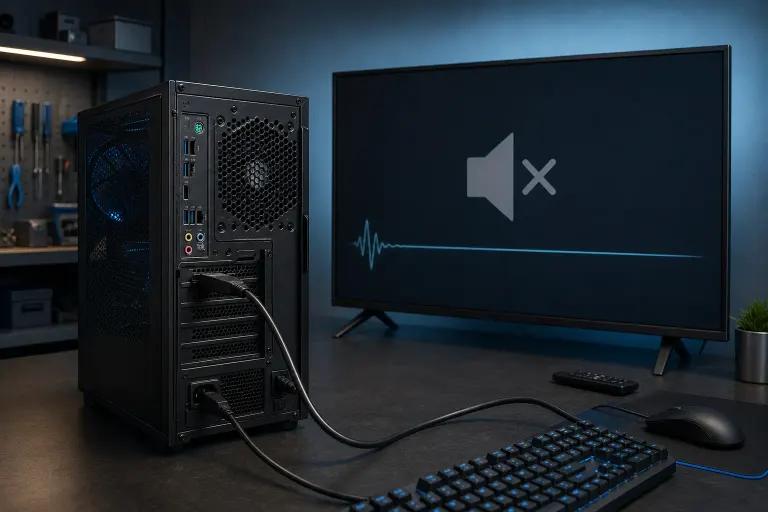
You plugged your PC into the TV with an HDMI cable, the picture showed up, but the sound is still coming from your laptop speakers or from nothing at all. Frustrating, right?
Here is what is actually going on. HDMI carries both video and audio as separate signals. Windows treats each audio output, your speakers, your headphone jack, and your HDMI port, as a distinct playback device. When you plug in the HDMI cable, Windows does not always switch to it automatically. It often keeps playing audio through whatever was set as default before you connected the TV.
This is by design, not a bug. Windows wants to avoid surprising you by suddenly blasting audio somewhere unexpected. The result, though, is that you have to tell it where to send the sound.
Why It Matters
The fix sounds simple, but several different layers can cause identical symptoms. Picking the wrong fix wastes time. Here is a diagnostic sequence that works through the most common causes in order.
Step-by-step diagnostic sequence
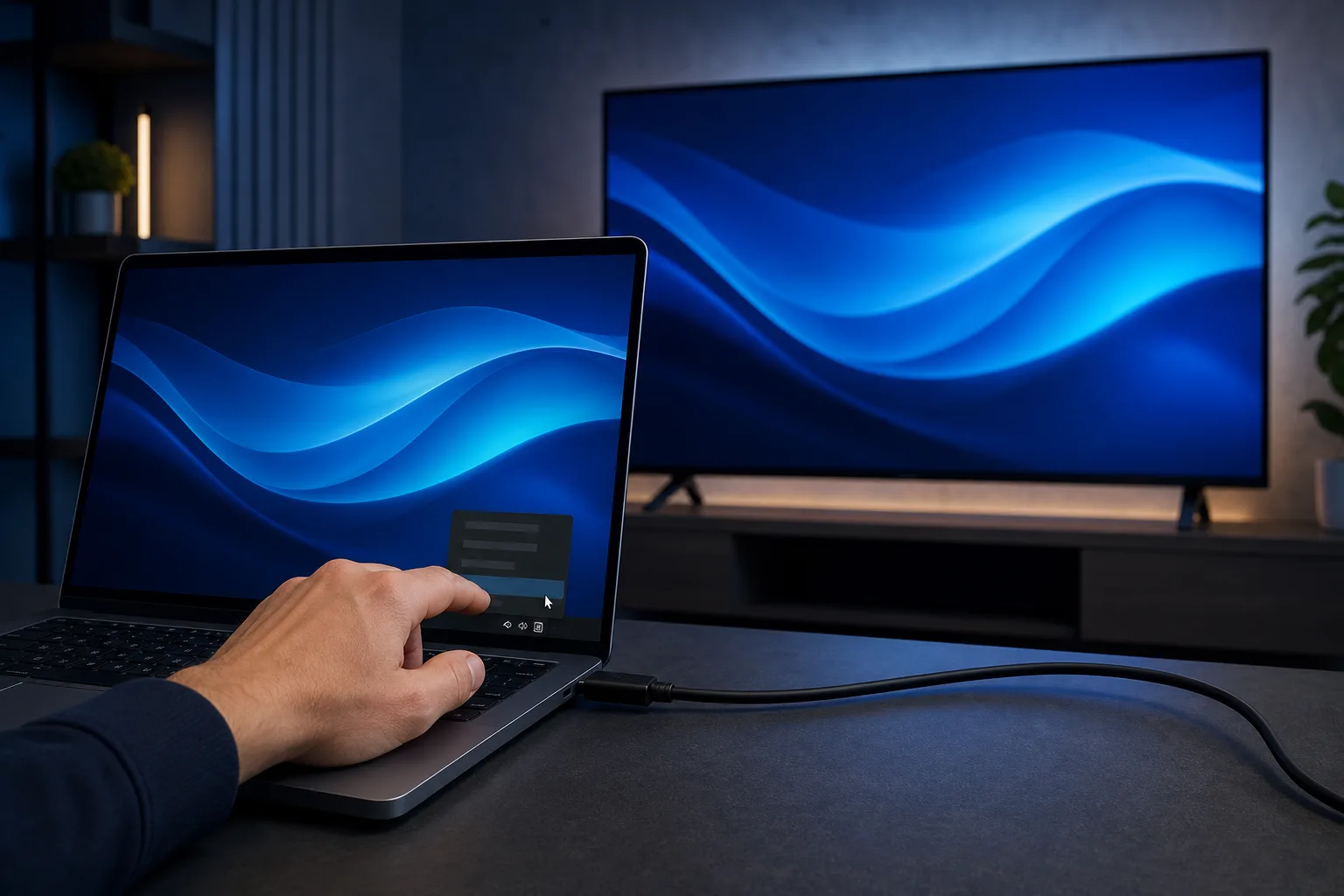
Step 1. Check the Windows playback device. Right-click the speaker icon in the system tray and choose "Open Sound settings" (Windows 10) or "Sound" (Windows 11). Under "Output," look for a device that mentions HDMI or your TV's brand name. Select it. Play audio and test.
Step 2. If you do not see an HDMI device listed. Right-click the speaker icon, choose "Sounds," then open the "Playback" tab. Right-click anywhere in the white space and enable "Show Disabled Devices" and "Show Disconnected Devices." An HDMI output may appear greyed out. Right-click it and choose "Enable," then set it as default.
Step 3. Check your graphics driver, not just your audio driver. HDMI audio on a desktop or laptop is often routed through the GPU, not the motherboard's audio chip. If your HDMI device still does not appear, open Device Manager (search for it in the Start menu), expand "Sound, video and game controllers," and look for an entry from NVIDIA, AMD, or Intel that includes the word "HDMI" or "Display Audio." If there is a yellow warning triangle, the driver needs reinstalling. Download the latest GPU driver from the manufacturer's site and run a clean install.
Step 4. Check the TV's input and audio settings. Some TVs default to an optical or ARC audio output instead of the HDMI input. Navigate to your TV's audio settings and confirm it is set to use the HDMI input as the audio source. Also make sure you are on the correct HDMI input number on the TV.
Step 5. Test a different HDMI cable or port. A damaged cable can carry video but drop the audio channel. Swap the cable and try a different HDMI port on the TV if one is available.
Decision table: which fix matches your situation?
| Symptom | Most Likely Cause | First Fix |
|---|---|---|
| Video works, audio plays from PC speakers | Wrong default playback device | Step 1 |
| No HDMI device appears in Sound settings | Disabled device or driver issue | Steps 2 and 3 |
| HDMI device appears but no sound from TV | TV audio input misconfigured | Step 4 |
| Intermittent dropout or crackling | Bad cable or port | Step 5 |
| Audio works on one HDMI port but not another | Port-specific driver or hardware fault | Try alternate port, then driver reinstall |
Computer acting up? Get a real diagnosis. Book a diagnostic
What We Do Not Know Yet
A few scenarios are harder to diagnose remotely.
If you are using a USB-C to HDMI adapter or a docking station, the audio path adds another layer. Not every adapter passes audio. Check the adapter's spec sheet to confirm it supports audio output, not just video.
If the HDMI device appears in Windows, you set it as default, and the TV settings look correct but there is still no sound, there may be a deeper driver conflict or a hardware fault on the GPU's HDMI controller. That is less common but it does happen, especially after a Windows update that pushed an incompatible audio driver.
Also worth noting: some older TVs and budget sets have HDMI ports that support video but are wired without audio return, particularly on ports labeled "DVI-compatible." Check your TV's manual if you suspect this.
What to Do About It
Work through the five steps above in order. Most people solve it at Step 1 or Step 3.
If you reinstall the GPU driver and still see no HDMI audio device in Device Manager, try a different HDMI cable first. If the problem persists across cables and ports, you are likely dealing with a driver conflict or a hardware issue on the PC side.
Self-help is appropriate when: the HDMI device appears in Windows, driver reinstalls are something you are comfortable with, and the TV settings are accessible.
Professional help is worth considering when: the HDMI audio device never appears in Device Manager after a driver reinstall, the issue started after a Windows update and a rollback did not help, or you suspect a hardware fault on the GPU or motherboard.
If you are in the West Palm Beach area and the steps above have not resolved it, Fix My PC Store offers free initial checks for most in-store repairs. You can also get help without leaving home through remote support, where a technician can walk through Device Manager and driver settings with you directly. Reach the shop at 561-819-9999 or book online.
Computer acting up? Get a real diagnosis.
Fix My PC Store has repaired thousands of machines across West Palm Beach. Honest pricing, no upsell games, and a free diagnostic for new customers with our email coupon.