Why Does My PC Randomly Restart? Find the Real Cause
TL;DR: A PC that restarts on its own is almost always reacting to a hardware problem, an unstable driver, or a power issue. You can track down the exact cause using built-in Windows tools. Fix the root problem and the restarts stop.
What You Need
Before you start poking around, gather these things:
- A Windows PC that you can access (even if it keeps restarting)
- About 30 to 60 minutes of patience
- Administrator access to your Windows account
- A can of compressed air (optional but useful for the thermal step)
- A free tool called HWMonitor (from CPUID) for temperature readings
- Optionally, a USB drive if you need to update drivers offline
You do not need any advanced technical background. Every step below uses tools already built into Windows or free downloads from reputable sources.
Step 1: Turn Off Automatic Restart So You Can See the Error
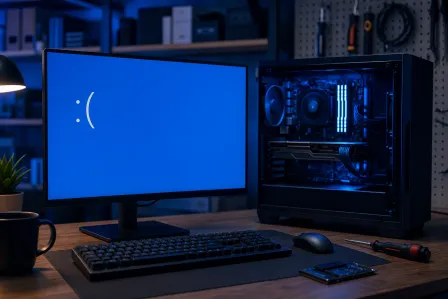
Windows is set by default to restart instantly when it hits a critical error. That means the blue screen disappears before you can read it. The first thing to do is turn that off.
- Right-click This PC and choose Properties.
- Click Advanced system settings on the left.
- Under the Startup and Recovery section, click Settings.
- Uncheck Automatically restart under System failure.
- Click OK and close out.
Now when your PC crashes, it will show you the blue screen error code instead of rebooting immediately. Write that code down or take a photo with your phone. It will tell you a lot.
Common codes to watch for: KERNEL_POWER, MEMORY_MANAGEMENT, WHEA_UNCORRECTABLE_ERROR, and DRIVER_POWER_STATE_FAILURE. Each points toward a different cause.
Step 2: Check Event Viewer for Clues
Windows keeps a detailed log of every error and warning. Event Viewer is your best friend here.
- Press Windows + R, type
eventvwr.msc, and press Enter. - On the left, expand Windows Logs and click System.
- Look for red Error entries around the time your PC last restarted.
- Click any error to read the description at the bottom.
Pay special attention to entries labeled Kernel-Power with Event ID 41. This is the most common log entry tied to unexpected restarts. It usually means the system lost power or crashed before it could log a proper shutdown.
Event ID 41 is not the cause itself. It is the symptom. The entries just before it in the log are the real leads.
Step 3: Check for Overheating
Heat is the number one cause of random restarts. When a CPU or GPU gets too hot, the system shuts itself down to prevent permanent damage. This is actually the hardware doing its job, but it means something is wrong with cooling.
Download HWMonitor from CPUID (cpuid.com) and run it while you use your PC normally. Watch these numbers:
- CPU temperature should stay under 85°C under load for most processors
- GPU temperature should stay under 90°C under load
- If either climbs into the high 90s or above 100°C, overheating is almost certainly your culprit
Common reasons for overheating:
- Dust clogging the heatsink and fans (extremely common in South Florida due to humidity and dust)
- Dried-out thermal paste between the CPU and heatsink
- A failing or slow fan
- A case with poor airflow
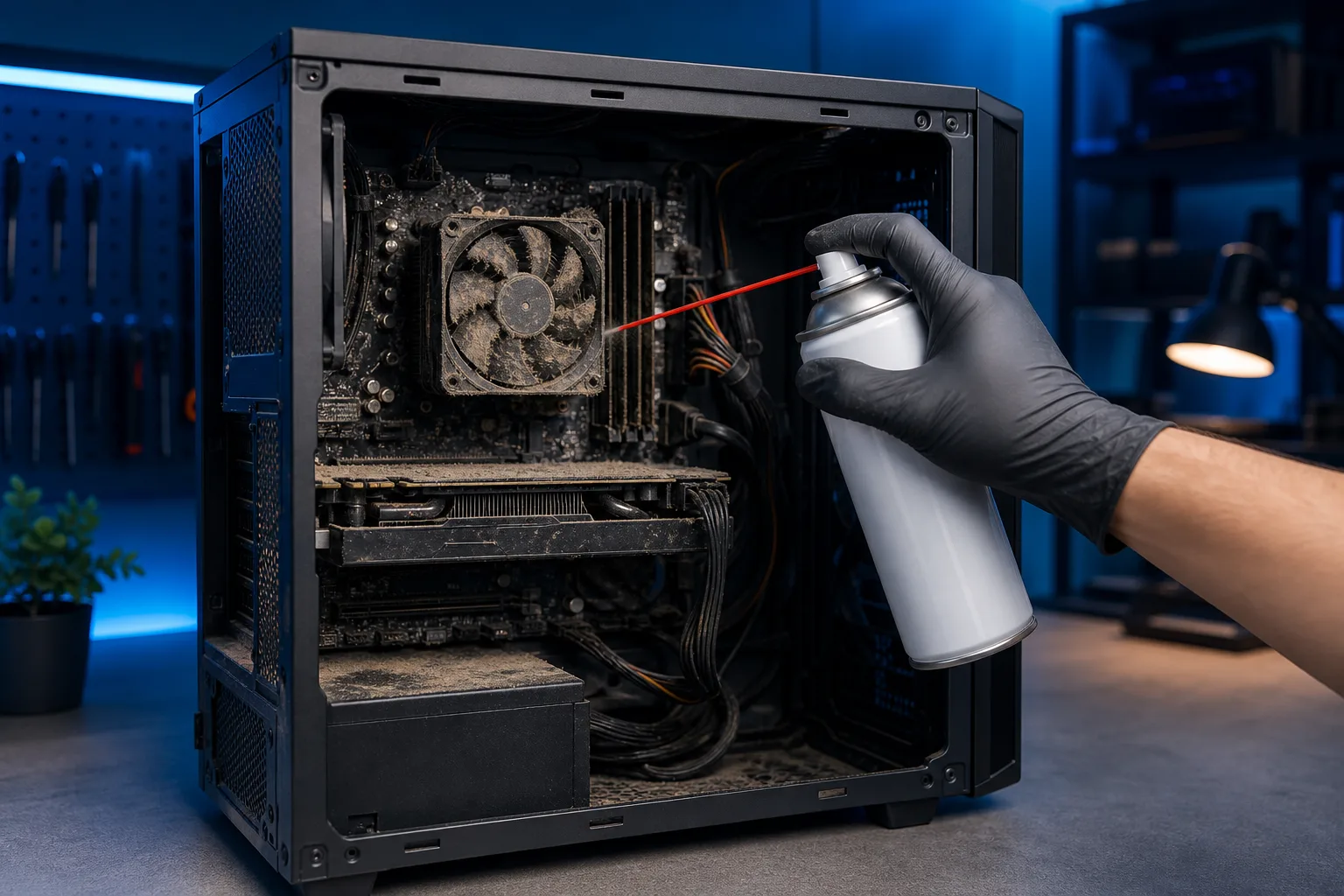
If dust is the issue, shut down the PC, unplug it, open the side panel, and use compressed air to blow out the dust. Pay close attention to the CPU heatsink and any case fans. Do this outside or in a garage, because the dust cloud is impressive.
If temperatures are still high after cleaning, the thermal paste may need to be replaced. That is a repair our team handles regularly. You can book a diagnostic at Fix My PC Store if you are not comfortable opening the machine yourself.
Step 4: Test Your RAM
Faulty RAM causes some of the most unpredictable restarts. The system hits a bad memory address, panics, and reboots. Sometimes you get a blue screen, sometimes the PC just cuts out.
Windows has a built-in memory test:
- Press Windows + R, type
mdsched.exe, and press Enter. - Choose Restart now and check for problems.
- Your PC will restart and run the memory test before Windows loads.
- The test takes 10 to 20 minutes. Let it finish.
- When Windows starts back up, the results appear in a notification.
If errors are found, one or more of your RAM sticks may be failing. Try removing one stick at a time and running the test again to isolate which one is bad.
If you have had your PC for a few years and it is starting to show memory errors, it may be time to consider an upgrade. A computer repair consultation can help you figure out whether a RAM replacement makes sense for your specific machine.
Computer acting up? Get a real diagnosis. Book a diagnostic
Step 5: Look at Your Power Supply
A failing power supply unit (PSU) is sneaky. It can pass a basic test but still deliver unstable voltage under load. When the PSU cannot keep up with the power demand from the CPU and GPU, the system restarts.
Signs that the PSU might be the issue:
- Restarts happen more often during demanding tasks like gaming or video rendering
- You hear a faint coil whine from inside the case
- The PC restarts even though temperatures are fine
- Event Viewer shows
KERNEL_POWERerrors repeatedly
There is no easy DIY test for a PSU without specialized equipment. If you have ruled out heat and RAM, the PSU is the next serious suspect. A technician can test it properly with a multimeter or a PSU tester.
This is one of those cases where guessing gets expensive. Replacing a PSU blindly without confirming it is faulty is a waste of money. Get it checked.
Step 6: Update or Roll Back Drivers
Driver conflicts, especially around GPU and chipset drivers, are a surprisingly common cause of random restarts. Windows Update sometimes installs a driver that does not play well with your hardware.
Here is how to investigate:
- Press Windows + X and choose Device Manager.
- Look for any devices with a yellow warning triangle.
- Right-click your GPU under Display adapters and choose Update driver.
- Also check System devices for chipset drivers.
If restarts started right after a Windows update or driver update, you can roll back:
- In Device Manager, right-click the suspect device.
- Choose Properties, then the Driver tab.
- Click Roll Back Driver if the option is available.
For GPU drivers specifically, it is often better to use the manufacturer's tool (NVIDIA App or AMD Adrenalin) rather than relying on Windows Update. These tools give you more control over which version you install.
If you are dealing with driver issues on a business machine and need a faster resolution, remote support lets a technician access your PC directly and sort it out without you needing to bring anything in.
Step 7: Check for Malware
This one surprises people, but certain types of malware push hardware so hard that the system overheats and restarts. Cryptomining software installed without your knowledge is a classic example. It pegs your CPU and GPU at 100% constantly.
Run a full scan with Windows Defender:
- Open Windows Security from the Start menu.
- Click Virus and threat protection.
- Choose Scan options and select Full scan.
- Let it run completely.
If Defender finds nothing but you still suspect something, Malwarebytes (free version at malwarebytes.com) is a solid second opinion tool.
For business owners in West Palm Beach dealing with persistent security concerns, our business cybersecurity services cover monitoring and threat response, not just one-time scans.
Common Mistakes
Reseating everything and hoping. People unplug and replug all their components hoping something magically fixes itself. Sometimes it helps with a loose connection, but without a diagnostic process you will not know if it worked or why.
Replacing parts before testing. Buying a new PSU, RAM, or GPU without testing first is expensive guesswork. Test before you spend.
Ignoring the event logs. Most people skip Event Viewer entirely. It holds more useful information than any symptom you can describe over the phone.
Assuming the newest driver is the best driver. New is not always stable. If a driver update coincided with your problems, roll it back.
Running the system too hot and doing nothing. If your PC is consistently hitting high temperatures and you keep using it, you risk permanent damage to the CPU or motherboard. Heat damage is not always covered under warranty and can be expensive to repair. Learn more in our complete computer repair guide.
Skipping the RAM test. It takes 20 minutes and is built into Windows. There is no good reason to skip it.
Bottom Line
Random restarts always have a cause. The process is not guesswork if you follow the steps in order: disable automatic restart to see the error, check Event Viewer, rule out heat, test RAM, investigate the PSU, review drivers, and scan for malware.
Most people can work through the first four steps on their own in under an hour. If you get to the PSU or a persistent driver issue and things are still not clear, that is a reasonable point to bring in a professional.
If you are in West Palm Beach or anywhere in South Florida and want someone to run through this properly, our team at Fix My PC Store does thorough diagnostics and will tell you exactly what is wrong before recommending any repair. No guessing, no unnecessary parts.
You can schedule a repair or drop-off anytime, and we also offer remote support if you want help walking through these steps live without leaving home.
Computer acting up? Get a real diagnosis.
Fix My PC Store has repaired thousands of machines across West Palm Beach. Honest pricing, no upsell games, and a free diagnostic for new customers with our email coupon.