Why Is My PC Bluetooth Pairing but Not Staying Connected?
TL;DR: A PC that pairs over Bluetooth but won't stay connected is almost always fighting one of three things: Windows cutting power to the adapter, a stale or buggy driver, or radio interference from nearby hardware. Work through the list below in order before assuming the adapter is dead.
What Happened
Bluetooth drops after pairing are one of the more annoying problems in Windows because the symptom is identical whether the cause is software, power settings, or hardware. Your headphones, mouse, or keyboard connects fine, works for thirty seconds to thirty minutes, then disappears from the taskbar. Windows sometimes reconnects automatically; sometimes it doesn't.
The Bluetooth stack on Windows 10 and 11 has always been finicky. (That's a polite way of saying it's been broken in ways Microsoft quietly patches and then quietly breaks again with the next update.)
Three root causes cover the overwhelming majority of cases:
- Power management. Windows tells the Bluetooth adapter to sleep to save energy. The adapter dozes off. The connection dies.
- Driver or firmware issues. Your adapter driver is outdated, corrupted, or incompatible with a recent Windows update.
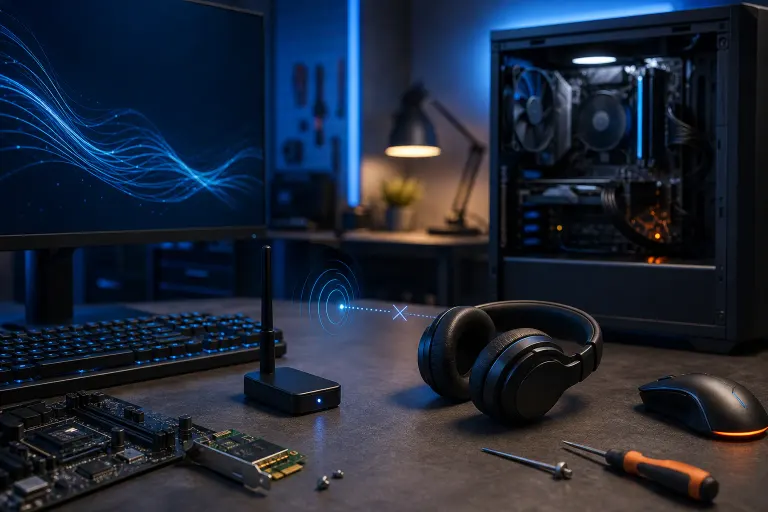
- Radio interference or channel congestion. Wi-Fi and Bluetooth both live on the 2.4 GHz band. They step on each other constantly, especially near a router.
Why It Matters
If you're using Bluetooth peripherals for work, a dropping connection isn't just annoying. It interrupts calls, drops keystrokes, and breaks audio at exactly the wrong moment. On a business machine, repeated adapter failures can also signal that the adapter itself is failing, which means the problem gets worse over time, not better.
Ignoring it and just re-pairing every time is not a fix. It's a habit that hides a solvable problem.
Computer acting up? Get a real diagnosis. Book a diagnostic
What We Don't Know Yet
Windows doesn't make it easy to tell whether a drop was caused by power management, a driver crash, or interference. The Event Viewer logs Bluetooth events under Applications and Services Logs > Microsoft > Windows > Bluetooth-Policy, but the entries are cryptic and often unhelpful. There's no single log entry that says "power management cut this connection."
If the drops are irregular and happen under different conditions, interference is harder to rule out without testing in a different environment or with a different adapter.
What to Do About It
Work through this sequence in order. Each step rules out one cause.
Step 1: Disable power management on the Bluetooth adapter
This is the most common fix and takes two minutes.
- Open Device Manager (right-click Start, select it from the list).
- Expand Bluetooth and find your adapter, usually named after the chipset, something like Intel Wireless Bluetooth or Realtek Bluetooth.
- Right-click it, choose Properties.
- Go to the Power Management tab.
- Uncheck Allow the computer to turn off this device to save power.
- Click OK and reboot.
If the drops stop, that was it. Done.
Step 2: Update or roll back the driver
If power management wasn't the culprit, check the driver.
- Go to the adapter manufacturer's site directly (Intel, Realtek, Qualcomm, Broadcom depending on what you have). Device Manager's built-in update rarely finds the latest driver.
- If the drops started after a Windows Update, try rolling back: Device Manager, right-click the adapter, Properties, Driver tab, Roll Back Driver.
- If you're not sure which chipset you have, check Device Manager or run
msinfo32and look under Components > Network > Adapter.
Step 3: Check for Wi-Fi interference
Move the device you're connecting to a different location relative to your PC and router. If you have a 5 GHz Wi-Fi option available, switch to it. Bluetooth and 2.4 GHz Wi-Fi share the same spectrum and genuinely interfere with each other when signal strength is marginal.
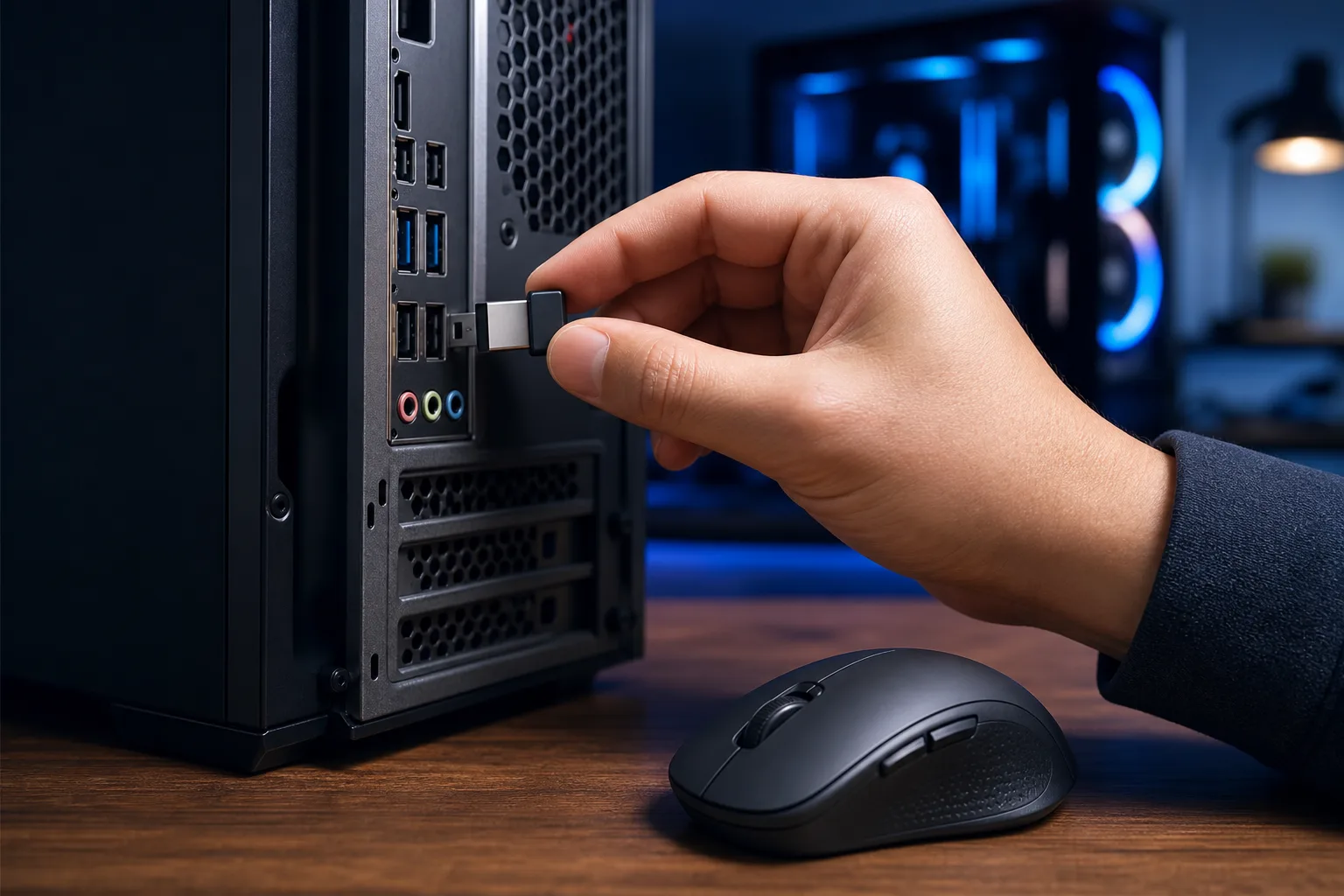
USB 3.0 ports are also a known interference source for Bluetooth. Microsoft documented this in KB2582281. If you have a USB 3.0 device plugged in close to your Bluetooth adapter (common on desktops), try moving it to a port farther away or using a short USB extension cable to get it away from the antenna area.
Decision Table: Which Fix to Try First
| Symptom | Most Likely Cause | Start Here |
|---|---|---|
| Drops after a set idle time | Power management | Step 1 |
| Drops started after Windows Update | Driver regression | Step 2 |
| Drops near router or heavy USB use | Interference | Step 3 |
| Drops on every device you pair | Adapter hardware failing | Hardware check |
| Drops only on one specific device | That device's firmware or battery | Update device firmware |
If none of those fix it
At this point you're looking at either a failing internal Bluetooth adapter or a deeper Windows system issue. A USB Bluetooth dongle (usually under twenty dollars) is a fast way to test whether the problem is the internal adapter. If the dongle works fine with the same device, your internal adapter is the problem.
If you've tried all of this and it's still dropping, or if this is a work machine where you don't have time to chase down driver logs, bring it in or connect remotely and let someone with the right diagnostic tools look at it. Initial checks for standard in-store repairs don't cost anything at Fix My PC Store (10140 Okeechobee Blvd, Suite B, West Palm Beach, 561-819-9999). Advanced diagnostics are disclosed upfront if they apply.
For anything more than a one-off personal machine issue, like Bluetooth peripherals dropping on staff computers across an office, that's worth a conversation with someone handling business IT rather than a solo troubleshooting session.
Computer acting up? Get a real diagnosis.
Fix My PC Store has repaired thousands of machines across West Palm Beach. Honest pricing, no upsell games, and a free diagnostic for new customers with our email coupon.