What Happens to Your Files When Windows Corrupts Itself?
TL;DR: When Windows corrupts itself, your personal files are usually still sitting on the drive untouched. The operating system and your data live in different places. The real danger is when the corruption spreads to the file system or the drive itself starts failing physically.
What Happened
Windows corruption is not one single thing. It's a category of failures, and the cause changes what actually happens to your files.
Scenario 1: A bad Windows Update. Microsoft pushes an update, something goes sideways during installation, and now your PC won't boot past the spinning circle. This is one of the most common corruption scenarios we see at Fix My PC Store. Your files are almost certainly fine here. The system files got mangled, but your Documents folder, your photos, your downloads, all of that sits in a completely separate part of the drive. Windows Update doesn't touch your personal data.
Scenario 2: File system corruption. This is scarier. The file system is the index Windows uses to find everything on your drive. Think of it like the table of contents in a book. If that index gets damaged, Windows can't find your files even if the actual data is still physically written to the disk. This happens after unexpected shutdowns, power surges, or when a drive starts going bad. In South Florida, we get a lot of these after summer storm season when power flickers.
Scenario 3: Boot sector corruption. The boot sector tells your computer how to start Windows. When this gets corrupted, your PC either shows a black screen with an error, or it just spins forever and never loads. Again, your files are usually intact. The machine just lost its map to find the start of Windows.
Scenario 4: The drive itself is failing. This is where things get genuinely dangerous. If the corruption is being caused by a dying hard drive or a failing SSD, your files are actively at risk. Every hour the drive keeps running, more data could be lost. This is the scenario where you need to stop what you're doing and get help fast.
These scenarios look identical from the outside: the machine won't boot. That's why diagnosing the root cause matters so much before anyone touches anything.
Why It Matters
People assume the worst the moment Windows stops loading. They see a black screen or a blue screen and immediately think everything is gone. Usually that's not true, but the way you respond in the next few hours can make it true.
Here's the thing about drives: they don't care that you're panicking. If a drive is failing and you keep forcing restarts trying to get back in, you're stressing it further. If a technician runs aggressive repair tools on a mechanically failing drive without cloning it first, they can finish off what the failure started.
File system corruption specifically can snowball. A small corrupted cluster gets read, Windows tries to write something, it touches another corrupted area, and now you've got cascading damage. This is why Windows has a built-in tool called CHKDSK, which scans and repairs file system errors. But even CHKDSK can cause data loss if the drive has physical problems, because repair operations write to the disk.
There's also the software layer to think about. Applications store data in multiple places: your Documents folder, yes, but also AppData folders, registry entries, and program-specific directories. A Windows reinstall without backing up first can wipe the C: drive completely. Most of your personal files live on C:. This is why "just reinstall Windows" is not always a safe first move.
For businesses running local servers or workstations with client data, a single corrupted machine can mean hours of downtime and potential data loss that is genuinely difficult to recover from. This is exactly the kind of situation that managed IT services and a real backup and disaster recovery plan exist to prevent. If you're running a business in Palm Beach County without monitored backups, this scenario should keep you up at night.
The stakes are higher than most people realize until it happens to them. A wedding photographer losing a client's photos. A contractor losing job estimates. A student losing a thesis. We've seen all of it.
Computer acting up? Get a real diagnosis. Book a diagnostic
What We Don't Know Yet
When a machine comes in with corruption symptoms, there are things we genuinely can't know until we run diagnostics.
We don't know if the drive is physically healthy or failing. A corrupted Windows install on a healthy drive is a Tuesday afternoon repair. The same symptoms on a drive that's showing bad sectors is a data recovery emergency with a completely different price and timeline.
We don't know the scope of file system damage without scanning. Sometimes CHKDSK finds two bad clusters and fixes them in ten minutes. Sometimes the scan reveals damage across thousands of files. You won't know until you look.
We also don't know what caused the corruption in the first place. If a power surge hit the machine, the corruption might be limited to Windows system files. If the drive has been quietly failing for weeks, the damage could be much deeper. Finding the root cause is the only way to know if the repair will actually hold long-term.
For remote support cases where we can't physically inspect the drive, there's an additional layer of uncertainty. Remote tools can run SMART diagnostics and file system checks, but if there's any sign of hardware failure, the machine needs to come in. We won't pretend otherwise.
Microsoft's repair tools, including Startup Repair, DISM, and SFC, are legitimately useful for software-level corruption. But they're designed assuming the hardware underneath is healthy. They don't account for a drive that's mid-failure.
What To Do About It
First: don't panic, and don't keep forcing restarts. If Windows won't load, every unnecessary restart is additional stress on the drive.
Second: figure out if you have a recent backup. If you're on Microsoft 365 and you've been saving to OneDrive, a huge portion of your files are already safe in the cloud regardless of what happens to the machine. If you've been saving locally with no backup, that changes the urgency significantly.
Third: don't let a non-technical person run random repair tools they found on YouTube. CHKDSK, DISM, and SFC are the right tools in the right situations, but running them on a failing drive without cloning first can accelerate data loss. If you're not sure what you're doing, stop.
Here's the actual decision tree:
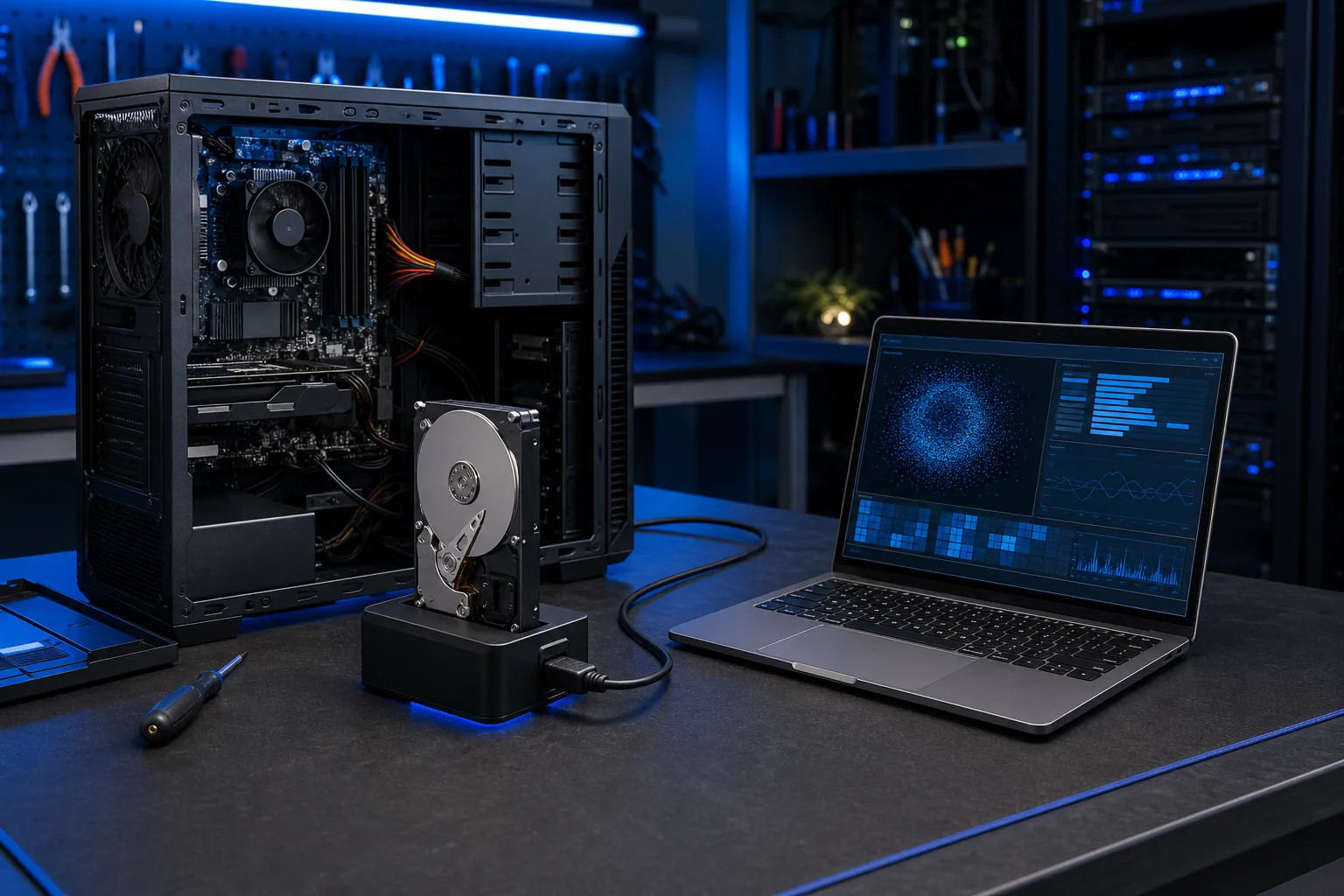
If the machine won't boot at all, do not keep trying. Get it to a shop that can pull the drive, connect it externally, and check SMART data before doing anything else. Our computer repair team does exactly this.
If you can still get into Windows but things are acting weird, run a SMART check on your drive immediately. On Windows 10 or 11 you can open Command Prompt and type wmic diskdrive get status for a quick gut-check. Better yet, download CrystalDiskInfo, which is free and reads detailed SMART data. If the drive shows anything other than "Good", stop using it for anything except backing up your files right now.
If it's a software corruption on a healthy drive, Windows has a built-in recovery environment. Boot from a USB with Windows installation media, access the repair tools, and run Startup Repair first. If that fails, DISM and SFC via Command Prompt are the next step. This is something we can also walk through on a remote support session if the machine is at least partially functional.
If files are already missing or inaccessible, do not write any new data to the drive. File recovery software like Recuva or PhotoRec works by finding data that hasn't been overwritten yet. Every new file you save reduces the recoverable surface area.
For anyone running a small business on the Treasure Coast or in Palm Beach County, this entire scenario is an argument for getting a real backup solution in place before disaster hits. Not a folder synced to Google Drive. An actual versioned backup with retention history, ideally off-site or in a monitored cloud environment. We set those up through our backups and disaster recovery service and it's genuinely one of the most important things a business can invest in.
The bottom line: Windows corruption looks catastrophic and usually isn't. But it absolutely can become catastrophic if you respond to it wrong. Know what you're dealing with before you do anything, and get a professional involved if you're not certain. Your files are probably fine right now. Let's keep them that way.
Computer acting up? Get a real diagnosis.
Fix My PC Store has repaired thousands of machines across West Palm Beach. Honest pricing, no upsell games, and a free diagnostic for new customers with our email coupon.