Why Is My PC POSTing but Nothing Appears on the Monitor?
TL;DR: A PC that completes POST (Power-On Self-Test) has passed a basic hardware check. A black screen after POST almost always means a signal delivery problem, not a motherboard failure. Check your GPU, cable, monitor input, and display output settings before assuming anything serious is wrong.
What Happened
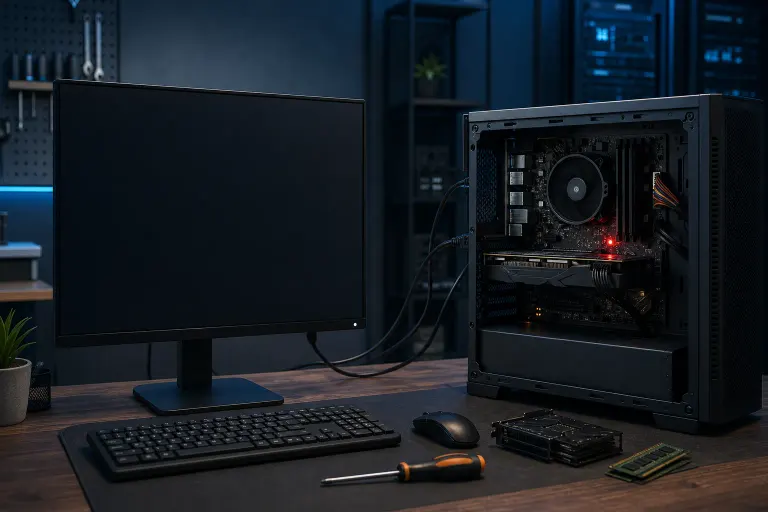
Your PC powered on. Fans spun. Maybe you heard a single beep. The keyboard lit up. Everything seemed fine. But your monitor stayed black, showed "No Signal," or just sat there blinking at you.
This is one of the most confusing PC failure modes, because it looks like a total system crash but usually isn't.
POST is not a full boot. POST is the motherboard doing a quick headcount of critical components: RAM, CPU, storage, and basic I/O. Passing POST means those components responded. It says nothing about whether your graphics output is working correctly.
So: POST passed, display failed. Those are two separate problems.
Why It Matters
Misreading this symptom leads people to assume the worst, motherboard replacement, data loss, full rebuild. Most of the time the actual fix is much simpler.
Here are the real culprits, in rough order of likelihood:
1. Wrong display output port If you have a dedicated GPU, your monitor must plug into the GPU, not the motherboard. Plugging into the motherboard's HDMI or DisplayPort while a GPU is installed usually gives you exactly this: POST, fans, black screen.
2. Loose or failed cable HDMI and DisplayPort cables can seat partially and pass a wiggle test while still not carrying a reliable signal. Swap the cable first. Seriously, do this before anything else.
3. Wrong monitor input selected The monitor is on HDMI 1. Your cable is in HDMI 2. The monitor won't switch automatically. Use the monitor's physical input button to cycle sources.
4. GPU not fully seated A GPU that's 95% in the slot will often POST (the CPU handles that) but fail to output video. Power down, unplug, press the GPU firmly until the PCIe retention clip snaps. Check both power connectors if your card uses them.
5. iGPU disabled in BIOS If you removed a dedicated GPU and are trying to use the CPU's integrated graphics, the iGPU may be disabled in BIOS settings. Without a working display to navigate the BIOS, you may need to clear CMOS to reset defaults.
6. RAM in the wrong slots Some boards POST but won't display if RAM is not in the correct slots for single or dual-channel operation. Check your manual for the preferred slot order, usually slots 2 and 4 on a four-slot board.
7. Failed GPU Least common on this list, but it happens. If the card was recently stressed, overclocked, or exposed to heat, it may have failed. Test with a known-good GPU or use iGPU if available.
Computer acting up? Get a real diagnosis. Book a diagnostic
What We Don't Know Yet
A black screen after POST doesn't tell you where in the chain the signal is dying. It could be the GPU output, the cable, the monitor input, or a driver issue if Windows is loading but not outputting to that screen.
It also doesn't tell you whether the PC is actually fully booting behind that black screen. Some systems boot into Windows just fine but display nothing because of a resolution or refresh rate mismatch the monitor can't handle, especially common after a GPU driver update or a new monitor with a different native resolution.
And if you're hearing multiple beep codes instead of a single short beep, that changes everything. Multiple beeps usually indicate a POST failure, not a POST success, and the codes vary by BIOS manufacturer. Check your motherboard manual for the specific pattern.
What to Do About It
Work through this sequence in order. Stop when the screen comes back.
- Confirm the cable is plugged into the GPU, not the motherboard. This alone fixes a large percentage of these calls.
- Swap the cable. Use a different HDMI or DisplayPort cable, or try a different port on the same GPU.
- Cycle the monitor's input source using its physical button menu.
- Power off, reseat the GPU. Unplug the PC, press the GPU into the PCIe slot until it clicks, reconnect power cables.
- Check RAM slot placement against your motherboard manual.
- Clear CMOS if you suspect a BIOS setting (iGPU disabled, bad resolution setting). Most boards have a jumper or a dedicated button for this.
- Test with a different monitor or TV to rule out a dead monitor entirely.
If you've gone through all of that and still have a black screen, the GPU may genuinely need testing or replacement. That's when a computer repair shop with diagnostic tools earns its keep. At Fix My PC Store, initial checks for most standard in-store repairs are free, so you're not paying just to find out what's wrong.
You can schedule a repair visit or reach us at 561-819-9999 if you'd rather talk it through first. The shop is on Okeechobee Blvd in West Palm Beach, open Monday through Friday 9 a.m. to 6 p.m. and Saturday 9 a.m. to 5 p.m.
Computer acting up? Get a real diagnosis.
Fix My PC Store has repaired thousands of machines across West Palm Beach. Honest pricing, no upsell games, and a free diagnostic for new customers with our email coupon.