10 Warning Signs Your Laptop Is About to Die
TL;DR: Laptops rarely die without warning. Random shutdowns, strange noises, and a battery that drains in minutes are all red flags worth taking seriously. Catching these signs early can save your data and your wallet.
Most laptops don't just stop working one morning without any hints. They groan, flicker, and stutter their way toward failure for days, weeks, or even months before the final crash. The problem is most people write those symptoms off as "just how it is now."
They're not. They're your laptop's way of waving a flag.
Here's how to read those flags before it's too late.
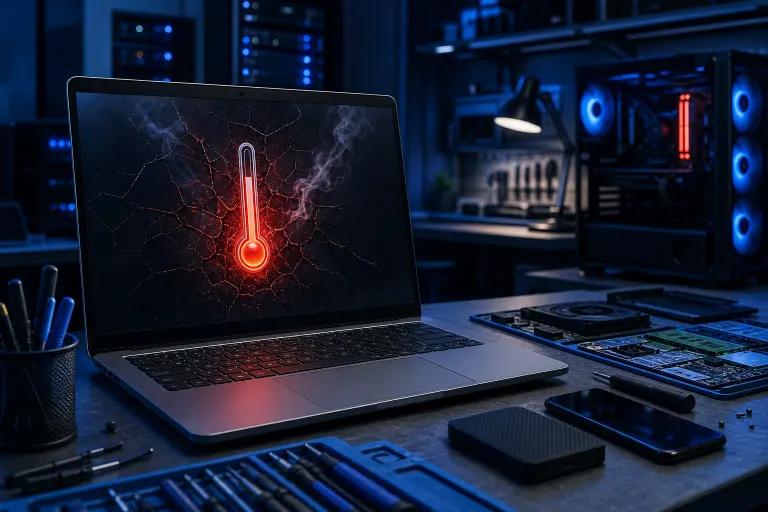
1. It Overheats Constantly, Even at Idle
A warm laptop is normal. A laptop that burns your thighs watching a YouTube video is not.
When a laptop runs dangerously hot all the time, the thermal paste on the CPU may be dried out, the cooling vents may be clogged with dust, or the fan may be failing. Heat is the number one killer of laptop components. Left unchecked, it will degrade your processor, warp your motherboard, and eventually cause permanent damage.
If your fans spin loudly but the machine still gets hot, that's a strong sign the cooling system needs attention. A professional cleaning and repaste can often buy you another year or two.
2. You're Hearing Clicking or Grinding Noises
This one is urgent. Stop and listen.
If your laptop is making a repetitive clicking, grinding, or scratching sound that's coming from inside, you may have a failing hard drive. Traditional spinning hard drives (HDDs) have mechanical parts that wear down. That click is often called the "click of death," and it usually means the read/write heads are struggling or the platters are damaged.
The moment you hear this, back up your files immediately. Do not wait. Once a drive fails completely, data recovery becomes expensive and is never guaranteed.
If you have an SSD instead of an HDD, it won't make that clicking noise since SSDs have no moving parts. But SSDs can still fail silently, which is why regular backups matter for everyone. Our team can help you set up proper backups and disaster recovery so you're never caught off guard.
3. The Battery Drops From 80% to Dead in Minutes
All laptop batteries degrade over time. After a few years of daily charging, it's normal to lose some capacity. But when your battery jumps from 80% to 5% in under ten minutes, or shuts off unexpectedly while showing 30% remaining, the battery is on its last legs.
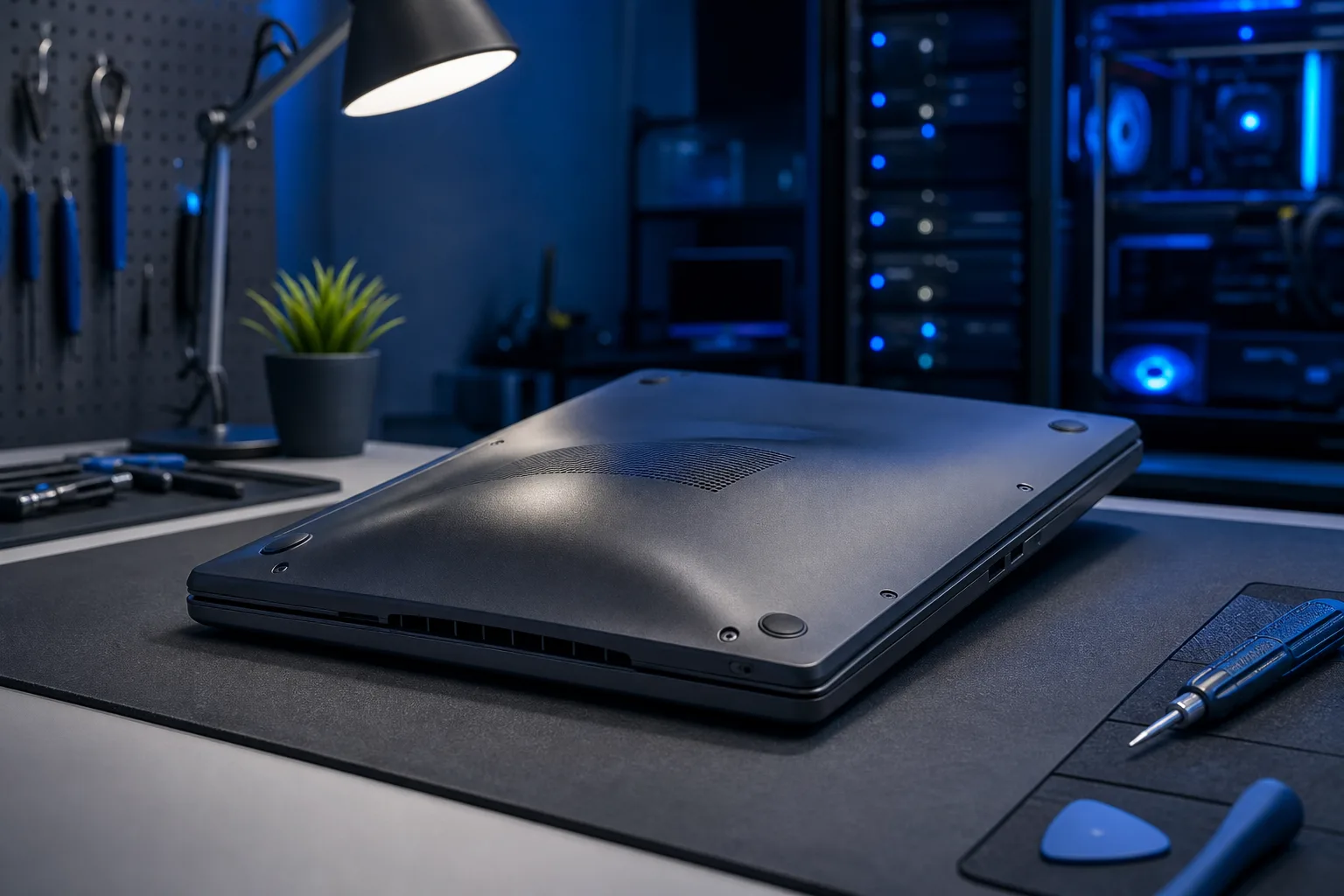
A swollen battery is even more serious. If the bottom of your laptop is visibly bulging, or the trackpad seems to be pushing upward from underneath, that's a swollen battery. This is a safety issue, not just a performance issue. Get it looked at right away.
Replacing a laptop battery is usually one of the simpler laptop repair jobs, and it can make an older machine feel almost new again.
4. Random Shutdowns or Restarts With No Warning
Your laptop should shut down when you tell it to, not when it feels like it.
Random shutdowns are one of the most telling signs that something is wrong at a hardware level. The most common culprits are overheating (the machine shuts itself down to prevent damage), a failing power supply or charging board, a loose battery connection, or memory errors.
If your laptop restarts and then shows a blue screen with an error code, write that code down. It often points directly to the failing component. If the shutdowns happen without any screen at all, heat is usually the first thing to rule out.
5. The Screen Flickers, Goes Black, or Shows Strange Lines
A flickering screen isn't just annoying. It's a sign that something in the display chain is breaking down.
The issue could be the display cable (which can fray over time as the lid opens and closes), the LCD panel itself, or the graphics chip on the motherboard. If the screen goes completely black but you can still hear the laptop running, try shining a flashlight at the screen at an angle. If you can see a faint image, the backlight has failed, not the panel.
Vertical or horizontal lines running across the display, pixels that look "stuck" in colors, or sections of the screen that refuse to display correctly all point to hardware problems that won't fix themselves.
If the display issue only appears when you move the lid, that's a strong sign the cable is damaged rather than the panel, which is a cheaper fix.
Computer acting up? Get a real diagnosis. Book a diagnostic
6. Startup Takes Forever, or It Gets Stuck on the Logo
A slow startup is one of those things people accept as normal when it often isn't.
If your laptop used to boot in under a minute and now takes five, something has changed. It could be a drive that's starting to fail, too many startup programs, or a corrupted operating system. If it freezes on the manufacturer's logo entirely, that's more serious and often points to a drive or firmware issue.
Run a disk health check using built-in tools. On Windows, open the drive's Properties in File Explorer and use the Error Checking tool under the Tools tab, or run chkdsk from the command prompt. On Mac, open Disk Utility and run First Aid. If either tool reports errors it can't fix, the drive is likely on its way out.
We offer remote support if you'd rather have someone walk you through this without bringing the laptop in.
7. Programs Crash Constantly or Windows Freezes
One crash every few weeks is annoying but not alarming. Programs crashing several times a day, or the whole system locking up and forcing a hard reset, is a real red flag.
Frequent crashes can point to several things: failing RAM, a corrupted system file, malware, or a hard drive with bad sectors. If the crashes happen across different programs with no clear pattern, RAM is often worth testing first. Windows has a built-in Memory Diagnostic tool. On Mac, Apple Diagnostics can run a basic hardware check.
If you're a business owner dealing with this on a work machine, it's worth having a managed IT provider take a look before it affects your productivity or data. Our business IT team handles exactly this kind of situation.
8. USB Ports, the Headphone Jack, or the Keyboard Stop Working
When physical ports or input devices start failing, it can mean the motherboard is starting to go.
Sometimes a single port dies due to physical damage, and that's a straightforward fix. But when multiple ports stop working at once, or a keyboard key stops responding even after a reboot, the problem is often deeper. Motherboard-level failures can be expensive to repair, and on older laptops, it sometimes makes more financial sense to migrate your data to a new machine rather than repair.
Before assuming the worst, make sure you've ruled out software causes. A quick restart and checking Device Manager (on Windows) or System Information (on Mac) can sometimes reveal whether the system even sees the hardware.
9. You're Getting Frequent "Disk Full" Warnings Even After Clearing Space
If your storage keeps filling up suspiciously fast, or if the system reports errors about being unable to write to the disk even when there's space available, your drive may be failing.
Drives that are beginning to fail sometimes create what are called "bad sectors," which are areas the drive can no longer read from or write to reliably. The operating system may try to work around these, but over time the available usable space shrinks even if you haven't added new files.
This is another situation where backing up immediately matters. You can check your drive's health using free tools like CrystalDiskInfo on Windows, which reports SMART data directly from the drive.
10. The Charger Port Is Loose or the Laptop Only Charges at Certain Angles
This one often gets ignored for months, and it shouldn't.
A loose charging port means your laptop has to be positioned just right to charge, and one day it won't charge at all. Worse, a damaged port can cause inconsistent power delivery, which can lead to unexpected shutdowns or battery charging errors. On some laptops, the charging port is soldered directly to the motherboard, which makes a bad connection a bigger deal than it sounds.
If you're already experiencing this, get it checked sooner rather than later. Our laptop repair team sees this regularly and can usually diagnose it quickly.
Bottom Line
Your laptop is almost always trying to tell you something before it gives up entirely. Overheating, strange noises, random shutdowns, and a failing battery are not quirks to tolerate. They're signals worth acting on.
The good news is that most of these problems, caught early, are fixable without replacing the whole machine. A drive swap, a battery replacement, or a thermal cleaning can extend the life of a laptop by years. Waiting until it's completely dead is when your options shrink fast.
If you're seeing two or more of these signs at once, it's time to get a professional opinion. You can schedule a repair or reach out to us directly and we'll help you figure out what's actually going on. No pressure, no guessing. Just honest answers from people who fix these things every day right here in West Palm Beach.
And whatever you do right now, go back up your files. Seriously. Before you do anything else.
Computer acting up? Get a real diagnosis.
Fix My PC Store has repaired thousands of machines across West Palm Beach. Honest pricing, no upsell games, and a free diagnostic for new customers with our email coupon.