USB Drive Detected But Won't Open? Fix It Step by Step
TL;DR: A USB device that shows up in File Explorer but won't open is almost always a file system, driver, or drive health issue, not a mystery. Work through the steps below in order, starting with the safest checks first, and stop the moment you see signs of physical drive failure so you don't overwrite recoverable data.
What You Need
- A Windows PC with administrator access
- The USB device in question (drive, phone, external SSD, camera, etc.)
- A second USB port, and ideally a second computer, to isolate the problem
- 15 to 30 minutes, depending on how far you need to go
- A blank drive or cloud storage space if you plan to recover files
I treat USB failures the same way I treat any hardware complaint: assume it's fixable until proven otherwise, and never run a step that could destroy data before you've ruled out the safe options first.
1. Confirm What "Can't Open" Actually Means
Before touching anything, figure out exactly what happens when you double-click the drive. This matters because the fix is completely different depending on the symptom.
- Does Windows show an error like "You need to format the disk before you can use it"? That points to a file system problem, not a dead drive.
- Does File Explorer just freeze or spin indefinitely? That usually means a read error, which can mean early-stage drive failure.
- Does it say "Access is denied" or reference permissions? That's a Windows account or encryption issue, and the data is very likely fine.
- Does the drive disappear and reappear in Device Manager on its own? That's a power or driver problem, often fixable with a different cable or port.
Write down the exact error message. It's the single most useful piece of information for diagnosing this, and it saves time if you end up needing a professional look at it.
2. Rule Out the Cable, Port, and Power Supply
A huge number of "failed drive" calls turn out to be a bad cable or an underpowered port. Check this before you assume the worst.
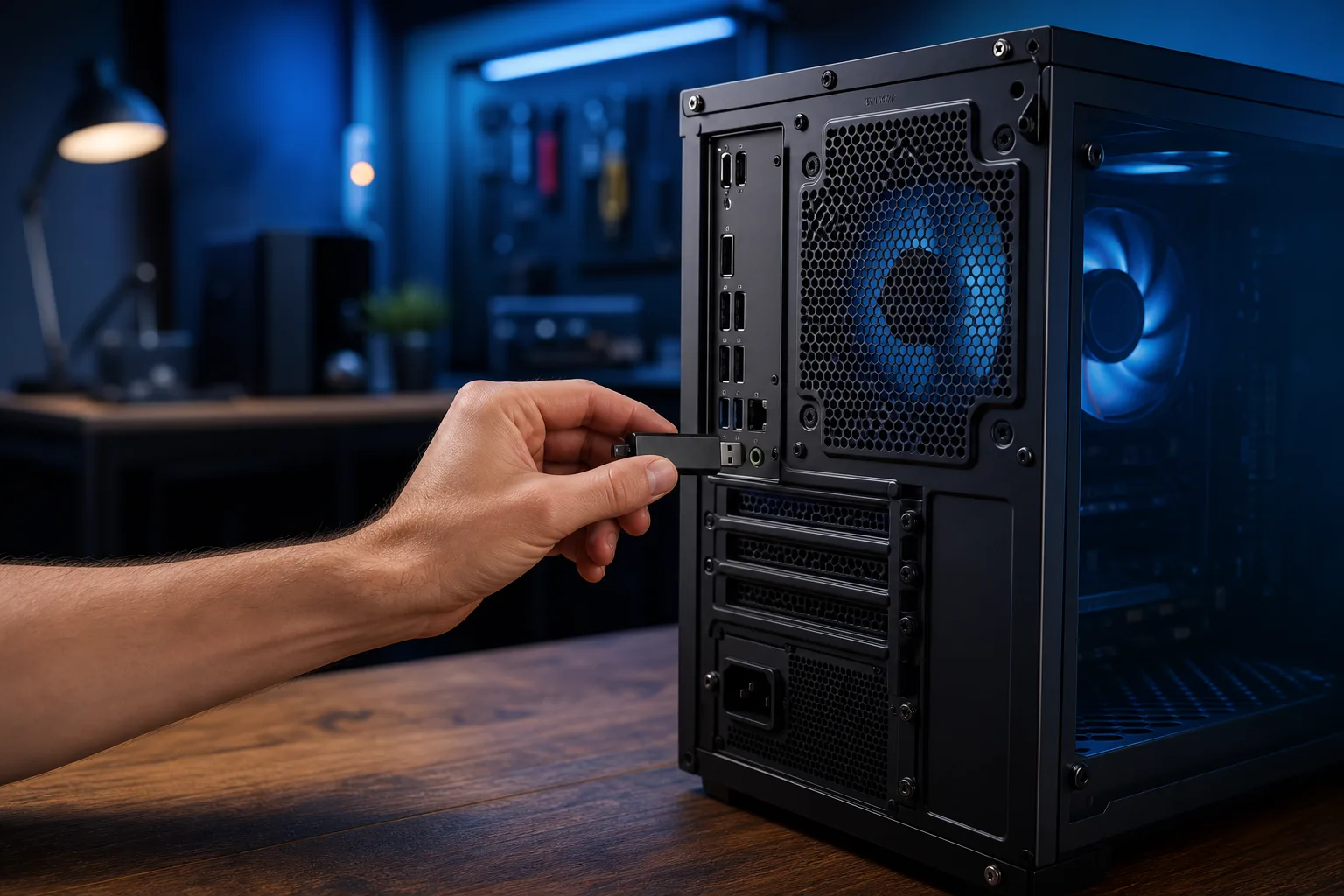
- Plug the device into a different USB port, ideally one on the motherboard's rear I/O rather than a front-panel or hub port.
- Try a different cable if the device uses a removable one, such as most external SSDs and phones.
- Test the device on a second computer if you have access to one. If it opens fine elsewhere, the problem is your PC's ports or drivers, not the drive.
- For external hard drives that require more power than a USB port alone provides, use a powered USB hub or a cable with a Y-power connector if the drive came with one.
If the drive works normally on a second machine, you're dealing with a driver or port issue on the original PC, and you can skip straight to Step 4.
3. Check Disk Management Before You Touch File Explorer Again
This is the step most people skip, and it's the one that tells you the most.
- Right-click the Start button and choose Disk Management.
- Find your USB device in the list at the bottom. It will show up even if File Explorer can't open it.
- Look at the status. "Healthy" means the file system is intact and something else is blocking access. "RAW" means the file system itself is corrupted. "Unallocated" or a size of 0 MB with no drive letter is a bigger red flag.
- If the drive shows as RAW, do not format it yet. RAW status means Windows can't read the file system table, but the actual data may still be sitting on the drive untouched.
- If the drive doesn't appear in Disk Management at all, that's a stronger sign of hardware failure, and you should stop clicking around and move to Step 6.
Disk Management gives you a straight answer that File Explorer's error messages hide. It's worth the extra 30 seconds every time.
4. Update or Reinstall the USB Driver
If the drive works on another PC but not this one, or if it shows up and disappears in Device Manager, the driver is the likely culprit.
- Open Device Manager and expand "Disk drives" and "Universal Serial Bus controllers."
- Look for a yellow warning icon or an entry labeled "Unknown Device."
- Right-click the USB controller entries and choose "Uninstall device." Don't uninstall the drive itself, just the controller.
- Restart the PC. Windows will reinstall the standard USB drivers automatically on boot.
- Reconnect the device and check if it's now recognized correctly.
- If the issue persists, check the PC manufacturer's website for a chipset driver update, particularly after a recent Windows update, since USB controller drivers occasionally break during major feature updates.
This fixes a surprising number of cases where a drive was working fine last week and suddenly isn't, with nothing else changed except a Windows update in the background.
Computer acting up? Get a real diagnosis. Book a diagnostic
5. Try CHKDSK Before You Consider Formatting
If Disk Management shows the drive as healthy but File Explorer still won't open it, or if it's asking to format, CHKDSK is your next move. It repairs file system errors without wiping data, in most cases.
- Open Command Prompt as Administrator.
- Type
chkdsk X: /fand press Enter, replacing X with your USB drive's actual letter. Double-check the letter in Disk Management first, since running this on the wrong drive is a real and costly mistake. - Let it run completely. Depending on drive size, this can take anywhere from under a minute to twenty minutes or more.
- Once finished, try opening the drive again.
- If CHKDSK reports it fixed several errors and the drive now opens, back up everything on it immediately. A drive that needed repair once is more likely to need it again.
CHKDSK isn't a guaranteed fix for RAW-status drives, but it's non-destructive enough that it's always worth trying before anything more aggressive.
6. Recognize the Signs of Physical Drive Failure
Some symptoms mean you're past the software-fix stage and into hardware territory. Stop what you're doing if you notice:
- Clicking, grinding, or repetitive spinning-up-and-down sounds from an external hard drive (not applicable to flash drives or SSDs, which have no moving parts)
- The drive disconnects and reconnects repeatedly, even after trying different ports and cables
- Disk Management shows the drive with 0 MB capacity or doesn't list it at all
- The drive gets unusually hot within a few minutes of use
- Windows event logs show repeated "disk" or "controller" errors tied to that device
At this point, continuing to plug and unplug the drive, or worse, running a format "just to see," risks making data recovery harder or impossible. If the data matters, this is the point to stop self-diagnosing and bring it to someone who does computer repair and data recovery for a living. A drive in early failure can often still be imaged successfully, but only if you stop stressing it now.
7. For Phones, Cameras, and Non-Drive USB Devices
If the "USB device" in question is a phone, camera, or MP3 player rather than a plain flash drive, the troubleshooting path is slightly different.
- Check the connection mode on the device itself. Android phones need to be set to "File Transfer" or MTP mode, not "Charging only," which is a common reason a phone shows up but nothing opens.
- For iPhones, make sure you've tapped "Trust This Computer" on the phone's screen when prompted. If you missed that prompt, unplug and replug to trigger it again.
- Update or reinstall Apple Mobile Device support software if an iPhone is recognized but its contents won't load, since this component often breaks during iTunes or Windows updates.
- For cameras, confirm the memory card is properly seated and that the camera is set to a data-transfer mode rather than a mass-storage mode it doesn't support.
Mobile device connection issues are common enough that we cover them in more depth over at mobile repair services if the device itself seems to be the problem rather than the PC.
Common Mistakes
- Formatting immediately when Windows asks. That prompt appears the instant Windows can't read the file system, which includes cases where the data is still fully recoverable. Formatting first and asking questions later is how good data becomes gone data.
- Assuming a RAW file system means a dead drive. RAW almost always means a corrupted file table, not physically destroyed data. Recovery software or a professional data recovery service can often pull files off a RAW drive before you format it.
- Trying every fix on the actual failing drive. If you suspect hardware failure, every read attempt is additional wear on a component that's already struggling. Image the drive first if you have the tools, or hand it to someone who does before running more diagnostics.
- Ignoring drive health after a "successful" CHKDSK repair. A drive that needed file system repair once is telling you something about its condition. Treat it as a warning, back it up, and don't rely on it as your only copy of anything important going forward, which ties directly into why a real backup and disaster recovery plan matters even for personal drives, not just business servers.
- Skipping Disk Management and going straight to reformatting. Disk Management takes thirty seconds and tells you whether you're dealing with a software problem or a hardware one. Skipping it means you're guessing, and guessing with data is expensive.
- Not testing on a second computer when one's available. This single step tells you immediately whether the fault is the drive or your PC's USB controller, cutting your troubleshooting time in half.
Bottom Line
A USB device that shows up but won't open follows a predictable diagnostic order: confirm the exact symptom, rule out cables and ports, check Disk Management for the real status, fix the driver if needed, and try CHKDSK before ever touching format. Most of these cases resolve without losing a single file, as long as you don't jump to the destructive option first. If you hit signs of actual hardware failure, stop and get the drive imaged before it gets worse. And if the drive in question holds business files with no other backup, that's less a USB problem and more a sign it's time to look at managed IT and a real backup strategy so a single flaky flash drive never has this much power over your data again. If you're stuck on a drive that matters, book a repair or reach out through our contact page and we'll walk through it with you.
Computer acting up? Get a real diagnosis.
Fix My PC Store has repaired thousands of machines across West Palm Beach. Honest pricing, no upsell games, and a free diagnostic for new customers with our email coupon.