Why Is My Desktop PC Running Fine but the Monitor Keeps Going Black?
TL;DR: A monitor going black while the PC keeps running almost always points to a loose or failing cable, an overheating or failing GPU, a monitor power-saving quirk, or a bad display driver. Run through the diagnostic sequence below before assuming the worst. Most fixes cost nothing but time.
What Happened
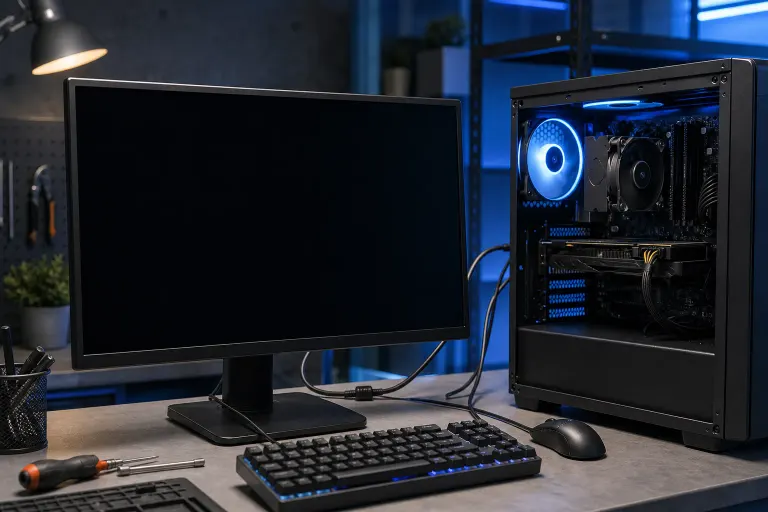
Your desktop is on. Fans are spinning. Keyboard lights are lit. But the screen goes black, sometimes for a second, sometimes for good. This is one of the most common and most misread PC symptoms out there.
The confusion is understandable. If the PC were broken, everything would shut off, right? Not necessarily. The display pipeline, from GPU output to monitor panel, is its own chain. Any weak link in that chain produces a black screen while everything else keeps running.
The most common culprits, roughly in order of how often they show up:
- Loose or degraded display cable (HDMI, DisplayPort, DVI)
- GPU driver crash or corruption
- Monitor power-saving or sleep settings triggering too aggressively
- Overheating GPU throttling or cutting output
- Failing GPU or monitor backlight
- Incorrect refresh rate or resolution pushed beyond what the monitor supports
Why It Matters
Ignoring an intermittent black screen is a bad call. What starts as a one-second flicker can escalate to a permanent blank display if the underlying cause is a failing GPU or a cable that is shorting out. If the root cause is a driver crash, Windows may be logging errors you can actually read.
This also matters because misdiagnosing it costs money. People replace monitors when the cable was the problem. People buy new GPUs when a driver rollback would have fixed it in five minutes.
Computer acting up? Get a real diagnosis. Book a diagnostic
What We Don't Know Yet
One diagnostic session will not always reveal whether the fault is in the cable, the GPU port, the monitor input board, or the driver stack. The pattern of the blackouts matters a lot:
- Does it happen only under load (gaming, video rendering)? Lean toward GPU heat or power.
- Does it happen randomly at idle? Lean toward cable, driver, or monitor power settings.
- Does the monitor's input indicator light up after the blackout, as if it lost signal? That points to the cable or GPU output.
- Does the screen go black but the monitor's power LED stays solid? That suggests a backlight or panel issue inside the monitor itself.
Without running through the steps below, there is no clean answer.
What to Do About It
Diagnostic Sequence: Work Through This in Order
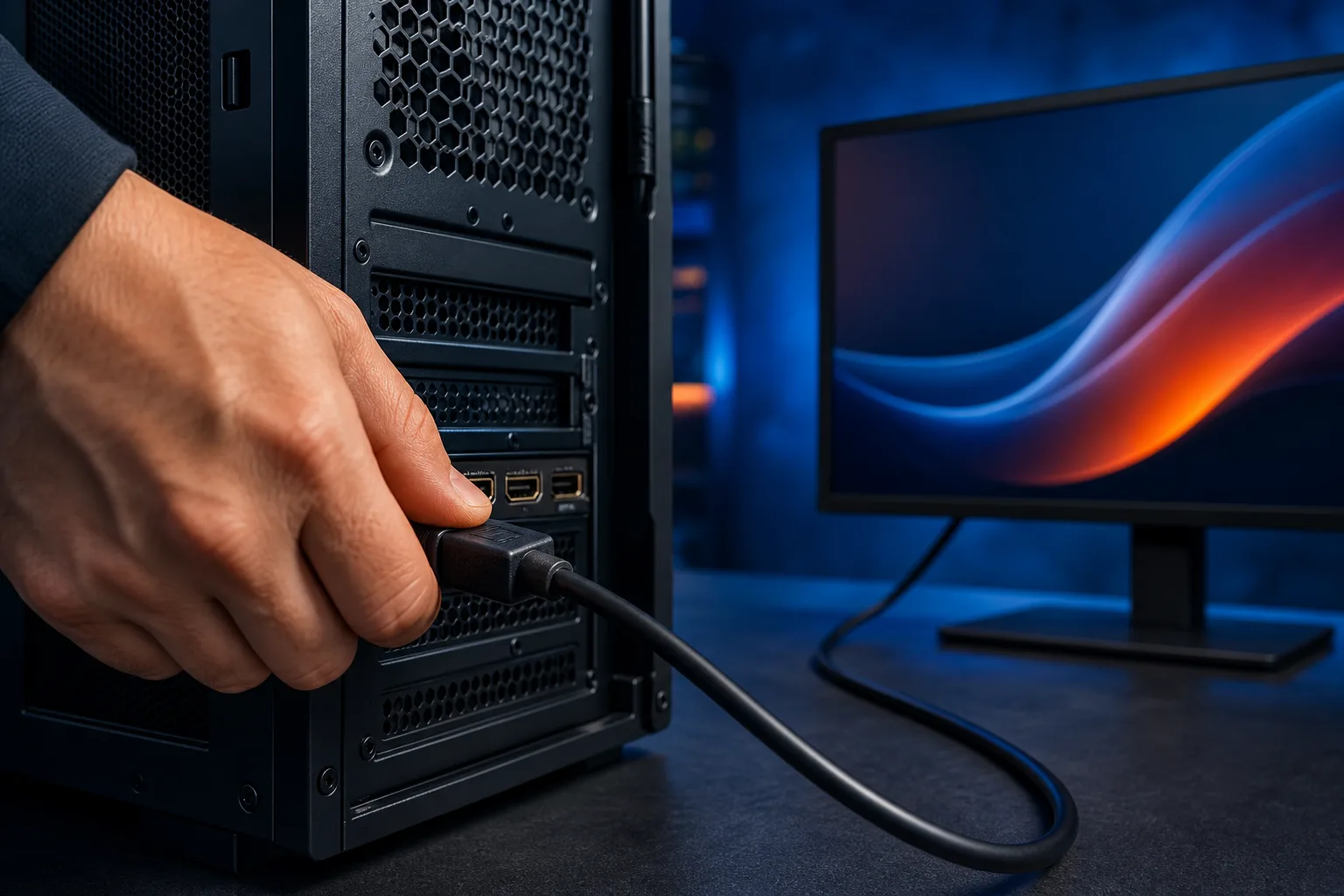
Step 1. Reseat the cable on both ends. Unplug the display cable from the GPU and from the monitor. Check the connector for bent pins or debris. Plug it back in firmly. If you have a spare cable, swap it. This is free and fixes a surprising number of cases.
Step 2. Try a different port. If your GPU has two HDMI or DisplayPort outputs, switch to the other one. If the blackouts stop, the original port is damaged.
Step 3. Check monitor power and sleep settings. Open Windows Settings, go to System > Power and Sleep, and set the screen timeout to a longer interval. Some monitors also have their own auto-sleep timers in their on-screen menu. Disable or extend those.
Step 4. Update or roll back the GPU driver. Open Device Manager, find your display adapter, right-click, and choose Update Driver. If the problem started after a recent driver update, choose Properties > Driver > Roll Back Driver instead. For NVIDIA cards, DDU (Display Driver Uninstaller) is the cleanest way to wipe and reinstall.
Step 5. Check GPU temperature under load. Download HWiNFO64 or MSI Afterburner and monitor GPU temps while running something demanding. If the GPU hits above 90C before the screen goes black, cooling is the issue: check that the GPU fans are spinning and that the heatsink is not clogged with dust.
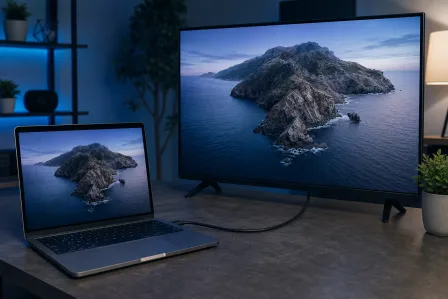
Step 6. Test with a different monitor. Borrow or use a TV with an HDMI input. If the black screens stop, the fault is in the original monitor. If they continue, the fault is in the PC side, most likely GPU or driver.
Step 7. Check Windows Event Viewer. Press Win + X, open Event Viewer, and look under Windows Logs > System for errors timestamped at the moment the screen went black. A "display driver stopped responding and has recovered" entry confirms a driver or GPU hardware fault.
Decision Table: What the Pattern Tells You
| Pattern | Most Likely Cause | First Fix |
|---|---|---|
| Flickers then recovers, any time | Loose cable or driver crash | Reseat cable, update/rollback driver |
| Black only during gaming or rendering | GPU overheating or power limit | Check temps, clean GPU, reseat power connectors |
| Black at idle, monitor LED changes | Monitor sleep or cable fault | Adjust sleep settings, swap cable |
| Black screen, solid monitor LED | Monitor backlight or panel failure | Test with second monitor |
| Black after driver update | Driver regression | Roll back or DDU reinstall |
When to Call in Backup
Self-help is the right first move here. The steps above cost nothing and resolve the majority of cases. But if you have swapped cables, reinstalled drivers, and confirmed the GPU is not overheating, and the screen still drops, the fault is likely hardware. That means either the GPU is failing or the monitor's internal board is dying.
At that point a bench diagnosis makes sense. Fix My PC Store offers free initial checks for most standard in-store repairs at 10140 Okeechobee Blvd, Suite B, West Palm Beach. Bring the PC in and the team can test the GPU output directly and isolate whether the fault is in the display card or the panel. You can also start with remote support if you want a second set of eyes on drivers and Event Viewer logs before making the trip.
For a full hardware diagnosis or GPU-related repair, check out the computer repair page for details on what the shop covers.
Computer acting up? Get a real diagnosis.
Fix My PC Store has repaired thousands of machines across West Palm Beach. Honest pricing, no upsell games, and a free diagnostic for new customers with our email coupon.