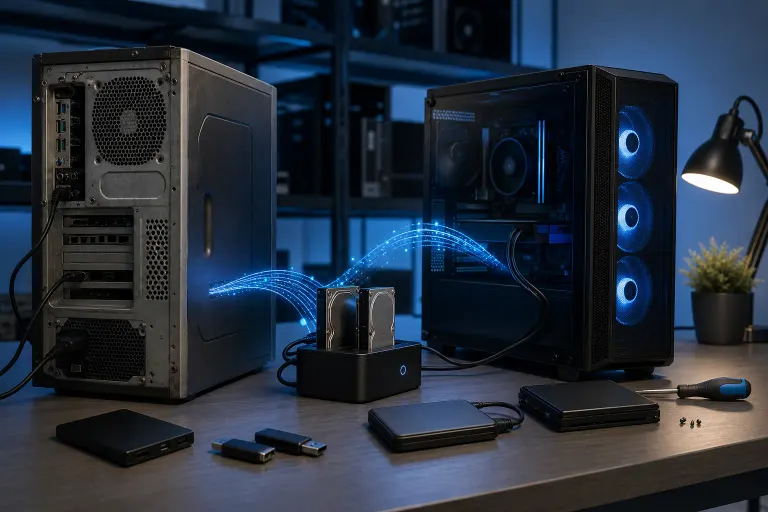
How to Transfer Everything From an Old Windows PC to a New One
TL;DR: The safest way to move to a new Windows PC is to back up the old one first, copy your personal files with an external drive or cloud sync, sign into your accounts, and reinstall your apps fresh instead of copying them. Programs do not transfer by drag and drop, so build a list before you start. Do not wipe the old PC until you have verified everything on the new one.
New rig day is hype. Fresh boot times, snappier everything, maybe a few extra frames in your favorite game. But the move itself is where people get burned. Let's do it in the right order so nothing gets left behind.
What you need
- Both PCs, powered on, with the old one still working if at all possible.
- An external drive (USB SSD or hard drive) with more free space than your old user folder takes up. Right-click your user folder on the old PC and check Properties to see the size.
- Your Microsoft account login and, if you use two-step verification, the phone or authenticator app that goes with it.
- Passwords for your other accounts. A password manager makes this painless. A browser sync does the job too.
- Software license keys or login info for paid programs (Office, Adobe, tax software, anything you bought once and installed).
- A free evening or weekend afternoon. Copying is the slow part, and rushing is how files go missing.
Step 1: Take inventory before you touch anything
Open a notepad and write down four lists. It takes ten minutes and saves hours.
- Files: Documents, Desktop, Downloads, Pictures, Music, Videos. Also check for files saved in odd places like the root of C: or a second drive.
- Apps: Open Settings, then Apps, then Installed apps. Write down everything you actually use. Skip the junk.
- Accounts and logins: Email, browsers, cloud storage, game launchers, banking, anything tied to the machine.
- Hardware stuff: Printers, scanners, special peripherals, and anything with its own driver or software.
This is your checklist. You will tick things off as you go.
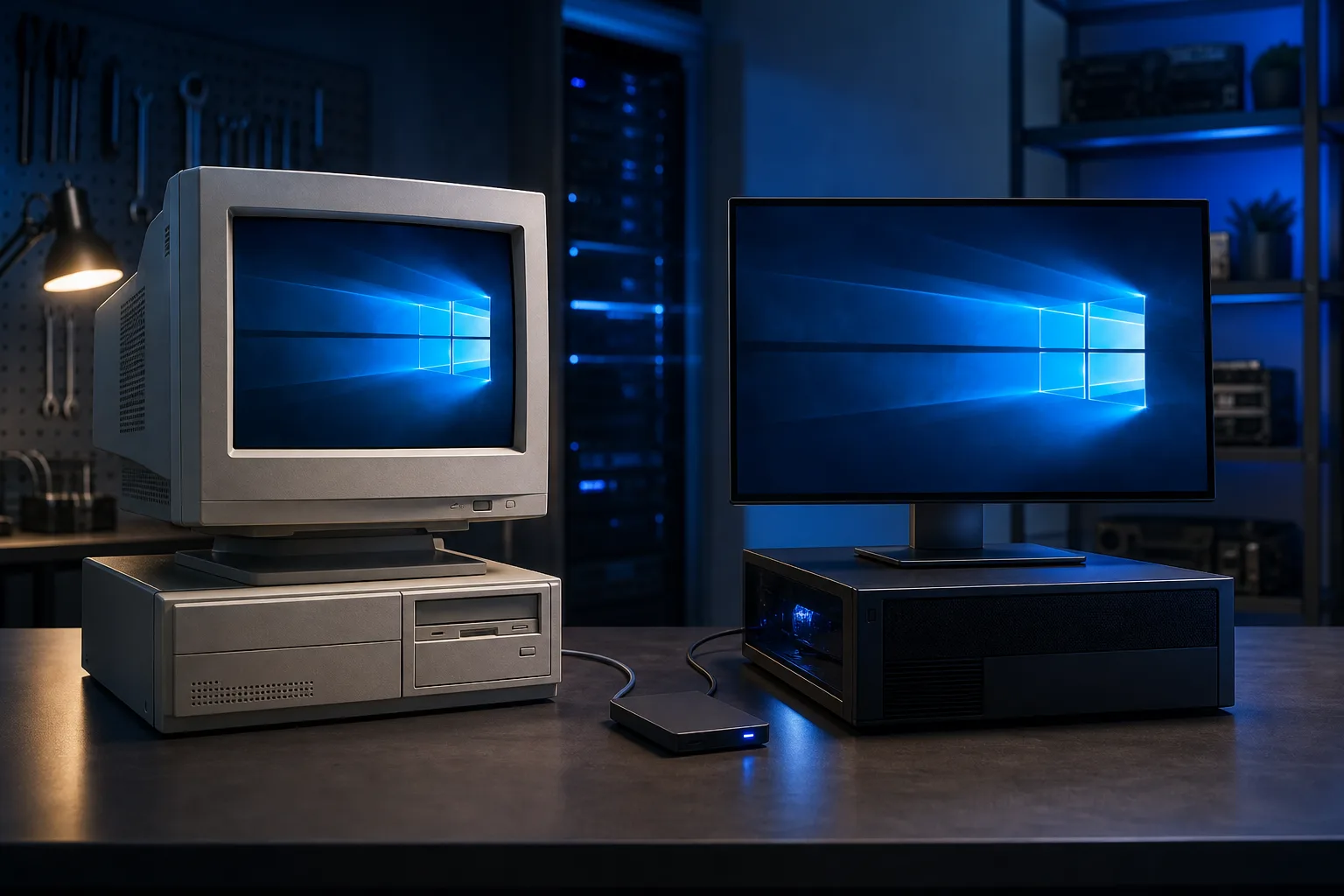
Step 2: Back up the old PC first
Before any transfer, make one full copy of your important data to the external drive. Think of it as your save file before the boss fight. If anything goes sideways later, you can reload.
Copy your whole user folder (the one named after your account inside C:\Users) to the external drive. Then do a quick spot check: open a few random files from the backup and confirm they actually open.
If this is a business machine, or the data would genuinely hurt to lose, this is a good moment to look at a proper backup setup. Our backups and disaster recovery page covers how businesses handle it.
Step 3: Pick your transfer method
There is no single best way. It depends on how much you are moving and what you have on hand.
| Method | Best for | Tradeoff |
|---|---|---|
| External drive | Large libraries, photos, video, no good internet | You plug and copy by hand, so you must remember every folder |
| Cloud sync (OneDrive, Google Drive, etc.) | Documents and photos you want available everywhere | Slow on big libraries, and free storage tiers fill up fast |
| Network copy over your home or office network | Two PCs side by side, lots of data | Needs sharing set up on both machines, a bit fiddly |
| Transfer cable or software | People who want a guided tool | Quality varies by product, so read reviews first |
For most people, the external drive plus cloud sync for documents is the sweet spot. Cheap, reliable, and you control it.
Step 4: Set up the new PC and sign in
Finish Windows setup on the new machine and install all Windows updates before you copy anything over. Signing in with the same Microsoft account often restores some settings, like your theme, language, and certain preferences, automatically. It will not bring your files or apps, though. That is your job.
While you are here, make sure your drivers are current. Gaming rigs in particular benefit from a fresh graphics driver straight from the GPU maker's site. Want those frames? Update the driver.
Step 5: Copy your files over
Plug in the external drive and copy folders into the matching locations on the new PC. A few tips so nothing slips through:
- Copy folder by folder (Documents, Pictures, Videos, Music, Desktop, Downloads) rather than dragging the entire user folder in one go. It is easier to verify.
- If you use OneDrive folder backup, check whether your Desktop, Documents, and Pictures are already syncing. Let that finish completely before assuming it is done.
- Check second drives and odd locations from your Step 1 list.
- Do not copy the AppData folder or program folders wholesale. That is how you drag old problems onto a clean machine.
Computer acting up? Get a real diagnosis. Book a diagnostic
Step 6: Move your browser data and email
This is where people lose bookmarks and saved logins, so do it deliberately.
- Chrome, Edge, Firefox: Sign into the browser profile on the new PC and turn on sync. Bookmarks, passwords, and extensions usually follow.
- No sync set up? Export bookmarks to a file on the old PC and import on the new one. Export saved passwords too if your browser offers it, and delete that export file afterward since it is unencrypted.
- Email: Webmail needs nothing but a login. Desktop email apps like Outlook usually re-add accounts by signing in. If you have old local mail archives (PST files), copy those over separately.
If you are on Microsoft 365 for work, signing in reconnects most of your setup. Our Microsoft 365 page explains how business accounts are managed.
Step 7: Reinstall your apps instead of copying them
Here is the part nobody wants to hear: programs do not transfer by copying files. Apps register themselves with Windows, drop files in many places, and tie into drivers. Reinstall them fresh from the original source using your Step 1 list.
A good order:
- Browser and password manager
- Security software and Office or productivity apps
- Tools tied to licenses (have your keys ready)
- Game launchers like Steam, then re-download games. Many launchers let you point to existing game folders if you copied the library, which can save a huge download.
- Everything else on your list
Fresh installs also mean you leave behind years of leftover junk. That is a feature, not a bug.
Step 8: Reconnect printers and peripherals
Plug in your printer and let Windows detect it, or install the driver from the manufacturer's site. Check scanners, webcams, audio interfaces, and any special gear from your Step 1 list. If you have RGB lighting software, controllers, or fan curve utilities, reinstall those too. Nothing worse than a rig that boots in plain white.
Step 9: Verify before you wipe anything
Spend a few days actually using the new PC before touching the old one. Go down your checklist:
- Open a sample of files from every folder you moved
- Log into every account you use
- Run every app at least once
- Print something
- Check that anything that needs a license is activated
Only when every box is ticked should you move on. If something is missing, the old PC is still your safety net.
Step 10: Retire the old PC properly
Once you are certain, deal with the old machine before it leaves your hands.
- Sign out of accounts and deauthorize licensed software tied to that device.
- Remove the PC from your Microsoft account device list.
- Wipe the drive. In Windows, Settings, then System, then Recovery lets you reset the PC and remove everything. For a machine going to someone else, choose the option that fully cleans the drive.
- Selling or donating? Wipe it. Keeping it as a backup machine? Still wipe your personal accounts off if it might go anywhere.
If the old PC is broken or will not boot, do not give up on the data. Drives can often be read from outside the machine. Our computer repair team can look at it, and a computer diagnostic is $60, credited toward the repair if you go ahead.
Common mistakes
- Skipping the backup. One bad copy or accidental delete and there is no undo.
- Trying to copy program folders. It almost never works and can cause weird errors.
- Forgetting license keys. Find them while the old PC still runs.
- Missing hidden data spots. Browser profiles, game saves, and local email archives hide outside the obvious folders.
- Wiping too soon. Wait until the new machine has been verified in real use.
- Leaving exported password files lying around. Delete them as soon as you are done.
- Not updating Windows and drivers first. A fresh PC out of the box is often a few updates behind.
Bottom line
A clean transfer is really just a checklist: inventory, back up, copy files, sync accounts, reinstall apps, verify, then wipe. Take it in order and nothing important gets left behind. If you would rather not spend your weekend on it, or the old PC is failing and you are worried about the data, book a repair or setup help and we will sort it out. For a guided hand-off without the shop visit, remote support can often walk you through setup too, depending on the job.
Computer acting up? Get a real diagnosis.
Fix My PC Store has repaired thousands of machines across West Palm Beach. Honest pricing, no upsell games, and a free diagnostic for new customers with our email coupon.