Why Is My Desktop PC Turning On but All USB Ports Are Dead?
TL;DR: A desktop that powers on but has zero working USB ports almost always has one of four causes: a Windows USB driver failure, a misconfigured BIOS setting, a blown motherboard fuse (called a polyfuse), or a dead USB controller chip. Work through the diagnostic sequence below before assuming the motherboard is toast.
What Happened
USB ports going completely dark while the rest of the PC runs normally is not random bad luck. Something specific broke the communication path between Windows and the USB hardware, or the hardware itself lost power.
"All ports dead" is the key phrase here. If only one or two ports stopped working, that is a different problem, usually a physical break or a single fried port. When every port on the front and back of the case dies at once, the failure is almost certainly upstream of the individual ports.
The four most common culprits:
- Windows USB driver crash or corruption. After a bad update or a forced shutdown during driver installation, Windows can lose its USB controller drivers entirely. The PC looks fine but cannot talk to any USB device.
- BIOS/UEFI setting changed or misconfigured. A manually changed setting or a BIOS update that changed settings or failed partway can leave USB controllers disabled or misconfigured. Loading optimized defaults in BIOS usually re-enables them.
- Blown polyfuse on the motherboard. Motherboards use small resettable fuses to protect USB circuits. Plug in a device that draws too much power, and the fuse trips. Unlike a regular fuse, a polyfuse often resets on its own after the PC cools down and sits unpowered for a few minutes.
- Failed USB controller chip. This is the worst-case scenario. The chip that manages USB communication on the motherboard can fail from power surges, heat damage, or age. If the chip is dead, software fixes will not help.
Why It Matters
A desktop with no working USB ports is essentially unusable. No keyboard, no mouse, no external drives. If you are running a business in West Palm Beach or anywhere on the Treasure Coast, this is a full stop.
It also matters because the fix ranges from free (a driver reinstall) to expensive (a motherboard replacement). Misdiagnosing a software problem as hardware means spending money you do not need to spend. Misdiagnosing hardware as software means wasting hours on driver reinstalls that go nowhere.
Computer acting up? Get a real diagnosis. Book a diagnostic
What We Do Not Know Yet
Without running the diagnostic steps below, you cannot tell which layer of the problem you are dealing with. A few things that remain uncertain until you test:
- Whether the polyfuse has already reset or is still tripped.
- Whether the BIOS USB settings were silently changed by a recent update.
- Whether Windows Device Manager is hiding USB controller errors behind a generic "unknown device" warning.
- Whether an internal USB header on the motherboard (the one that powers front-panel ports) has come loose from its connector.
What to Do About It
Work through this sequence in order. Each step is fast. Stop when the ports come back.
Step 1: Full power drain. Shut down the PC. Unplug the power cable from the wall. Hold the power button for 10 seconds to drain residual power from the board. Wait two minutes. Plug back in and boot. This resets tripped polyfuses and clears some firmware states.
Step 2: Check BIOS/UEFI settings. If you have a PS/2 keyboard port on the motherboard (the small round purple connector), use a PS/2 keyboard to get into BIOS. Look for USB Configuration or USB Controller settings and confirm they are enabled. If they are disabled or look wrong, try loading optimized defaults. If you do not have a PS/2 keyboard, borrow one or skip to Step 3 on a second machine.
Step 3: Reinstall USB drivers from another machine. On a working computer, download your motherboard's chipset drivers from the manufacturer's support page (Asus, MSI, Gigabyte, ASRock, etc.). Copy them to a USB drive. Boot your broken PC, plug the drive in, and see if Windows detects it. If it does, run the chipset installer. If Windows does not detect the drive, the problem could still be drivers or hardware. Get the installer onto the PC another way (for example, a network share or a second internal drive), or use the Device Manager method below, before you conclude the hardware is at fault.
Alternatively, boot into Safe Mode if you can still use a PS/2 keyboard or if the USB ports work briefly before Windows fully loads. In Device Manager, look under "Universal Serial Bus controllers" for yellow warning triangles. Right-click each flagged controller and choose "Uninstall device." Restart. Windows will attempt to reinstall them.
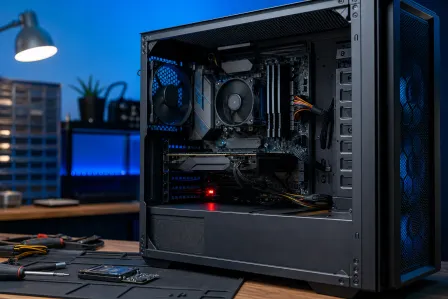
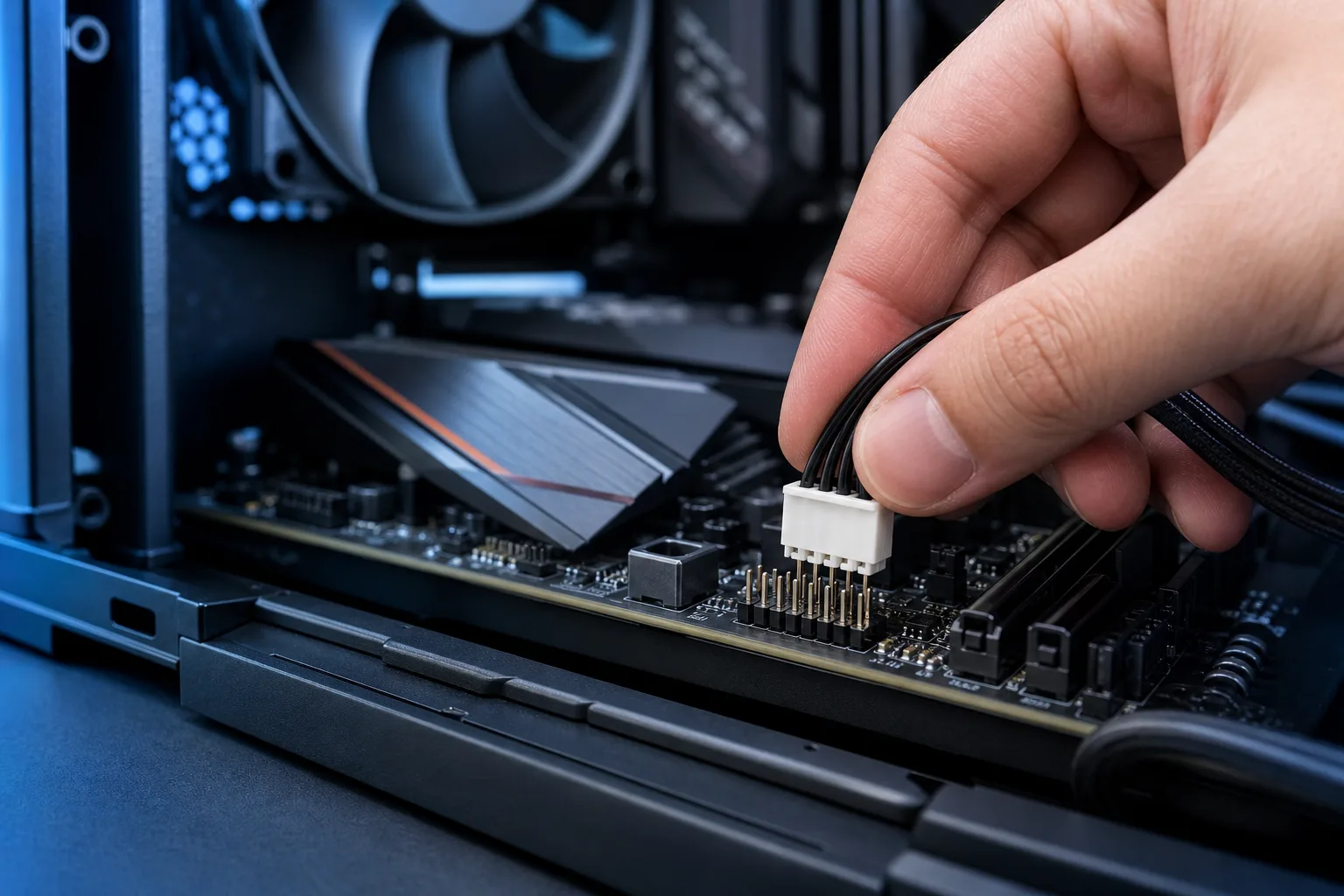
Step 4: Check internal USB headers. Shut down the PC, switch off the power supply, and unplug the power cable from the wall. Ground yourself by touching bare metal on the case or wearing an anti-static wrist strap before opening the case or handling components, since static discharge can damage parts. Locate the internal USB header connectors on the motherboard (small white or black pin-headers near the bottom of the board). Make sure the cables from the front-panel USB ports are firmly seated. A loose header will kill all ports on that header.
Step 5: Test with a USB PCIe expansion card. If all software and physical checks fail, plug a cheap USB PCIe add-in card into an open PCIe slot. As in Step 4, shut down, switch off the power supply, unplug the power cable, and ground yourself before opening the case or touching the card. If those new ports work perfectly and you have already ruled out BIOS settings and drivers, the motherboard's onboard USB controller or its power circuitry has most likely failed. At that point you have two options: keep using the add-in card as a workaround, or replace the motherboard.
Decision Table: Software vs. Hardware
| Symptom | Likely cause | First fix to try |
|---|---|---|
| Ports work in BIOS but not in Windows | Driver failure | Reinstall chipset/USB drivers |
| Ports dead in BIOS and Windows | BIOS misconfiguration or hardware | Check BIOS USB settings first |
| Ports work after full power drain | Tripped polyfuse | Identify what device caused it |
| USB PCIe card works, onboard does not | Likely failed onboard USB controller | Add-in card workaround or new motherboard |
| Front ports dead, rear ports work | Loose internal header | Reseat the front-panel USB cables |
If you have worked through all five steps and nothing has changed, the motherboard likely needs professional inspection. A technician can test the USB controller directly and tell you whether a repair or replacement makes more sense for your build.
For West Palm Beach and South Florida residents, Fix My PC Store offers a $60 diagnostic credited toward the repair, or free with the coupon our website emails when you join the list. Bring the machine to 10140 Okeechobee Blvd, Suite B, West Palm Beach, or schedule a visit before you spend anything on parts. If you need a faster answer, remote support can at least confirm whether the problem is software before you drive anywhere.
Computer acting up? Get a real diagnosis.
Fix My PC Store has repaired thousands of machines across West Palm Beach. Honest pricing, no upsell games, and a free diagnostic for new customers with our email coupon.