SSD vs HDD for an Office PC: Which Should You Buy Today
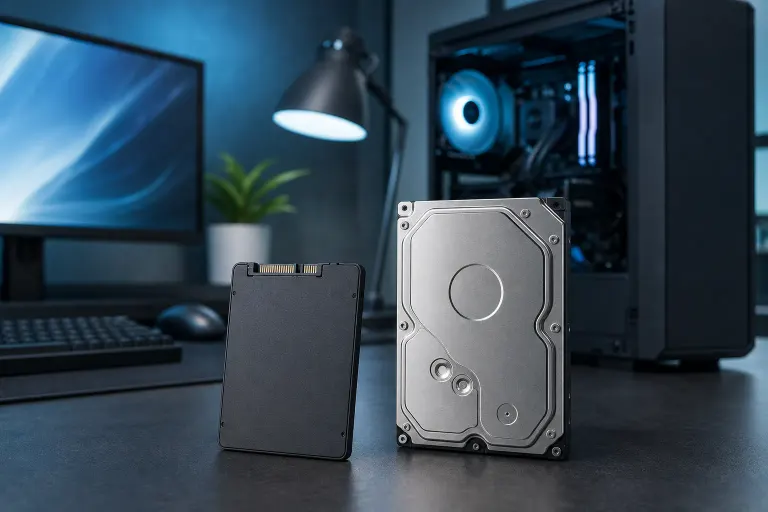
TL;DR: Buy an SSD for your primary office drive. It is faster, more reliable for daily use, and prices have dropped enough that the cost argument for HDDs barely holds up anymore. HDDs still earn a place as secondary bulk-storage drives, not as your main system disk.
At a Glance
| Factor | SSD | HDD |
|---|---|---|
| Boot and load speed | Much faster | Noticeably slower |
| Noise and vibration | Silent | Audible spin and seek |
| Shock resistance | High (no moving parts) | Low (spinning platters) |
| Capacity per dollar | Lower | Higher |
| Lifespan (typical use) | 5-10+ years | 3-5 years average |
| Best for | Primary OS and apps | Bulk archival storage |
Why SSDs Win for Day-to-Day Office Work
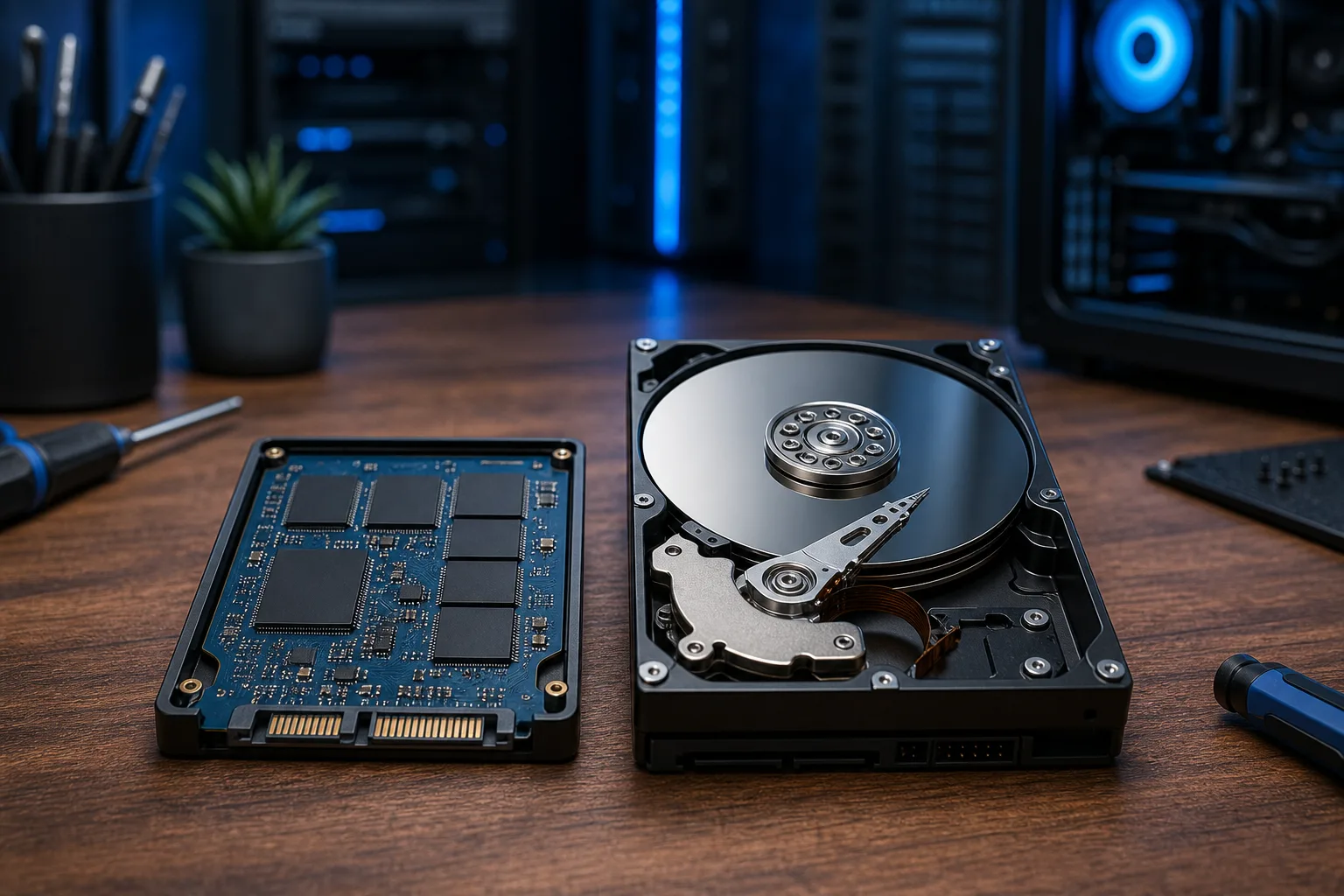
An SSD stores data on flash memory chips. No moving parts. That matters more than it sounds.
A typical office PC with a SATA SSD boots in under 20 seconds. That same machine with an HDD often takes a minute or more, especially after a few years of Windows accumulation. Multiply that across a team of ten people checking in every morning, and you are burning real time.
File opens, browser launches, and app switching all feel snappier. Not because the processor changed, but because the bottleneck shifted away from storage. For spreadsheets, email, and document work, the SSD is usually the fastest part of the whole transaction.
SSDs are also silent and generate less heat than spinning drives. In a quiet office, the absence of drive noise is genuinely pleasant.
Where HDDs Still Make Sense
HDDs are not dead, they are just displaced. A 4TB or 8TB hard drive costs a fraction of what an equivalent SSD would run. For archiving old project files, storing large media assets, or serving as a local backup target, HDDs are perfectly sensible.
The use case is simple: put your OS and active applications on an SSD, then add an HDD as a secondary drive for bulk files you do not touch daily. That hybrid setup gives you speed where it counts and cheap capacity where you need it.
If budget is extremely tight and you are buying a machine purely for light data entry with no concern for speed, a refurbished PC with an HDD can still get the job done. Just go in with realistic expectations about how it will feel.
Computer acting up? Get a real diagnosis. Book a diagnostic
Reliability and the Moving-Parts Problem
This is where HDDs take the most damage in the comparison. A hard drive has spinning magnetic platters and a read/write head floating nanometers above them. Drop a laptop with a running HDD, or even jostle a desktop during a move, and you risk a head crash. Data gone.
SSDs have no moving parts. They handle drops, vibration, and the general chaos of an office environment far better. For laptops especially, this is not a minor point.
HDDs do eventually fail too, through mechanical wear, but the failure mode is often more gradual. You might get clicking sounds or slow read errors before it dies completely. SSDs can fail more abruptly, though this is uncommon in the first several years of normal use. Either way, backups matter more than which drive you choose.
If your business does not have a tested backup plan, that is a bigger risk than any storage choice. See Backups and Disaster Recovery for options worth considering.
The Cost Gap Is Smaller Than You Think
SSD per-gigabyte prices have dropped significantly over the past several years, as tracked by industry sources such as the Puget Systems SSD vs HDD price analysis. For a primary office drive, the price difference between a 500GB SSD and a 500GB HDD is often less than $20 retail, though prices vary by retailer and over time.
Where HDDs still win clearly is at high capacities. A 4TB HDD is far cheaper than a 4TB SSD. For primary system drives in the 250GB to 1TB range, that gap has largely closed for most buyers.
NVMe vs SATA SSD: A Quick Note
Not all SSDs are equal. SATA SSDs use the same connector as older hard drives and are a straightforward upgrade for most desktop PCs. NVMe SSDs plug into an M.2 slot on the motherboard and are significantly faster for sequential reads and writes.
For office tasks like email, Word, and browser tabs, you will not notice much difference between SATA and NVMe in daily use. NVMe shines for large file transfers, video editing, or compiling code. Check what slots your motherboard supports before buying.
Verdict
For an office PC today, put your OS and apps on an SSD. Full stop. The speed, reliability, and noise advantages are real and the price premium is modest for primary drive sizes.
Use an HDD only as a secondary drive for bulk storage, or in a purpose-built archival machine. Do not use an HDD as your only system drive in 2024 unless the budget truly leaves no choice.
If you are upgrading an existing office machine or picking storage for a new build and want a second opinion, Fix My PC Store offers free initial checks on most in-store repairs and can help you figure out what your specific machine supports. You can also reach out through our contact page or call 561-819-9999 during business hours (Mon-Fri 9am-6pm, Sat 9am-5pm).
Computer acting up? Get a real diagnosis.
Fix My PC Store has repaired thousands of machines across West Palm Beach. Honest pricing, no upsell games, and a free diagnostic for new customers with our email coupon.