Why Is My PC Taking Forever to Copy Files Between Two Internal Drives?
TL;DR: Slow internal-drive copies almost always come down to one of three things: a drive that is failing or heavily fragmented, a SATA or NVMe connection that is not running at full speed, or background processes stealing your bandwidth. Work through the diagnostic sequence below in order and you will know the real culprit in under 20 minutes.
What You Need
- A Windows PC with two internal drives (SATA HDD, SATA SSD, or NVMe)
- CrystalDiskInfo (free, from the developer's official site at crystalmark.info)
- CrystalDiskMark (same site, for benchmarking)
- Task Manager access (built into Windows)
- Device Manager access (built into Windows)
- About 20-30 minutes and a large test file (1 GB or more works well)
Step 1: Check Drive Health First
Before blaming cables or settings, rule out a failing drive. A drive that is throwing read errors will retry constantly, and that retry loop is what tanks your transfer speed.
Open CrystalDiskInfo. Look at the health status for both drives. Anything other than "Good" (blue circle) deserves serious attention. Specifically watch for:
- Reallocated Sectors Count (ID 05) above zero on an HDD, especially rising
- Pending Sector Count (ID C5) above zero, meaning the drive has sectors it cannot read
- Uncorrectable Sector Count (ID C6) above zero, a red flag
- NVMe Media Errors climbing on an SSD
If either drive shows caution or bad status, stop here and back up your data immediately before doing anything else. A drive in this state needs replacement, not troubleshooting.
Step 2: Benchmark Each Drive Individually
Open CrystalDiskMark and run a sequential read/write test on each drive separately. Compare the results against expected speeds for the drive type.
| Drive Type | Expected Sequential Read | Red-Flag Speed |
|---|---|---|
| SATA HDD (7200 RPM) | 120-180 MB/s | Below 80 MB/s |
| SATA SSD | 500-560 MB/s | Below 300 MB/s |
| NVMe Gen 3 | 3,000-3,500 MB/s | Below 1,500 MB/s |
| NVMe Gen 4 | 5,000-7,000 MB/s | Below 3,000 MB/s |
If the benchmark is way below the expected range, the drive itself, the cable, or the interface slot is the bottleneck. Move to Step 3. If both drives benchmark fine individually but the copy is still slow, jump to Step 5.
Step 3: Confirm SATA or NVMe Link Speed
A SATA cable that is partially unseated, or an NVMe drive plugged into a slower PCIe x2 slot, will cut your ceiling speed in half or worse.
For SATA drives: Open Device Manager, expand Disk drives, right-click your drive, and check Properties. Under the Policies tab on some controllers you can see if write caching is enabled. More useful: open Device Manager under IDE ATA/ATAPI Controllers and check the transfer mode. It should show UDMA Mode 6 for modern SATA. If it shows UDMA Mode 2 or PIO mode, Windows downgraded the connection after repeated errors, which usually means a bad cable or a failing drive.
For NVMe drives: Install HWiNFO64 (free from hwinfo.com) and look at the PCIe link speed reported for the drive. A Gen 4 NVMe running at Gen 3 speeds could mean it is in a slower slot or the motherboard is throttling bandwidth because of lane sharing with a GPU.
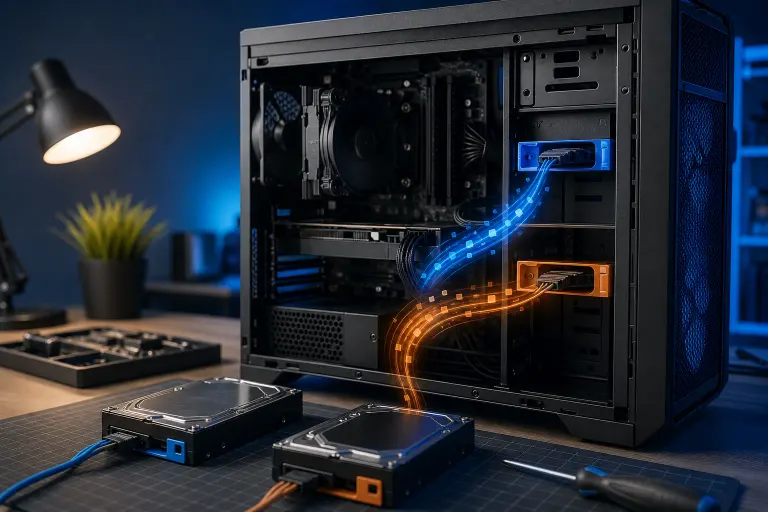
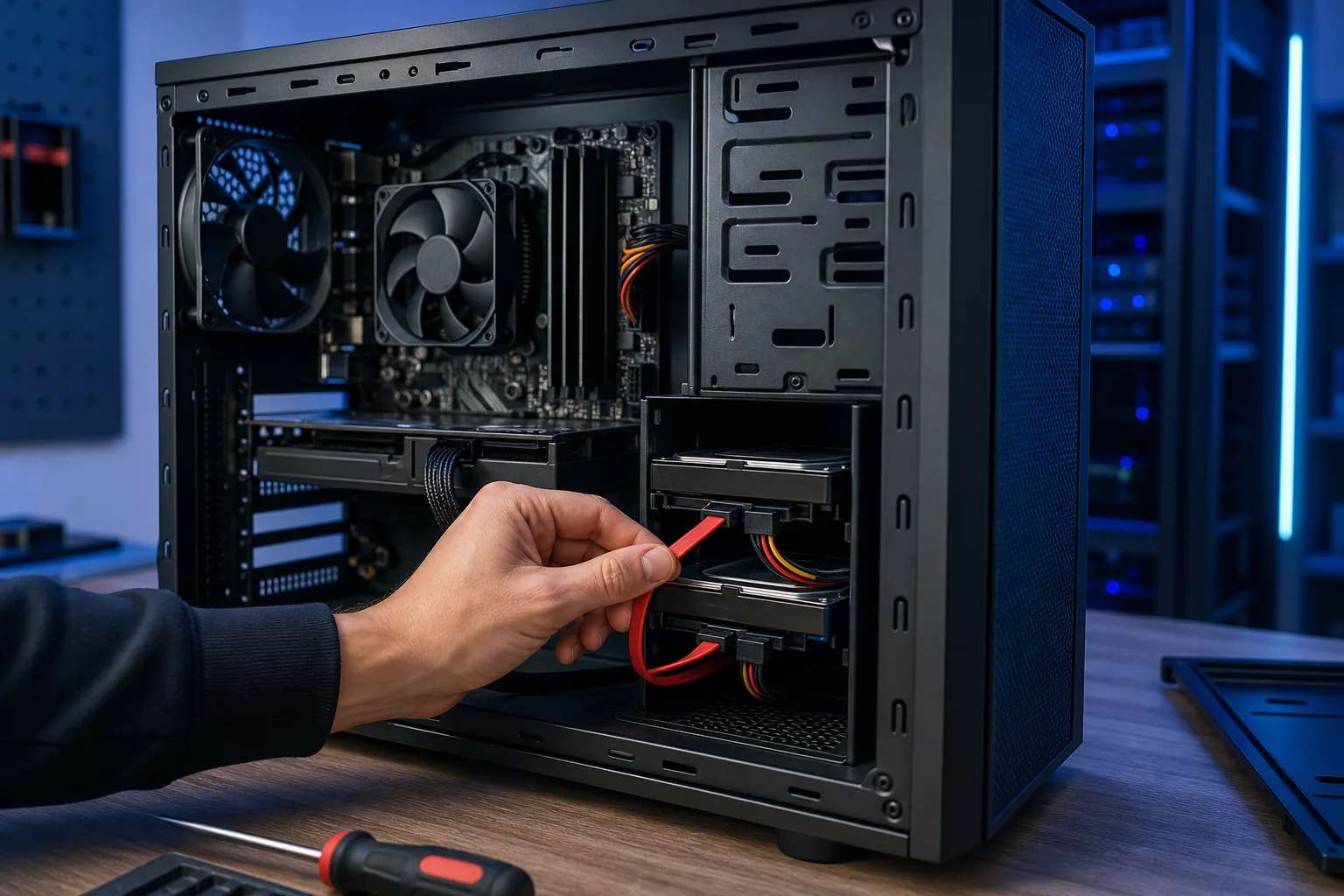
Physical fix: Power off, reseat the SATA data cable firmly on both ends (motherboard and drive), and try a different SATA port. Ports 0 and 1 are almost always the fastest on consumer boards.
Computer acting up? Get a real diagnosis. Book a diagnostic
Step 4: Check for Drive Fragmentation or Full Cache
HDDs slow down significantly when heavily fragmented or when writes land at the outer vs inner tracks. SSDs and NVMe drives slow down when they are over 90% full because the controller runs out of free cells for wear leveling.
- HDD: Open Defragment and Optimize Drives in Windows. If fragmentation is over 10%, run an optimization pass.
- SSD or NVMe: Check drive capacity. If either drive is above 85-90% full, delete or move data before benchmarking again.
- SSD health: CrystalDiskInfo also shows Total Bytes Written (TBW). If you are near or past the drive's rated TBW, performance and reliability can drop.
Step 5: Kill Background Processes Stealing Disk Bandwidth
Windows can trash transfer speeds if something else is hammering the same drive while you copy. Open Task Manager (Ctrl + Shift + Esc) and go to the Performance tab. Click on each drive and watch the Active Time percentage while a copy is running.
If a drive shows 100% active time with your copy only using part of that, something else is competing. Switch to the Processes tab, click the Disk column header, and sort by usage. Common offenders:
- Windows Search indexing (SearchIndexer.exe): can be paused in Indexing Options
- Antivirus real-time scan: temporarily pause it during a large transfer to test, then re-enable
- Windows Update downloads: defer updates or pause them temporarily
- OneDrive or backup agents: syncing in the background while you copy doubles the write load
Step 6: Verify the Destination File System and Allocation Unit Size
Copying thousands of small files is always slower than copying one large file of the same total size. That is normal. But if you are copying large files and speed is still crawling, check the file system.
In File Explorer, right-click the destination drive and choose Properties. Both source and destination should ideally be NTFS. Copying to an exFAT drive is generally fine, but FAT32 has a 4 GB file size limit and older allocation unit sizes that slow small-file writes.
For extreme cases where you are copying millions of tiny files (like game asset folders), tools like robocopy with the /MT flag (multi-threaded) can push speeds higher than Windows Explorer's single-threaded copy engine.
Common Mistakes
- Ignoring SMART errors because the drive "still works." A drive with reallocated sectors can read fine most of the time, but write operations will be painfully slow as the controller remaps on the fly.
- Assuming NVMe is always faster than SATA. An NVMe drive in a PCIe x2 slot or with heavy cache already full can perform similarly to a SATA SSD for sequential reads.
- Running a benchmark once and trusting it. Drive caches can make the first few seconds look great. Run CrystalDiskMark's full queue-depth test (not just the quick bar) for a realistic picture.
- Forgetting that HDD-to-HDD copies are the slowest possible scenario. Both heads are moving simultaneously. If you need faster internal transfers regularly, an SSD as one of the endpoints changes everything.
- Not disabling antivirus for the test. If you never pause AV during testing, you cannot tell whether it is the cause.
Bottom Line
Slow internal file copies almost always trace back to a drive with health issues, a connection running below rated speed, or background disk contention. Work through the steps above in order and you will isolate the bottleneck without guessing.
If your SMART data shows warning signs, or the drive benchmarks well below spec even after reseating cables, the drive may need replacement before the problem gets worse. The team at Fix My PC Store on Okeechobee Blvd in West Palm Beach can run a full diagnostic, including advanced data-recovery work if needed, and explain findings before any repair is approved. You can also reach them at 561-819-9999 or schedule a visit to bring the machine in. Initial checks for most standard in-store repairs are free.
Computer acting up? Get a real diagnosis.
Fix My PC Store has repaired thousands of machines across West Palm Beach. Honest pricing, no upsell games, and a free diagnostic for new customers with our email coupon.