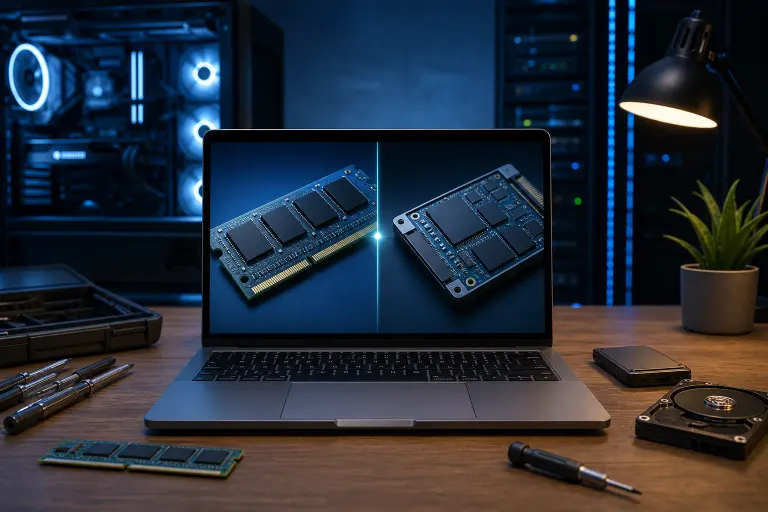
Slow Mac? How to Tell if It Needs RAM or a New Drive
TL;DR: Open Activity Monitor, check Memory Pressure and Disk usage before you buy anything. If Memory Pressure runs yellow or red constantly, you need RAM (or your Mac's maxed out and needs a new one). If your drive is over 85% full or showing read/write errors, that's your problem, and no amount of RAM will fix a dying drive.
Every week somebody walks in here convinced their five-year-old MacBook needs "more memory" because some kid at a big box store told them so. Sometimes they're right. Half the time the real problem is a hard drive choking on its own dust, or worse, actually failing. Guessing costs you money. Let's not guess.
What You Need
- Your Mac, obviously, powered on and logged in
- 15 minutes of patience (less if you're not easily distracted)
- Activity Monitor (built into macOS, in Applications > Utilities)
- Disk Utility (also built in, same folder)
- A notepad or the Notes app to jot down what you see, because you WILL forget the numbers by the time you get to step four
That's it. You don't need to buy a diagnostic tool. You don't need to "clean your registry" (Macs don't have one, and if anyone tells you that, walk away). This is a ten-minute job before it's ever a wallet job.
Step 1: Open Activity Monitor and Find Memory Pressure
Launch Activity Monitor, click the Memory tab at the top. Down at the bottom left you'll see a little graph labeled Memory Pressure. This is the single most honest indicator your Mac gives you about whether RAM is your bottleneck.
Green means you're fine. Yellow means it's working harder than it should but coping. Red means your Mac is constantly swapping data to disk because it ran out of real memory, and that's where things get slow and miserable.
Don't just glance at it once. Open a few of your normal programs, browser tabs, whatever you actually use day to day, and watch it for a few minutes. If it climbs into yellow or red under normal use (not while rendering video or running twelve Chrome tabs with forty pinned tabs you never close, you know who you are), that's a real signal.
Step 2: Check Swap Used, Not Just the Graph Color
Below the pressure graph, look for Swap Used. This number tells you how much your Mac has had to borrow from the drive because RAM ran out. A little swap now and then is normal, macOS does this by design. But if Swap Used is sitting at several gigabytes and keeps climbing every time you check, your Mac is leaning on the drive as a substitute for memory it doesn't have.
Here's the catch: swapping constantly doesn't just slow you down, it also grinds on your drive, especially if it's an older spinning hard drive instead of an SSD. So a RAM shortage can eventually look like a drive problem too. This is why people get confused and buy the wrong fix.
Step 3: Check Your Actual Drive Space in Disk Utility (or About This Mac)
Click the Apple menu, About This Mac, then Storage. Look at how full your drive actually is. macOS needs breathing room, real breathing room, to manage virtual memory, temp files, and Time Machine local snapshots. When a drive gets past roughly 85-90% full, performance tanks across the board even if you've got plenty of RAM.
I've seen people spend money on a RAM upgrade (or worse, buy a whole new Mac) when the actual issue was a drive stuffed to the gills with four years of Photos library duplicates and old iMovie projects nobody remembers making. Clean that up first. It's free.
Computer acting up? Get a real diagnosis. Book a diagnostic
Step 4: Run a SMART Status Check for Drive Health
Open Disk Utility, select your main drive (usually named something like "Macintosh HD"), and look at the bottom for SMART Status. It should say "Verified." If it says anything else, anything at all, stop what you're doing and back up immediately. SMART Status catching a failing drive is one of the few early warnings you actually get before total data loss.
SMART isn't perfect, drives can die suddenly with no warning at all (ask me how many "but it said Verified yesterday" calls I get), but if it's flagging a problem, believe it. This is not the moment to "wait and see." If you don't already have a real backup running, now is the time to set one up, and if this is a business machine, our backups and disaster recovery setup exists specifically so this scenario doesn't turn into a Tuesday-afternoon disaster.
Step 5: Watch for the Real-World Symptoms That Point One Way or the Other
Numbers on a screen are useful, but so is just paying attention to how the machine behaves. Here's the cheat sheet I use across the counter:
Points to RAM being the issue:
- The Mac is fine with one app open, miserable with several
- The spinning beachball shows up when switching between apps, not when opening files
- Memory Pressure sits in yellow/red during normal multitasking
- It got noticeably worse after a macOS update (newer macOS versions want more headroom)
Points to the drive being the issue:
- Slowness happens even with almost nothing open
- Files take a long time to open or save, even small ones
- The Mac is slow to boot or slow to wake from sleep
- Disk Utility shows anything other than "Verified" for SMART Status
- Storage is above 85-90% full
- You hear clicking or whirring (older non-SSD Macs only, but if you hear that, that's not a RAM problem, that's a drive on its way out)
If you're getting a mix of both lists, that's common too, especially on Macs older than about six or seven years. A drive that's slowly failing puts extra load on the whole system, which can make memory pressure look worse than it really is.
Step 6: Know What's Actually Upgradeable on Your Model
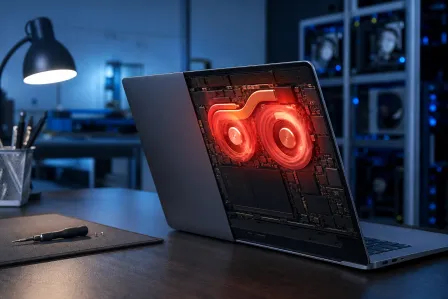
This is the part that trips people up the most. On most Macs made since around 2013-2015, RAM is soldered to the logic board. You cannot add RAM after the fact. Full stop. No amount of wanting it to be true changes that. If Activity Monitor says you need more RAM but your Mac doesn't support upgrades, your options are: manage your workload better (fewer tabs, close apps you're not using), or plan for a machine replacement down the road.```n Storage is a different story on many models. Some older MacBook Pros and iMacs have swappable SSDs or even hard drives. Newer ones often have storage soldered too, which is worth knowing before you get your hopes up about a cheap fix. If you're not sure what your specific model allows, that's exactly the kind of five-minute question our Mac repair team answers honestly, including telling you when it's simply not upgradeable and what your real options are.
Common Mistakes
Assuming "slow" always means RAM. It's the most common guess because it's the most commonly advertised "fix." Half the time the actual bottleneck is a nearly-full or failing drive, and RAM was never the issue.
Ignoring a SMART Status warning because the Mac "still works fine." Drives don't fail gracefully. They work fine until they very much don't, usually at the worst possible moment, usually with no recent backup.
Buying RAM for a Mac where RAM is soldered in. Check your model first. Wasting money on a repair that's physically impossible on your hardware helps nobody but whoever sold it to you.
Confusing storage space with storage speed. A drive can have plenty of free space and still be slow if it's failing, fragmented (rare on SSDs, common on old spinning drives), or just an old, slow spinning disk that was never fast to begin with. Free space alone doesn't tell the whole story.
Not backing up before troubleshooting. If you're already suspicious your drive might be failing, back up before you start poking around, not after. I've watched people lose family photos because they wanted to "finish diagnosing it first."
Trusting a random YouTube "speed up your Mac" tool. Most of these third-party "cleaner" apps do very little and some actively make things worse by deleting cache files your system actually needs. macOS manages its own housekeeping reasonably well. You don't need a stranger's app promising miracles.
Bottom Line
Activity Monitor and Disk Utility will tell you the truth in about ten minutes, for free, before you spend a dime on anything. Memory Pressure and Swap Used point to RAM. SMART Status, free space, and general sluggishness with nothing running point to the drive. If you're getting a muddy answer, or if you check SMART Status and it's not saying "Verified," don't keep guessing. Bring it in, or start with our remote support option if you'd rather have someone walk through it with you on screen before deciding anything. Either way, figure out which one it actually is before you spend money guessing. That's the whole game.
Computer acting up? Get a real diagnosis.
Fix My PC Store has repaired thousands of machines across West Palm Beach. Honest pricing, no upsell games, and a free diagnostic for new customers with our email coupon.