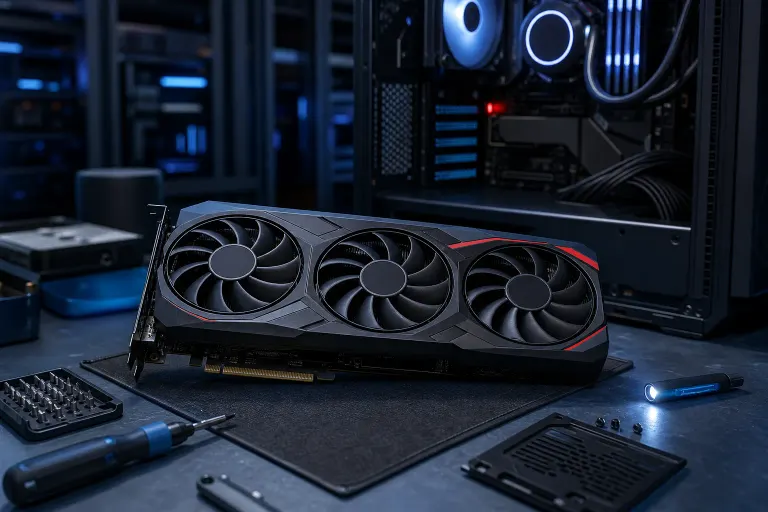
RX 9070 XT Crashing: Why It Happens and How to Fix It
TL;DR: An RX 9070 XT crashing usually comes down to one of four things: an underpowered or flaky PSU connection, a driver conflict, unstable factory or manual overclocks, or heat buildup from a cramped case. Work through these in order and most crashes stop within an hour. If they don't, it might be a hardware defect worth having checked.
Let's get one thing straight. A brand new $600+ GPU crashing your games isn't normal, and it's not something you should just "live with." I've had folks bring in machines convinced their whole PC is cursed, when really it's one loose 12V-2x6 connector or one bad driver install. The RX 9070 XT is a strong card, AMD's best consumer GPU in years, but it's also new silicon on a new architecture, and new architectures always have a rocky first few months of driver maturity. That's not an excuse, it's just reality, and it means the fix is often software before it's ever hardware.
If you're searching "9070 XT crashing" because your screen is going black mid-game, your driver keeps resetting, or your whole system reboots out of nowhere, this guide walks through the causes in the order you should actually test them. Not randomly. In order.
What You Need
Before you start, gather these. It'll save you from redoing steps.
- Your PSU's wattage and connector type (check the label or the box)
- AMD Software: Adrenalin Edition, updated to the latest version
- Display Driver Uninstaller (DDU), a free tool for clean driver wipes
- HWiNFO64 or GPU-Z to monitor temps, power draw, and voltage
- Windows Event Viewer access (built into Windows, just search for it)
- 30-60 minutes of uninterrupted time
If any of this sounds intimidating, that's fine. This is exactly the kind of thing our computer repair team handles daily, and if you'd rather skip the troubleshooting and just hand it off, book a repair and we'll diagnose it properly on a bench.
Step 1: Check Your Power Delivery First
I know, I know. "It's not the power supply" is what everyone says right before it turns out to be the power supply. But hear me out.
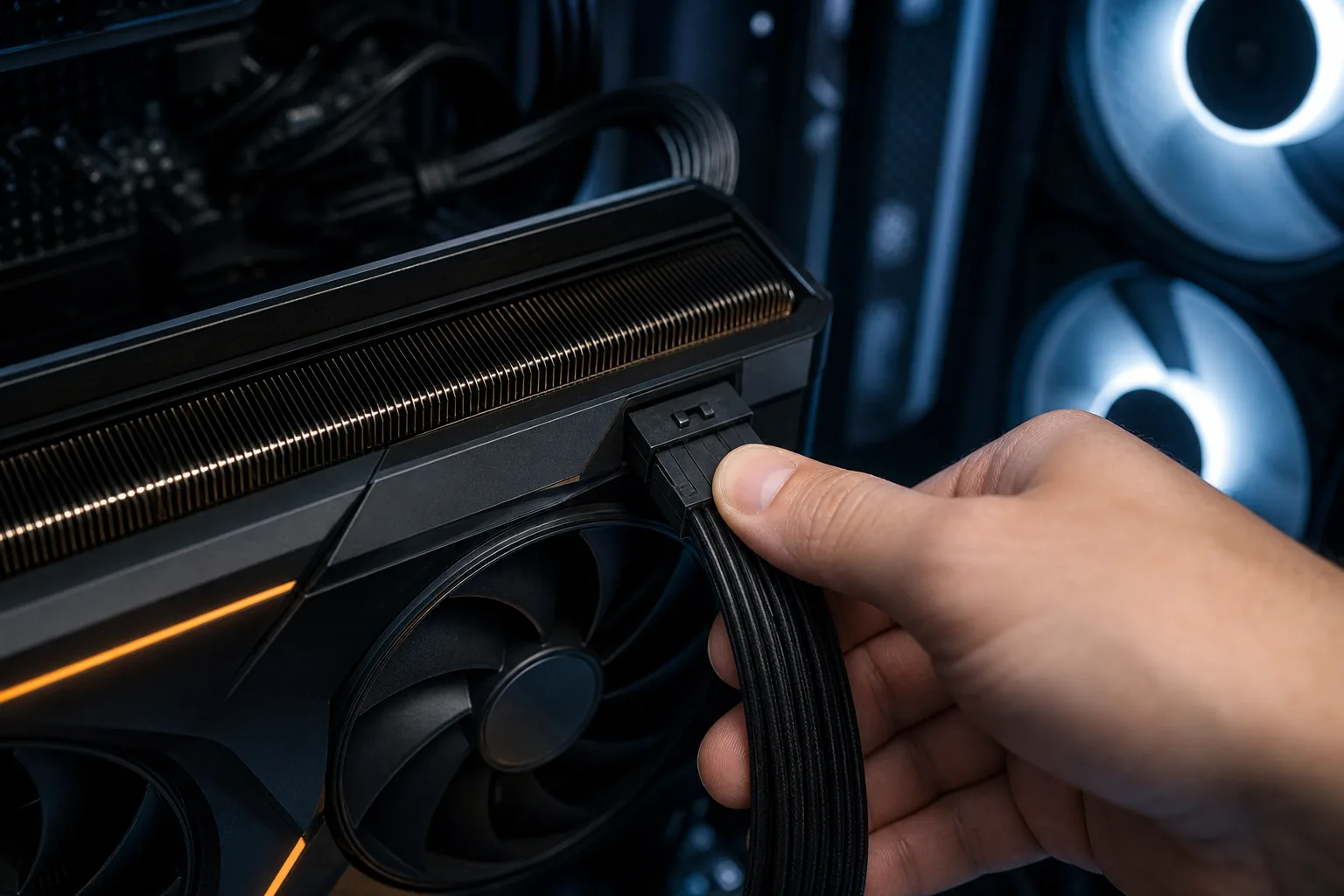
The RX 9070 XT pulls meaningfully more power than the previous generation's midrange cards, and it uses either multiple 8-pin PCIe connectors or a 12V-2x6 connector depending on the model. A partially seated connector, a cheap adapter, or a PSU that's technically "enough wattage on paper" but weak on the 12V rail can cause exactly the kind of random crash or black screen you're seeing.
- Reseat every power connector at both ends, GPU and PSU side both. Push until you hear or feel the click. It's surprisingly easy to get a connector that looks seated but isn't making full contact on all pins, especially with the denser 12V-2x6 connector format.
- If you're using any kind of adapter, inspect it closely. 12VHPWR and 12V-2x6 adapters have a documented history of issues when cables aren't fully inserted or when cheap third-party adapters are used. Look for any bent pins, discoloration, or melting around the connector housing. If you see any of that, stop using the adapter immediately.
- Confirm your PSU is actually rated for this card. AMD's official guidance and most board partner specs list 750W as a starting point for a system with a mainstream CPU, and 850W or higher if you're pairing the 9070 XT with something like a Ryzen 9 7950X or an Intel Core i9-14900K. A 650W unit that was perfectly fine with your old RX 6700 XT might fall apart under the 9070 XT's transient power spikes, which can spike well above its rated TDP in short bursts. For general PSU sizing guidance, the 80 PLUS certification program is a useful reference for evaluating PSU efficiency ratings.
- Consider the age of your PSU. Electrolytic capacitors inside a power supply degrade over time, typically showing measurable wear after four to six years of regular use. A unit that passed every test in 2018 might now sag on the 12V rail under heavy load without throwing any obvious error. If your PSU is pushing six or more years old, it's worth testing in HWiNFO64 under a GPU stress test like FurMark to watch for voltage drops below 11.8V on the 12V rail. Anything that dips that low under load is a PSU problem.
This is genuinely the single most common cause of "random crash under load" complaints we see on new GPU installs. The boring answer is usually the right one.
Step 2: Do a Clean Driver Reinstall (Not Just an Update)
This is the step people skip because they think hitting "update" in AMD Software does the same thing. It doesn't. Incremental updates layer on top of existing driver files, and if those existing files have any corruption or leftover data from a previous GPU (especially if you're coming from NVIDIA), you can end up with a messy driver stack that causes crashes, black screens, or the Adrenalin software itself freezing.
Here's how to do it properly:
- Download DDU (Display Driver Uninstaller) from Wagnardsoft's website before you start. It's free and trustworthy.
- Download the latest AMD driver package from AMD's website and save it locally. Don't rely on Windows Update to pull it.
- Boot into Safe Mode. Press Win + R, type
msconfig, go to the Boot tab, check "Safe boot," and restart. Safe Mode prevents AMD's driver components from loading, which lets DDU do a thorough job. - Run DDU and select "Clean and restart." Choose GPU as the device type and AMD as the manufacturer. DDU will strip every registry entry, leftover file, and service associated with your previous AMD driver install. If you're coming from NVIDIA, run it for NVIDIA first, then again for AMD.
- Restart normally (go back into msconfig and uncheck Safe boot first), then install the fresh driver package you downloaded.
After a clean reinstall, test the card with something demanding, a game you know crashes reliably, or a benchmark like 3DMark Time Spy. If the crashes stop here, you're done. If they don't, move on.
One specific thing to check in AMD Software after reinstalling: look at the Radeon Anti-Lag and Radeon Boost settings. Both have caused driver-level instability on early RDNA 4 driver builds for certain game titles. Disabling them temporarily is a quick way to rule them out as a contributing factor.
Ready to build a rig that actually rips? Start your build
Step 3: Reset or Disable Overclocking
The RX 9070 XT ships with factory overclocks on most AIB models, and some boards push those clocks pretty aggressively out of the box. The Sapphire Nitro+ and PowerColor Red Devil variants in particular ship with GPU clocks that are noticeably above AMD's reference spec. That's fine on a well-cooled system at stock, but if you've touched the overclock settings yourself, or if you're running a third-party tool like MSI Afterburner, that's where instability creeps in fast.
If you've manually overclocked anything, clock speed, memory frequency, or voltage, reset everything to stock first. In AMD Software, go to Performance > Tuning and set everything to Default. In Afterburner, hit the reset button and make sure the profile isn't loading at startup.
If the crashes stop after resetting, and you want to re-explore overclocking later, do it methodically. Raise the GPU clock in 25MHz increments, stress test for 15-20 minutes between each step, and don't touch memory clocks until the core is stable. GDDR7 memory on RDNA 4 is more sensitive to unstable memory overclocks than GDDR6 was, and a bad memory overclock will often produce crashes that look identical to a PSU or driver problem.
Also worth checking: if you haven't overclocked at all but your crashes happen right as the GPU boosts to its maximum clock, the card's factory boost target may be hitting the edge of what your specific chip can sustain. Undervolting (reducing voltage while maintaining or slightly reducing clocks) can actually improve stability in this case. AMD Software's "Undervolt GPU" preset under Performance > Tuning is a reasonable starting point.
Step 4: Check Thermals and Case Airflow
The RX 9070 XT runs warm. That's not unusual for a high-performance GPU, but it's worth confirming that "warm" isn't becoming "throttling hot" inside your specific case.
Open HWiNFO64 and run a game or benchmark while watching these sensors:
- GPU Temperature (Edge): Should stay under 85°C under sustained load. Above 90°C is a problem.
- GPU Hot Spot (Junction) Temperature: This is the hottest point on the die. AMD's thermal limit for RDNA 4 is around 110°C junction. If you're hitting 105°C or above during normal gaming, your cooling situation needs attention.
- GPU Memory Temperature: GDDR7 runs hotter than GDDR6, but you still want this under 95°C.
If any of these numbers are too high, the fixes are straightforward. Start by cleaning dust from the GPU's heatsink and case fans, particularly if the card has been in service for more than a few months. Then check case airflow: two or three intake fans on the front and at least one exhaust at the rear or top is the baseline. If your GPU is starved for fresh air because it's in a small or poorly ventilated case, temperatures will spike under load and the card will crash as a protective measure.
For triple-fan AIB cards like the Sapphire Nitro+ or ASUS TUF, also verify that the fans are actually spinning up under load. A small number of early units shipped with fan headers that weren't properly calibrated, causing fans to stay near-idle even when the card needed maximum cooling. AMD Software's Performance > Fan Tuning section lets you set a custom curve to force the fans to ramp earlier and harder.
Step 5: Check Windows Event Viewer for Clues
Before concluding anything is a hardware defect, check Event Viewer. Open it, go to Windows Logs > System, and look for entries around the exact time of your last crash. You're looking for a few specific things:
- "Display driver amdkmdag stopped responding and has successfully recovered", This is a TDR (Timeout Detection and Recovery) event. It means the GPU stopped responding and Windows restarted the driver to recover. This almost always points to a driver issue, an overclock that's too aggressive, or power delivery instability.
- Kernel-Power Event ID 41, This means the system lost power unexpectedly and rebooted without a clean shutdown. If you see this after a GPU crash, it's more likely a PSU issue than a driver issue.
- Application-specific crash logs, If only one game is crashing, look for application errors tied to that game's executable. Sometimes the crash is a game bug, not a GPU bug at all.
The event log won't always give you a clean answer, but it narrows things down quickly. A TDR event points you back toward driver or overclock. A Kernel-Power 41 points you toward PSU. No relevant events at all, paired with a system that just reboots, is often thermal protection kicking in.
When to Suspect a Defective Card
If you've worked through every step above, confirmed your power delivery is solid, done a clean driver install, reset all overclocks, ruled out thermals, and checked the event log, and the card is still crashing, it's fair to start looking at the card itself.
A GPU with a defective power delivery component, a bad memory module, or a silicon defect will often produce crashes that no software fix can resolve. Symptoms that lean toward hardware defect rather than software include:
- Crashes that happen within seconds of launching any GPU load, even light 2D work
- Visual artifacts (flickering textures, colored blocks, screen tearing in unusual patterns) before or during a crash
- Crashes that occur in completely different scenarios: gaming, a benchmark, and desktop video playback all failing
- The card crashing on a second, known-good system after you've ruled out PSU and drivers on your own
If you're within the return window at your retailer, returning for a replacement is the cleanest path. If you're past that window, AMD's warranty covers manufacturing defects, and most AIB partners (Sapphire, ASUS, PowerColor, XFX) have their own warranty programs that are worth contacting directly. Keep your purchase receipt and any documentation of the crashes.
The RX 9070 XT is a genuinely excellent card when it's working correctly. Most of the crashes people are reporting in forums right now trace back to one of the four causes covered in this guide, and most of those are fixable in under an hour. Start with power, clean the drivers, reset the clocks, check the temps, and you'll have your answer.
Ready to build a rig that actually rips?
Custom gaming PCs built and tuned by people who game. Tell us your budget and target frame rate.