Why Is My Mac Not Detecting a Second User Account at Login?
TL;DR: A missing user account on the Mac login screen is almost always a configuration issue, not a deletion. The account still exists. The most common culprits are the account being marked hidden, the login window set to show a name-and-password field instead of a user list, or Fast User Switching behaving unexpectedly. A directory service error can also hide accounts in rarer cases.
What Happened
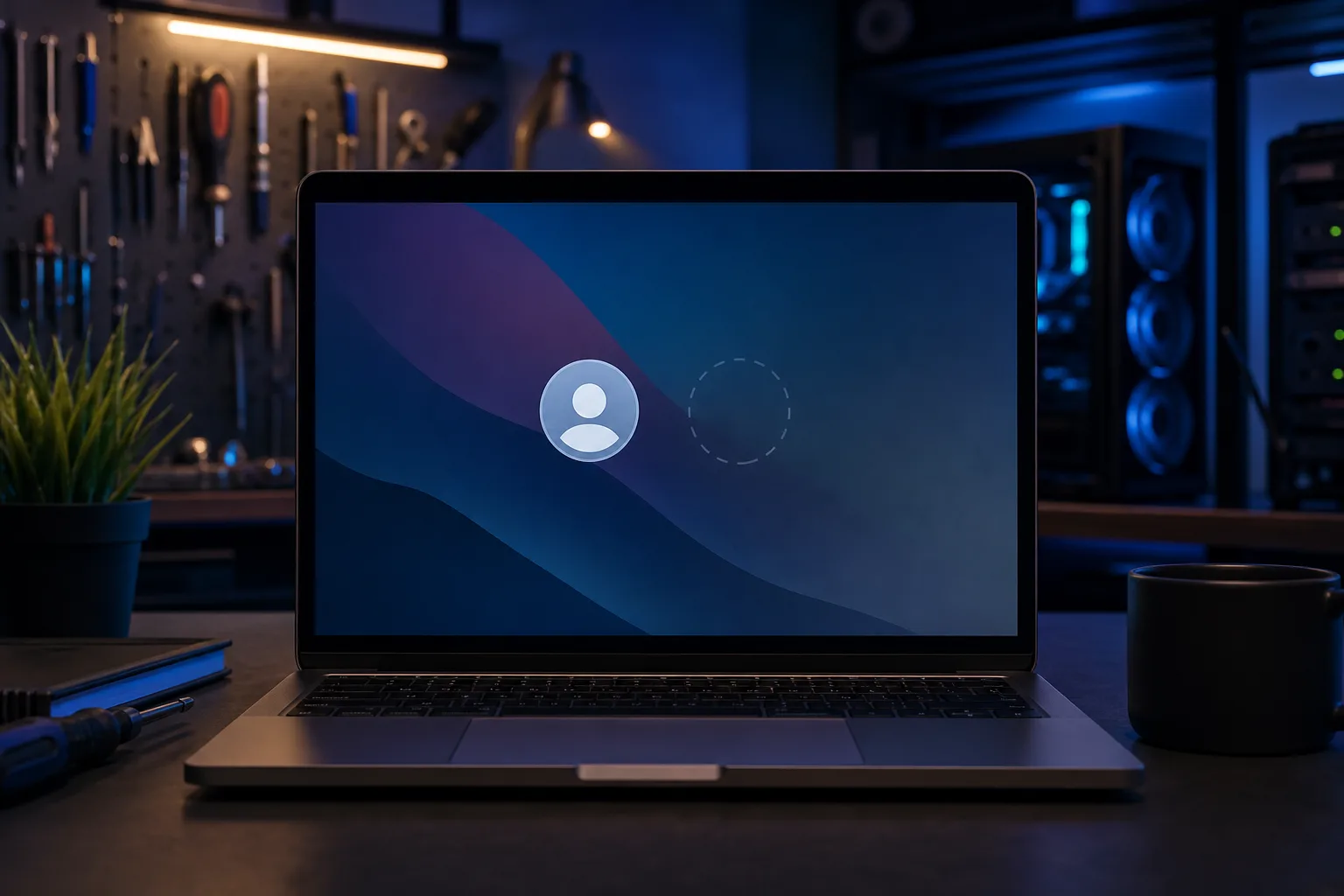
macOS shows user accounts at login through a combination of the Login Window preferences and the local directory database. When something disrupts either of those, an account stops appearing even though the data is completely intact.
The four most common triggers:
- Account hidden via terminal command. A command like
sudo dscl . create /Users/username IsHidden 1marks an account invisible at login. This is often done deliberately for admin or service accounts, but it can be applied by mistake. - Login window set to name-and-password mode. System Settings (or System Preferences on older macOS) has an option to show the login window as a list of users OR as two blank fields. If it is set to the blank-fields mode, no user icons appear at all, which feels like accounts are missing.
- Account UID below 500. macOS automatically hides accounts with a user ID below 500. These are typically system accounts, but a manual account created with a low UID will disappear from the login screen.
- Local directory corruption or a failed macOS update. Directory Services can develop inconsistencies after an interrupted update or a forced shutdown at the wrong moment. The account record exists but the login screen cannot read it cleanly.
Why It Matters
If this is a shared Mac at home or in a small office, a missing account means someone cannot log in without knowing the workaround. That is disruptive enough.
If the hidden account belongs to a managed Mac in a business environment, the implications are bigger. A misconfigured or orphaned admin account sitting invisible in the directory is a security concern. Someone who knows it exists can still log in with the right credentials, bypassing the visible account list entirely.
Fast User Switching adds another layer. If the Mac is already logged into one account and Fast User Switching is on, the second account may appear in the menu bar dropdown instead of the login screen. That is not a bug. It just looks like one.
Computer acting up? Get a real diagnosis. Book a diagnostic
What We Do Not Know Yet
Without seeing the specific Mac, a few things remain unclear:
- Whether the account was hidden intentionally by an admin or by a script.
- Whether this is a local account or one tied to an Apple ID, an Active Directory domain, or a third-party MDM (Mobile Device Management) system. MDM-managed accounts follow rules set by the MDM profile, not just local settings.
- Whether a recent macOS update changed behavior. Apple has adjusted how login window items are handled across several versions, so the fix for Ventura may differ from the fix on Sonoma.
Those variables change the correct approach significantly.
What to Do About It
Work through this sequence in order. Each step addresses a different cause.
Step 1: Check the login window display setting. Go to System Settings, Privacy & Security is not what you want here. Look for Users & Groups, then click Login Options (you may need to unlock with your admin password). If "Display login window as" is set to "Name and password," switch it to "List of users." Check if the account appears.
Step 2: Look for the account in Users & Groups. Still in Users & Groups, check whether the second account is listed at all. If it appears there but not on the login screen, it is almost certainly hidden by one of the methods below.
Step 3: Check the IsHidden flag. Open Terminal and run:
dscl . read /Users/yourusername IsHidden
Replace yourusername with the actual short username. If the output shows IsHidden: 1, the account is intentionally hidden. To unhide it:
sudo dscl . create /Users/yourusername IsHidden 0
Log out and check the login screen.
Step 4: Verify the account UID. In Terminal:
dscl . read /Users/yourusername UniqueID
If the number is below 500, that is why it is hidden. Changing a UID is possible but requires care because file ownership is tied to that number. If you need to do this, back up first.
Step 5: Check for filesystem errors. Restart in Recovery Mode (hold Command-R on Intel, or hold the power button on Apple Silicon). Open Disk Utility and run First Aid on the startup volume. Note that First Aid checks filesystem integrity (APFS/HFS+) and does not repair Open Directory record corruption, if the account record itself is inconsistent in Directory Services, First Aid will not address that. For true Open Directory issues, different tools are needed (such as restarting the opendirectoryd daemon or, in more complex cases, re-binding the directory). Exit Recovery and test the login screen again.
If none of these steps resolves it, the issue is likely deeper in Directory Services or tied to an MDM profile. At that point, self-help has real limits.
If you are dealing with a business Mac where accounts are managed remotely, or if the directory fix did not work, Mac repair at Fix My PC Store is worth a visit. The shop is at 10140 Okeechobee Blvd, Suite B, West Palm Beach, and initial checks are free for most standard in-store repairs. You can also start with remote support if you just want someone to walk through it with you without leaving home.
Computer acting up? Get a real diagnosis.
Fix My PC Store has repaired thousands of machines across West Palm Beach. Honest pricing, no upsell games, and a free diagnostic for new customers with our email coupon.