5 PC Maintenance Tasks Most Owners Skip Until It Breaks
TL;DR: Dust buildup, ignored updates, full drives, dead backups, and startup bloat are the five things that quietly kill computers. None of them are hard to fix. All of them get ignored until something expensive breaks.
I've been fixing computers long enough to know the pattern. Someone comes in with a machine that's slow, crashing, or just dead. I ask when they last cleaned it out, updated the drivers, or checked the drive health. They look at me like I asked them to recite the Gettysburg Address.
Nobody does maintenance until something goes wrong. Then they want a miracle.
Some of these repairs are cheap. Some aren't. Almost all of them were avoidable. So here are the five tasks I see skipped most often, and what actually happens when you keep ignoring them.
1. Cleaning the Dust Out of the Machine
This one makes me the most tired, because it costs nothing and takes twenty minutes.
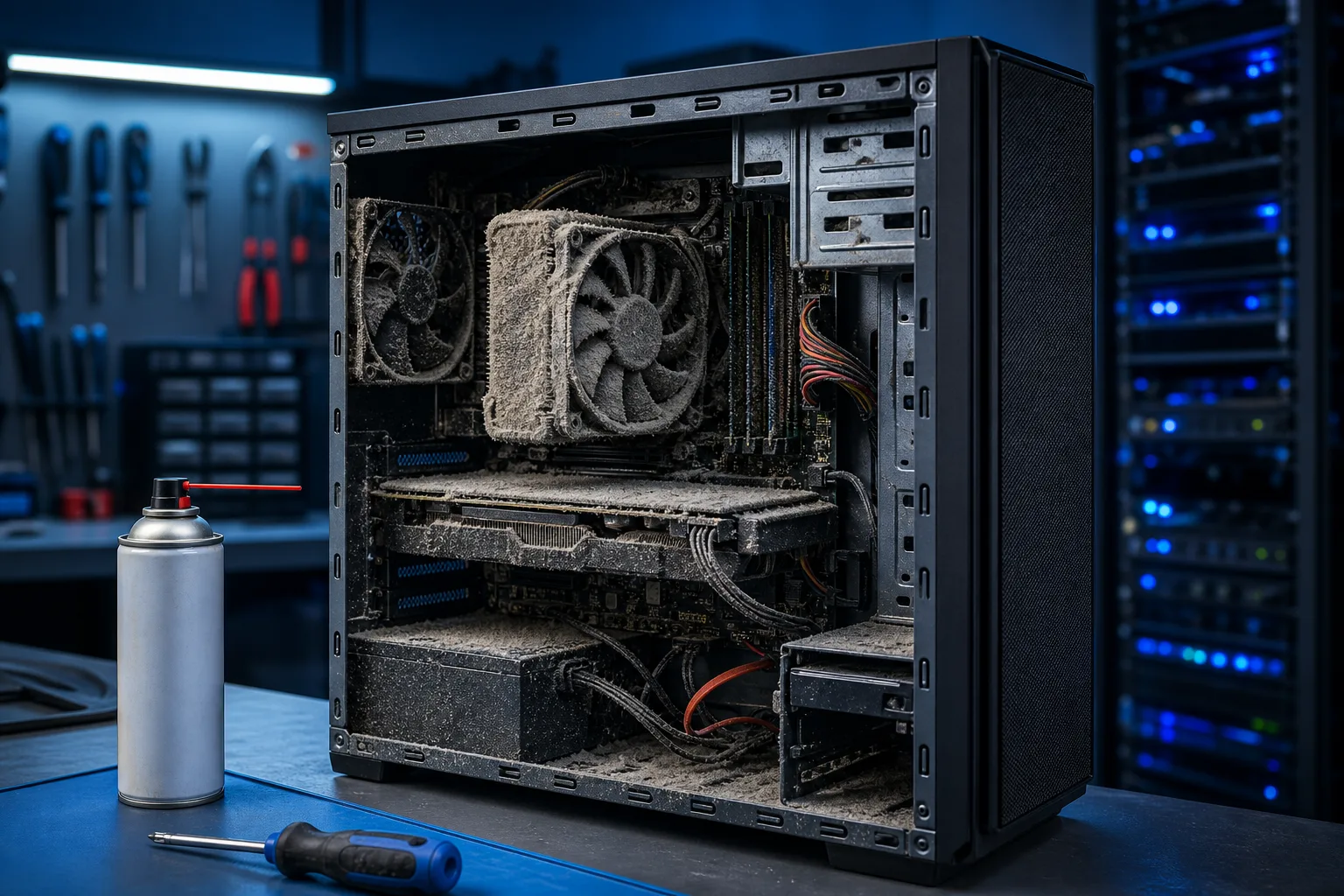
Desktops and laptops pull air through vents to cool the components inside. That air carries dust, pet hair, and whatever else is floating around your house or office. Over months, that debris packs into the heatsink fins and fan blades. The airflow drops. The temperatures climb.
When a CPU or GPU gets too hot, it throttles itself to avoid damage. Your machine gets slow. Sluggish. It starts shutting down at random. Eventually something thermal-pastes itself to death or a fan bearing gives out.
I've pulled desktop towers that looked like the inside of a dryer vent. People had been using those machines for two or three years without ever opening the side panel.
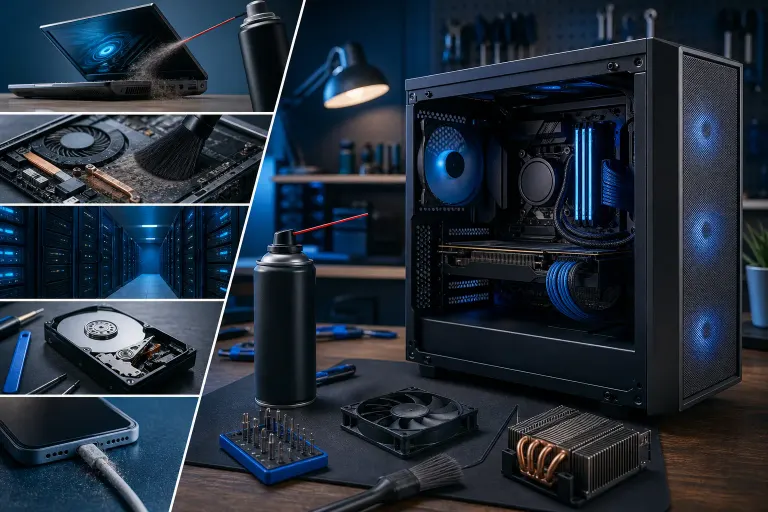
Laptops are worse, because the vents are tiny and the heat has nowhere to go. A can of compressed air through the exhaust vent once every few months is the bare minimum. For desktops, open the case, blow out the dust, and replace the thermal paste every couple of years.
(Yes, some people are scared to open the case. That's what we're here for. Bring it in.)
2. Keeping Windows and Drivers Actually Updated
I know, I know. Updates are annoying. They pop up at bad times. Sometimes they break something. I get it.
But skipping updates for months or years is how you end up with a machine full of unpatched security holes and driver bugs. The exploits that ransomware uses to get into systems are usually known vulnerabilities with patches that were available long before the attack happened. People just didn't install them.
Windows updates matter. Driver updates matter more than most people realize, especially GPU drivers if you're doing anything graphics-intensive. And firmware updates for your motherboard or drive controller exist for a reason, even if nobody talks about them.
Set Windows Update to automatic if you can tolerate it. Check your GPU manufacturer's site for driver updates every few months. If you're running a business with multiple machines, this is the kind of thing a managed IT service handles so you don't have to think about it.
The alternative is calling me after a ransomware infection, which is a much worse conversation.
3. Watching Your Drive Space and Drive Health
Two separate problems, often confused.
Drive space: Windows needs room to breathe. When your system drive gets close to full, the OS can't properly use virtual memory, can't write temp files, and starts slowing down noticeably. Keep at least 15 percent of your system drive free. More is better. If you're constantly running out of space, it's time to either delete things, move files to external storage, or upgrade the drive.
Drive health: This is the one that bites people. Hard drives and SSDs don't last forever. HDDs typically start showing problems after three to five years. SSDs have a different failure mode but they're not immortal either.
You can check drive health for free with a tool like CrystalDiskInfo, which reads the SMART data your drive reports. If it's flagging reallocated sectors, pending sectors, or uncorrectable errors, that drive is telling you it's on the way out.
I can't tell you how many people come in after a drive fails with zero backup and years of photos or business files on it. Some of that data can be recovered. Some can't. None of it had to be lost.
Which brings me to the next one.
Computer acting up? Get a real diagnosis. Book a diagnostic
4. Actually Having a Working Backup
People think they have a backup. What they usually have is a folder they copied to an external drive once in 2021, a cloud sync that stopped working when they changed their password, or an automated backup that failed silently months ago and nobody checked.
That's not a backup. That's a false sense of security.
A real backup is recent, verified, and stored somewhere separate from the machine it's protecting. The 3-2-1 rule is a good place to start: three copies of your data, on two different media types, with one copy offsite. For most home users, that means an automated cloud backup plus an external drive you actually update.
For businesses, this gets more serious. Ransomware attacks, hardware failures, and accidental deletions are all real scenarios. If your last good backup is three months old, you're not protected. You're just less screwed than someone with no backup at all.
Our backups and disaster recovery service exists because most businesses don't have time to manage this properly and find out the hard way that their system wasn't working.
For home users: set up automatic backups today. Test them. Restore a file from the backup to confirm it actually works. Do that once a year at minimum.
5. Dealing With Startup Bloat and Background Processes
This is the slow-burn one. The machine was fast when you got it. Now it takes four minutes to be usable after boot. Nothing dramatic happened. It just got worse.
What happened is startup bloat. Every app you've installed over the years wants to launch at startup. Your cloud sync client. Your printer software. That media player you used once. The manufacturer's update helper for your webcam from 2019. They all pile up.
Task Manager on Windows (Ctrl+Shift+Esc, then the Startup tab) shows you what's launching at boot and how much impact each item has. You can disable things that don't need to start automatically without uninstalling them. Most of what's in that list doesn't need to run until you actually open it.
While you're in there, check the Processes tab for anything eating CPU or RAM in the background when the machine is supposed to be idle. Antivirus scans, indexing services, and misbehaving update helpers are common culprits.
(If you find something in there you don't recognize and can't identify, don't just ignore it. Unknown background processes are worth investigating. You can always get a remote look if you'd rather not dig through it yourself.)
Beyond startup items, keep an eye on installed software. Uninstall things you don't use. Some software packages try to install browser toolbars, search hijackers, or secondary programs alongside the main app. That stuff adds up and slows things down.
Bottom Line
None of this is exotic. No specialized knowledge required. Most of it is free and takes less than an hour spread across a year.
The reason people skip it is the same reason they skip changing the oil in their car. Nothing bad happens immediately. Then something fails and the repair bill is much larger than the maintenance would have been.
Dust out the machine. Keep it updated. Watch the drive health. Have a real backup. Trim the startup programs. Do those five things and your computer will last longer and give you less grief.
If you've been ignoring all of this for a few years and the machine is already showing problems, we can take a look and tell you where things stand. Sometimes it's a cheap fix. Sometimes the drive is dying and we need to talk about backups and recovery. Either way, knowing beats not knowing.
And if you're running a business and don't want to manage any of this yourself, that's a reasonable position. It's what managed IT is for.
Computer acting up? Get a real diagnosis.
Fix My PC Store has repaired thousands of machines across West Palm Beach. Honest pricing, no upsell games, and a free diagnostic for new customers with our email coupon.