Why Is My PC Randomly Disconnecting From Wi-Fi but Other Devices Stay Connected?
TL;DR: If only your PC drops Wi-Fi while other devices stay connected, the router is almost certainly fine. The culprit is typically a buggy or outdated Wi-Fi adapter driver, Windows power-saving settings cutting the adapter off, or a failing wireless card. Work through the steps below in order.
What you need
- Access to your Windows PC (logged in as an administrator)
- A USB drive or Ethernet cable handy (in case you need to download drivers offline)
- About 20-30 minutes
Step 1: Confirm the problem is isolated to your PC
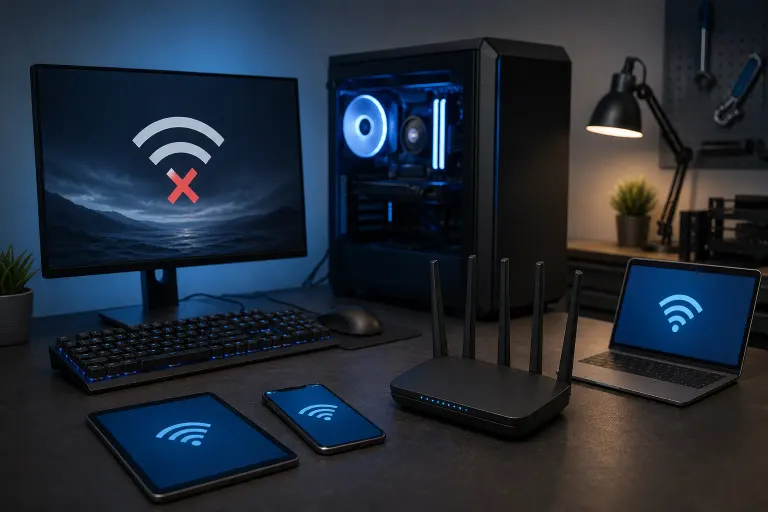
Before touching any settings, verify the obvious. Check that your phone, tablet, or another laptop stays connected during the exact window your PC drops. If other devices also drop, the problem is the router or ISP, not your PC.
If only the PC drops, proceed below.
Step 2: Update or roll back the Wi-Fi adapter driver
This is the most common fix, by a significant margin.
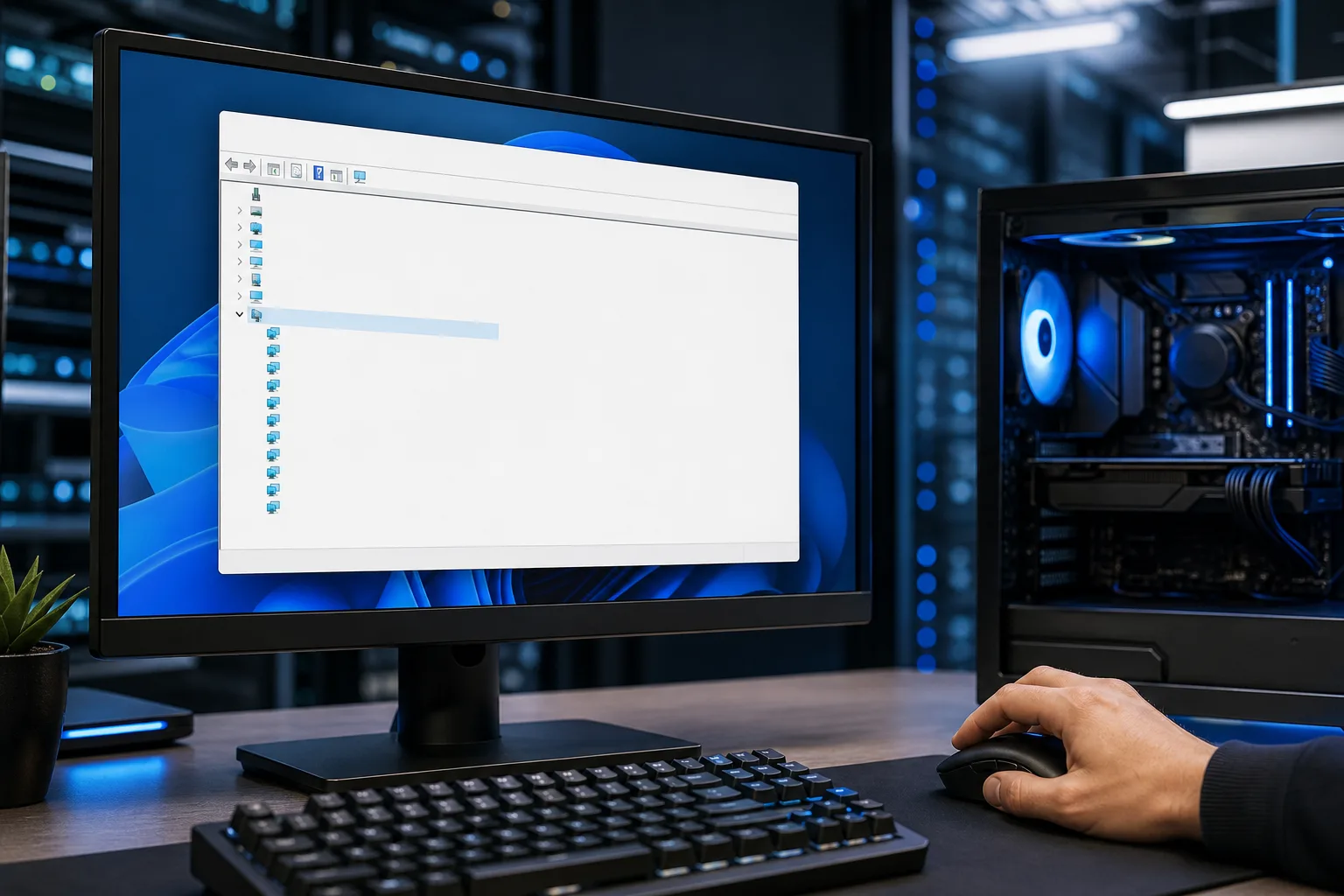
- Right-click the Start button and choose Device Manager.
- Expand Network Adapters.
- Right-click your wireless adapter and choose Update driver, then search automatically.
- If Windows says the driver is current, go to the laptop or motherboard manufacturer's website and download the latest Wi-Fi driver manually.
- If the drops started right after a Windows Update, try Roll Back Driver instead.
Restart after any driver change and monitor for 30 minutes before calling it fixed.
Step 3: Disable Wi-Fi adapter power management
Windows has a habit of cutting power to the network adapter to save battery, even on desktops. When it wakes back up, it sometimes doesn't reconnect cleanly.
- Open Device Manager and find your wireless adapter again.
- Right-click it, choose Properties, then the Power Management tab.
- Uncheck Allow the computer to turn off this device to save power.
- Click OK.
Also check this: Go to Control Panel > Power Options > Change plan settings > Change advanced power settings. Expand Wireless Adapter Settings > Power Saving Mode and set it to Maximum Performance.
Step 4: Check for IP address conflicts and DNS issues
Sometimes the PC reconnects to the router but gets a bad IP address, which makes it appear disconnected.
Open Command Prompt as administrator and run these in order:
ipconfig /release
ipconfig /flushdns
ipconfig /renew
Then try:
netsh winsock reset
netsh int ip reset
Restart after running these commands. If you were seeing "No internet, secured" errors rather than full disconnections, this step often resolves it.
Computer acting up? Get a real diagnosis. Book a diagnostic
Step 5: Change your router's Wi-Fi channel or band
Channel congestion is real, especially in apartment buildings or dense neighborhoods in South Florida. Your PC's wireless card might be more sensitive to interference than your phone's.
- Log into your router's admin panel (usually 192.168.1.1 or 192.168.0.1).
- Switch the 2.4 GHz band to a less crowded channel (1, 6, or 11 in the US).
- If your PC supports 5 GHz and you're connecting on 2.4 GHz, try switching to 5 GHz. It's faster and far less congested, though shorter range.
Free tools like Wi-Fi Analyzer (available in the Microsoft Store) show which channels nearby networks are using.
Step 6: Check for hardware problems with the wireless card
If nothing above fixes it, the wireless adapter itself may be failing. Symptoms of a dying card include:
- Drops that get more frequent over time
- The adapter disappearing entirely from Device Manager
- Connection only works when the PC is cool, failing after warmup
A quick test: plug in a USB Wi-Fi adapter (they cost under $20) and see if the drops stop. If they do, your internal card is the problem.
For desktop PCs, a PCIe Wi-Fi card swap is straightforward. For laptops, it's a bit more involved.
Common mistakes
Restarting the router first. It feels productive, but if no other device is dropping, the router is not the issue. You're just adding delay.
Assuming Windows Update caused it when it didn't. Updates sometimes get blamed because they're visible. Check the driver version dates before rolling back, rather than guessing.
Setting power saving to Maximum Performance and stopping there. You still need to uncheck the Device Manager power option separately. They're two different settings and both matter.
Ignoring a flaky USB port. If you're testing with a USB Wi-Fi adapter and it also drops, try a different USB port before concluding the test is invalid.
Decision table: What's most likely causing your drops?
| Symptom | Most likely cause |
|---|---|
| Drops at regular intervals (every 10-30 min) | Power management cutting the adapter |
| Drops after Windows Update | Driver regression, roll back |
| Drops when PC gets warm | Failing wireless card |
| "No internet, secured" without full disconnect | IP/DNS conflict |
| Drops only in one room or location | Signal or channel interference |
| Adapter disappears from Device Manager | Hardware failure |
Bottom line
The fix is almost always a driver update or a power management setting. Work through the steps in order and you'll find it. If the wireless card is physically failing and you're dealing with a laptop, swapping it yourself can be tricky depending on the model.
If you've run through these steps and the drops keep happening, bring it in or try remote support. Fix My PC Store at 10140 Okeechobee Blvd, Suite B in West Palm Beach offers free initial checks for most standard in-store repairs, and the team can diagnose the hardware side if the software fixes aren't sticking. Call 561-819-9999 or book online.
Computer acting up? Get a real diagnosis.
Fix My PC Store has repaired thousands of machines across West Palm Beach. Honest pricing, no upsell games, and a free diagnostic for new customers with our email coupon.