Mac Won't Start Up? What Safe Mode and Recovery Reveal
TL;DR: A Mac that won't start isn't automatically a dead Mac. Safe Mode and macOS Recovery are built-in diagnostic tools that tell you whether the problem is software, a bad login item, or something deeper like disk or hardware failure. Walk through both before you assume the worst.
What you need
- The Mac in question, plus its charger (battery dying mid-diagnosis helps nobody)
- A few uninterrupted minutes, Recovery Mode is not instant
- Know whether your Mac has Apple silicon (M1, M2, M3) or is an older Intel model, the startup key combos are different
- A second device to search error codes if something odd pops up
- Patience. Diagnosing is a process of elimination, not a magic trick
If you're not sure which chip your Mac has, that's fine, we'll cover both paths below.
1. Figure out what "won't start" actually means
Before you touch a single key, be honest about what you're seeing. "Won't start" covers a lot of ground:
- Completely black screen, no sound, no light
- Apple logo appears, then it restarts in a loop
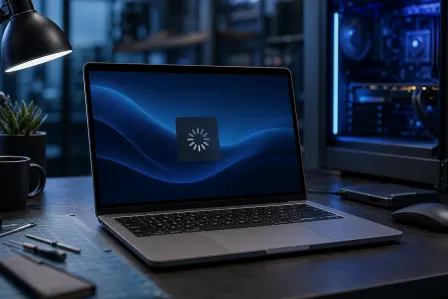
- Spinning gear or progress bar that never finishes
- Screen with a folder icon and a question mark
- Gray or blue screen that just sits there
Each of these points somewhere different. A boot loop usually means software or a corrupt update. A folder-with-question-mark means macOS can't find a valid startup disk, which points at the drive itself. A truly black screen with zero response might not even be a startup problem, it could be a dead display or power issue. Note exactly what you see. You'll need it.
2. Try Safe Mode first
Safe Mode is the Mac equivalent of asking "does this still happen with nothing extra running?" It loads only the bare minimum: essential kernel extensions, no third-party login items, no unnecessary startup software. If your Mac boots fine in Safe Mode, the problem is very likely something you installed or configured, not the hardware.
On Apple silicon Macs:
- Shut the Mac down completely.
- Press and hold the power button until you see "Loading startup options."
- Select your startup disk.
- Hold Shift and click "Continue in Safe Mode."
On Intel Macs:
- Shut down, then power on while holding Shift.
- Release Shift when you see the login window.
If Safe Mode boots successfully, pay attention to what's different. Slower graphics, a login item warning, a specific app not opening automatically. That's your clue. If it still fails to boot in Safe Mode, you've just ruled out most software culprits and the problem is more likely to be disk-level or hardware-level.
3. Move to macOS Recovery
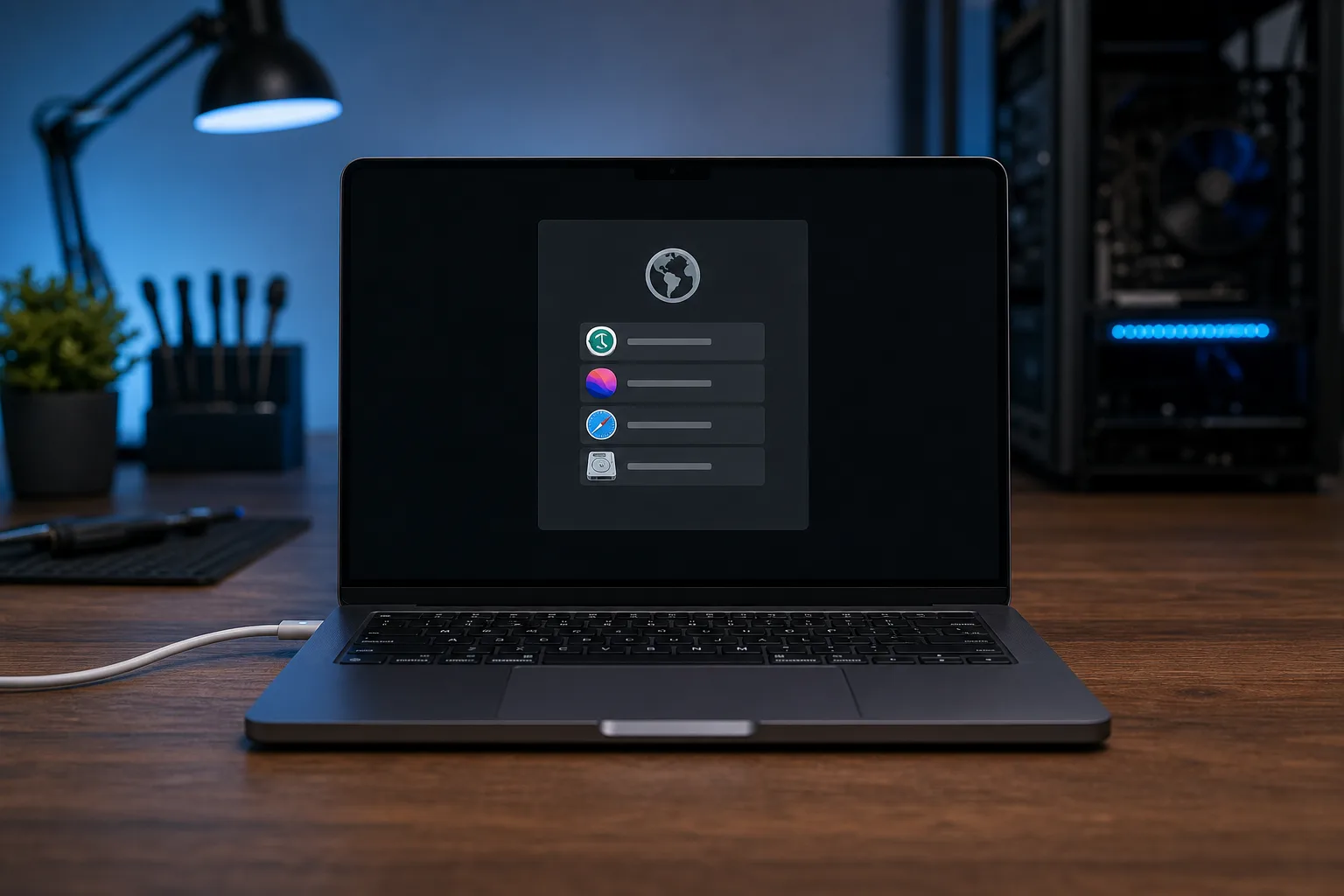
If Safe Mode won't even load, or if it loads but you want to check the disk itself, Recovery Mode is the next stop. Recovery isn't a repair tool by itself, it's a menu of repair tools, and reading what it offers (or doesn't offer) tells you a lot.
Apple silicon: Hold the power button until "Loading startup options" appears, then choose Options, then Continue.
Intel: Restart and immediately hold Command + R until the Apple logo or spinning globe shows up.
Once you're in Recovery, you'll see a menu with options like Disk Utility, restore from Time Machine, reinstall macOS, and a terminal option. Don't click reinstall yet. Start with Disk Utility.
Computer acting up? Get a real diagnosis. Book a diagnostic
4. Run First Aid in Disk Utility
From the Recovery menu, open Disk Utility, select your main volume (usually named "Macintosh HD" or similar), and click First Aid. This checks the disk's file structure for errors and tries to repair minor ones automatically.
What the result tells you:
- "The volume appears to be OK", good news, the drive structure is fine, so the startup problem is likely software, a bad update, or a corrupted system file.
- Errors that get fixed, the disk had a problem and Disk Utility patched it. Try restarting normally now.
- Errors it can't fix, or the disk doesn't show up at all, this is the point where you're looking at a failing drive, and that's not a DIY afternoon project anymore. A drive that's dying needs data pulled off it fast, before it gets worse.
If your Mac has important files that aren't backed up and Disk Utility is throwing errors it can't resolve, stop clicking around. Every attempt to force a repair on a failing drive risks making data recovery harder. This is exactly the kind of situation where getting the machine to a shop for proper Mac repair beats guessing at home.
5. Check if it's an update, a login item, or an app gone rogue
If Safe Mode worked, narrow it down further. Common software causes:
- A macOS update that didn't finish installing cleanly
- A kernel extension from third-party software (older backup tools, some security software, older peripherals' drivers) that's incompatible with a new macOS version
- A corrupted preference file or cache that's crashing something at login
- Too many login items fighting for resources on an older machine
In Recovery, you can also open Terminal from the Utilities menu and check disk status with diskutil list if you're comfortable in a command line. If you're not, that's a completely reasonable place to stop and call in help rather than start typing commands you found on a forum at 11pm.
6. Consider a clean reinstall, but only after backing up
If First Aid comes back clean and Safe Mode still won't boot properly, a reinstall of macOS from Recovery ("Reinstall macOS") can resolve corrupted system files without touching your personal data, in most cases. It's not instant. Depending on your internet connection, it can take a while to download and install.
Before you do this: if there's any way to get a backup first, do it. If you have Time Machine set up and it's current, you're in decent shape. If you don't, and the Mac is at least partially bootable, get files off it now while you can. This is also a good moment to be honest with yourself about whether your backup situation is actually working, not just technically switched on. If you run a small business and this Mac holds client files, invoices, or anything you can't recreate from memory, it's worth a real look at backup and disaster recovery planning so this scenario never turns into a crisis again.
7. Know when to stop and call for help
Some signs mean this stopped being a
Computer acting up? Get a real diagnosis.
Fix My PC Store has repaired thousands of machines across West Palm Beach. Honest pricing, no upsell games, and a free diagnostic for new customers with our email coupon.