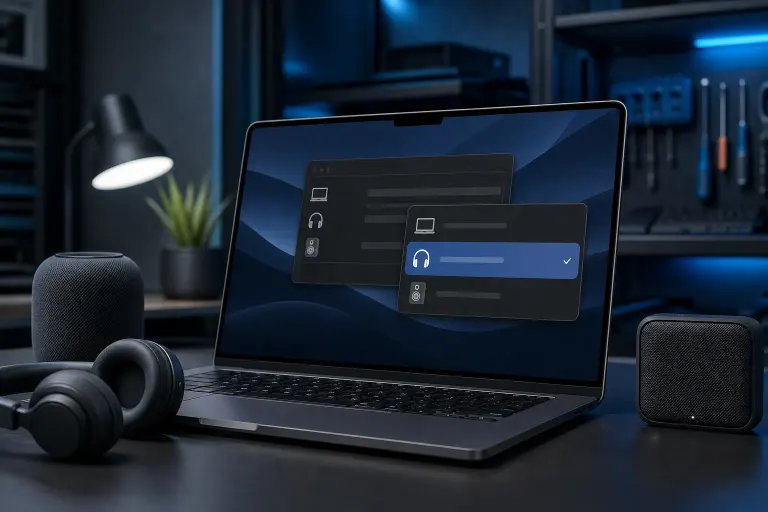
Why Does My Mac Keep Switching to a Different Audio Output Device?
TL;DR: macOS automatically reroutes audio when it detects a new output device, an HDMI signal, a Bluetooth connection, or an app-level override. It's not random. Once you know what triggers it, you can stop it happening mid-meeting or mid-movie.
What Happened
macOS has always had automatic audio routing built into its core. The OS watches for connected devices and reassigns the default output the moment it thinks something better, or just newer, is available.
Common triggers include:
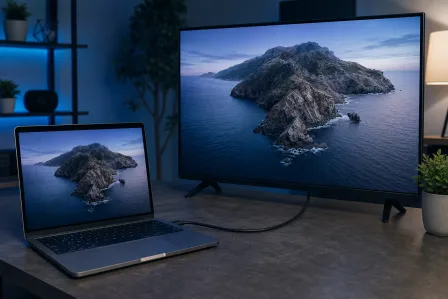
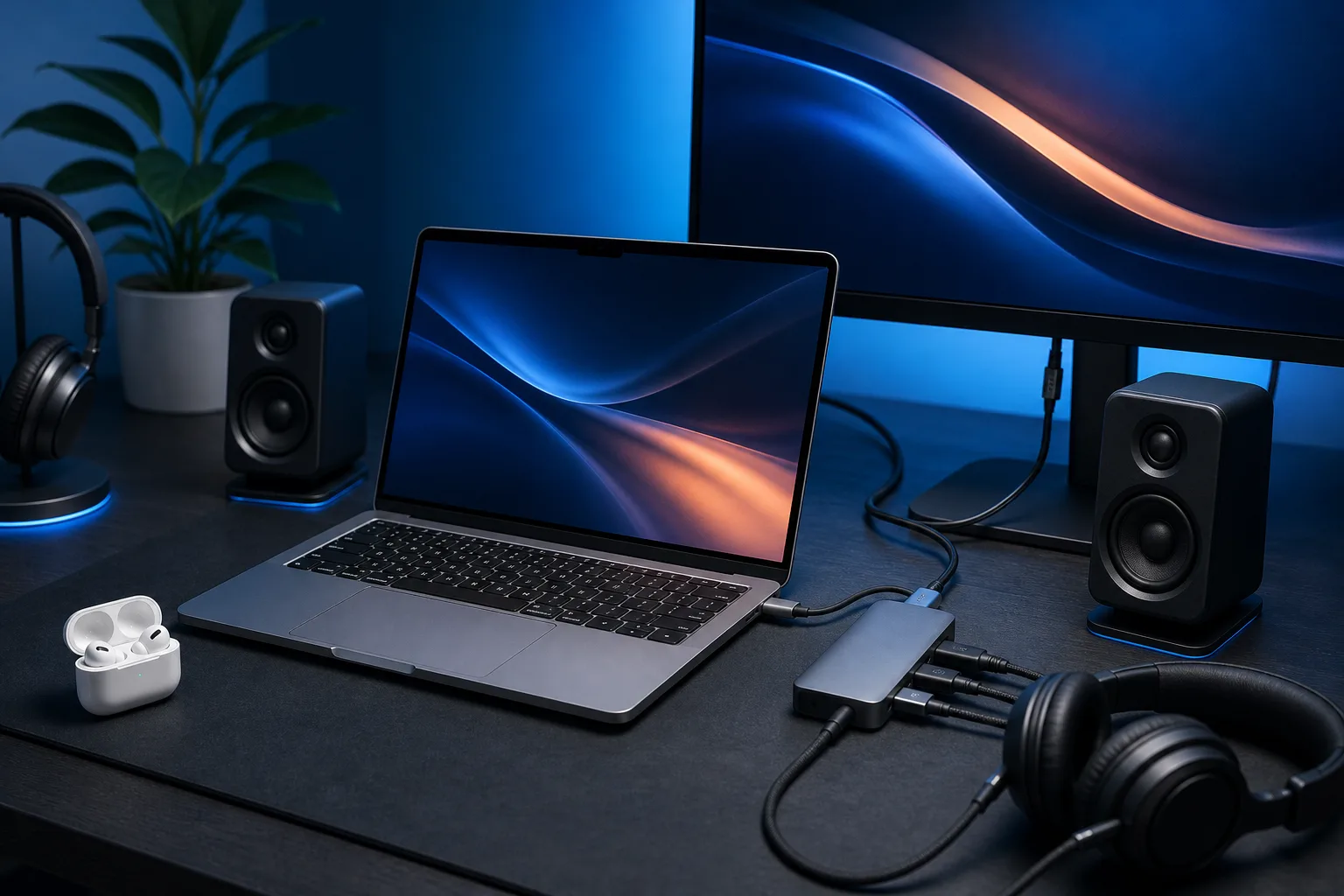
- Plugging in an HDMI cable or USB-C hub that carries an audio channel
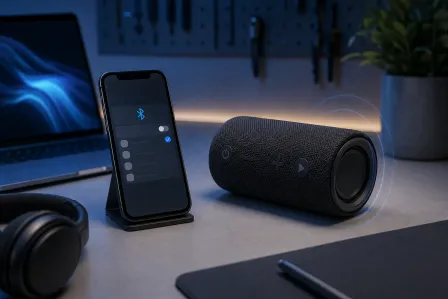
- A Bluetooth device waking up nearby (your AirPods, a speaker, a TV)
- An app like Zoom, Chrome, or Logic Pro applying its own audio preference at launch
- A display with built-in speakers being recognized by macOS
- Sleep and wake cycles that cause the OS to re-enumerate USB and Bluetooth devices
The result: you're watching something through your external speakers, your Mac wakes from sleep, and suddenly audio is coming from your monitor's tinny built-in driver. Sound familiar?
Why It Matters
This isn't just annoying. If your Mac switches outputs during a call, the other party may hear nothing. If it switches while you're recording, your DAW may be capturing silence or the wrong input/output pair.
The automatic behavior is a feature macOS never made easy to disable. Apple designed it for convenience in simple setups, but it falls apart the moment you have more than two audio devices in rotation.
One important distinction: macOS routes to the most recently connected device, not the highest-quality one. So your $200 USB DAC can get bumped by a monitor that technically supports audio but sounds like a tin can.
Computer acting up? Get a real diagnosis. Book a diagnostic
What We Don't Know Yet
Apple hasn't published a toggle to fully disable automatic audio switching in System Settings. Third-party utilities like SoundSource or BlackHole (a virtual audio loopback driver used to route audio between applications, not an output-switching manager) can play a role in custom audio setups, but Apple's own tools are limited to picking a default after the fact, not preventing the switch.
It's also worth noting: if your Mac is switching audio outputs even when no new device is physically connected, that can point to a software-level issue. A corrupted audio MIDI setup, a misfiring Bluetooth stack, or a background app asserting audio control are all possibilities. That's a different problem from normal auto-routing.
What to Do About It
Work through these steps in order. Stop when the problem is resolved.
1. Check Audio MIDI Setup Open Spotlight, search for "Audio MIDI Setup," and look for any device listed that you're not actively using. Phantom devices or duplicates can confuse macOS routing. Remove or disable anything you don't recognize.
2. Forget unused Bluetooth audio devices Go to System Settings > Bluetooth and remove any audio device you don't use regularly. If your Mac sees a Bluetooth speaker it once paired with, it may try to hand off audio to it whenever it wakes.
3. Manage HDMI and USB-C hub connections If your hub has an audio channel, macOS sees it as a valid output. Plug your hub in before launching audio-sensitive apps, so the OS settles on a device before you start. Or use a hub that doesn't pass audio if you don't need that feature.
4. Use a third-party audio manager SoundSource (Rogue Amoeba) lets you lock audio per-app and set rules that survive device changes. It's the closest thing to a real fix without waiting for Apple to add a native toggle.
5. Create an Aggregate Device (advanced) In Audio MIDI Setup, you can create an Aggregate Device that combines outputs. Some users find this stabilizes routing, though it adds latency and isn't suited for casual listening.
6. Check for persistent switching with no new device connected If the output is changing with nothing new plugged in or waking up, run a check: boot into Safe Mode (hold Shift at startup on Intel; on Apple Silicon, hold the power button until startup options appear, select your startup disk, then hold Shift and click 'Continue in Safe Mode'). If audio stays stable in Safe Mode, a third-party app or login item is the culprit.
If none of these steps resolve it and the switching is persistent or tied to something like a hardware port behaving oddly, that's worth having looked at. The Mac repair team at Fix My PC Store can run diagnostics on the audio subsystem and USB/Thunderbolt ports from the shop at 10140 Okeechobee Blvd in West Palm Beach. Initial checks are free for most standard in-store repairs.
Computer acting up? Get a real diagnosis.
Fix My PC Store has repaired thousands of machines across West Palm Beach. Honest pricing, no upsell games, and a free diagnostic for new customers with our email coupon.