Why Is My Mac Not Printing to a USB-Connected Printer?
TL;DR: When a Mac stops printing to a USB printer, the cause is usually a stalled print queue, a missing or outdated driver, or macOS not recognizing the USB connection. Work through the steps below in order and most setups are printing again within a few minutes.
What Happened
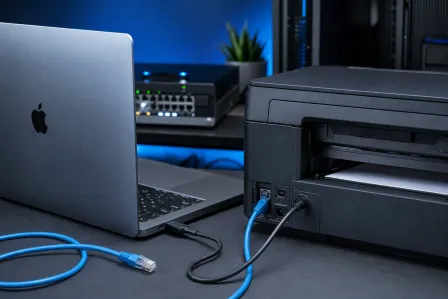
You hit Print, the job disappears into the queue, and nothing comes out. Or macOS never even shows the printer as an option. Either way, the USB cable is plugged in but something between your Mac and the printer has broken down.
This is surprisingly common after a macOS update. Apple periodically changes how it handles printer drivers, and an update can silently break a driver that worked perfectly the day before.
Other common triggers include a USB cable that has partially failed, a stalled print queue that is blocking every new job, and printers that have gone into an error state without displaying any obvious warning.
Why It Matters
A USB connection is supposed to be the most reliable way to connect a printer. No network, no Wi-Fi, no IP address issues. When it still fails, it shakes confidence in the whole setup, especially in a small office where people depend on that printer daily.
Understanding the actual failure point saves you from replacing hardware that is working fine. Most of the time the fix is a software reset, not a new cable or a new printer.
Computer acting up? Get a real diagnosis. Book a diagnostic
What We Don't Know Yet
Without running diagnostics, it is not clear whether the issue is:
- The USB port or cable on the Mac side
- The USB port on the printer itself
- The print queue on macOS
- The printer driver version
- A macOS permission or sandbox change from a recent update
The step-by-step sequence below is designed to answer each of those questions in order, cheapest and fastest first.
What To Do About It
Step 1: Confirm macOS sees the USB connection
Open Apple menu > About This Mac > System Report, then click USB in the left sidebar. Your printer should appear somewhere in the USB device tree.
If it does not appear at all, the problem is physical. Try a different USB cable and a different port on your Mac. Also power-cycle the printer completely, not just sleep, actually switch it off and back on.
Step 2: Clear the print queue
Open System Settings > Printers & Scanners, select the printer, and click Open Print Queue. Delete every job in the list. A single stuck job will block everything behind it indefinitely.
If the queue shows the printer as "Paused," click Resume. macOS sometimes pauses a printer automatically after an error without telling you.
Step 3: Delete and re-add the printer
In Printers & Scanners, click the minus button to remove the printer entirely. Then click the plus button to add it again. When macOS re-adds it, it re-checks the driver match.
This single step fixes a large share of post-update printing failures because macOS re-queries the driver database on a fresh add.
Step 4: Reset the printing system
If re-adding did not work, right-click (or Control-click) anywhere in the printer list in Printers & Scanners and choose Reset printing system. This removes all printers and clears all queues. You will need to re-add your printer afterward, but it also clears any corrupted state that individual resets miss.
Note: This removes every printer you have configured, not just the one with the problem. If you have several printers set up, write down their names first.
Step 5: Check or reinstall the driver
Visit the printer manufacturer's website and download the latest macOS driver for your exact model. Do not rely on a driver from several years ago, even if it worked before. Install it, restart your Mac, then add the printer again.
For many common printers, Apple includes a generic driver through Software Update. After adding the printer, check System Settings > General > Software Update to see if a printer software update is offered.
Diagnostic decision table
| Symptom | Most likely cause | First action |
|---|---|---|
| Printer missing from USB report | Cable or port failure | Swap cable, try different port |
| Printer shows but queue is stuck | Stalled job | Clear queue, resume printer |
| Printer shows but won't print after queue cleared | Driver mismatch | Delete, re-add, check for driver update |
| Printer worked yesterday, macOS just updated | Update broke driver | Reset printing system, reinstall driver |
| Error state with no message | Printer firmware issue | Power-cycle printer, re-add |
When to get help
If you have worked through all five steps and the printer still does not appear in the USB report, there may be a hardware issue with the Mac's USB controller or the printer's USB interface. That is worth having a technician look at before you replace either device.
Fix My PC Store offers Mac repair from the shop at 10140 Okeechobee Blvd in West Palm Beach. Initial checks for most in-store repairs are free. If you would rather not make the trip, remote support is also available for software-side issues like driver and queue problems. Call 561-819-9999 or book online.
Computer acting up? Get a real diagnosis.
Fix My PC Store has repaired thousands of machines across West Palm Beach. Honest pricing, no upsell games, and a free diagnostic for new customers with our email coupon.