Why Is My Mac Not Detecting External Speakers Through the Headphone Jack?
TL;DR: A Mac that ignores speakers in the headphone jack is usually dealing with a cable or plug problem, a wrong output setting, or a hung audio service. Work through those in order, cheapest first. If the Mac still shows no output device when a known-good cable is plugged in, the jack itself probably needs a look.
What happened
You plug powered speakers into the headphone jack. Nothing. The sound keeps coming out of the built-in speakers, or out of nothing at all. System Settings under Sound shows no new output device, or the speakers sit there greyed out.
This is a common complaint, and it is rarely one single bug. A Mac decides what is plugged in by sensing the connector electrically, then telling the audio system to switch outputs. If any link in that chain breaks, you get silence. Here are the usual culprits, in the order I'd chase them (and no, buying new speakers is not step one).
The diagnostic sequence
- Check the cable first. Plug in a pair of ordinary wired headphones. If the Mac sees those and switches output, the jack is fine and your speaker cable is the suspect. Cheap cables and worn plugs are the number one cause.
- Check the plug type. Headphone jacks expect a TRS or TRRS plug (the ones with rings on the metal tip). A mono cable, or an adapter with the wrong wiring, may not trigger detection. Some speaker cables are meant for a line-in, not a headphone-style output.
- Push it all the way in. Sounds dumb. It is also a regular fix. Cases and thick plug housings stop the connector short of seating fully.
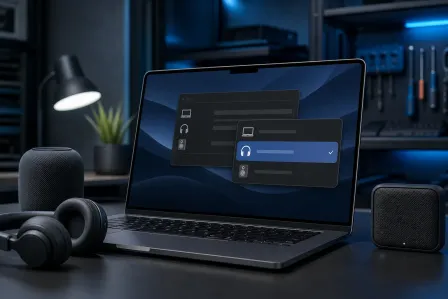
- Open Sound settings. Go to System Settings, then Sound, then Output. Pick the headphone or external speaker entry if it shows up. Make sure the volume slider is up and Mute is off. Also check the speakers' own power and volume knob (yes, really).
- Look at the jack with a flashlight. Lint, dust, and pocket gunk pack into that hole. A wooden toothpick, used gently, can clear it. Do not jam metal in there. Powered-off Mac, please.
- Restart the Core Audio service. Open Terminal and run
sudo killall coreaudiod. macOS restarts it automatically. A plain restart of the Mac does the same job with less typing. If you aren't comfortable in Terminal, just reboot. - Check for updates. Install pending macOS updates. Audio routing bugs do get patched in point releases.
- Reset NVRAM or PRAM on older Intel Macs. Apple documents this on its support site. Apple silicon Macs handle this automatically at startup, so there is nothing to do manually.
- Test in another user account. Create a temporary account. If the speakers work there, you've got a corrupted preference in your main account, not a hardware fault.
Why it matters
The order above is deliberate, because each step tells you something. Here is how to read the results:
| What you see | Likely cause | Next move |
|---|---|---|
| Headphones work, speakers don't | Cable, plug type, or the speakers | Try a different cable or another input on the speakers |
| Nothing works, no device appears | Dirty or damaged jack, or a hardware fault | Clean it, then consider a repair |
| Device appears but no sound | Output set wrong, muted, or hung audio service | Settings check, restart coreaudiod or reboot |
| Works in another account | Corrupted preferences | Migrate to a fresh account |
| Works on and off, crackles when touched | Loose jack or failing cable | Stop. Don't keep wiggling it |
That last row matters. Wiggling a flaky plug until it works is how a $10 cable problem turns into a damaged jack. (I have watched people do this for months. The jack always loses.)
It also matters because of the money. Don't pay for a new audio interface, and please don't fall for the "driver cleaner" apps that pop up in search ads promising to fix Mac audio. Macs don't use third-party audio drivers for built-in output. Those tools are junk at best and a malware delivery system at worst.
Computer acting up? Get a real diagnosis. Book a diagnostic
What we don't know yet
I can't tell you your exact cause from here, and nobody honest could. A few things stay uncertain without hands on the machine:
- Whether it's the jack or the board. A physically damaged jack is a contained repair on some models. On others the jack is soldered to the logic board, which changes the cost and the approach.
- Whether a software bug is involved. Audio routing glitches appear after some macOS updates, and fixes vary by version and Mac model. If the problem started right after an update, that's worth noting, but it isn't proof.
- Whether your speakers expect something different. Some powered speakers want a line-level signal, others a headphone-level one. Mismatches can cause weak or distorted sound even when detection works.
If your Mac is a newer model, also check whether it is routing audio over a connected display or Bluetooth device instead. Sometimes the "missing" output is simply not selected.
What to do about it
Self-help is fine for steps one through nine. They cost nothing and cover most cases. Do them in order and stop at the first one that works.
Get professional help when:
- A known-good cable and known-good headphones both fail in the jack
- The jack feels loose, gritty, or crunchy
- The Mac got wet, dropped, or recently had other repair work
- You see no output device at all, even after a reboot and an update
That pattern points to hardware, and hardware is where a bench check beats guessing. Fix My PC Store handles this kind of job through its Mac repair service at the shop on Okeechobee Blvd in West Palm Beach. A diagnostic is $60 and is credited toward the repair, or free with the coupon our website emails when you join the list. Every charge gets explained before work begins, so you approve scope and price first. Same-day options and warranty terms depend on the repair, and those get confirmed up front too.
If you're not sure whether it is hardware or software, you can book a repair or contact the shop with what you've already tried. Hours are Monday through Friday 9 a.m. to 6 p.m. and Saturday 9 a.m. to 5 p.m. Bring the speakers and cable too. Half the time the culprit is sitting in the bag.
Computer acting up? Get a real diagnosis.
Fix My PC Store has repaired thousands of machines across West Palm Beach. Honest pricing, no upsell games, and a free diagnostic for new customers with our email coupon.