Why Is My Mac Showing a Gray Screen Instead of the Login Window?
TL;DR: A gray screen on startup means your Mac stalled before it could hand control to the login window. The most common culprits are a failing startup disk, bad RAM, corrupt system files, or a connected peripheral. Most of these you can narrow down yourself before deciding whether to call in help.
What Happened
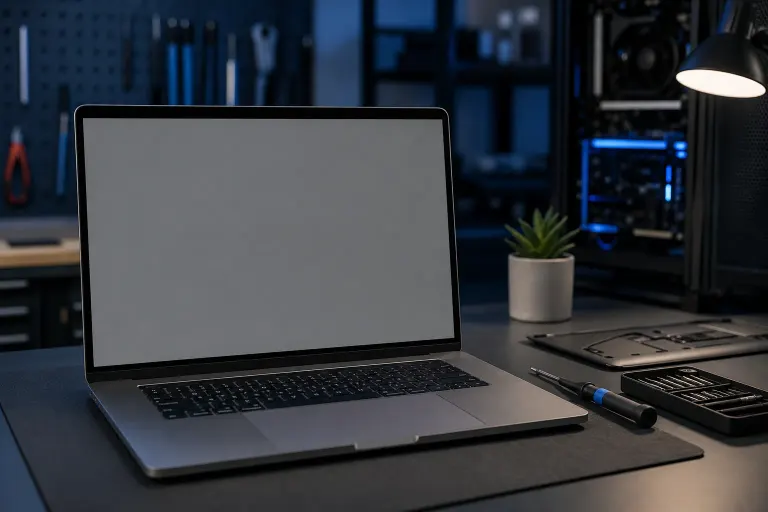
When a Mac boots, it runs a sequence before it ever shows you a login prompt. Firmware checks, then the boot ROM, then the startup disk, then the OS kernel. The gray screen is what you see while that sequence is running. If the sequence stalls or hits an error, that gray screen is where you stay.
Sometimes you get a gray screen with a spinning gear (normal, just slow). Sometimes a gray screen with a folder icon and a question mark (bad news, it can't find a bootable disk). Sometimes just solid gray, nothing else. Each variation points somewhere different.
The folder-with-question-mark is the most alarming because it usually means the Mac either can't see the startup disk or the disk has failed badly enough that the OS won't load. That is a data-recovery conversation.
Solid gray with a progress bar that freezes is more often a software problem: corrupt system files, a bad update, or a startup item that crashes the kernel.
Why It Matters
This is not a "wait and see" situation. A gray screen that repeats every boot tells you something is wrong with hardware, software, or both. Ignoring it and forcing it to boot eventually is how people lose data.
If your drive is failing, every boot attempt that partially spins up the disk is wear. If the problem is RAM, you can get random corruption over time. Neither one gets better on its own.
Computer acting up? Get a real diagnosis. Book a diagnostic

What We Don't Know Yet
Without seeing your specific screen, it's hard to say whether this is a quick fix or a parts-and-labor job. Gray screen causes span a wide range of severity. A USB hub plugged in at the wrong moment can cause it. So can a dead SSD. Those are very different problems.
Also worth noting: some gray screen errors leave logs, some don't. If the system never gets far enough to write a log, there is nothing to read.
Diagnostic Sequence: Narrow It Down Before You Panic
Work through these in order. Stop when one of them fixes the problem or points clearly to the cause.
Unplug everything external. Keyboards and mice only. No hubs, docks, external drives, monitors (use the built-in screen). Restart. External devices, especially third-party ones, can interfere with startup. If it boots clean, add things back one at a time.
Boot into Safe Mode. On Intel Macs: hold Shift at startup until you see the login window. On Apple Silicon: hold the power button until you see startup options, then hold Shift and click Continue in Safe Mode. Safe Mode skips third-party kernel extensions and login items. If it boots in Safe Mode but not normally, a startup item or extension is the problem.
Run First Aid on the startup disk. If you can get to Recovery Mode (hold Command-R on Intel, hold power button on Apple Silicon), open Disk Utility and run First Aid on your startup disk. If it reports errors it can't repair, the disk is likely failing.
Check RAM (Intel Macs only). Boot into Apple Diagnostics by holding D at startup. It will flag memory and hardware faults. Apple Silicon Macs have unified memory that can't be tested the same way, but Diagnostics still runs useful checks.
Reinstall macOS from Recovery. If Disk Utility checks out clean and Safe Mode didn't isolate it, a reinstall through Recovery Mode is worth trying. It replaces system files without touching your data, assuming the disk is healthy.
| What You See | Likely Cause | First Move |
|---|---|---|
| Spinning gear, boots eventually | Slow disk or indexing | Run First Aid |
| Folder with question mark | No bootable disk found | Recovery Mode, check disk |
| Gray + freeze, no progress | Kernel/extension crash | Safe Mode |
| Gray + diagonal line through Apple | Incompatible OS or hardware | Recovery Mode, reinstall |
| Solid gray, nothing else | RAM, firmware, or hardware fault | Apple Diagnostics |
What to Do About It
If Safe Mode boots and First Aid finds no disk errors, you are likely dealing with a software problem you can fix at home through a reinstall or by removing a bad startup item.
If First Aid reports errors it cannot repair, or Apple Diagnostics flags a hardware fault, stop there. Pushing a failing drive further risks permanent data loss. That is the point to bring the machine in.
Same goes if none of the steps above get you anywhere. Intermittent gray screens that clear up and come back are often early signs of a drive that is on its way out. Catching it before it completely fails is the difference between a repair and a data-recovery job.
Fix My PC Store handles Mac diagnostics and repair from the shop on Okeechobee Blvd in West Palm Beach. Initial checks are free for most standard repairs, and pricing is explained before any work starts. If you are not near the shop, remote support may be an option depending on what the Mac can do. For hands-on hardware work, Mac repair is the right starting point.
If you have data you have not backed up, that is the first conversation to have. No repair is worth much if the data is gone.
Computer acting up? Get a real diagnosis.
Fix My PC Store has repaired thousands of machines across West Palm Beach. Honest pricing, no upsell games, and a free diagnostic for new customers with our email coupon.