Laptop Trackpad Not Working? Fix Settings, Drivers, or Hardware
Your laptop trackpad is not automatically dead because the pointer quit moving. Start with the simple checks: accidental disable keys, Windows or macOS settings, and a proper restart. If those fail, investigate drivers and hardware. Do not start prying open the laptop with a butter knife because somebody on a forum said “reseat the cable.”
A mouse can make this easier, but it is not required. Windows and macOS both have keyboard navigation options. If the laptop has a bulging case, lifted trackpad, cracked palm rest, liquid damage, or a trackpad that clicks strangely, skip the software heroics and get it inspected. A swollen battery is not a personality trait.
What you need
- Your laptop and its charger.
- A USB mouse, if available. A wired one is easiest.
- Internet access for downloading an official driver, if driver repair becomes necessary.
- Your laptop model number. It is usually on the bottom label, in Windows System Information, or under Apple menu > About This Mac.
- A recent backup of important files before major updates or repair work. If the machine is acting unreliable, do that first. For business machines, proper backups and disaster recovery should already be part of the plan, not a panicked afterthought.
1. Rule out the obvious disable controls
Many laptops have a function-key shortcut that turns the touchpad off. It is useful exactly once in a blue moon, then somebody hits it by accident and loses half a morning to it.
Look across the top row for a key with a touchpad icon. Common combinations use Fn plus one of the F-keys. On some HP models, double-tapping the upper-left corner of the touchpad enables or disables it. Some Lenovo, Dell, ASUS, Acer, and other models use their own shortcut. The exact key varies by model, so check the manufacturer support page if the icon is unclear.
Then test whether the issue is really the trackpad:
- Connect a USB mouse, if you have one.
- Try an external keyboard if the built-in keyboard is also behaving oddly.
- Restart the laptop normally.
- Disconnect docks, USB hubs, and unusual peripherals before restarting.
If an external mouse works but the trackpad does not, that narrows the problem. It could still be a setting, driver, internal cable, or touchpad hardware. If neither the mouse nor trackpad works, the trouble may be wider than one input device.
2. Restart properly and check for a stuck system state
A restart is not glamorous. Neither is changing oil. Both prevent stupid problems from becoming expensive ones.
On Windows, choose Start > Power > Restart. Do not just close the lid and call it a day. Sleep mode can preserve a bad driver state, especially after updates or docking and undocking.
If Windows is frozen, hold the power button until the laptop shuts down. Wait about 20 seconds, reconnect the charger, and start it again. Remove external USB devices first. On a removable-battery laptop, power off, unplug it, remove the battery if practical, then hold the power button for around 15 seconds before reinstalling it. Modern sealed laptops do not need to be opened for this step.
On a Mac, select Apple menu > Restart. If the pointer is dead but the keyboard works, use Control + Command + Power button on many models to restart. Keyboard layouts and Mac models vary, so do not hammer keys like you are entering a cheat code.
After restart, test the trackpad at the login screen and after signing in. A trackpad that works at login but fails only after you reach the desktop usually points toward software, a login item, or a damaged user-level setting. One that is dead everywhere deserves closer hardware attention.
3. Check Windows touchpad settings
Windows can disable the touchpad, alter its behavior around external mice, or lose a setting after a driver update. Start here before uninstalling anything.
Using the keyboard, press Windows + I to open Settings. Then go to Bluetooth & devices > Touchpad. Make sure the main Touchpad switch is on.
Check the option that keeps the touchpad enabled when a mouse is connected. Wording differs by Windows version and laptop driver, but it may appear as a checkbox or a related setting. If your trackpad dies whenever you connect a wireless mouse receiver or dock, this is a prime suspect.
Also inspect these items:
- Touchpad sensitivity. Set it to a normal or higher setting if it has become too low.
- Taps and gestures. Re-enable tapping if movement works but clicks do not.
- Advanced gestures. Reset unusual custom actions if the pointer jumps, freezes, or behaves like it has developed opinions.
- Accessibility > Mouse pointer and touch. Confirm pointer settings are not making the cursor hard to see.
Some manufacturers install their own control panel in addition to Windows Settings. Synaptics, ELAN, Precision Touchpad, and manufacturer utilities may each expose different options. If Windows shows no Touchpad section at all, it may not be detecting the device correctly. Move on to Device Manager.
4. Check macOS trackpad settings and accessibility options
On a Mac, open Apple menu > System Settings, then select Trackpad. Confirm that tracking speed is not set absurdly low and that click, tap, and gesture preferences are enabled as desired.
Next, open Accessibility > Pointer Control. Look for the setting that ignores the built-in trackpad when a mouse or wireless trackpad is present. If you regularly use an external mouse, that setting can make the built-in trackpad appear dead when it is doing exactly what it was told. Computers are obedient in the least helpful way possible.
If the trackpad works intermittently, remove Bluetooth mice and receivers temporarily, restart the Mac, and test again. A Bluetooth device should not physically disable a built-in trackpad, but configuration and input conflicts can muddy the diagnosis.
If the Mac trackpad does not click but the cursor still moves, try enabling Tap to click in Trackpad settings. On some MacBook models, the click mechanism is software-controlled and depends on power. No movement, no clicking, or a visibly raised trackpad points more strongly to a physical issue. For that, a proper Mac repair inspection is wiser than random resets copied from a video.
Computer acting up? Get a real diagnosis. Book a diagnostic
5. Inspect and repair the Windows driver
A bad, missing, disabled, or generic driver can stop a trackpad from working correctly. Windows Update sometimes helps. It also occasionally decides a perfectly good manufacturer driver was too interesting and replaces it. Thanks for nothing.
First, open Device Manager:
- Press Windows + X.
- Choose Device Manager. You can use arrow keys and Enter if needed.
- Expand Mice and other pointing devices.
- Also expand Human Interface Devices.
Look for names such as HID-compliant touch pad, Precision Touchpad, Synaptics, ELAN, or the laptop manufacturer’s touchpad entry. The exact label is not sacred. What matters is whether there is a warning icon, an unknown device, or no touchpad-related device at all.
Enable, roll back, or reinstall carefully
If the touchpad entry is disabled, right-click it and choose Enable device. If it has a warning symbol, open Properties and read the Device status message. Take a photo or note the error before changing things.
If the problem began immediately after an update, choose Properties > Driver > Roll Back Driver if that option is available. Restart and test.
If rollback is unavailable or does not help, download the touchpad driver from your laptop maker’s official support site using your exact model number. Install the manufacturer package, restart, and test. Do not use “driver updater” utilities. They are often junkware wearing a necktie, and some are much worse.
You can also uninstall the touchpad device from Device Manager, then restart. Windows may reinstall a working driver automatically. Do this only if you have an external mouse or can navigate by keyboard. Do not uninstall half the device list in a fit of optimism.
For official Windows guidance on Device Manager and drivers, Microsoft’s driver update support page is a reasonable reference.
6. Test whether the problem is software or hardware
Now you need evidence, not guesswork.
Booting into a different environment can help. On Windows, restart into Safe Mode. If the trackpad works in Safe Mode but not during a normal startup, a third-party utility, recent driver, security product, or startup item may be interfering. Use Task Manager’s Startup apps section or perform a controlled clean boot. Remove or disable one suspect at a time, then test. Do not delete random files from Program Files. That is how a simple touchpad issue becomes a whole Saturday project.
If the trackpad remains dead in Safe Mode and at the Windows sign-in screen, software is less likely, though not ruled out. BIOS or UEFI behavior is useful only when the laptop manufacturer documents that its firmware setup supports the internal touchpad; nonresponse there alone does not prove a hardware failure. BIOS access often uses F2, Delete, F10, Esc, or another key depending on the laptop. If you are not sure, check the manufacturer documentation. Do not change BIOS settings just because you got in there. Confirm whether the pointer or trackpad controls respond only if the manufacturer says they should, then exit without saving.
On a Mac, test in macOS Recovery or Safe Mode. Apple’s instructions differ by Intel versus Apple silicon Macs, so use Apple’s official Safe Mode guide for your model. A trackpad that fails in Recovery as well as normal macOS is far more likely to have a hardware problem.
7. Look for physical warning signs before opening anything
Trackpads sit above a cable, a circuit board, and often a battery. They are not immune to drops, liquid, pressure damage, heat, worn cables, or the occasional laptop being used as a filing cabinet.
Stop using the laptop and arrange service promptly if you notice:
- The trackpad or palm rest is lifting, bowed, or separating from the chassis.
- The trackpad is unusually hard to click, constantly clicking, or visibly pushed upward.
- The bottom cover is bulging or no longer sits flat.
- There was a spill, rain exposure, or high humidity event before the failure.
- The issue started after a drop, rough travel, or a screen or keyboard repair.
- The trackpad works only when you press on a certain part of the palm rest or twist the chassis.
A swollen lithium-ion battery can push upward into the trackpad area. Do not puncture it, compress it, or continue charging it while pretending the laptop is merely “a little warped.” Shut it down and have it assessed.
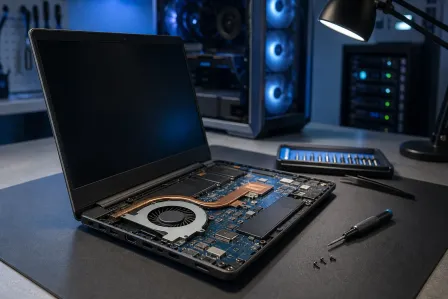
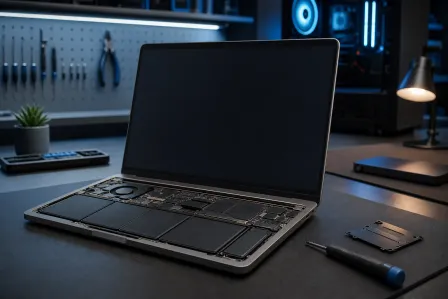
A loose internal cable is possible, especially after impact or prior repair. But opening a thin modern laptop without the right tools and service information can break clips, strip screws, damage the battery, or make warranty matters worse. If you are in Palm Beach County or the Treasure Coast, bring it in for laptop repair. A diagnosis beats ordering a touchpad assembly based on a blurry marketplace listing.
8. Decide when remote help is enough and when it is not
Remote help is useful when the trackpad issue is clearly settings- or driver-related and you can control the computer using an external mouse. A technician can review Device Manager, Windows settings, recent updates, startup items, and manufacturer driver packages without anyone touching the chassis. Our remote support option is built for that sort of problem.
Remote support cannot reconnect a torn trackpad cable, clean liquid corrosion, replace a failed touchpad, or deal safely with a swollen battery. Anyone who claims otherwise is selling magic beans, and the beans probably have a recurring subscription.
For a business laptop, do not let an employee install random driver tools or use an unofficial remote-access app to “fix” it. That creates a security problem out of an input problem. Managed environments should route the issue through approved support and device policies. If your business is tired of ad hoc repair roulette, managed IT support can standardize updates, support access, backups, and endpoint care.
Common mistakes
- Assuming the trackpad is physically broken before checking the disable key. It happens constantly.
- Installing third-party driver updater software. Use Windows Update or the laptop manufacturer’s support page. The rest are frequently bloat, scareware, or worse.
- Downloading a driver for a similar model. “Close enough” is not a driver strategy. Use the exact model and operating system.
- Using only Sleep instead of Restart. A restart reloads drivers and clears more temporary nonsense.
- Ignoring a raised trackpad or bulging case. That may be battery swelling. Stop charging and get it checked.
- Uninstalling several input devices at once. Keep an external mouse connected and change one thing at a time.
- Opening the case after a spill without addressing the liquid damage. Corrosion does not politely wait for you to finish watching tutorials.
- Giving a stranger remote access because a pop-up says your driver is outdated. That is a scam category, not tech support. If an unsolicited caller or pop-up claims your computer needs repair, close it and do not provide access.
Bottom line
When a laptop trackpad stops working, start with the function key, a full restart, and the operating system’s touchpad settings. Then check Device Manager or the Mac settings, use the official manufacturer driver if necessary, and test in Safe Mode or Recovery to separate software trouble from hardware failure.
If the laptop is swollen, damaged, wet, or dead in every environment, stop chasing settings. It likely needs hands-on diagnosis. Fix My PC Store can help West Palm Beach and South Florida customers sort out whether the trackpad needs a simple correction, a driver repair, or actual parts work. Use our contact page to arrange the next step before a minor input problem turns into a damaged laptop case or lost work.
Computer acting up? Get a real diagnosis.
Fix My PC Store has repaired machines across West Palm Beach. Honest pricing, no upsell games, and a free diagnostic for new customers with our email coupon.