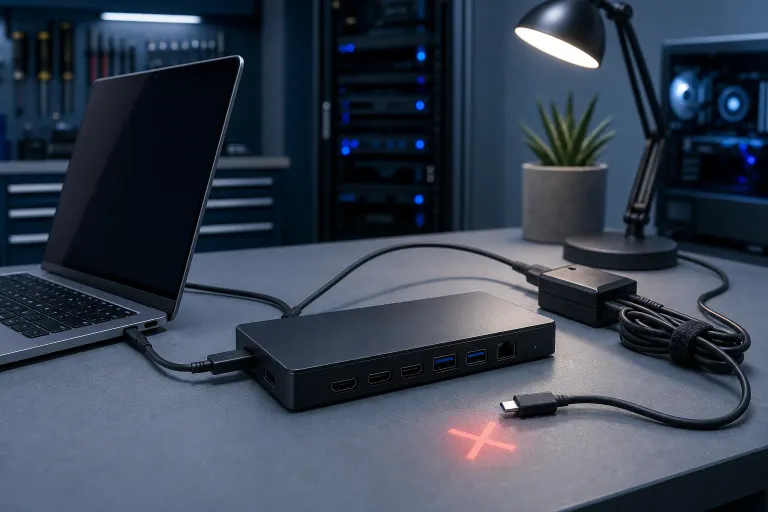
Why Is My Laptop Not Charging When Plugged Into a Docking Station?
TL;DR: A docking station that does not charge your laptop is usually failing at one of three things: it is not delivering enough wattage, the USB-C or Thunderbolt cable is not rated for power delivery, or a driver is blocking the charge path. Work through the checks below before assuming the dock or laptop is broken.
What Happened
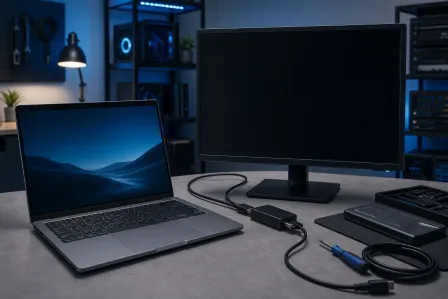
Docking stations charge laptops through a shared data-and-power connection, almost always USB-C or Thunderbolt 3/4. That connection carries video, USB data, network, and power all at once. When any part of that chain breaks down, charging is usually the first thing to drop out because power delivery (PD) is negotiated between devices and the negotiation can fail silently.
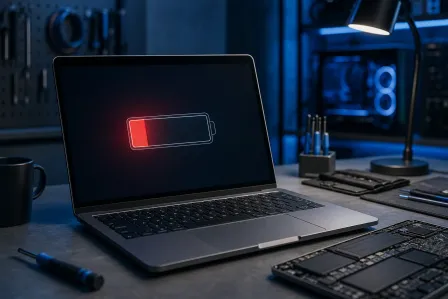
The laptop screen may show a charging icon briefly, then switch to "plugged in, not charging." Or the battery drains slowly while the dock is connected, meaning the dock is delivering some power but not enough to keep up with the CPU and display load.
Both scenarios have different root causes, so the fix depends on which one you are seeing.
Why It Matters
Running a laptop on slow battery drain while docked sounds minor until you are mid-meeting and the system shuts off. For anyone using a dock as a desktop replacement, this effectively breaks the whole setup.
Here is a diagnostic sequence to work through in order. Do not skip steps.
Step-by-Step Diagnostic
1. Check the dock's power adapter first. Unplug the dock's own power brick from the wall and plug it back in. Confirm the brick is rated for the dock, not a substitute. A 65 W brick powering a dock designed for 90 W will not charge a power-hungry laptop even if everything else is correct.
2. Verify the USB-C or Thunderbolt cable supports power delivery. Not all USB-C cables carry power. A cable marked "data only" or one that lacks a proper Power Delivery current rating will not negotiate PD. What matters is the cable's current rating, a 3 A cable supports up to 60 W, while cables rated for higher wattage (above 60 W) require an e-Marker chip to do so safely. Swap in the cable that shipped with the dock or one explicitly labeled "USB-C PD" or "Thunderbolt 3/4." This single swap fixes the problem more often than any other step.
3. Check wattage compatibility. Most business laptops need 45 to 65 W through the dock to charge while in use. Gaming laptops commonly need 100 W or more. Compare your laptop's original charger wattage to the dock's stated power-delivery spec. If the dock maxes out below your laptop's requirement, it may trickle charge or not charge at all under load.
| Laptop Type | Typical Charge Wattage Needed | Common Dock PD Output |
|---|---|---|
| Ultrabook / thin-and-light | 45 W | 60-65 W (usually fine) |
| Business laptop | 65 W | 65-90 W (check spec) |
| Gaming laptop | 100-230 W | 100 W max on most docks (often not enough) |
4. Test with the original charger. Plug your laptop's factory charger directly in. If it charges normally, the laptop's battery and charging circuit are intact. The problem is in the dock chain.
5. Update or roll back dock drivers. On Windows, open Device Manager and look under "Universal Serial Bus controllers" and "Batteries." A yellow warning icon next to the dock or the Microsoft ACPI battery driver often points to a driver conflict. Check the dock manufacturer's support page for a firmware or driver update. After a Windows update, rolling back the battery driver one version sometimes resolves a broken PD negotiation.
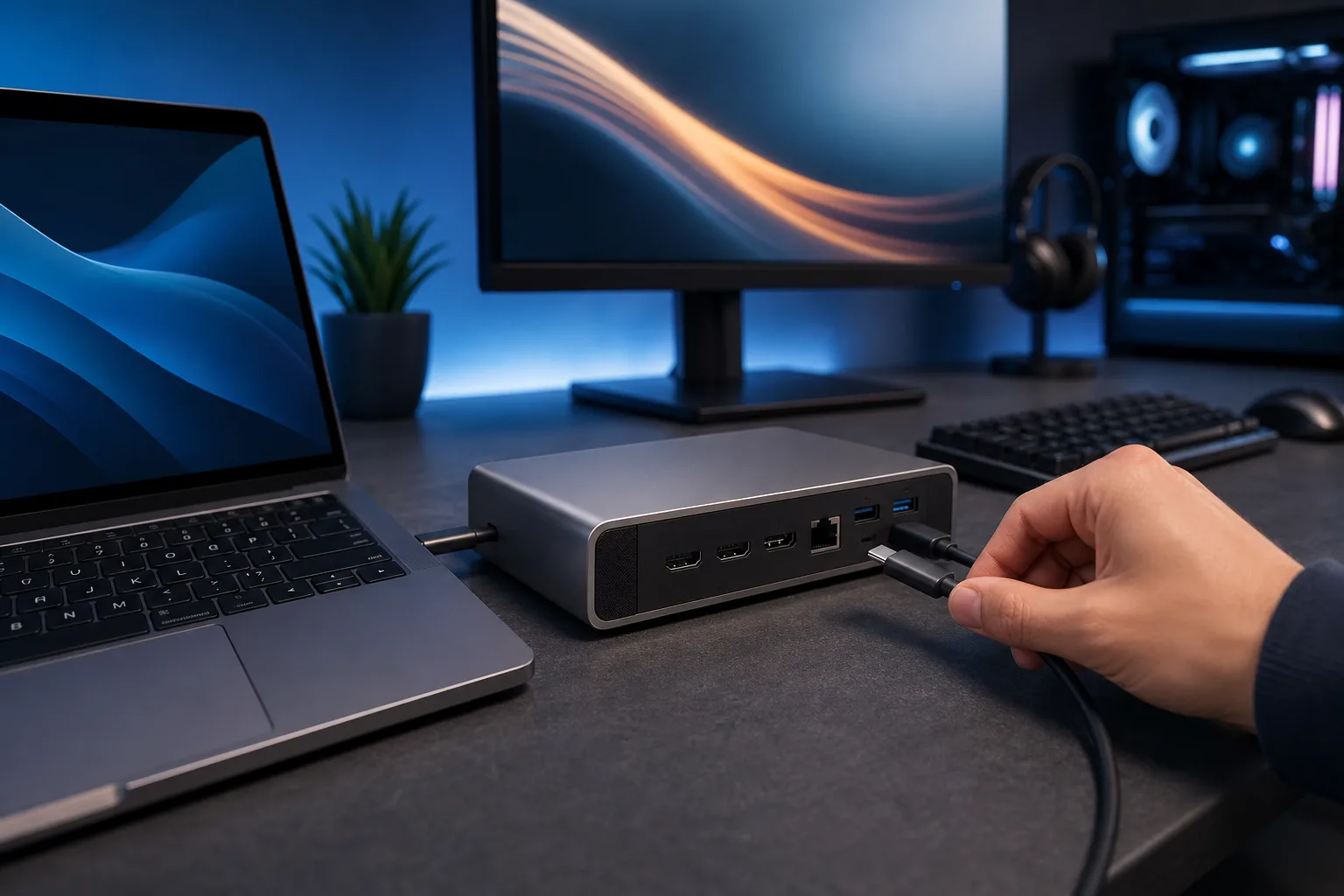
6. Try a different USB-C port on the dock. Many docks have multiple USB-C ports but only one or two support PD pass-through. Check the dock's manual for which port is labeled for host/charging.
7. Test the dock on a different laptop if you have one. If a second laptop also does not charge, the dock's PD circuit may be failing and the hardware needs service.
Computer acting up? Get a real diagnosis. Book a diagnostic
What We Don't Know Yet
A few situations make this harder to diagnose remotely.
Third-party dock firmware bugs are inconsistent. Some docks from lesser-known brands ship with PD negotiation firmware that works on some laptop models and not others. Manufacturer support pages do not always document this clearly.
Thunderbolt certification matters more than people expect. A cable or dock with a Thunderbolt logo is tested to a specific standard. Generic USB-C docks marketed as "Thunderbolt compatible" sometimes are not certified and may work intermittently.
Mac charging through docks adds another layer. Apple silicon MacBooks use a different power negotiation sequence and some docks do not handle it correctly. Charging may work at a reduced rate or not at all depending on the dock brand. Check Mac repair options if you are running into this on a MacBook specifically.
Gaming laptops are the toughest case. Most gaming laptops are not designed to run on USB-C power delivery alone. They draw 150 to 230 W under load, far beyond what any current dock can supply. Docking a gaming laptop is fine for video and USB peripherals, but you almost always need the barrel-plug charger connected separately for actual charging. If gaming laptop charging is your goal, check out gaming laptop repair for hardware-specific guidance.
What to Do About It
If the steps above fixed it: Great. Make sure the cable stays rated correctly and keep dock firmware updated.
If the laptop charges via its original charger but not the dock: The dock is likely undersized for your laptop's wattage or the cable is the weak link. Replacing the cable or upgrading to a higher-wattage dock resolves this the majority of the time.
If neither the dock nor the original charger is charging the battery: The laptop's charging port, charging IC, or battery may have a hardware fault. That is not a docking station problem. A laptop repair diagnostic can identify whether the port, the battery, or the board-level charging circuit is the issue.
If you are in a business environment with multiple docks behaving this way: A managed IT setup that standardizes dock models and monitors endpoints can catch this pattern before it becomes a support ticket flood. Business IT services at Fix My PC Store cover this kind of standardization for Palm Beach area businesses.
For a quick remote walkthrough on drivers and settings, remote support is available without bringing the machine in.
Fix My PC Store is at 10140 Okeechobee Blvd, Suite B, West Palm Beach, FL 33411. Call 561-819-9999 or book online. Monday through Friday 9 a.m. to 6 p.m., Saturday 9 a.m. to 5 p.m.
Computer acting up? Get a real diagnosis.
Fix My PC Store has repaired thousands of machines across West Palm Beach. Honest pricing, no upsell games, and a free diagnostic for new customers with our email coupon.