Laptop Making a Clicking or Grinding Noise? Here's What's Actually Going On
TL;DR: A clicking laptop is usually a dying mechanical hard drive (back up your files now, not later). A grinding or rattling sound is more often a dust-clogged fan or a bearing on its way out. Hinge creaks and plastic pops are annoying but rarely dangerous. Figure out which noise you've got, then act accordingly.
What happened
Somebody's laptop started making a noise it didn't used to make. Click-click-click, or a grinding whine, or a rattle that shows up only when the fan spins up. Nobody wrote this article because things were going great. You're here because something in that box is either dying or trying to tell you it needs cleaned out, and you'd like to know which before you decide whether to panic.
I've heard every version of this complaint across the counter for longer than I care to admit (my knees remind me daily). The noise itself is actually useful information, if you listen to it instead of just hoping it goes away. It usually doesn't go away. It gets louder, or it gets quieter right before the thing stops working entirely, which is worse.
Why it matters
Here's the part people skip past because they want the fix, not the explanation. Not all noises carry the same risk, and treating a hard drive click like a fan rattle (or vice versa) wastes time you don't have.
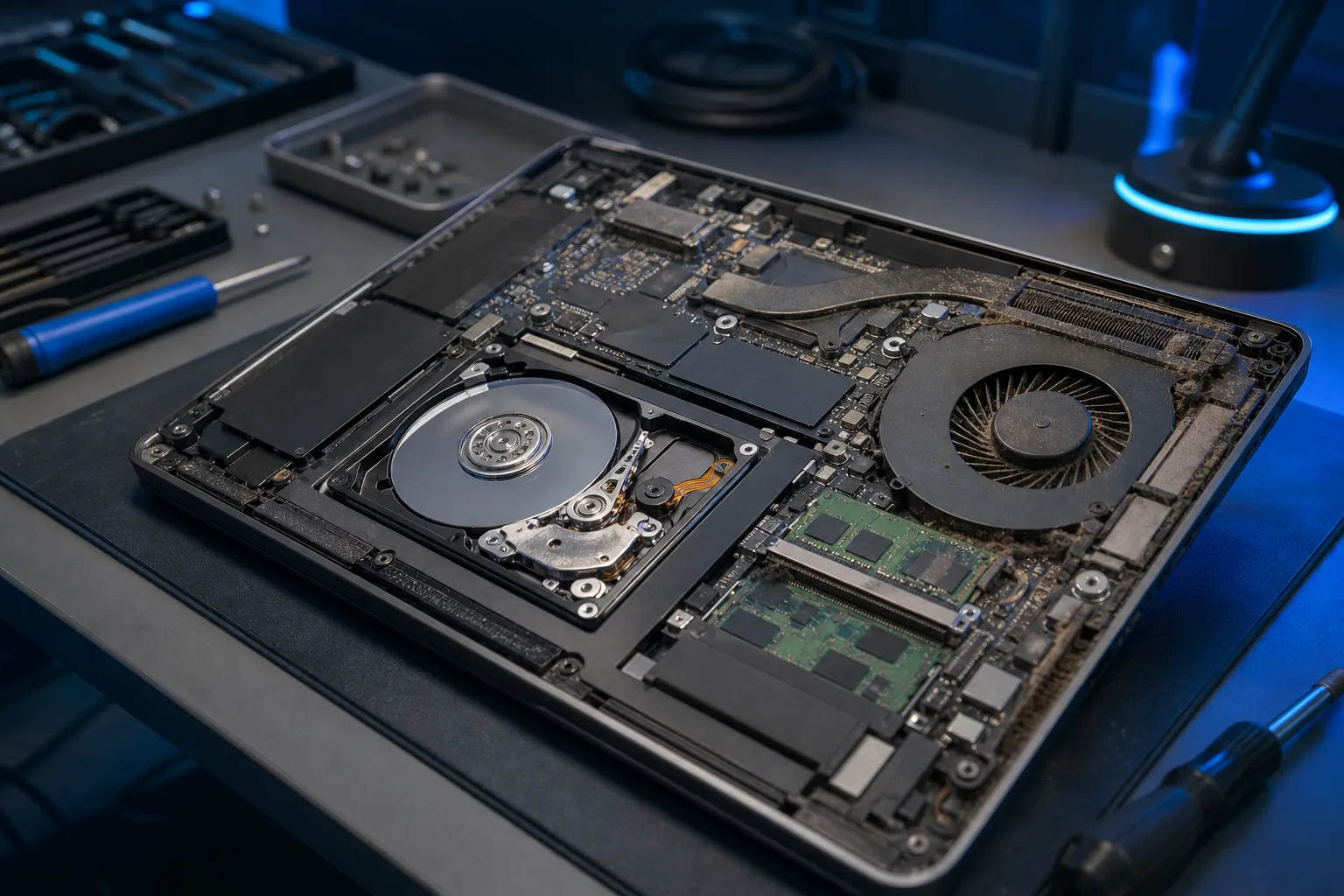
Clicking, especially rhythmic clicking that repeats every second or two, is the classic sound of a traditional spinning hard drive (an HDD, not an SSD) failing. The read/write head is trying to park or seek and hitting something it shouldn't, or the platter motor is struggling. This is sometimes called the "click of death" and it's earned the name. This is a data emergency before it's a repair emergency. If your laptop still boots, your first move is getting files off it, not researching the noise further.
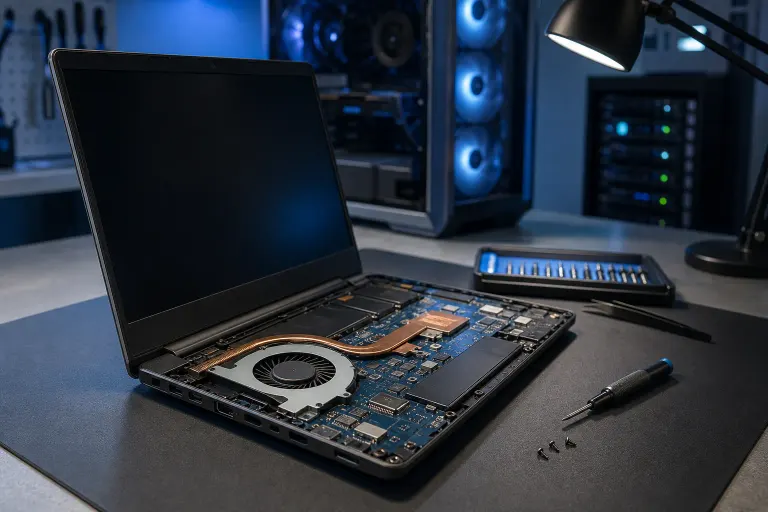
Grinding, whining, or a buzzing rattle that changes pitch with fan speed points at the cooling system. Dust buildup makes a fan work harder and can cause the blades to wobble against the housing. A bearing that's dried out or wearing down will grind at certain RPMs and sometimes go quiet at others. This is annoying and can lead to overheating, but it's not usually an instant data-loss situation the way a drive click is.
Pops, creaks, or a soft click that only happens when you open or close the lid is almost always mechanical. Hinges loosen, plastic clips fatigue, sometimes a loose screw rattles around in the chassis. Irritating, rarely urgent.
The real-world consequence of misreading these: people hear "clicking" and assume it's just a loud fan, keep using the laptop normally for weeks, and then one day it won't boot and three years of tax documents and photos are gone. The U.S. Cybersecurity and Infrastructure Security Agency and most data-recovery professionals will tell you the same thing in different words: back up before the drive fails, not after. CISA's guidance on data backup covers the basic principle well, even though it's aimed at bigger threats than one noisy laptop.
Quick sound-to-cause reference
| Noise | Most likely cause | Urgency |
|---|---|---|
| Rhythmic clicking, repeats steadily | Failing mechanical hard drive (HDD) | High, back up now |
| Grinding or rattling tied to fan speed | Dust-clogged or worn fan bearing | Medium, fix before it overheats |
| Click or pop only on lid open/close | Hinge or chassis plastic | Low |
| Buzzing that comes and goes randomly | Loose internal component (screw, cable) | Low to medium |
| High-pitched whine under load | Coil whine or stressed fan motor | Low, usually cosmetic to the ear |
Computer acting up? Get a real diagnosis. Book a diagnostic
What we don't know yet
Without actually putting the laptop on a bench, nobody can tell you with certainty which of these it is just from a text description of "it clicks sometimes." A few things that change the answer:
- Whether the machine has a traditional spinning hard drive or a solid-state drive (SSDs have no moving parts and physically cannot "click" the same way, so if you've got an SSD-only laptop, the noise is coming from somewhere else entirely, probably the fan or chassis).
- How old the laptop is and whether it's ever been opened or cleaned.
- Whether the noise correlates with heat, load, movement, or nothing in particular.
- Whether the machine is still backing up normally or throwing read/write errors, slow file access, or the blue screen equivalents that often show up alongside drive failure.
That last point matters more than people think. A dying drive often gives other warning signs before the final click: files take longer to open, the system freezes randomly, or you get error messages about corrupt files. If you're also seeing those, treat the clicking as confirmation, not a false alarm.
What to do about it
First, figure out your drive type. Check your system information (on Windows, Task Manager's Performance tab usually lists it under the storage device) or just note how old the laptop is. Budget laptops and anything more than six or seven years old are more likely to have a spinning HDD.
If it's clicking and you've got a mechanical drive:
- Stop using it for anything you can't afford to lose. Don't run more programs than you have to.
- Back up whatever you can access right now, today, to an external drive or cloud storage. Don't wait for a "better time."
- If the drive is already struggling to read files or won't boot reliably, stop trying to force it. Repeated power cycling on a failing drive can make recovery harder, not easier.
- Get it looked at for diagnosis and possible drive replacement before it fully dies. Our laptop repair page covers what's involved, and Fix My PC Store does a free initial check on most standard in-store repairs before any work or cost gets your approval.
If it's grinding or rattling and tracks with fan speed:
- Check if the vents are visibly dusty or blocked. Compressed air on a cooled-down laptop, held at an angle (not straight in) can help, but don't go overboard. Internal cleaning that requires opening the case is a different job than a quick external blow-out.
- Watch whether the laptop runs hotter than usual or shuts down unexpectedly. That's your overheating warning.
- If the noise persists after a basic external cleaning, it's likely an internal fan or bearing issue that needs a proper teardown, not a can of air.
If it's a hinge pop or chassis rattle:
- Note whether it's getting worse. A hinge that's loosening will usually also start feeling looser when you open the lid.
- This one's lower priority but doesn't fix itself. Worn hinges can eventually damage the display cable running through them, which turns a cheap fix into an expensive one.
For any of these, if you're not sure which category you're in, that's exactly what a free initial check is for. Don't guess your way into a bigger bill. You can also browse general troubleshooting basics in our free guides or just book a time and bring it in. If the laptop is tied to business work and the data loss risk affects more than just you, it's worth looping in backups and disaster recovery planning so one failing drive doesn't become a company-wide problem.
Computer acting up? Get a real diagnosis.
Fix My PC Store has repaired thousands of machines across West Palm Beach. Honest pricing, no upsell games, and a free diagnostic for new customers with our email coupon.