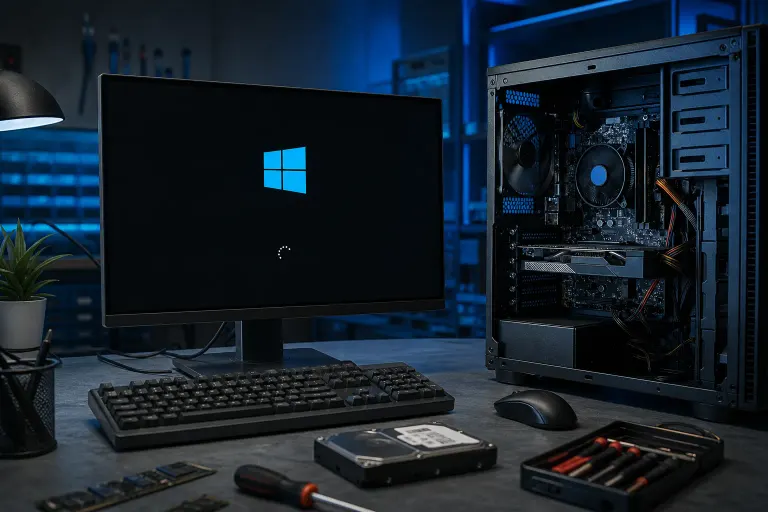
Why Is My PC Posting but Stopping at the Windows Loading Screen?
TL;DR: If your PC POSTs (you see the manufacturer logo, maybe hit a boot menu key) but then freezes or loops on the spinning Windows dots or logo, your hardware is basically fine. The problem lives in the boot loader, the drive, a driver, or a corrupted Windows file. Work through drive health, boot files, and recent changes before you assume the worst.
What happened
POST (Power-On Self-Test) is the motherboard doing a roll call: CPU here, RAM here, GPU here, drive detected. If POST completes, that roll call passed. Good news, and don't let anybody tell you otherwise (some shops love scaring people into a motherboard swap they don't need).
After POST, control hands off to the boot loader, which finds Windows on your drive and starts loading it. That's the stage where things are going sideways for you. The Windows logo, the spinning dots, the "Getting Windows ready" screen, any of that hanging or looping means the handoff started but didn't finish cleanly.
Common triggers, roughly in order of how often I see them: a failing or dying SSD/HDD, a corrupted boot configuration after a bad shutdown or update, a driver update gone wrong (looking at you, GPU drivers and some Windows Updates), malware that messed with startup files, or a recently added piece of hardware confusing the boot order.
Why it matters
This distinction actually saves people money. A lot of folks hear "my computer won't boot" and assume it needs a new motherboard or a whole new machine. If you're POSTing successfully, that's not the story here. Motherboard, CPU, RAM, and PSU all did their job. The issue is almost always fixable with software repair, a driver rollback, or in the worst case a drive replacement, none of which require buying a new PC. The flip side: if you ignore a dying drive because "it still sort of boots sometimes," you can go from annoying to unrecoverable fast. Drives that are failing don't heal themselves. They get worse, usually at the worst possible time.
Computer acting up? Get a real diagnosis. Book a diagnostic
What we don't know yet
Without seeing the machine, I can't tell you which of these it is. A few things change the diagnosis:
- Did this start right after a Windows Update, driver install, or new hardware (RAM, SSD, GPU)? Timing is the biggest clue and most people forget to mention it.
- Does it hang at the exact same spot every time, or does the freeze point move around? Consistent freeze points usually mean corrupted files. Random freeze points lean toward failing hardware, especially RAM or a drive with bad sectors.
- Any clicking, grinding, or unusual noise from the drive? That's a different conversation entirely (and an urgent one, back up now, worry about the repair second).
- Have you already tried a System Restore, Startup Repair, or Safe Mode? Knowing what's been attempted keeps you from repeating dead ends.
What to do about it
Work through this in order. Stop as soon as one step fixes it.
- Force a hard shutdown, then try again. Hold the power button 10 seconds, wait, power on. Sounds dumb, works more often than it should.
- Boot into Safe Mode. Interrupt the boot process two or three times in a row (force shutdown during the Windows logo) and Windows should offer Advanced Startup Options. If Safe Mode loads fine, you've got a software or driver problem, not a hardware one. That narrows things a lot.
- Run Startup Repair from the recovery environment. Same Advanced Startup Options menu, under Troubleshoot. This fixes a surprising number of boot loader corruption cases on its own.
- Check Event Viewer or boot logs if Safe Mode works. Look for what loaded right before the freeze historically happened. A specific driver name showing up repeatedly is your culprit.
- Pull the drive and check its health from another machine, or use a bootable diagnostic tool, if none of the above gets you anywhere. SMART status, bad sector counts, that sort of thing. A drive with reallocated sector counts climbing is telling you it's dying, not glitching.
- Undo whatever changed recently. Roll back the driver, uninstall the last update via recovery options, remove the newly added RAM stick or GPU and test again.
If Safe Mode won't even load, or Startup Repair fails repeatedly, or you hear drive noise, that's where I'd stop DIY-ing it. At that point you risk making a recoverable situation worse, especially if there's data on that drive you care about. Bring it in or book a computer repair appointment and let someone run proper diagnostics before more gets lost. If it's a laptop specifically, laptop repair covers the same boot issues with the added fun of soldered components and tighter access. And if you'd rather talk it through before hauling the tower in, remote support can rule out a few things first, assuming the machine boots far enough to connect.
Back up what you can, when you can, before doing anything invasive. That's not a sales pitch, that's just how you avoid a bad week.
Computer acting up? Get a real diagnosis.
Fix My PC Store has repaired thousands of machines across West Palm Beach. Honest pricing, no upsell games, and a free diagnostic for new customers with our email coupon.