How to Recover Files From a Dead Laptop
TL;DR: A laptop that won't turn on or boot isn't automatically a data loss situation. The storage drive may still be intact. Try booting from a USB drive first, then pull the drive and connect it externally, and if all else fails, a professional can often recover data even from drives that seem totally gone.
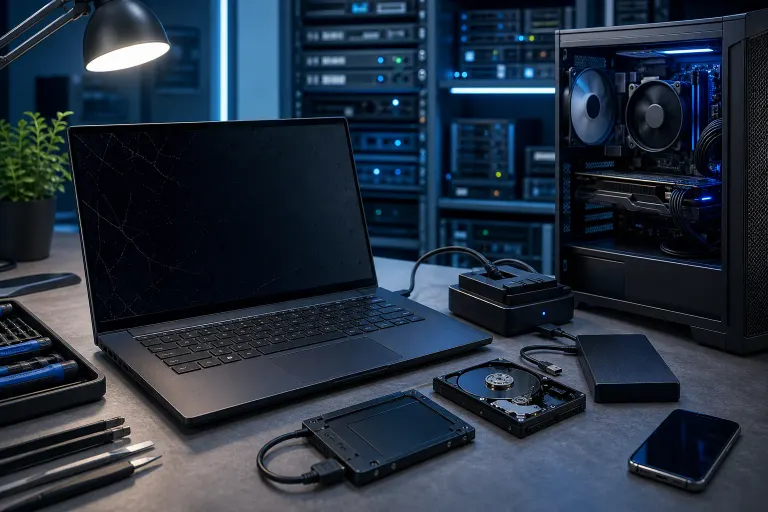
What You Need
Before you start ripping anything apart, gather your tools and know what you're dealing with.
- A working desktop or second laptop to use as the recovery machine
- A USB external enclosure or USB-to-SATA/NVMe adapter (these run $10-$25 on Amazon)
- A bootable USB recovery drive (more on this below)
- A destination drive or cloud storage with enough free space for your files
- A small Phillips-head screwdriver if you're opening the laptop
- Patience. Seriously.
Also figure out what actually died. Did the screen go black? Does the laptop power on at all? Do you hear fans spin? Does Windows start to load then crash? Each symptom points to a different failure, and that changes your approach completely.
If the laptop powers on but Windows crashes, you're in a different situation than if the motherboard is completely dead. Start with the simplest scenario and work down.
Step 1: Rule Out a Display or Software Failure
Before assuming the worst, plug your laptop into an external monitor with an HDMI or DisplayPort cable. If the image appears on the external screen, your data may still be accessible, though you should confirm that the internal drive mounts and that you have any required encryption credentials. You may just have a screen problem, not a dead laptop.
Check out laptop repair options if a screen replacement is what you actually need. A screen swap is usually quick and far cheaper than data recovery.
If you see nothing on the external monitor but the laptop fans spin and lights flicker, the issue might be a corrupt Windows installation or a failed boot drive. Try holding F8 or F11 at startup (varies by manufacturer) to get into recovery options. Some laptops let you restore to a previous state right from there.
Step 2: Boot From a USB Recovery Drive
If Windows refuses to start, a bootable USB drive lets you run an operating system independently from the laptop's internal drive. This is a HUGE trick that most people don't know about.
On a working computer, download a free tool like Ubuntu (completely free, no account needed) and use Rufus or Ubuntu's Startup Disk Creator to write it to a USB drive. Plug that USB into the dead laptop, boot from it by pressing F12 or the boot menu key at startup, and you'll have a live operating system running entirely from the USB stick.
From there, open the file manager. In most cases, your laptop's internal drive will show up as a mounted volume. Copy your files directly to an external hard drive or upload them to cloud storage like OneDrive or Google Drive.
This method works beautifully when Windows is the thing that's dead, but the drive hardware is fine. If the drive shows up in the file manager, you're done. Copy and go.
Step 3: Remove the Drive and Connect It Externally
If the laptop won't power on at all, or the drive doesn't appear when booting from USB, it's time to pull the storage drive out physically.
First, power off completely and remove the battery if possible. Opening procedures vary by model: screws may be Phillips, Torx, hidden, or captive; panels may have fragile clips; and some models require disconnecting an internal battery before servicing components. Don't force the panel. Follow the manufacturer's service manual for your exact model, or have a technician open the device if the model-specific procedure is unclear.
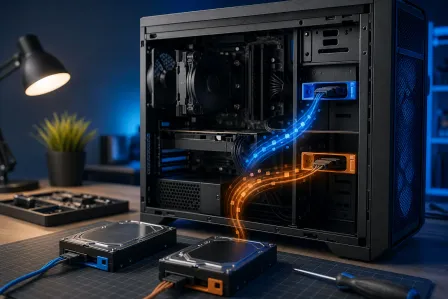
Removable storage may be a 2.5-inch SATA drive (looks like a mini hard drive or SSD), an M.2 NVMe drive, or an M.2 SATA drive (both M.2 types look like a stick of gum plugged into the motherboard). Some laptops have soldered eMMC or SSD storage that should not be removed or connected with a standard enclosure. Identify the drive and interface from your laptop model or service manual before buying an adapter.
For a 2.5-inch SATA drive, slide it out of the bracket and disconnect the ribbon cable. For an M.2 drive, remove the single screw holding it down and pull it out at a slight angle.
Now connect that drive to your working computer using the appropriate USB enclosure or adapter. A compatible computer may detect the drive as an external volume if the drive is healthy, removable, and connected through a compatible adapter. Windows is generally needed to unlock a BitLocker-protected drive with the recovery key; on macOS, BitLocker access requires compatible third-party software or another Windows computer. Once accessible, browse it and copy your files off.
One heads-up: if the laptop had BitLocker encryption on it (common on Windows 10 and 11 work machines), you'll be prompted for a recovery key. For personal devices, the key may be available at aka.ms/myrecoverykey. For work or school devices, you may need to contact your organization's IT administrator or use its recovery-key portal. Without the recovery key, you will not be able to access the encrypted files.
Computer acting up? Get a real diagnosis. Book a diagnostic
Step 4: Use Data Recovery Software
What if the drive shows up but files are missing, or Windows reports the drive needs to be formatted? That can indicate file system corruption, but it may also signal a failing drive, connection problem, or other hardware trouble. If the drive is unusually slow, repeatedly disconnects, reports I/O errors, or makes unusual noises, stop DIY attempts and consult a data-recovery professional.
Free tools like Recuva (Windows) or TestDisk (cross-platform) can recover deleted files or files from damaged file systems. Only scan a drive that is stable and has no signs of physical failure; if it clicks, repeatedly disconnects, is unusually slow, or reports read errors, stop and consult a data-recovery professional instead. Run a deep scan, point the software at the problematic drive, and let it work. It can take hours on a large drive, so set it up and walk away.
Do NOT write anything new to the drive before recovering. Every byte you write risks overwriting something you're trying to save. If you're unsure what you're doing, stop and get professional help at this point. Our team does this exact work at the computer repair shop in West Palm Beach.
Step 5: Seek Professional Data Recovery
Some situations are beyond DIY. If the drive makes clicking or grinding noises, if it's not detected by any computer at all, or if it was exposed to liquid, you're likely dealing with physical hardware failure. This is where consumer software won't help.
Professional data recovery involves clean-room work in some cases, donor parts, and specialized firmware tools. It's not cheap, but it's often successful when done by someone who knows what they're doing. Contact us if you're in Palm Beach County or the Treasure Coast and want to talk through what your drive is doing before spending money on recovery services.
For businesses that can't afford this situation to happen again, seriously consider setting up automated cloud backups. Recovering from a backup can be much faster and less expensive than data recovery.
Step 6: Verify and Secure Your Recovered Files
Once you've pulled the files off, don't just dump them on a new computer and move on.
First, spot-check everything. Open a sample of documents, photos, and videos to confirm they're not corrupted. File corruption doesn't always show up in a directory listing.
Second, think about where these files will live going forward. A single copy on a single laptop is how you ended up here. Keep an independent local backup and a cloud backup service with version history; do not rely solely on sync folders. If you're a small business owner managing client files or financial records, managed IT services can set up automated redundancy so this never happens again.
Third, if any of the recovered files contained sensitive data, like passwords saved in a browser or business documents with client info, consider changing passwords and reviewing what was exposed. A dead laptop that gets repaired or sold without a drive wipe is a real security risk. Check out our cybersecurity page if you're worried about what was on the machine.
Common Mistakes
Immediately buying data recovery software before trying free options. Recuva and TestDisk are free and genuinely capable. Start there.
Writing new data to the damaged drive. Don't save anything to it. Don't install software on it. Don't even try to repair it in place. Every write is a gamble.
Assuming a clicking drive can be recovered with software. Clicking means mechanical failure. Software won't fix physical damage. Stop and call a professional.
Forgetting BitLocker. This catches a lot of people off guard. If your workplace laptop was encrypted, the drive looks blank without the recovery key.
Waiting too long. A drive that's partially failing will keep degrading. The longer you wait, the fewer sectors are recoverable. Move fast.
Not having a backup plan afterward. Recovering files once should be the lesson that installs the habit. Set up a backup the same day you get your files back. Our backups and disaster recovery page has options for both home users and businesses.
Bottom Line
A dead laptop is stressful, but it's usually not a death sentence for your data. Work through the steps in order: check for a display issue, try booting from USB, remove and externally connect the drive, run recovery software, and escalate to a pro if the drive has physical damage.
Most file recoveries in this situation are actually pretty straightforward once you know the steps. The ones that aren't, usually involve physical drive failure or encryption. In both cases, knowing early saves time and money.
If you're in West Palm Beach or anywhere on the Treasure Coast and you'd rather have someone else handle this, we're here. Schedule a repair or reach out directly and we'll tell you straight up what's recoverable and what it'll take.
Computer acting up? Get a real diagnosis.
Fix My PC Store has repaired thousands of machines across West Palm Beach. Honest pricing, no upsell games, and a free diagnostic for new customers with our email coupon.