How to Offboard an Employee's Accounts and Devices Securely
TL;DR: Secure a departing employee's access in this order: lock the accounts, preserve the data, recover the devices, then wipe and reassign. Do the lock-out at the moment the person is told (or just before), not a week later. Most offboarding problems come from forgotten accounts and personal phones, not from the laptop.
The short answer: build a checklist once, run it every time, and keep a record. The details below work for a five-person office or a fifty-person one.
What you need
Gather these before the employee's last day, not during it:
- An admin login for your email and identity system (Microsoft 365, Google Workspace, or whatever you use).
- A list of every account that person touched. Include the boring ones: shared logins, vendor portals, social media, payment tools, domain registrar, and any SaaS billing.
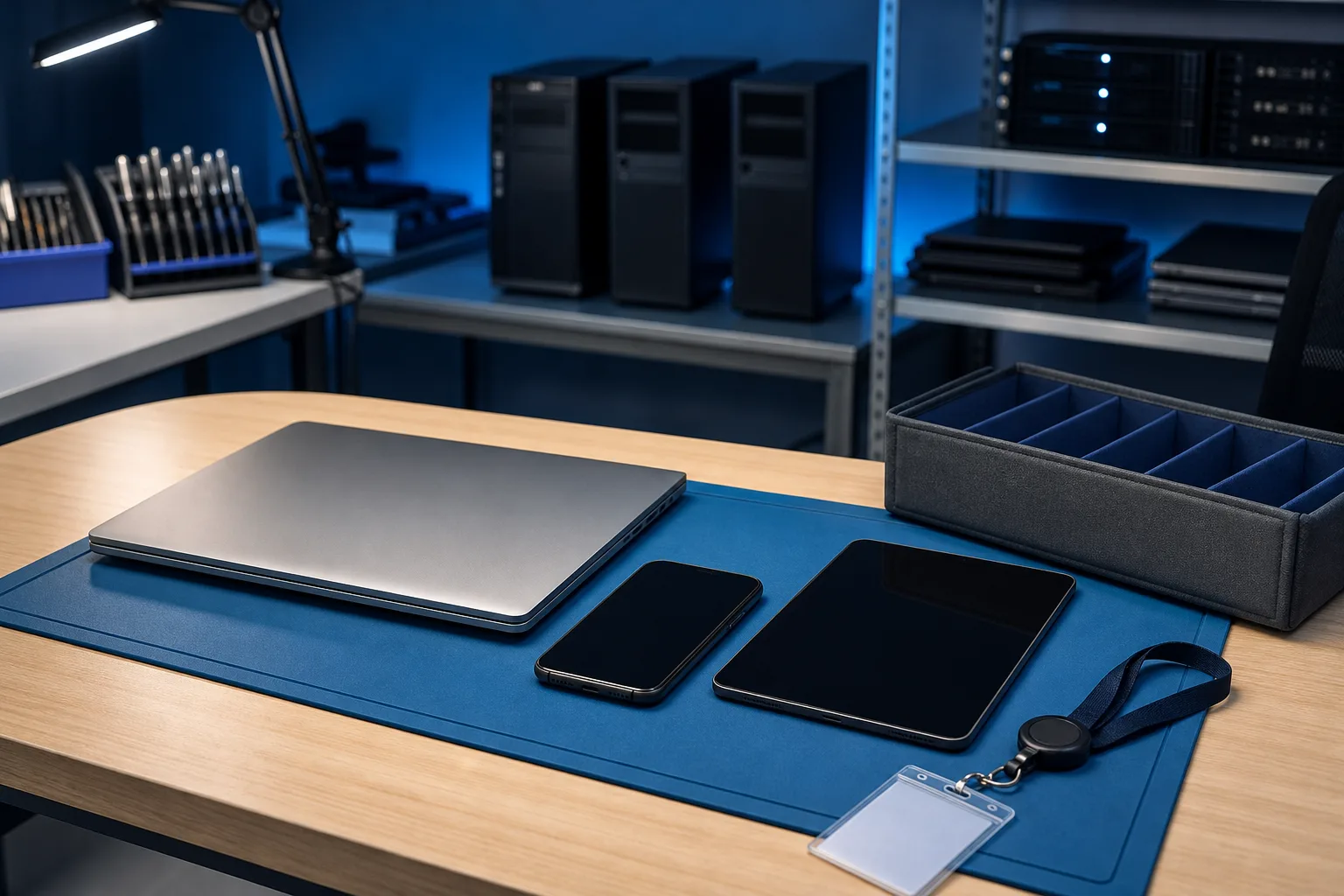
- A device inventory. Laptop, desktop, phone, tablet, USB drives, security badges, and any home-office hardware you supplied.
- A decision on the data. Who inherits their email, files, and customer contacts?
- A second person (owner, office manager, or your IT provider) to confirm each step. One person doing offboarding alone is how steps get skipped.
If you are on Microsoft 365, the Microsoft 365 setup and management page covers how that tenant is typically administered.
Step 1: Decide the timing and the sequence
Timing depends on the situation. For a friendly resignation with two weeks' notice, you can stage the work: reduce privileges early, finish the full lock-out on the last day. For a termination or a tense departure, lock accounts at the same moment the conversation happens. Not after lunch. Not tomorrow.
Write down who does what and when. A one-page timeline beats a good memory every time.
Step 2: Lock the accounts without deleting anything
This is the step people rush and regret. Disable, do not delete. Deleting an account too early can destroy mailboxes, shared files, and audit history you may need later.
In order:
- Reset the password and sign out all active sessions. In most admin consoles this is a single "revoke sessions" or "sign out everywhere" action.
- Block sign-in for the account.
- Remove or reset multi-factor authentication methods so the person's phone can no longer approve anything.
- Revoke app passwords, API tokens, and OAuth connections the account created.
- Remove them from groups, shared mailboxes, and admin roles.
If your business relies on single sign-on, disabling the identity account cuts access to most connected apps at once. That is the whole point of having one. Anything that does not use SSO needs its own manual pass.
Step 3: Secure email, calendar, and forwarding
Email is where password resets live, so it deserves its own step.
- Check for forwarding rules the employee may have set up to a personal address. Look at both user-level and admin-level mail flow rules.
- Convert the mailbox to a shared mailbox or grant a manager access, if your platform allows it, so customer messages are not lost.
- Set an auto-reply that points senders to a current contact.
- Reassign calendar items and recurring meetings they own.
A surprising number of data leaks after a departure are not malicious. They are an old forwarding rule quietly copying mail to someone's Gmail.
Step 4: Preserve and transfer the data
Before anything gets wiped, decide what you need to keep.
- Transfer ownership of files in cloud drives and shared folders so documents do not vanish when the account is removed.
- Export or archive the mailbox if you have retention or legal reasons to keep it. Your industry may have specific retention rules, so confirm with your attorney or accountant rather than guessing.
- Check local-only data. Files saved to the desktop, Downloads folder, or a local database on the laptop may not exist anywhere else.
- Confirm your backups cover it. If you are not sure, the backups and disaster recovery page explains what a business backup should actually capture.
Image or copy the laptop's data first if there is any chance of a dispute, an investigation, or missing files. You can wipe a drive later. You cannot un-wipe it.
Step 5: Recover and inspect company devices
Get every device back and log it. Use a simple table:
| Item | Returned? | Condition | Data copied? | Next action |
|---|---|---|---|---|
| Laptop | Wipe and reassign | |||
| Phone | Remove from MDM, wipe | |||
| Tablet | Wipe | |||
| USB drives | Check contents, wipe | |||
| Badge or keys | Deactivate |
Look for signs of tampering or extra software, such as remote-access tools you did not install. If something looks off, treat it as a security question before treating it as a reassignment. For hardware problems found during return, our laptop repair service and Mac repair service can help evaluate whether a machine is worth redeploying.
Tired of IT that breaks at the worst time? Talk to our business IT team
Step 6: Handle phones and personal devices carefully
This is where small businesses get tripped up, because many employees use their own phones for work email.
Company-owned phones: remove the device from any management tool, sign out of the work accounts, then do a full factory reset. Before you reset, make sure the previous owner's personal Apple ID or Google account has been signed out. Activation Lock on iPhones and Factory Reset Protection on Android can turn a wiped phone into a locked brick if the old account is still attached.
Personal phones with work accounts: you generally should not factory reset someone's personal phone. Instead:
- Remove the work account from the phone remotely if your system supports it.
- If you use mobile management with a work profile, use a selective wipe that removes only company data.
- Ask the employee to confirm in writing that work data has been removed.
Yes, this is the part where the Android-vs-iOS differences show up. Both platforms can separate work and personal data, but the setup has to exist before someone leaves. If it does not, put it on your to-do list now.
Step 7: Rotate shared credentials and secrets
Anyone who knew a shared password still knows it after they leave. Change:
- Shared logins (vendor portals, social accounts, shared email inboxes)
- Wi-Fi passwords if the person had them and your network is not segmented
- Firewall, router, and admin credentials they had access to
- Door codes, alarm codes, and safe combinations
- Any API keys or service accounts they created
A password manager with shared vaults makes this far less painful, because you rotate once and everyone else gets the update. If you want a professional review of how access is structured, business cybersecurity and managed IT services are the logical next step.
Step 8: Wipe, reimage, and reassign hardware
Only after Steps 4 and 5 are complete:
- Wipe the drive using a proper factory reset or secure erase, not just deleting the user profile.
- Reinstall the operating system from a clean image.
- Reapply your standard security settings: disk encryption, updates, endpoint protection, and your standard software.
- Update your asset inventory with the new assignment or disposal status.
For machines headed for disposal or resale, a simple delete is not enough. Use a secure erase, and for drives that held sensitive data, consider physical destruction. Federal guidance on media sanitization is published by NIST in Special Publication 800-88 if you need a formal standard to follow.
Step 9: Document it and close the loop
Finish with a short record: date, who performed each step, what was transferred, what was wiped, and what credentials were rotated. Keep it with your HR file or IT records.
Then do a 30-day follow-up check. Look at sign-in logs for the disabled account to make sure nothing is still trying to get in, and confirm that deleted-or-archived data is where you expect it. After that window, you can permanently delete the account if you no longer need it.
Common mistakes
- Deleting the account on day one. You lose mail, files, and logs you may need.
- Forgetting forwarding rules. Mail keeps flowing to a personal address for months.
- Wiping before copying. Local-only files disappear for good.
- Resetting a phone while the old Apple ID or Google account is still attached. That can lock the device.
- Factory-resetting a personal phone. Use selective removal of work data instead.
- Ignoring shared passwords and non-SSO apps. These are the doors that stay open.
- Having no written checklist. If it lives in one person's head, it will be skipped the week that person is out sick.
- Skipping the log review. A quiet account with failed sign-in attempts afterward is worth knowing about.
Bottom line
Secure offboarding is a sequence: lock, preserve, recover, rotate, wipe, document. Do the lock-out on time, never delete first, and treat personal phones with care. A reusable checklist turns a stressful day into a routine one.
If you would rather not build and run this process yourself, Fix My PC Store can help with business IT, access reviews, and device recovery. A computer diagnostic is $60 and a phone or tablet diagnostic is $35, both credited toward the repair, and every charge and the timing are disclosed for your approval before work begins. You can reach the shop at 561-819-9999, visit 10140 Okeechobee Blvd, Suite B, West Palm Beach, or start from the contact page. For ongoing coverage, see managed IT.
Tired of IT that breaks at the worst time?
We run managed IT, backups, and security for South Florida businesses so you can stop thinking about it.