Why Is My Gaming PC Getting Great FPS but Feeling Laggy to Play?
TL;DR: A high FPS counter measures average frames per second, not how evenly those frames are delivered or how quickly your mouse click shows up on screen. Uneven frame pacing, input latency from settings like V-Sync or a maxed-out GPU, and network ping can all make a game feel bad while the counter looks great. Work through the sequence below to figure out which one you have before you spend a dime.
What happened
You fired up the game, the overlay says 160 FPS, and it feels like you are playing underwater. Why?
Because FPS is an average. It counts frames over a second and shrugs. It says nothing about the gaps between frames, and it says nothing about how long your input took to travel from your hand to a pixel. Those are two separate problems that wear the same disguise.
Here is the jargon, decoded:
- Frame time: how long each individual frame takes, in milliseconds. A steady 6.9 ms per frame is about 144 FPS. Smooth. If frames swing between 3 ms and 25 ms, the average can still look fine while your eyes see hitching.
- Frame pacing: how evenly those frames are delivered. Bad pacing is stutter, even at high FPS.
- Input latency: the delay between you pressing a button and the result appearing on screen. You can have buttery frames and still feel like your mouse is wading through syrup.
- Network latency (ping): the round trip to the game server. In online games, this feels like rubber-banding or shots not registering, and it has nothing to do with your GPU.
Four different gremlins. One misleading number.
Why it matters
The fix depends entirely on which gremlin you have. Throwing a new GPU at a network problem is how people burn money and still feel laggy. Matching the symptom to the cause saves you real cash and real frustration.
| What you notice | Likely cause | Where to look |
|---|---|---|
| Brief hitches or micro-freezes, even at high FPS | Frame-time spikes: background tasks, storage, shader compiling, thermal throttling | Frame-time graph, Task Manager, temps |
| Mouse feels floaty or delayed, but visuals look smooth | Input latency: V-Sync, frame queue buildup, GPU maxed at 99%, display settings | Game and GPU control panel settings |
| Screen tearing or odd judder at certain FPS | Refresh rate mismatch, sync settings | Monitor refresh rate, G-Sync/FreeSync |
| Rubber-banding, delayed hit registration online only | Network latency or packet loss | In-game ping/loss readout, router, Wi-Fi |
| Fine in one game, bad in another | Game-specific issue or settings | Patch notes, game settings |
That last row matters. If only one title misbehaves, the hardware is probably innocent.
Ready to build a rig that actually rips? Start your build
What we don't know yet
Without looking at your actual machine, nobody can honestly name your cause from the symptom alone. A few things genuinely can't be known from the outside:
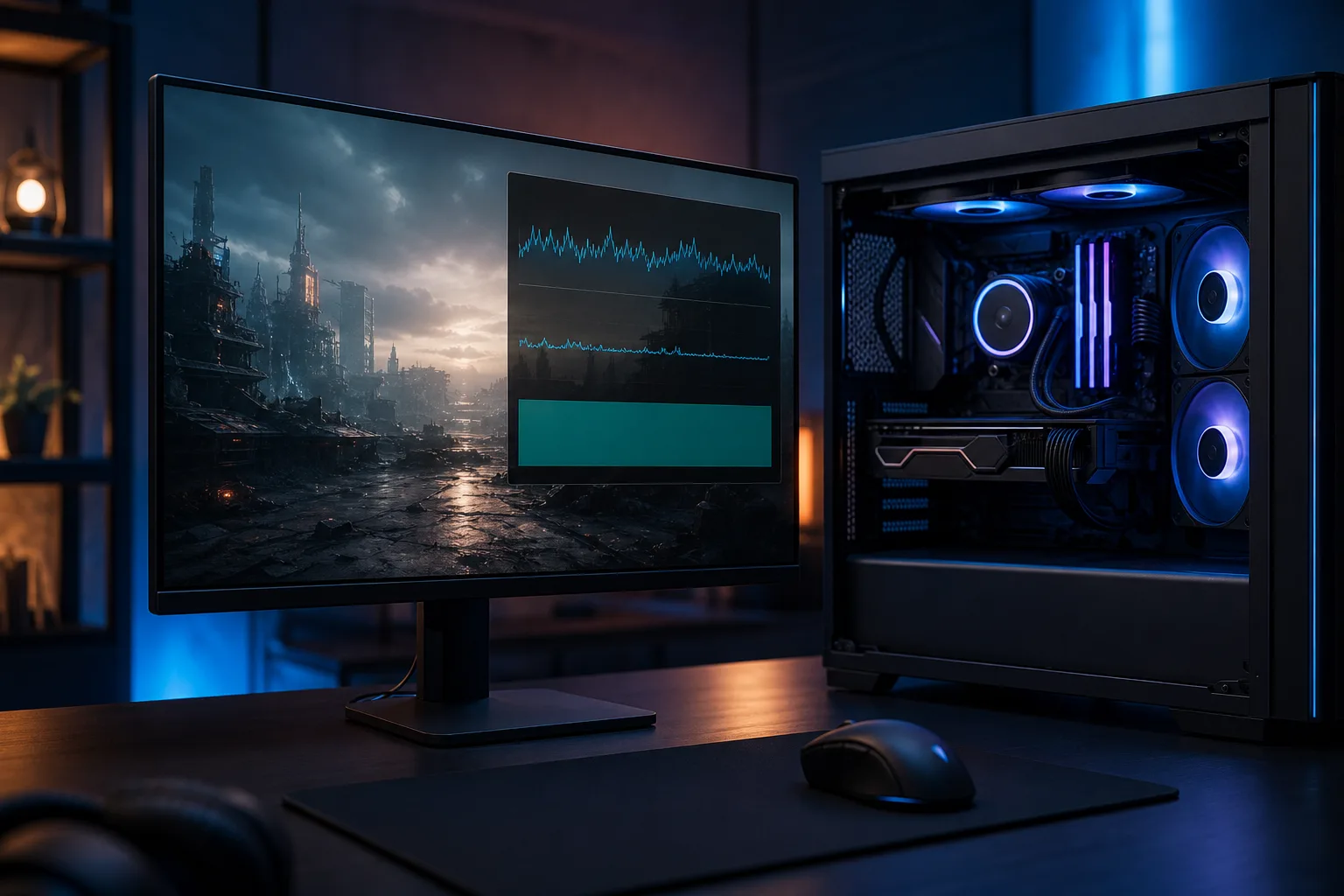
- Whether your frame times are even. The FPS counter will not tell you. You need a frame-time graph (many GPU overlays and benchmarking tools can show one).
- Whether something is throttling. CPU and GPU can quietly drop clocks when hot, which causes hitching that looks like a software bug. If your rig has been running warm, our own post on how to know when your GPU is starting to fail covers related warning signs.
- Whether it is the game, the drivers, or the hardware. Plenty of stutter traces back to a specific game patch or a driver version, and that is hard to predict. Treat any single online theory as a lead, not a verdict.
- Whether your network is the culprit. A wired connection can still have a bad route to a specific server.
Be suspicious of anyone who diagnoses it in one sentence.
What to do about it
Run this sequence in order. Most of it is free and takes minutes.
- Confirm the symptom type. Is it hitching (stutter), delayed controls (input lag), or online-only weirdness (network)? Offline single-player rules out the network instantly.
- Turn on a frame-time graph. If the line is flat, pacing is fine and you are chasing input lag or network. If it spikes, you have a stutter source to hunt.
- Check temps and clocks while gaming. A CPU or GPU that heats up and drops speed mid-session causes exactly this. Dusty fans and dried thermal paste are common culprits.
- Cap your frame rate slightly below your monitor's refresh rate. If your GPU is pinned near 99% usage, the render queue can build up and add input delay. A cap often makes the game feel snappier even though the FPS number drops. Lower number, better feel. That is the trade.
- Review sync settings. V-Sync can add input delay. Adaptive sync (G-Sync or FreeSync) paired with a frame cap is a popular combination, but test it on your own setup rather than trusting a blanket rule.
- Close background hogs. Browsers, launchers, overlays, and recording software all compete for resources and cause frame-time spikes.
- Check storage and RAM. A nearly full drive or a game installed on a slow, aging drive can cause streaming hitches in open-world titles. Out of memory and heavy paging causes stutter too.
- Update or roll back graphics drivers. If the problem started right after an update, rolling back is a legitimate test.
- For online-only lag, test the network. Use a wired connection if you can, and watch the in-game ping and packet-loss readout. Wi-Fi interference is a frequent offender.
- Check your display settings. Make sure the monitor is actually running at its full refresh rate in Windows, not stuck at 60 Hz.
That last one catches more people than you would expect. A 144 Hz monitor running at 60 Hz makes a high FPS counter feel pointless.
When to hand it off
Self-help is great for settings, caps, drivers, and background clean-up. It stops being the right tool when you suspect heat, failing storage, or a flaky component, because guessing there can cost you data or make things worse.
If you want a second set of eyes, our gaming PC repair team can trace thermal, storage, and hardware causes. A computer diagnostic at Fix My PC Store is $60 and is credited toward the repair. It is free only with the coupon emailed when you join our email list. Every charge and the timing are disclosed for your approval before any work begins. If you think the real answer is a hardware upgrade, a build plan from the custom gaming PC builder can help you aim the money at the actual bottleneck instead of a bigger number on the counter.
Prefer not to travel? Some software-side problems can be handled through remote support, depending on the issue. You can also book a repair or call the shop at 561-819-9999. We are at 10140 Okeechobee Blvd, Suite B, West Palm Beach, Monday through Friday 9 a.m. to 6 p.m. and Saturday 9 a.m. to 5 p.m.
The goal is not a higher number. It is a game that feels like your hands are connected to it.
Ready to build a rig that actually rips?
Custom gaming PCs built and tuned by people who game. Tell us your budget and target frame rate.