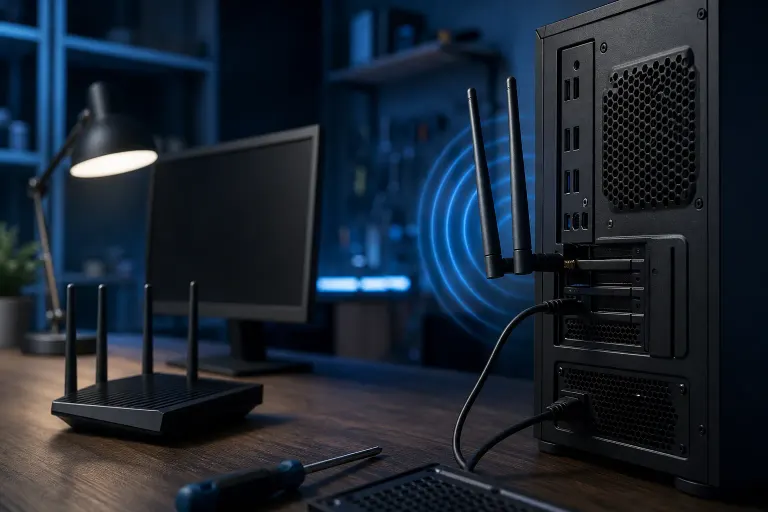
Why Is My Desktop PC Showing Full Wi-Fi Bars but Barely Loading Pages?
TL;DR: Full Wi-Fi bars measure how loud the connection to your router is, not whether the internet behind it is working. The usual suspects are DNS trouble, a flaky adapter or driver, a congested or confused router, or the provider itself. Test in a set order and you can usually pin it down in 15 minutes.
What happened
You look down at the taskbar. Full bars. Glorious. Then you click a link and watch a blank tab think about its life choices for 30 seconds.
This is one of the most common complaints a desktop owner brings to a repair counter, and it trips people up because the bars are lying by omission. (They are not lying on purpose. They just answer a different question than the one you are asking.)
That signal icon reports how strong the radio link is between your PC's Wi-Fi adapter and the router. It says nothing about:
- Whether the router can actually reach the internet
- Whether names like google.com are being translated into addresses (that is DNS)
- Whether your adapter is dropping packets, retrying constantly, or stuck on a bad driver
- Whether ten other devices in the house are hogging the line
So "full bars, no speed" is not a contradiction. It is a symptom with several possible causes, and the trick is to stop guessing and sort them out in order.
Why it matters
Guessing is how people end up buying a new router, a Wi-Fi extender, a mesh kit, and a "booster" off a social media ad (that last one is a scam by name, and I will not apologize for saying so) when the real fix was a DNS setting or a driver. Spend the money after you know which layer is broken, not before.
Here is the diagnostic sequence, cheapest and fastest first.
Step 1: Is it just this PC?
Grab a phone or another device on the same Wi-Fi and load a few pages.
- Other devices are also slow: the problem is upstream. Router, modem, or your internet provider. Skip to step 5.
- Other devices are fine: the problem is on your desktop. Keep going.
Step 2: Is it every site or just some?
Try three or four different sites. If a few load instantly and others hang, or pages load but the very first connection takes forever, that points at DNS rather than raw speed. If everything is uniformly crawling, think adapter, congestion, or the line itself.
Step 3: Try a wired connection
If you can run an Ethernet cable from the PC to the router for two minutes, do it. This one test splits the problem cleanly.
- Fast on cable, slow on Wi-Fi: your wireless adapter, its driver, its antenna, or interference is the problem.
- Slow on cable too: it is not Wi-Fi at all. Look at DNS, the router, or the provider.
Step 4: Check the DNS angle
A classic sign: the browser says "resolving host" or "waiting for" a site forever, then it suddenly loads. You can check this without paying anyone. Open Command Prompt and type ping 8.8.8.8. If that responds quickly but ping google.com is slow or fails, DNS is your culprit. Switching your PC's DNS to a public resolver (Google's 8.8.8.8 or Cloudflare's 1.1.1.1) in the adapter settings is a safe, reversible thing to try. Write down what was there first so you can put it back.
Step 5: Restart the right things, in the right order
The tired old advice works more often than techs like to admit. Power off the modem and router, wait a full 30 seconds, power the modem on first, let it settle, then the router. Reboot the PC after.
Quick decision table
| What you see | Most likely cause | First thing to try |
|---|---|---|
| All devices slow | Router, modem, or ISP | Power cycle, then call the provider |
| Only the PC is slow, cable is fast | Wi-Fi adapter, driver, or interference | Update or reinstall the driver, move to 5 GHz |
| Ping to 8.8.8.8 fast, domain names slow | DNS | Change DNS servers |
| Slow on cable too, other devices fine | Network settings or something on the PC | Reset the network stack, scan for malware |
| Fast at 7 a.m., awful at 8 p.m. | Congestion, yours or the neighborhood's | Test at different hours, check provider |
Computer acting up? Get a real diagnosis. Book a diagnostic
What we don't know yet
I cannot tell you which row of that table is yours from here, and neither can any article. A few things genuinely change the answer:
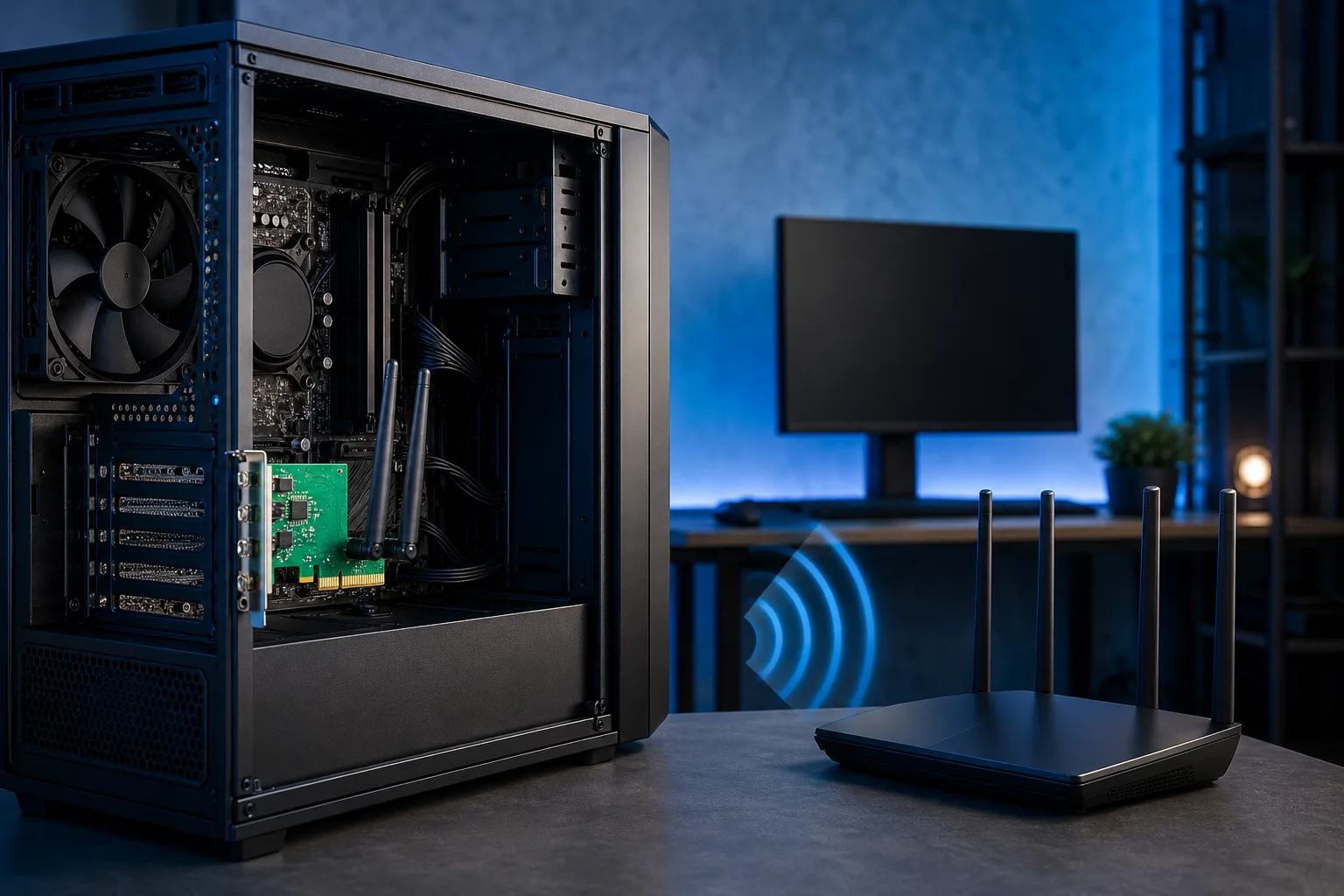
- How the PC connects. Desktops often use a cheap USB Wi-Fi dongle or a card with stubby antennas tucked behind a case. Those can show a strong signal reading while moving data poorly, especially if the antenna is sitting inside a metal case. Whether yours is a weak adapter or a healthy one is something only testing reveals.
- Whether it is hardware or software. A failing adapter and a corrupted driver look nearly identical from the desktop. A clean driver reinstall tells you which, but not before you try it.
- What your provider is doing. Outages and throttling on the provider's side are hard to see from inside your house. Their status page or a call is the only way to confirm.
- Whether something is chewing bandwidth in the background. Cloud backups, Windows updates, a game launcher patching, or a PC quietly doing things it should not. That last one is worth ruling out, and I would rather you rule it out than assume it.
I am not going to pretend any of these is the "usual" answer for your specific machine. Test, then decide.
What to do about it
Do it yourself first (costs nothing):
- Run the other-device test and the wired-cable test above.
- Power cycle modem, router, then PC.
- Try the DNS ping check and switch DNS if the pattern fits.
- In Device Manager, look at your network adapter. If you see a yellow warning or an old driver, get the current one from the adapter or motherboard maker's own site, not a random "driver updater" program (those are bad habits that cause more trouble than they fix).
- If your router offers both 2.4 GHz and 5 GHz, try the 5 GHz network. It is usually faster and less crowded at close range.
- Check Task Manager's Performance and Processes tabs to see if something is eating the network.
Bring in help when:
- The wired test is fast but Wi-Fi stays slow after a clean driver reinstall. That points at the adapter hardware or its antenna, which is a repair or a swap.
- The PC is slow even on cable while other devices are fine. Something on the machine itself needs a proper look, including a malware check.
- You are running a small business and the whole office crawls. That is a networking job, and business networking is a different conversation than home Wi-Fi.
If it is your desktop, computer repair at our Okeechobee Boulevard shop in West Palm Beach covers adapter, driver, and network troubleshooting. A computer diagnostic is $60 and is credited toward the repair. (It is free only with the coupon the website emails when you join the email list.) Every charge and the timing are laid out for your approval before work starts. If you would rather not haul the tower in, ask about remote support for software-side problems like DNS and driver issues, though on-site or in-shop work is needed for anything hardware.
Call 561-819-9999 or use the contact page to get on the schedule. Shop hours are Monday through Friday 9 a.m. to 6 p.m. and Saturday 9 a.m. to 5 p.m.
For background on how DNS works and why changing it is safe, Cloudflare's and Google's public DNS documentation are good references.
Computer acting up? Get a real diagnosis.
Fix My PC Store has repaired thousands of machines across West Palm Beach. Honest pricing, no upsell games, and a free diagnostic for new customers with our email coupon.