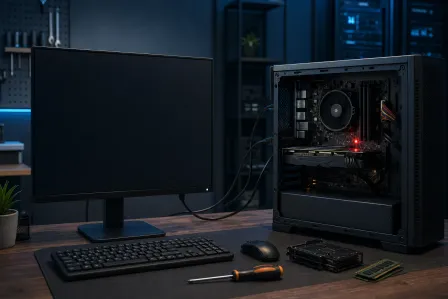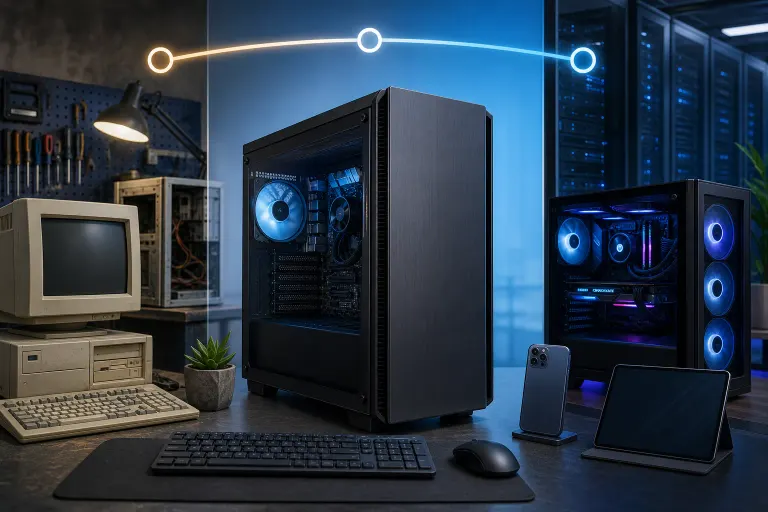
How Long Should a Desktop PC Last Before You Replace It?
TL;DR: A well-maintained desktop PC typically lasts five to eight years. Some push past ten. The real question isn't age alone. It's whether your machine can still do what you need it to do, and whether fixing or upgrading it costs less than replacing it.
What You Need
Before you can make a smart decision, gather a little information:
- Your PC's approximate age (check the sticker on the case, your purchase receipt, or the BIOS date)
- The CPU model and generation (press Windows + Pause/Break or search "System Information" in the Start menu)
- How much RAM is installed and what type (DDR3, DDR4, DDR5)
- Current storage type: spinning hard drive or SSD
- A rough sense of what the PC struggles to do right now
Once you have that picture, the steps below will walk you through the decision.
Step 1: Find Out the Real Age of Your Platform
The age of the PC matters less than the age of its platform. A platform means the CPU generation plus the motherboard socket. These two things together determine what upgrades are even possible.
Here's a useful mental benchmark. Intel's LGA 1151 socket, popular around 2015 to 2019, is largely at its ceiling. You can swap CPUs within that socket family, but you cannot drop in a current-generation processor. AMD's AM4 platform from the same era is a little more forgiving, with support running into 2022.
If your CPU is more than four generations behind the current lineup, your platform is aging out. That doesn't automatically mean replace it. It means your upgrade ceiling is lower.
Search your CPU model on CPU-Z's validation database or just Google the model name plus "release date" to confirm what generation you're working with.
Step 2: Check What's Actually Slowing You Down
This is where most people make the wrong call. They assume slowness means the whole machine is shot. Often, it's one component.
Ask yourself:
- Does the PC feel sluggish even when you've just booted it?
- Do programs take forever to open, or does everything feel choppy once things are running?
- Are you running out of storage space constantly?
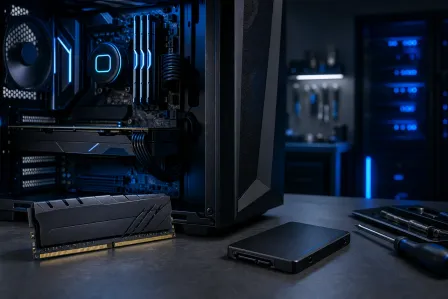
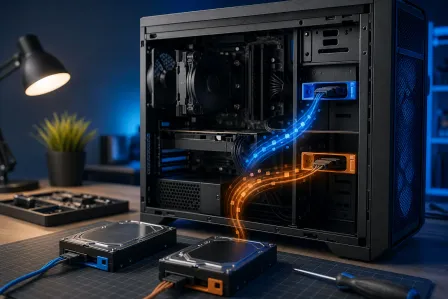
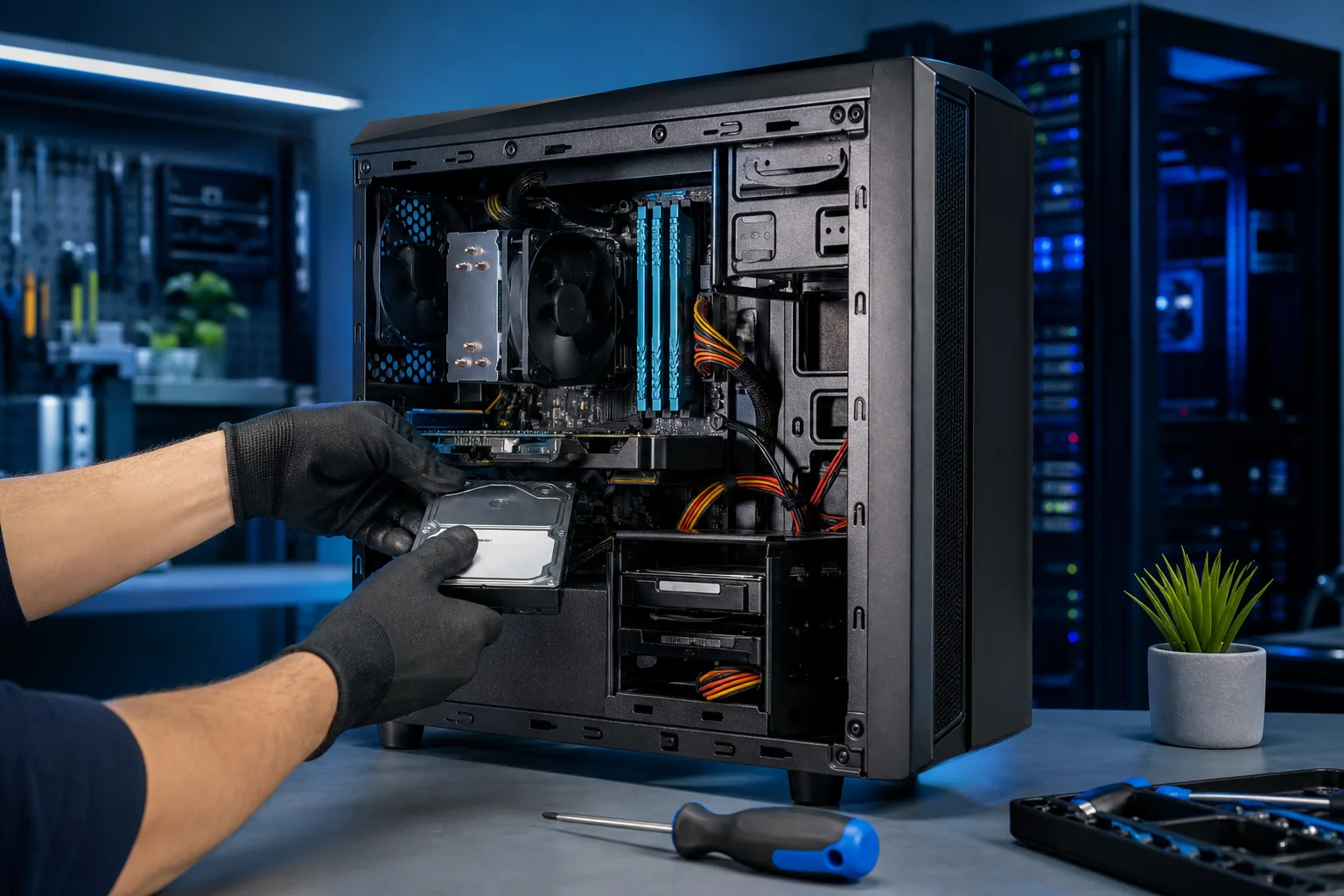
Slow boot times and sluggish app launches usually point to the storage drive. If you're still on a mechanical hard drive, swapping to a solid-state drive is one of the single most effective upgrades you can make. It costs a fraction of a new machine and often makes a five-year-old computer feel new again.
If the machine feels fine loading things but struggles when you have several tabs or programs open, RAM is likely the constraint. Eight gigabytes of RAM was enough a few years ago. It's borderline for Windows 11 with a modern workload.
If you've already got an SSD and adequate RAM but things are still slow, that's when the CPU generation starts to matter more.
Not sure what your PC actually needs? Our team at Fix My PC Store runs diagnostics to separate real hardware failure from software buildup, driver issues, and bloat that just needs a clean-up.
Step 3: Price Out the Repair or Upgrade Path
Once you know what's actually wrong, compare the cost of fixing it against the cost of replacing it.
Here's a simple framework:
If the repair or upgrade costs less than 30 to 40 percent of a comparable new machine, it's almost always worth doing.
Some common upgrade costs to estimate (ballpark, not a quote):
- Adding RAM to an older desktop: relatively low cost
- Adding or replacing with an SSD: moderate, depends on capacity
- Replacing a power supply: moderate
- Replacing a failed hard drive and recovering data: depends on failure type
If your platform is older and would require a new motherboard, CPU, and RAM together to make a meaningful jump, that's a different conversation. At that point you're approaching the cost of a new build, and a new build makes more sense.
For business machines, the calculus includes downtime, compatibility with your software, and security support timelines. If you're running a machine that can't receive Windows 11 updates, that's a liability. Talk to us about managed IT services if you're making this decision across a fleet of business computers.
Computer acting up? Get a real diagnosis. Book a diagnostic
Step 4: Evaluate Software and Security Support
Hardware lifespan and software support lifespan are two different clocks. A machine can run fine mechanically but become a security risk because Microsoft or Apple no longer supports the operating system it's running.
Windows 10 reaches end of support in October 2025. After that date, Microsoft stops releasing security patches for it. If your machine can't upgrade to Windows 11 (which has stricter hardware requirements including TPM 2.0 and specific CPU generations), you have a hard deadline approaching.
Check Windows 11 compatibility using Microsoft's PC Health Check app. If your machine fails, that's a meaningful factor in your replace-or-repair decision.
For businesses especially, running unsupported software is a serious risk. If cybersecurity is a concern, our business cybersecurity services include assessments that factor in exactly this kind of software lifecycle exposure.
Step 5: Think About What You Actually Do With It
A desktop used for email, light web browsing, and document editing has very different demands than one used for video editing, gaming, or running virtual machines.
Light users: A seven or eight-year-old machine with an SSD and enough RAM can absolutely handle everyday tasks. Don't replace it just because it's old.
Gamers: GPU matters most here. An older CPU paired with a modern GPU can still run many current titles. If the CPU is a genuine bottleneck and the socket is maxed out, then the platform needs to change. Check out our custom gaming PC builder if you're considering a fresh build designed around what you actually play.
Creative professionals and power users: CPU core count, RAM capacity, and fast storage become critical. If your platform can't support what current workloads demand, that's a clearer case for replacement.
Business users: Don't forget that older hardware can mean longer boot times, slower video calls, and reduced compatibility with newer software. That friction has a real cost in lost time across a workday.
Common Mistakes
Replacing because it feels slow, without diagnosing why. A $150 SSD upgrade might solve exactly what a $900 new computer would. Diagnose first.
Ignoring the platform ceiling. Adding more RAM to a platform that's already bottlenecked elsewhere is wasted money. Know what your motherboard and CPU can actually support before buying parts.
Skipping backups before any decision. Whether you're upgrading or replacing, your data needs to be safe first. If you don't have a reliable backup right now, fix that before anything else. Backups and disaster recovery are not optional.
Assuming new is always better. A cheap new desktop with a budget processor and a spinning hard drive will feel worse than a well-maintained older machine with an SSD. Specs matter more than year.
Waiting until the machine completely dies. If your hard drive is making clicking sounds or your system is crashing regularly, act now. Waiting risks your data, not just your workflow. If something feels off, book a diagnostic sooner rather than later.
Underestimating software costs. A new PC means re-licensing software in some cases. Factor that into the real cost of replacement.
Bottom Line
There's no single age where a desktop PC automatically becomes trash. Five to eight years is the typical useful life for most people, but the honest answer depends on what the machine does, what's actually failing, and what an upgrade or repair costs versus a full replacement.
Start with a diagnosis, not an assumption. If a targeted upgrade solves the problem for a reasonable price, do that. If the platform is aging out of security support and can't handle your workload, it's probably time to move on.
If you're in West Palm Beach or anywhere in South Florida and you want a straight answer without the sales pressure, bring it in or reach out for remote support. We'll tell you honestly whether your machine is worth fixing.
Computer acting up? Get a real diagnosis.
Fix My PC Store has repaired thousands of machines across West Palm Beach. Honest pricing, no upsell games, and a free diagnostic for new customers with our email coupon.