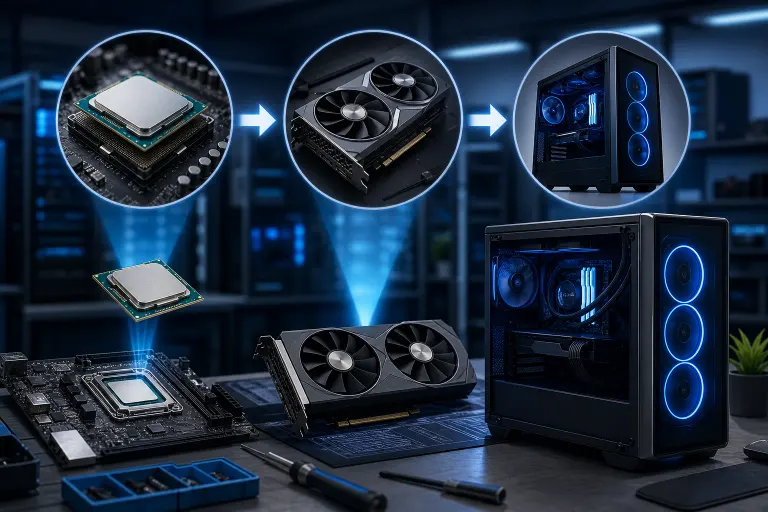
Gaming PC Upgrade Path: CPU, GPU, or Full Replacement?
TL;DR: Upgrade the GPU when your games are graphics-limited, especially at 1440p or 4K. Upgrade the CPU when frame rates dip in busy scenes, your GPU is underused, or newer games hitch despite reasonable graphics settings.
Replace the entire system when the motherboard, RAM generation, power supply, cooling, storage, and case all limit the upgrade. The best move is not the newest part. It is the move that produces a real FPS gain without turning your PC into a compatibility side quest.
At a glance
| Option | Best when | Biggest payoff | Watch out for |
|---|---|---|---|
| Upgrade the GPU | Games run poorly at high resolutions or high graphics settings | Higher average FPS, better visual settings, stronger ray tracing performance | Power supply capacity, case clearance, CPU bottlenecks |
| Upgrade the CPU | FPS drops in crowded areas, strategy games, simulation games, or high-refresh esports | Better minimum FPS, smoother frame pacing, faster general responsiveness | Motherboard socket, BIOS support, RAM compatibility, cooler mounting |
| Upgrade CPU, motherboard, and RAM together | Current platform is old or has no worthwhile CPU path | Modern features and a balanced foundation for a new GPU | More labor, Windows activation considerations, possible cooler and storage changes |
| Replace the entire system | Several major components are old, unreliable, or incompatible | Clean, balanced performance with a warranty-minded parts plan | Requires data migration and a bigger upfront budget |
Here is the Hardware Hank rule: do not throw a monster GPU into a rig that cannot feed it. That is how you spend big money for tiny gains, then stare at frame-time spikes like a boss fight you cannot beat.
First, find the real bottleneck
A slow gaming PC does not automatically have a slow GPU. Games stress hardware differently. A cinematic single-player title at 4K can lean hard on the graphics card. A competitive shooter at 1080p and 240Hz may hit a CPU ceiling long before the GPU breaks a sweat. Strategy, simulation, open-world, and heavily modded games can also punish the processor, system memory, and storage.
Before buying anything, test the games you actually play. Use an overlay or monitoring tool to watch GPU usage, CPU activity by core, temperatures, clock speeds, RAM use, and frame times. Do not judge only by the average FPS number. A game averaging 100 FPS can still feel rough if it frequently dips or hitches.
A few patterns are especially useful:
- GPU near full usage while FPS is lower than you want: The graphics card is probably the main limit.
- GPU usage consistently low while one or more CPU cores are maxed out: The processor is likely holding back performance.
- Stutters accompanied by very high RAM use: More system memory, or closing background apps, may help.
- Stutters when loading areas, textures, or large maps: A slow or failing drive may be the problem, not the CPU or GPU.
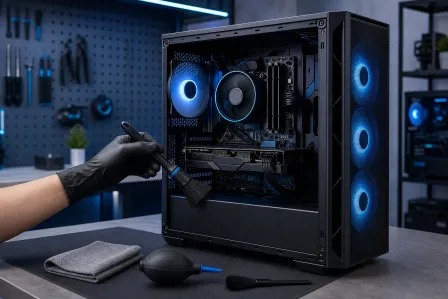
- High temperatures followed by falling clock speeds: Fix cooling, dust buildup, thermal paste, fan control, or airflow before buying silicon.
Also verify the boring stuff. Update the graphics driver, check Windows power settings, confirm the monitor is running at its intended refresh rate, and make sure your display cable is connected to the graphics card rather than the motherboard video output. It sounds basic. It also saves people from spending upgrade money on a cable mistake.
If your PC has crashes, random shutdowns, artifacting, or refuses to boot, stop treating it like an upgrade question. Those can point to a failing power supply, overheating, bad memory, storage trouble, or a damaged GPU. A proper computer repair diagnostic can separate a performance limit from a hardware fault before you build around a problem.
When a GPU upgrade makes the most sense
The GPU is usually the highest-impact upgrade for gamers who want prettier settings or more FPS at 1440p and 4K. It handles the rendering work: textures, lighting, shadows, effects, ray tracing, and all the shiny pixels that make a new game look ridiculous in the best way.
A graphics card upgrade is the likely play when lowering resolution or visual quality gives you a major FPS jump. If your current card stays close to maximum load while gaming, that is another strong clue. You may also be GPU-bound if a new game runs acceptably at 1080p but falls apart after you raise resolution, enable heavier effects, or turn on ray tracing.
What a GPU upgrade improves
A better GPU can give you:
- More FPS at the same resolution and settings.
- The ability to raise texture quality, shadows, effects, and other visual settings.
- Better performance at 1440p or 4K.
- More room for high-refresh gaming when the CPU can keep up.
- Better support for newer rendering features, depending on the card and the game.
That last line matters. Features vary by GPU family, game engine, and driver support. Do not buy based on one marketing checkbox. Check benchmarks for the exact games and resolution you play.
GPU compatibility checks that matter
Before you order the biggest card your wallet can bench, check the rest of the rig.
Power supply: Confirm the unit has enough capacity for the full system and the correct PCIe power connectors. Quality matters as much as wattage. An old, questionable power supply should not be asked to power a hungry new GPU. That is not a performance build. That is chaos with RGB.
Physical fit: Measure GPU length, height, and thickness against the case, front fans, radiator, drive cages, and side panel. Some cards are absolute units. A card can fit on paper but collide with a front-mounted radiator in real life.
CPU pairing: A CPU bottleneck does not make a GPU upgrade useless. At higher resolutions, the GPU often takes more of the load. But if you play at 1080p with a high-refresh monitor, an older processor can cap the gains. You might improve image quality without getting the giant FPS leap you expected.
Display target: A GPU upgrade should match your monitor plan. If you play on a 60Hz 1080p display, a top-tier graphics card may be wildly underutilized in many titles. If you are moving to a 1440p high-refresh or 4K panel, then GPU horsepower becomes much easier to justify.
Airflow and heat: West Palm Beach heat is not a benchmark setting, but a hot room plus a cramped, dusty case can make a powerful GPU run louder and warmer than it should. Good intake, exhaust, and clean filters are free FPS protection. Well, almost free.
If you want a GPU-first build designed around your target games and monitor, our custom gaming PC builder is a clean way to plan a balanced parts list instead of guessing at compatibility.
When it is time for a CPU upgrade
The CPU handles game logic, physics, AI, draw calls, background tasks, and the general task of keeping the whole system moving. When it is the bottleneck, your GPU may sit underused while the game stutters in the moments that matter most.
CPU limitations often show up as poor 1% lows, which are a practical indicator of the slower frames in a run. You do not need to obsess over every chart. Just know this: average FPS tells you how fast the ride can be. Frame-time consistency tells you whether the ride is smooth.
A CPU upgrade makes sense when you see these symptoms:
- FPS drops in cities, large multiplayer matches, dense open-world areas, or intense combat.
- Competitive games cannot reach or hold your monitor's refresh target, even after lowering graphics settings.
- Lowering resolution barely changes FPS. That usually means the GPU has less to do, but the CPU cannot produce more frames.
- GPU utilization is often well below its normal maximum during gameplay.
- You stream, run voice chat, record gameplay, keep browser tabs open, or multitask while gaming and the system becomes choppy.
CPU upgrades are really platform upgrades sometimes
The key question is not only, “Can I install a faster CPU?” It is, “Is there a worthwhile CPU for this motherboard that makes financial and technical sense?”
Your motherboard socket and chipset determine which processors it can support. Even a physically compatible CPU may require a BIOS update. Some boards need the old CPU installed to perform that update. Others offer a BIOS flash feature that can work without one, but you must confirm the exact board documentation before relying on it.
Cooling is another checkpoint. A newer CPU may need a stronger cooler, different mounting hardware, or better case airflow. Reusing an older stock cooler can be fine in some situations, but it is not automatically the move for a hotter, higher-performance chip.
Memory can matter too. Some platforms use one RAM generation, while newer platforms use another. That may force a motherboard and RAM replacement even if the CPU itself is reasonably priced. This is where a “quick CPU upgrade” starts growing extra objectives.
Do not mistake RAM or storage issues for a CPU problem
If you have limited memory and games or background apps are pushing it to the ceiling, the result can be stutters, long alt-tab delays, and browser chaos. More RAM can be a cheaper fix than a new processor, provided the system supports it and the current memory setup is stable.
Likewise, moving games from a mechanical hard drive to an SSD can improve loading and streaming behavior. It will not magically double FPS, but it can make modern games feel far less sluggish when loading assets. If your system drive is nearly full or reporting errors, address that first. Storage trouble is a sneaky performance thief.
Ready to build a rig that actually rips? Start your build
When to upgrade the CPU, motherboard, and RAM together
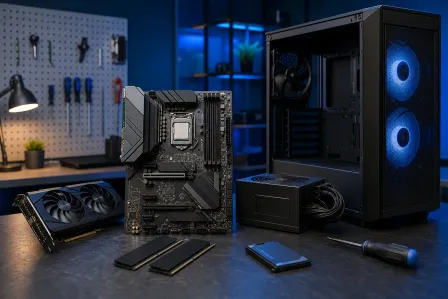
A platform refresh is the middle path between swapping one component and buying a full new computer. It usually means replacing the CPU, motherboard, and memory as a group, then reusing a compatible GPU, case, storage, and possibly power supply.
This is the right play when your motherboard has reached the end of its sensible CPU upgrade options, the existing RAM standard is holding you back, or you want modern connectivity and storage support without replacing every part.
A platform refresh can be especially smart if your graphics card is still doing the job but your CPU is clearly limiting high-refresh performance. It sets you up to add a stronger GPU later without rebuilding the whole system twice.
Still, do the total-cost math. A CPU, board, RAM, cooler, and possibly a new power supply can approach the cost of a complete build. Add labor, Windows setup, storage migration, and replacement fans, and the “small” project gets real fast.
Parts worth reusing, and parts worth questioning
You can often reuse a case, SSD, hard drive, GPU, and some power supplies. But “it turns on” is not the same as “it is a smart foundation.”
Reuse a power supply only if it is from a reputable line, in good condition, adequately rated for the intended components, and equipped with the necessary connectors. Never mix modular cables from different power supplies. Cables may fit physically while using different wiring. That can damage hardware.
Reuse storage only after checking health and backing up important files. A platform swap is a great time to make sure your saves, documents, photos, and creative projects are not living on one aging drive with no backup. If you need a hand protecting important data before a rebuild, see our backup and recovery options.
For the actual migration, you may be able to move an existing Windows installation, but a clean install often produces the cleanest result after a major motherboard change. Driver leftovers and old chipset software can cause weird behavior. Weird behavior is the final boss nobody invited.
When replacing the entire gaming PC is the smarter move
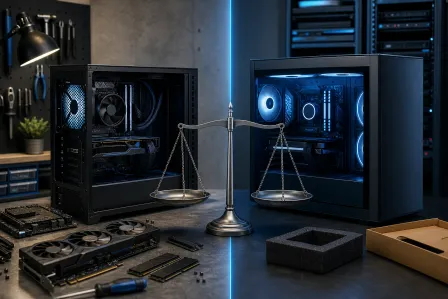
Sometimes the correct answer is not “upgrade one more thing.” It is “stop stacking new parts onto an old foundation.” Full replacement becomes sensible when several components need attention at once or when the system is old enough that every upgrade creates another constraint.
Consider a new system if:
- The CPU platform has no meaningful upgrade path.
- The GPU needs replacement, but the power supply is too old or too weak.
- The case has poor airflow or cannot fit current hardware comfortably.
- You still rely on older storage that is slow, full, or unreliable.
- RAM capacity is limited and the platform makes expansion impractical.
- You are facing repeated crashes, overheating, or repair needs across multiple parts.
- You want a major jump in resolution, refresh rate, streaming capability, or creative workloads.
The benefit of a complete build is balance. The CPU, GPU, power supply, cooling, memory, storage, and case are chosen to work together from day one. No sketchy adapter chains. No mystery BIOS support. No wondering whether the ancient power supply will survive the next raid night.
A new build also gives you a clean path for cable management, airflow, current storage layouts, and future upgrades. That does not mean every gamer needs a full replacement. If your existing system has a solid power supply, roomy case, good SSD, and a supported CPU path, targeted upgrades can be a monster value.
If you are deciding between a platform refresh and a full rig, book a build consultation. Bring your current parts list, the games you play, your monitor resolution and refresh rate, and your desired FPS target. That gives us enough info to build a real recommendation, not a random internet parts pile.
A practical upgrade order for most gamers
There is no single upgrade order for every setup, but this sequence keeps decisions sane.
- Fix stability, heat, dust, and storage issues first. A throttling or failing system cannot show its true performance.
- Define your gaming target. Resolution, refresh rate, game types, visual settings, streaming, and VR all change the answer.
- Identify the bottleneck in your actual games. Do not use one synthetic benchmark as your entire upgrade plan.
- Check the upgrade path and total cost. Include the motherboard, RAM, cooler, power supply, case fit, and labor when relevant.
- Buy for balanced performance. A strong mid-to-high GPU with an adequate CPU is usually better than one extreme component dragging a weak platform behind it.
- Plan the next move. If you keep the current GPU during a platform refresh, make sure the new power supply and case can support the GPU upgrade you want later.
Overclocking can sometimes squeeze out a little extra performance, but it is not a substitute for a meaningful hardware upgrade. It adds heat, power draw, and stability testing. If your CPU is old enough to bottleneck modern games, an overclock may buy time, not solve the problem.
Verdict
Upgrade the GPU when you want higher graphics settings, stronger performance at 1440p or 4K, and monitoring shows your current card is doing the limiting. Upgrade the CPU when minimum FPS, crowded scenes, high-refresh esports, simulation workloads, or low GPU usage point to processor limits.
Upgrade the CPU, motherboard, and RAM together when the existing platform has run out of worthwhile options. Replace the entire system when the GPU, CPU platform, power supply, cooling, storage, and case are all due for attention. At that point, piecemeal upgrades can cost nearly as much while leaving you with old weak links.
The winning build is the one that hits your real target. Smooth frame times. The resolution you want. The refresh rate your monitor deserves. No wasted cash, no bottleneck nonsense, and plenty of room for that next glorious RGB-fueled upgrade.
Ready to build a rig that actually rips?
Custom gaming PCs built and tuned by people who game. Tell us your budget and target frame rate.