Gaming PC Upgrades in Order: What to Swap First for the Biggest FPS Gains
TL;DR: The GPU almost always delivers the biggest FPS jump per dollar. After that, prioritize RAM speed and capacity, then CPU, then storage. Cooling and the power supply only matter if they're actively bottlenecking everything else.
You've got upgrade money burning a hole in your pocket and a list of parts you're eyeballing. Cool. But swap in the wrong thing first and you'll spend real cash for maybe 3 extra frames. Here's the actual priority order, with the reasoning behind each slot.
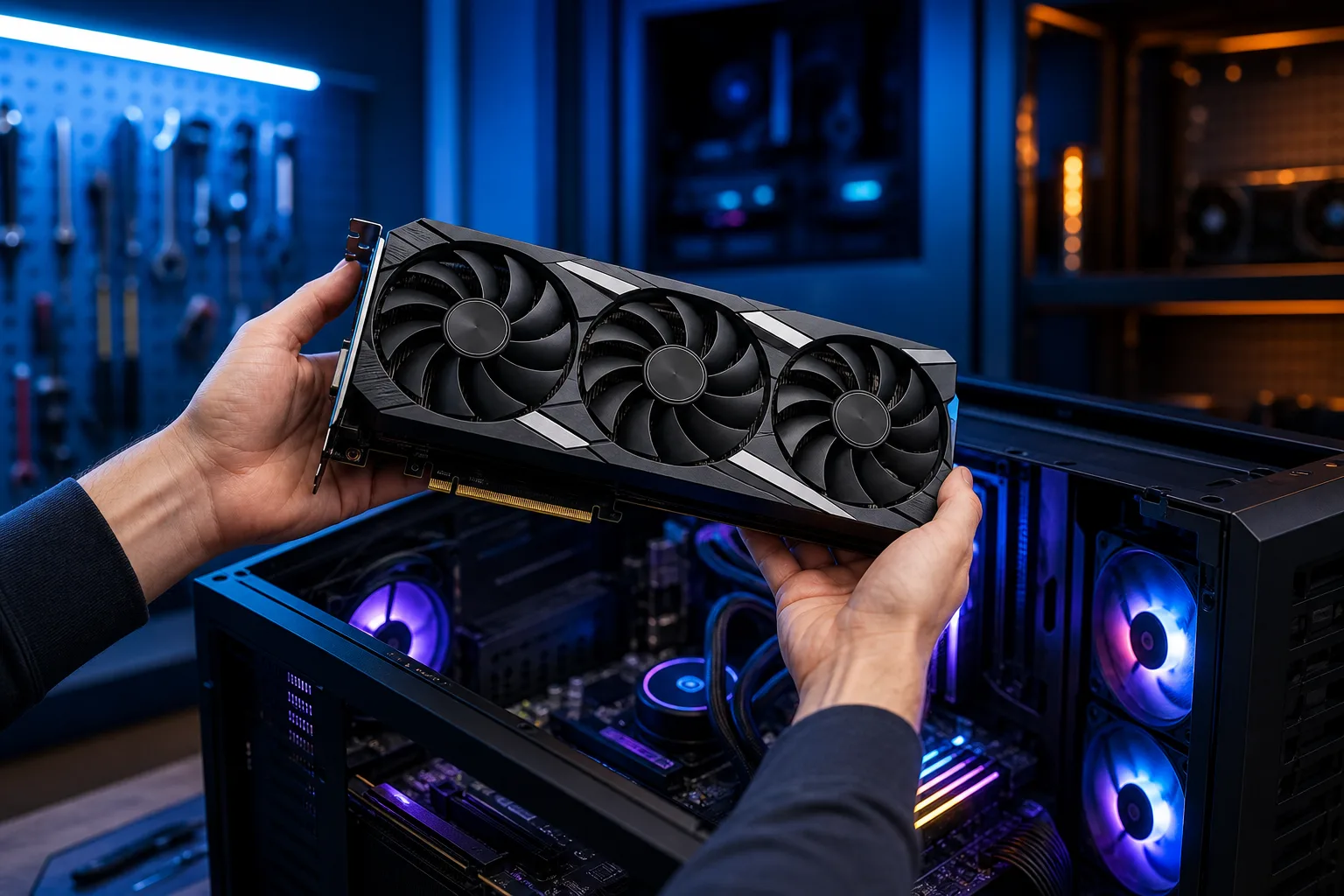
1. GPU: The Upgrade That Moves the Needle the Most
For the vast majority of gaming workloads, the GPU is doing 70-90% of the heavy lifting. Frames are literally rendered by the graphics card. A weak GPU creates a hard ceiling on your framerate no matter how beefy everything else is.
If you're sitting on a three-plus generation old card, even a mid-range current-gen GPU will feel like night and day. Going from a GTX 1060 to an RTX 4070, for example, isn't just more frames. It's ray tracing, DLSS, and headroom for 1440p or 4K.
Check first: Run a GPU-heavy benchmark like 3DMark or just watch your GPU usage in Task Manager while gaming. If it's pegged at 99% and your CPU is chilling at 40-50%, your GPU is the bottleneck.
2. RAM: Speed and Capacity Both Matter
Second slot goes to RAM, but with nuance. Two scenarios kill performance here:
- Too little capacity. Running 8 GB in 2025 is rough. Modern games like Hogwarts Legacy or Alan Wake 2 can push toward or past 8 GB of system RAM usage, and headroom disappears fast when Discord, a browser, and background apps are also running. Bump to 16 GB minimum, 32 GB if you stream or run Discord, a browser, and a game simultaneously.
- Too slow or single-channel. DDR4-2133 in a system that supports DDR4-3600 is leaving serious memory bandwidth on the table. AMD Ryzen CPUs especially benefit from faster RAM because the CPU's Infinity Fabric is tied to memory speed. If you've got a single stick instead of two matched sticks, enabling dual-channel alone can be a meaningful FPS bump with zero cost.
Check first: Open Task Manager, Performance tab, Memory. You'll see your speed and how many slots are used. Cross-reference with your motherboard's QVL (qualified vendor list) to know what speed it supports.
For an independent look at how memory configuration affects gaming performance, see Crucial's guide to RAM and gaming.
3. CPU: Upgrade Only When It's Actually Bottlenecking
A CPU bottleneck happens when your GPU is sitting idle because the CPU can't feed it frames fast enough. This is most obvious in CPU-heavy titles like strategy games, open-world RPGs with lots of AI, or competitive shooters at very high framerates (240+ FPS targets).
But here's the thing: a modern 6-core CPU from the last three or four years is rarely the problem in typical gaming. Check your CPU usage while gaming. If it's consistently above 90% while the GPU is below 70%, then yes, the CPU is your culprit.
Also factor in platform. Upgrading a CPU sometimes means a new motherboard and new RAM, which changes the math significantly. A same-socket drop-in (like moving up the AM5 or LGA1700 lineup) is almost always the smarter move over a full platform swap.
4. Storage: NVMe Cuts Load Times, Not Framerates
This one gets hyped more than it should on the FPS side. An NVMe SSD versus a SATA SSD will not meaningfully change your in-game framerate in most titles. What it DOES change is load times, shader compilation stutters in DirectStorage-enabled games, and overall system snappiness.
If you're still on a spinning hard drive, upgrade to any SSD immediately. The difference is huge. SATA SSD to NVMe PCIe 4.0 is a smaller real-world jump than the marketing suggests for gaming specifically.
Priority: HDD to SSD is a must-do. NVMe upgrades only matter if you're playing titles that actively use DirectStorage or if you're hitting texture streaming hitches.
Ready to build a rig that actually rips? Start your build
5. Cooling: Only Upgrade If Thermals Are Throttling You
Your CPU or GPU will throttle clock speeds when temps get too high. In South Florida heat, this is actually a real concern if your case airflow is weak or your thermal paste is years old.
Before buying a new cooler, check your temps under load with HWiNFO64 or HWMonitor. Rather than relying on a fixed temperature threshold, throttle points vary by chip, and many modern Intel and AMD CPUs have TJMax values of 95-100°C by design, look for throttling flags directly in HWiNFO64 (such as "Thermal Throttling" or "Power Limit Throttling" indicators) to confirm your chip is actually being held back. GPU temps above 85-87°C sustained can also trigger power limit drops.
A fresh application of quality thermal paste (Thermal Grizzly Kryonaut is a solid choice) costs almost nothing and can drop temps noticeably on older chips. That's a free performance boost before you spend anything.
If airflow is the issue, adding a couple of case fans before buying a $100 tower cooler makes sense. If you're still throttling, then upgrade the cooler.
6. Power Supply: The Unsexy But Critical Foundation
Nobody gets hyped about a PSU. But an underpowered or failing power supply causes crashes, instability, and can hold back a GPU that needs clean power delivery under boost.
You only need to upgrade the PSU if you're swapping in a higher-TDP GPU and your current unit can't support the new power draw, or if your existing PSU is showing signs of instability. Use a tool like OuterVision's PSU calculator to estimate wattage requirements before buying a new GPU.
A quality 80+ Gold rated PSU from a reputable brand (Seasonic, Corsair, be quiet!) is where to land. Don't cheap out here. A failing PSU is the one component that can take other parts with it.
Upgrade Priority Decision Table
| Component | Upgrade If... | FPS Impact |
|---|---|---|
| GPU | Pegged at 99%, 3+ gens old | HIGH |
| RAM | Under 16 GB or single-channel | MEDIUM-HIGH |
| CPU | Consistently above 90% while GPU idles | MEDIUM |
| SSD (from HDD) | Still on spinning drive | LOW (load times) |
| NVMe (from SATA) | Shader stutters, DirectStorage titles | LOW |
| Cooling | Throttling confirmed via HWiNFO64 flags | MEDIUM (when throttling) |
| PSU | Insufficient wattage for new GPU | NONE (but required) |
Bottom Line
Start with the GPU. Check your bottleneck before spending anything using free monitoring tools. RAM is second if you're under 16 GB or running single-channel. CPU is third but only matters if it's genuinely the ceiling. Everything else is situational.
If you want a custom build spec'd for your actual use case or need help diagnosing which component is holding your rig back, Fix My PC Store's gaming PC wizard can help you plan it right. And if you're in West Palm Beach and want eyes on your hardware, stop by 10140 Okeechobee Blvd or book a time online. Initial checks are free for most standard in-store work. We're open Monday through Friday 9 a.m. to 6 p.m. and Saturday 9 a.m. to 5 p.m.
Ready to build a rig that actually rips?
Custom gaming PCs built and tuned by people who game. Tell us your budget and target frame rate.