Computer Turns On Then Shuts Off? What to Check First
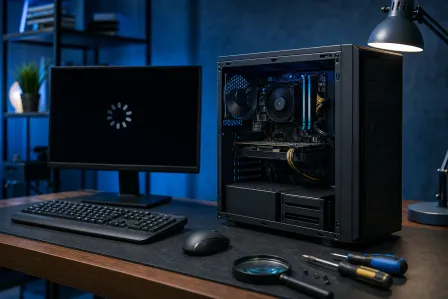
Your computer turns on, fans spin, maybe a light flashes, then it shuts itself off. Annoying? Absolutely. Random? Usually not. This behavior is often the system protecting itself from a power fault, overheating, a loose component, or a failed part.
Start with the easy, low-risk checks below. If the PC repeatedly dies before Windows appears, avoid endless restart attempts. That will not magically shame the hardware into behaving.
What you need
Before opening anything, gather a few basics:
- A known-good wall outlet or surge protector
- The correct power cable and charger, if this is a laptop
- A flashlight
- A small Phillips screwdriver for a desktop, if you are comfortable removing the side panel
- A can of compressed air, used carefully
- A clean, non-carpeted work surface
- Your BitLocker recovery key or important account credentials, just in case the repair process eventually requires deeper Windows work
For a desktop, shut it down, switch the power supply off if it has a rear switch, and unplug it before touching internal components. Press and hold the front power button for 10 to 15 seconds after unplugging to discharge remaining power.
For a laptop, do not open the chassis unless you know the battery disconnect procedure for that model. Modern laptops pack batteries, delicate ribbon cables, and very tiny screws into a space that clearly resents human fingers. A bad move can turn a manageable fault into a laptop repair visit.
1. Confirm exactly when it shuts off
The timing matters. Watch closely and note what happens.
Does it shut down within one or two seconds, before anything displays on the screen? That often points to a power supply issue, motherboard problem, short circuit, improperly seated RAM, or CPU cooling problem.
Does it remain powered for 30 seconds to several minutes, then turn off? Overheating climbs higher on the suspect list. A failed CPU fan, clogged heatsink, dried thermal paste, or laptop cooling blockage can trigger a protective shutdown.
Does it reach the Windows logo and then power off? Hardware is still possible, but a damaged driver, corrupt Windows installation, failing storage drive, or malware could also be involved. If the machine can remain on long enough to boot Safe Mode, that distinction becomes useful.
Also notice whether the computer restarts on its own or stays off. A system that immediately cycles on and off can behave differently from one that needs you to press the power button again.
2. Rule out the outlet, cable, charger, and external accessories
Start outside the computer. It is not glamorous, but it saves time.
Plug the computer directly into a known-good wall outlet. Skip the power strip and surge protector for this test. A failing strip can provide enough power for a light or fan but not stable power under startup load.
For a desktop, check that the power cable is fully seated at both the wall and power supply. If you have another compatible IEC power cable, try it. Make sure the rear switch on the power supply is set to the line symbol, not the circle symbol.
For a laptop, inspect the charger and charging port. Use the original manufacturer charger whenever possible. A weak, damaged, or incorrect USB-C charger may power some laptops briefly but fail when the system asks for more wattage at startup. USB-C is convenient, right up until every cable looks like it should work. They do not all deliver the same power.
Disconnect everything except the essentials:
- USB drives and external hard drives
- Printers, docks, hubs, webcams, and card readers
- Game controllers and RGB accessories
- External monitors
- SD or microSD cards
Then try powering on again. A damaged USB device, shorted cable, or troublesome dock can interfere with startup. If the PC stays on after you remove accessories, reconnect them one at a time to find the offender.
3. Check for heat, airflow, and fan problems
If the computer stays on long enough for fans to spin, look and listen.
On a desktop, remove the side panel only after unplugging the system. Check whether the CPU cooler fan spins when you briefly power it on. Many graphics cards stop their fans at idle, so a still GPU fan is not automatically bad. The CPU cooling fan, however, should generally begin spinning during startup.
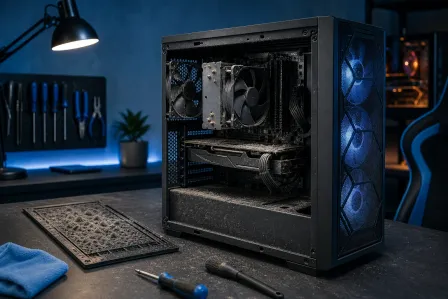
Look for heavy dust packed into the CPU heatsink, intake vents, fan blades, and front panel filters. South Florida humidity plus dust is not a dream team for electronics. Dust restricts airflow, and humid environments can make buildup clingier than you would like.
Use compressed air in short bursts. Hold fan blades still while cleaning so you do not spin them wildly. Do not use a household vacuum inside the computer. Static electricity and loose components are a poor combination.
On a laptop, check the air vents for lint and dust. Place it on a hard, flat surface. Beds, couches, laps, and beach towels all make impressive heat blankets. If the laptop gets unusually hot, the fan makes grinding noises, or it turns off after a few minutes, internal cleaning or fan service may be needed. Our laptop repair team can inspect the cooling system without turning the machine into a bag of mystery screws.
If you recently replaced a CPU cooler, moved the computer, or built the system yourself, verify that the heatsink is mounted securely and the CPU fan cable is connected to the motherboard header labeled CPU_FAN. A loose cooler can cause a nearly instant shutdown because the processor heats up astonishingly fast.
4. Reset the residual power and basic firmware state
A full power drain can clear a temporary electrical or firmware glitch.
For a desktop:
- Shut the PC down and unplug it.
- Turn the power supply switch off, if present.
- Hold the front power button for 15 seconds.
- Wait about one minute.
- Plug it directly into the wall and try again.
For a laptop:
- Unplug the charger and all accessories.
- Hold the power button for 20 to 30 seconds.
- Reconnect only the charger.
- Try powering it on.
Some laptops have a dedicated reset pinhole or a manufacturer-specific battery reset process. Check the model's official support documentation before using it. Do not poke random holes on the bottom of the laptop with a paperclip. That is troubleshooting by optimism.
If your desktop was recently overclocked or had BIOS settings changed, reset the CMOS according to the motherboard manual. A failed memory overclock, unstable CPU tuning, or incorrect voltage setting can prevent stable startup. Overclocking can be fun. It can also be the computer equivalent of putting racing tires on a grocery cart.
5. Inspect desktop connections and obvious physical issues
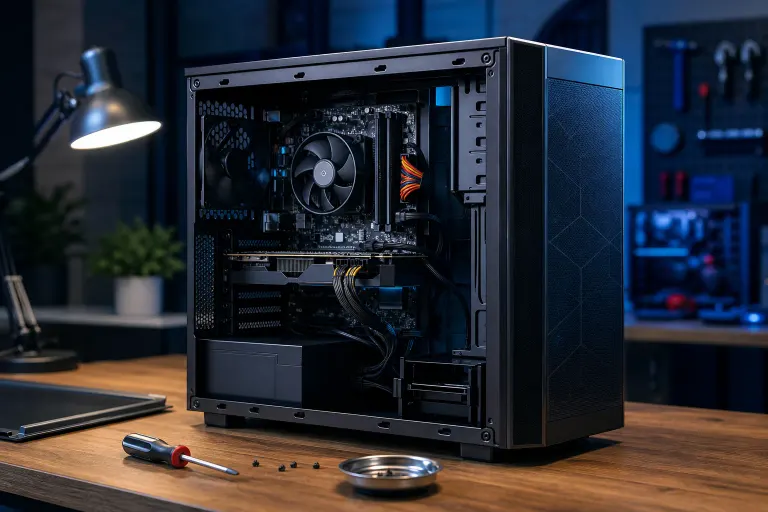
This step is for desktop owners comfortable working inside the case. If you are not, stop here and arrange computer repair. There is no prize for wrestling a 24-pin motherboard connector after three cups of coffee.
With power disconnected, inspect these items:
- The large 24-pin motherboard power connector
- The CPU power connector near the top of the motherboard, often 4-pin or 8-pin
- Power cables connected to the graphics card
- The front-panel power switch connector
- Any visibly loose cables or components
Gently press each connector into place. Do not force it. Check for burnt smell, melted plastic, browned connectors, bulging capacitors, or liquid residue. If you see or smell any of these, do not keep testing the system. Leave it unplugged and get professional help.
Also look for a loose motherboard screw, stray metal object, or damaged standoff that could create a short. This is especially relevant after a new build, upgrade, move, or case swap.
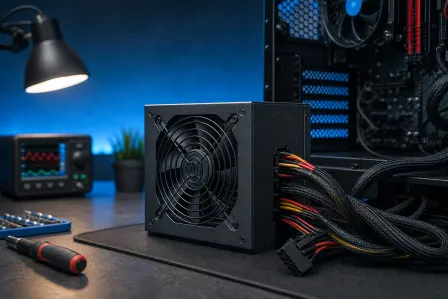
If the computer shuts down the instant you press the power button and there is no display, a failing power supply is a realistic possibility. Do not open the power supply itself. It contains capacitors that can retain dangerous charge even after unplugging. Testing or replacing the unit is fine. Opening the metal power supply box is not a home-project recommendation.
Computer acting up? Get a real diagnosis. Book a diagnostic
6. Reseat and test the RAM
Bad or poorly seated RAM is one of the most common causes of a PC that powers on but fails immediately or never reaches the display.
For a desktop, unplug the computer and remove the side panel. Release the retaining clips on the RAM slots, remove the memory sticks by their edges, and reinstall them firmly. The notch in the stick must align with the slot. Press evenly until the clips lock into place.
If you have two or more sticks, test one stick at a time in the motherboard slot recommended by the manual for single-stick operation. Try to boot after each change. This helps identify whether one RAM stick or one memory slot is the problem.
Do not touch the gold contacts. Do not scrape them, rub them with a T-shirt, or give them a motivational speech. If the system boots with one stick but not another, you have a strong clue.
Laptop RAM is less accessible, and some models have soldered memory. If your laptop began shutting off after a bump, drop, or service attempt, professional inspection is safer. Mac owners should be especially cautious because many newer models are not designed for user-accessible memory repair. See our Mac repair services if your Mac powers on briefly and dies before it can load macOS.
7. Disconnect nonessential internal hardware
If reseating RAM did not help, reduce the desktop to a minimum boot configuration.
Disconnect power from extra storage drives, RGB hubs, extra PCIe cards, front USB accessories, and nonessential case fans. Leave only:
- Motherboard
- CPU and correctly mounted CPU cooler
- One RAM stick
- Power supply
- Graphics card only if your processor or motherboard does not support video output without it
- Monitor connected to the correct video port
Then try starting the system. If it stays powered on, reconnect devices one at a time. The last item connected before the issue returns is likely involved.
If the computer was built or upgraded recently, double-check compatibility. A new graphics card may need more power than the existing power supply can provide. A new RAM kit may require BIOS updates or stable default settings before enabling its performance profile. A fancy new part is not automatically a friendly new part.
For custom or gaming systems, a proper diagnostic includes checking power delivery under load, motherboard POST behavior, temperatures, memory stability, and the graphics subsystem. If you would rather skip the component juggling, our custom gaming PC team can help assess a build or upgrade problem.
8. If it reaches Windows, separate hardware from software
When the PC stays on long enough to reach the sign-in screen, try Safe Mode. Microsoft provides current instructions for starting Windows in Safe Mode.
If the computer remains stable in Safe Mode but shuts down during normal startup, suspect startup programs, drivers, recent updates, or software conflicts. Remove recently added hardware drivers and uninstall software installed just before the trouble began. Use Device Manager carefully, and avoid downloading random "driver updater" tools. Those utilities often create more work than they save.
Check Event Viewer only if the system remains on long enough to use it. A critical Kernel-Power event confirms Windows saw an unexpected shutdown, but it usually does not identify the real cause. Treat it as a timestamp, not a diagnosis.
If you see blue screens, repeated repair screens, drive errors, or startup failures after the PC stays on, protect your data before making major changes. For business machines, this is where reliable backup and disaster recovery planning matters. A failed drive is inconvenient. A failed drive with the only copy of customer files is a Monday nobody ordered.
Remote troubleshooting can help when Windows stays up long enough to connect. If it shuts off before networking loads, hands-on diagnosis is normally the better route. Our remote support service is useful for software and startup issues once the computer can stay powered on consistently.
9. Know when to stop testing and bring it in
Stop and seek professional diagnosis if you notice any of the following:
- Burning smell, smoke, sparks, or a hot power connector
- Liquid exposure or corrosion
- A swollen laptop battery
- A power supply that clicks, whines, or will not remain on
- A computer that shuts off even with minimal hardware connected
- Repeated shutdowns after a fall, surge, or lightning event
- A system containing important files that are not backed up
- A laptop or Mac that requires internal disassembly beyond your comfort level
Repeatedly forcing a damaged system to start can worsen a failing power supply, overheating issue, or storage problem. Bring the computer in before a small repair becomes a larger parts list. You can schedule a repair with Fix My PC Store for hands-on diagnosis in West Palm Beach.
Common mistakes
Assuming every instant shutdown is a virus. Malware can cause instability, but a PC that dies seconds after pressing power is more often dealing with hardware, power, cooling, or memory trouble.
Ignoring the CPU cooler. A disconnected CPU fan or poorly mounted heatsink can cause rapid shutdowns. The computer is not being dramatic. It is protecting the processor.
Testing through a questionable surge protector. Plug directly into a known-good wall outlet during diagnosis. You can reconnect surge protection once the underlying issue is identified.
Swapping many parts at once. Change one thing, test, then move to the next. Replacing RAM, the power supply, and the graphics card in one go makes it harder to identify the real culprit.
Opening the power supply. Never do this. Replace it or have it tested professionally. The inside of a PSU is not a safe DIY zone.
Using the wrong laptop charger. A USB-C plug fitting the port does not prove the charger is suitable. Confirm it provides the right power for that model.
Continuing to boot after smelling burning plastic. Stop immediately, unplug the machine, and do not gamble with another restart.
Bottom line
A computer that powers on and immediately shuts off is usually telling you something important: power is unstable, cooling is failing, RAM is not happy, or a component connection has gone loose. Start with the outlet, cables, and accessories. Then check cooling, reset power, and, for desktops, reseat RAM and inspect essential connections.
If the problem persists with minimal hardware, or you spot heat damage, liquid, battery swelling, or a burning smell, skip the trial-and-error marathon. Fix My PC Store can diagnose desktop, laptop, and Mac startup failures locally in West Palm Beach and across South Florida.
Computer acting up? Get a real diagnosis.
Fix My PC Store provides computer repair services across West Palm Beach. Honest pricing, no upsell games, and a free diagnostic for new customers with our email coupon.