The 3-2-1 Backup Rule Explained for Small Businesses
TL;DR: The 3-2-1 rule means keeping three copies of your business data, on two different types of storage, with one copy offsite. It protects you from dead drives, ransomware, theft, and fire, because no single failure can take out every copy. Setting it up is mostly a weekend of planning, and the part everybody skips is testing the restore.
I've watched too many shop owners learn about backups the hard way (usually on a Monday, usually with payroll due). So here's the rule, plain and simple, and how to actually put it in place.
What the 3-2-1 rule actually says
- 3 copies of your data. That's the original plus two backups.
- 2 different media types. Think internal drive plus external drive, or local disk plus cloud. Two copies on the same kind of storage can die for the same reason.
- 1 copy offsite. Away from your building. Cloud storage counts. A drive in the owner's truck does not count as a plan (it counts as a prayer).
This isn't a vendor invention. The US government's cybersecurity agency, CISA, has long recommended the same layered thinking, and you can read their guidance on data backup options if you want a neutral source.
What you need
- A list of what's worth protecting: accounting files, customer records, shared folders, email, line-of-business software databases.
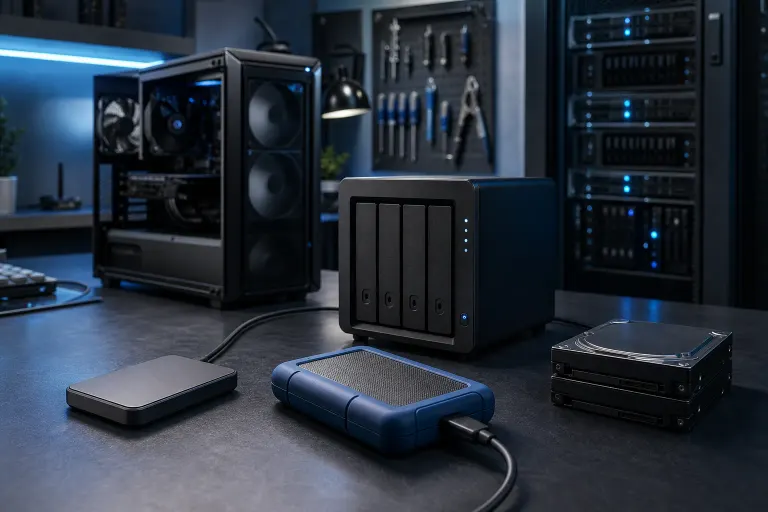
- A local backup target, such as an external drive or a network storage box (NAS).
- An offsite or cloud backup service that can handle your data size.
- Backup software that runs on a schedule without you touching it.
- One person responsible for checking it. Not "everyone." One person.
- An hour on a calendar each quarter for a test restore.

Step 1: Inventory your data and decide what matters
Walk through the business and write down where data lives. Don't forget the places people forget:
- The office PC with the accounting software
- Laptops with files that never made it to the shared folder
- Cloud accounts like email and Microsoft 365 (more on that below)
- Phones with customer photos or texts
- The point-of-sale or scheduling system
Then rank it. Ask: if this vanished tomorrow, how long could we operate? Customer records and financials usually top the list. Old marketing photos usually don't. That ranking decides what gets backed up most often.
Step 2: Make the first backup copy (local)
This is copy number two of three, since your live data is copy number one. Back up to a separate physical device, not a second folder on the same drive.
Good local options:
- An external USB drive for a single computer
- A NAS for an office with several machines
Set it to run automatically, at least daily for anything important. Manual backups depend on somebody remembering, and somebody always forgets the week it matters.
Step 3: Add a second media type
The "2" in 3-2-1 is about not letting one kind of failure kill everything. If your live data is on an internal SSD and your backup is on an external hard drive, you've got two media types covered. If your backup is a second internal drive in the same computer, a power surge or theft takes both.
A simple way to check yourself:
| Scenario | Does one event destroy every copy? |
|---|---|
| Original + backup folder on the same drive | Yes. One drive failure ends it. |
| Original + external drive in the same office | Fire, theft, or flood can still end it. |
| Original + external drive + cloud copy | No single local event takes all three. |
Step 4: Get one copy offsite
This is the step small businesses skip, and it's the one that saves you from fire, theft, storms, and ransomware that spreads to anything plugged into your network. Here in South Florida, storm season makes the "offsite" part less of a nice-to-have and more of a survival trait.
Your options:
- Cloud backup service. Automatic, encrypted, and the easiest to keep consistent.
- Rotating drives taken offsite. Cheaper, but depends on a human doing it on schedule.
Pick one that encrypts your data and lets you restore without a headache. If you'd rather not shop for this yourself, we set up and monitor backups and disaster recovery for local businesses.
Tired of IT that breaks at the worst time? Talk to our business IT team
Step 5: Protect the backups from ransomware
Here's where plenty of setups fall down. Ransomware doesn't just encrypt your files, it goes hunting for connected backups too. A drive that's always plugged in and always writable is a target.
- Keep at least one copy that isn't permanently connected, or that can't be changed once written (many cloud services call this versioning or immutable storage).
- Don't give everyday user accounts the ability to delete backups.
- Keep your systems patched and your staff trained. Backups are your safety net, not your whole defense. See our business cybersecurity services for the layer that sits above this one.
Step 6: Don't forget your cloud accounts
This one irritates me. People assume that because their email and files live in Microsoft 365, they're backed up. Cloud providers keep the service running, but that's not the same as protecting you from accidental deletion, a compromised account, or an employee wiping a mailbox on the way out. Check your plan's retention settings, and consider a separate backup of that data. If you're running Microsoft 365, this is worth a conversation.
Step 7: Test the restore (the step everyone skips)
A backup you've never restored is a rumor. Once a quarter:
- Pick a few files, including one buried deep in a folder.
- Restore them from the local backup and from the offsite copy.
- Open them and confirm they work.
- Time it. Know how long a full restore would take, because that's your real downtime.
- Write down who does what if the main computer dies.
If a restore fails, you just found out for free. Finding out during an actual disaster costs a lot more.
Common mistakes
- Calling sync a backup. Dropbox-style sync mirrors deletions and ransomware-encrypted files too. Sync is convenience, not protection.
- Backing up to the same drive. A second folder isn't a second copy.
- Leaving the backup drive plugged in forever. Ransomware loves that.
- Never checking the logs. Backups fail quietly. Somebody has to look.
- Skipping the offsite copy. One fire or theft and the "backup" sitting next to the computer goes with it.
- Never testing a restore. See step 7. I'll keep saying it.
- Backing up only the documents folder. Databases, email, and software settings often live elsewhere.
When to DIY and when to call someone
A single-computer office with modest data can reasonably set up an external drive plus a reputable cloud backup on its own. Once you've got several machines, a server or NAS, specialty software databases, or any compliance or customer-data obligations, it's worth having someone design it, monitor it, and test restores for you. If you want that handled, look at our managed IT option or reach out directly. A computer diagnostic is $60, credited toward the repair, and anything we do gets spelled out for your approval before work starts.
Bottom line
Three copies, two media types, one offsite, and a restore you've actually tested. That's the whole rule. The rule is simple, but the discipline is the hard part: automate the backups, protect them from ransomware, and put a quarterly restore test on the calendar. Do that, and a dead drive becomes an annoying afternoon instead of the end of the business.
Tired of IT that breaks at the worst time?
We run managed IT, backups, and security for South Florida businesses so you can stop thinking about it.