Windows Blue Screen Errors: What Stop Codes Really Mean
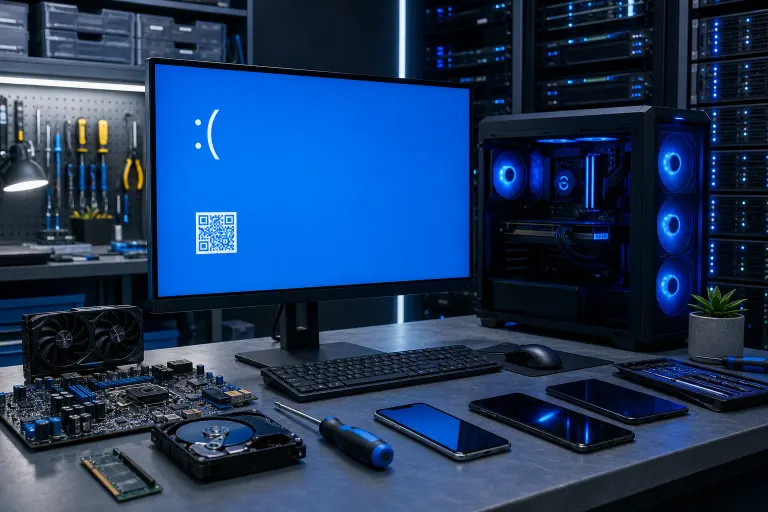
A blue screen is Windows admitting something went badly enough that it had to stop. The stop code can narrow the search, but it is not a magic diagnosis printed on a fortune cookie. Record the details, check what changed, and test one sensible thing at a time.
If the machine blue screens repeatedly, will not stay running long enough to back up, or belongs to a business, protect the data first. Random rebooting is not a personality trait. It is a problem.
What you need
Before chasing a stop code, gather a few basics:
- A phone to photograph the blue screen before it disappears.
- The exact stop code and any driver filename shown, such as
nvlddmkm.sysorntfs.sys. - A note of what the PC was doing when it crashed: booting, gaming, waking from sleep, opening a file, printing, or sitting idle.
- The date of the first crash and anything changed shortly beforehand, including updates, drivers, USB devices, RAM, storage, antivirus, or new software.
- A current backup, if Windows will cooperate. For work computers, make sure the backup is actually completed and restorable, not merely “configured” since 2021.
If Windows is stable enough to use, save important files before running repairs. A blue screen can be a one-off driver tantrum. It can also be a disk or memory issue getting ready to make your week worse.
1. Capture the stop code and the circumstances
Windows may display a message such as “Your device ran into a problem and needs to restart,” followed by a stop code. Take a picture. Do not rely on memory, because every stop code becomes “something about memory” after lunch.
Write down:
- The full stop code, including underscores. Example:
IRQL_NOT_LESS_OR_EQUAL. - Any “What failed” filename.
- Whether the crash happened during a particular task.
- Whether it began after an update, new peripheral, driver install, or hardware change.
Also note whether the computer restarted by itself or froze on the blue screen. Repeated blue screens during heavy gaming, video editing, or large file transfers point in a different direction than crashes only when opening a browser.
A stop code tells you the class of failure Windows detected. It does not automatically identify the guilty part. Windows often reports the component that tripped over the problem, not the component that caused it. That distinction saves a lot of money and a lot of unnecessary parts cannon nonsense.
2. Check Windows crash history before changing anything
Start with Reliability Monitor. Search for Reliability History from the Start menu, then choose View reliability history. It shows a timeline of application failures, Windows failures, driver installs, and updates around the date of the crash.
Look for patterns:
- Did the blue screens begin immediately after a Windows update or driver update?
- Is the same program crashing before the system blue screens?
- Did a graphics driver, antivirus product, VPN client, printer driver, or hardware utility install that day?
- Are there disk, hardware, or Windows failures clustered together?
Next, open Event Viewer and check Windows Logs > System. Search around the crash time for Critical and Error events. A Kernel-Power event often confirms an unexpected restart, but it rarely tells you why. It is the equivalent of writing “car stopped moving” on a repair order. Useful confirmation, not the whole story.
If Windows created a crash dump, it may be stored in C:\Windows\Minidump. Leave it alone. A technician can inspect it along with system details and driver versions. For stubborn or repeat crashes, remote support may be enough to review logs and software issues, provided the PC stays online long enough to work on it.
3. Read common stop codes as clues, not verdicts
Here are several codes that come up often and what they usually point toward.
MEMORY_MANAGEMENT
Despite the name, this does not always mean bad RAM. It can involve corrupted drivers, unstable memory settings, a failing storage device, damaged system files, or actual RAM trouble.
If it started after installing memory or changing BIOS settings, return the system to known-good settings first. If it appears randomly with no changes, test memory and storage, then investigate drivers. Do not buy RAM just because a forum post shouted “RAM.” Forums have ruined enough weekends already.
IRQL_NOT_LESS_OR_EQUAL
This typically means Windows encountered a driver or kernel-level component trying to access memory improperly. Bad drivers are common suspects, especially graphics, Wi-Fi, chipset, storage, USB, VPN, and antivirus drivers.
Check the failed filename if one appears. Then consider what software or driver changed near the first crash. Reinstalling or rolling back the relevant driver from the PC or device manufacturer is more sensible than downloading mystery “driver updater” software. Those things are often junk, occasionally worse.
PAGE_FAULT_IN_NONPAGED_AREA
This can involve RAM, drivers, storage errors, or security software. If the code names a driver file, investigate that driver. If crashes occur while accessing files, booting, or waking from sleep, storage health and file-system problems deserve attention too.
Temporarily disconnect nonessential USB devices and remove recently installed low-level software such as third-party antivirus, RGB control tools, overclocking utilities, and hardware monitoring packages. Yes, even the fancy glowing-widget software. It is still software, and software can be dumb.
SYSTEM_SERVICE_EXCEPTION
This is broad. It often relates to drivers, system services, corrupted Windows files, graphics drivers, or security software. The filename shown on the blue screen matters more than the general code.
If it occurs only during a particular application, update or reinstall that application and its related drivers. If it occurs throughout Windows, work through driver changes, system-file checks, and hardware testing in a controlled order.
DPC_WATCHDOG_VIOLATION
This one frequently appears when a driver or storage-related component does not respond in time. Storage controller drivers, SSD firmware, graphics drivers, docking stations, and external devices can all be involved.
Pay close attention to when it happens. A crash during boot, after wake, or while copying large files is useful evidence. Check for manufacturer-approved firmware and driver updates, but do not update firmware casually when the PC is already unstable and the data is unprotected.
CRITICAL_PROCESS_DIED
Windows is telling you that an essential process stopped unexpectedly. Possible causes include corrupt system files, storage problems, driver failures, malware, or a botched update.
This is one of the codes where you should take backups seriously if the system still boots. If it repeats, especially with slow performance, missing files, or disk warnings, stop treating it as a minor inconvenience and get the machine checked.
KERNEL_DATA_INPAGE_ERROR or UNEXPECTED_STORE_EXCEPTION
These can point toward trouble reading data from storage. A failing SSD, loose connection in a desktop, bad storage driver, file-system corruption, or power problem may be involved.
Do not keep hammering the computer with games, large transfers, and restarts while hoping it “settles down.” Back up important files. For a laptop or desktop with recurring crashes and suspected hardware trouble, computer repair is the sensible next step.
WHEA_UNCORRECTABLE_ERROR
This is a hardware warning more often than not. It can relate to CPU, RAM, motherboard, power delivery, storage, overheating, or unstable overclock settings.
Reset any overclock, undervolt, or aggressive performance profile to defaults. Check cooling and physical connections if you are comfortable doing so. If the PC is crashing under load, especially a gaming desktop, resist the urge to keep benchmark-testing it into the ground. A proper diagnosis is cheaper than replacing random components.
4. Remove recent variables, one at a time
The fastest path to a real answer is often asking, “What changed?” Windows updates matter, but so do less obvious changes:
- A graphics-driver update.
- New printer, webcam, dock, external drive, or USB adapter.
- New antivirus, VPN, RGB utility, cleanup tool, or driver updater.
- BIOS changes, memory profiles, overclocks, or undervolts.
- A new SSD, RAM kit, graphics card, or power supply.
Undo the most recent change first when practical. Disconnect newly added external devices. Uninstall questionable utilities. Roll back a driver if the crashes began directly after its update. Do not change six things at once, then announce that one of them fixed it. That is not troubleshooting. That is a small electrical séance.
For driver updates, use Windows Update or the manufacturer’s official support page. Avoid third-party driver download sites and “one-click driver repair” tools. Many are adware, some install incorrect drivers, and all of them make a technician sigh heavily.
Computer acting up? Get a real diagnosis. Book a diagnostic
5. Run Windows checks, then interpret the results carefully
If Windows remains stable enough, open Command Prompt or Terminal as Administrator and run:
sfc /scannow
This checks protected Windows system files and repairs what it can. If it reports that it found and repaired files, restart and monitor the computer. If blue screens continue, you have not solved the root cause yet.
You can also run:
DISM /Online /Cleanup-Image /RestoreHealth
This can repair the Windows component store used by System File Checker. It is useful for Windows corruption, but it will not repair bad RAM, a dying SSD, or a driver that behaves like a raccoon in an attic.
For storage, check the drive’s reported health with the manufacturer’s utility where available, and review any Windows disk warnings. Be cautious with heavy disk scans if you suspect a drive is failing and the data is not backed up. Repeatedly stressing a weak drive before copying your files is not bravery.
Microsoft also provides guidance on troubleshooting blue screen errors. Use it as a baseline, but remember that an automated troubleshooter cannot inspect a loose connection, failing power supply, or unstable memory setting through sheer optimism.
6. Separate a driver problem from a hardware problem
You rarely get certainty from one crash. Patterns matter.
A driver or software issue is more likely when:
- Blue screens started right after an update or new program.
- The same driver filename appears repeatedly.
- The crash happens only when using a specific device or application.
- The computer is stable in Safe Mode but crashes in normal Windows.
- Removing a utility, peripheral, or driver stops the crashes.
A hardware issue is more likely when:
- Crashes happen during gaming, rendering, or other heavy load.
- The system freezes or restarts before Windows fully loads.
- Errors occur across unrelated applications and tasks.
- The machine shows disk warnings, random file corruption, or boot failures.
- The problem persists after clean driver work and Windows repairs.
- It has overheating, power, or physical-damage symptoms.
For a business PC, server-adjacent workstation, or office full of repeat crashes, do not wait for everyone to lose work before taking action. A sound managed IT approach includes keeping drivers, backups, endpoint protection, and hardware health from turning into separate surprise projects.
7. Know when to stop troubleshooting and get help
Call it a day and get professional help when the PC blue screens repeatedly, will not boot reliably, has important unbacked-up files, or shows signs of storage failure. The same applies if you see a WHEA_UNCORRECTABLE_ERROR, repeated storage-related codes, or crashes after you have ruled out obvious software changes.
Bring along the photos of the stop codes, a list of recent changes, and any BitLocker recovery information if prompted. For laptops with intermittent hardware faults, screen damage, charging trouble, or liquid exposure alongside crashes, laptop repair may be needed rather than another round of internet advice.
If malware or a suspicious remote-access program may be involved, disconnect the computer from the network and avoid entering passwords on it. For companies, a blue screen after a security incident is not merely an IT nuisance. It may require a broader review of endpoints, credentials, and backups. Business cybersecurity support can help sort that out before a bad day becomes a very expensive one.
Common mistakes
Treating the stop code as a final diagnosis. MEMORY_MANAGEMENT does not automatically mean “buy RAM.” DPC_WATCHDOG_VIOLATION does not automatically mean “replace the SSD.” The code starts the investigation.
Installing driver updater software. These programs often create more problems than they solve. Get drivers from Windows Update or the actual hardware manufacturer.
Changing everything at once. Updating BIOS, drivers, Windows, antivirus, firmware, and hardware simultaneously destroys your evidence. Make one meaningful change, then test.
Ignoring backups because the PC rebooted and seemed fine. Intermittent failures are the ones that catch people off guard. Copy critical files while the machine still works.
Running aggressive repairs on a suspected failing drive before saving data. A failing drive is not a test subject. Data first, diagnostics second.
Using registry cleaners and “PC booster” tools. They do not fix physical hardware faults or legitimate driver bugs. At best, they waste time. At worst, they remove something Windows needed. Wonderful.
Bottom line
Windows stop codes are useful evidence, not a repair prescription. Photograph the code, check Reliability Monitor and recent changes, remove new variables one at a time, and protect your data before running around with repair tools.
If the crashes repeat, involve storage or hardware codes, or affect a work machine, get a proper diagnosis. Fix My PC Store helps West Palm Beach and South Florida users sort out whether the culprit is Windows, a driver, failing hardware, or something nastier. You can schedule a repair when the blue screens have had their little performance long enough.
Computer acting up? Get a real diagnosis.
Fix My PC Store has repaired machines across West Palm Beach. Honest pricing, no upsell games, and a free diagnostic for new customers with our email coupon.