Why Is My Wi-Fi Fast on My Phone but Slow on My Laptop?
TL;DR: The speed gap almost always lives inside the laptop, not the router or your internet plan. A outdated Wi-Fi driver, a power-saving setting throttling the adapter, or an older wireless card unable to use the faster 5 GHz band are the most common causes. Your phone is a newer, purpose-built wireless device. Your laptop may not be.
What Happened
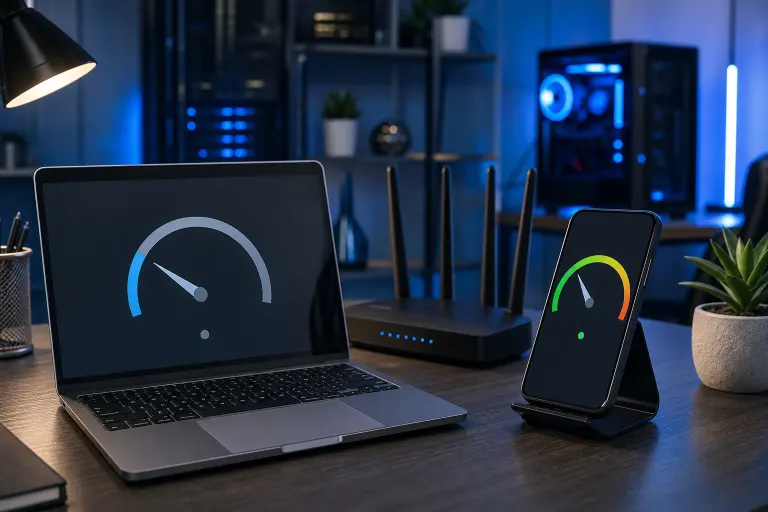
You ran a speed test. Your phone hit 200 Mbps. Your laptop hit 18. Same room, same network. Feels like a scam.
It is not. Phones and laptops handle Wi-Fi very differently, even when they connect to the same router.
Phones carry relatively modern Wi-Fi chips, tight firmware integration, and aggressive antenna designs squeezed into a slim frame. Manufacturers optimize them for wireless performance because that is the only way the device connects.
Laptops often ship with mid-range Wi-Fi adapters to hit a price point. Drivers go stale. Windows power management quietly throttles the adapter to save battery. And older cards simply cannot use the 5 GHz or 6 GHz bands where most modern routers push their fastest speeds.
Why It Matters
A slow laptop on a fast connection is a real productivity problem, especially if you work from home or rely on video calls and cloud apps. The fix is often free or cheap, but you need to know which layer is broken.
Here is a diagnostic sequence to work through before assuming the worst.
Step 1: Confirm the laptop is actually on the right band
Most modern routers broadcast two or three networks: 2.4 GHz and 5 GHz (sometimes labeled separately, sometimes combined under one name). Your phone almost certainly connected to 5 GHz automatically. Your laptop may have defaulted to 2.4 GHz.
- On Windows: Click the Wi-Fi icon, then "Properties" on your connected network. Look for "Network band." It will say 2.4 GHz or 5 GHz.
- If it says 2.4 GHz and your router offers 5 GHz, disconnect and reconnect, choosing the 5 GHz network name if they are split, or moving the laptop closer to the router to force the 5 GHz handoff if they share a name.
Step 2: Check the Wi-Fi adapter's power settings
Windows defaults to letting the adapter sleep to save power. This destroys throughput.
- Open Device Manager (press Windows + X, then choose Device Manager).
- Expand "Network adapters" and right-click your Wi-Fi adapter.
- Choose Properties, then the Power Management tab.
- Uncheck "Allow the computer to turn off this device to save power."
- Also go to Settings > Power > Power mode and set it to "Balanced" or "Best performance."
Run your speed test again. If numbers jump, you found it.
Step 3: Update or reinstall the Wi-Fi driver
Outdated drivers are the silent killer of Wi-Fi performance. Windows Update almost never installs the latest adapter driver.
- Find your laptop's make and model, then go to the manufacturer's support site (Dell, HP, Lenovo, Asus, etc.).
- Download and install the latest Wi-Fi driver for your exact model.
- Restart, then test again.
Step 4: Check for interference and router proximity
Your phone is probably in your hand. Your laptop may be on a desk with a concrete wall between it and the router. Distance and obstacles matter more on 5 GHz than on 2.4 GHz because 5 GHz has shorter range.
If speeds improve dramatically when the laptop sits next to the router, signal strength is your problem, not the adapter itself.
Step 5: Identify whether the Wi-Fi card itself is the bottleneck
Older laptops may have cards that only support Wi-Fi 4 (802.11n) or Wi-Fi 5 (802.11ac). Your router may have upgraded to Wi-Fi 6 or 6E. The older card cannot take advantage of those speeds.
You can check in Device Manager: the adapter name usually includes the Wi-Fi generation ("Wi-Fi 6" or "802.11ax" means current; "802.11n" means older). A USB Wi-Fi adapter or an internal card replacement can fix this.
Decision table: which fix fits your situation?
| Symptom | Most Likely Cause | Fix |
|---|---|---|
| Slow on 2.4 GHz, fast when switched to 5 GHz | Wrong band auto-selected | Reconnect to 5 GHz network |
| Fast plugged in, slow on battery | Power management throttle | Disable adapter power saving |
| Slow everywhere, adapter name shows 802.11n | Outdated Wi-Fi card | Update driver or replace card |
| Fast near router, slow two rooms away | Signal attenuation | Move closer, add access point |
| Still slow after all of the above | Adapter hardware failure | Professional diagnosis |
Computer acting up? Get a real diagnosis. Book a diagnostic
What We Don't Know Yet
Without running the diagnostic sequence on your specific laptop, it is hard to say which layer is failing. Some laptops have known Wi-Fi driver bugs that require a firmware patch from the manufacturer, not just a driver update. A few budget adapters have hardware limitations that no software fix can overcome.
If your laptop is a Mac, the situation is somewhat different. macOS manages Wi-Fi band selection and power more tightly, so driver issues are less common, but hardware failures and macOS update conflicts do happen. See Mac repair if you are troubleshooting an Apple laptop.
What to Do About It
Work through the five steps above in order. Most people find the fix at step 1, 2, or 3, all of which cost nothing.
If you have been through all five steps and the laptop still crawls, the Wi-Fi adapter may be faulty or incompatible with your router in a way that needs hands-on diagnosis. That is a quick in-store check. Fix My PC Store offers free initial diagnostics for most standard repairs, so you are not committing to anything before you know what you are dealing with.
Bring it by the shop at 10140 Okeechobee Blvd, Suite B, West Palm Beach, or book online. If you cannot make it in, remote support can cover the driver and settings checks from wherever you are. Monday through Friday 9 a.m. to 6 p.m., Saturday 9 a.m. to 5 p.m.
Computer acting up? Get a real diagnosis.
Fix My PC Store has repaired thousands of machines across West Palm Beach. Honest pricing, no upsell games, and a free diagnostic for new customers with our email coupon.