Why Is My Phone Not Connecting to Wi-Fi Even With the Right Password?
TL;DR: A wrong password is rarely the only reason a phone fails to connect to Wi-Fi. The issue is usually a saved network credential mismatch, an IP address conflict, a router-side block, or a software glitch in the phone's networking stack. Most cases resolve with a few targeted steps and no hardware repair needed.
What Happened
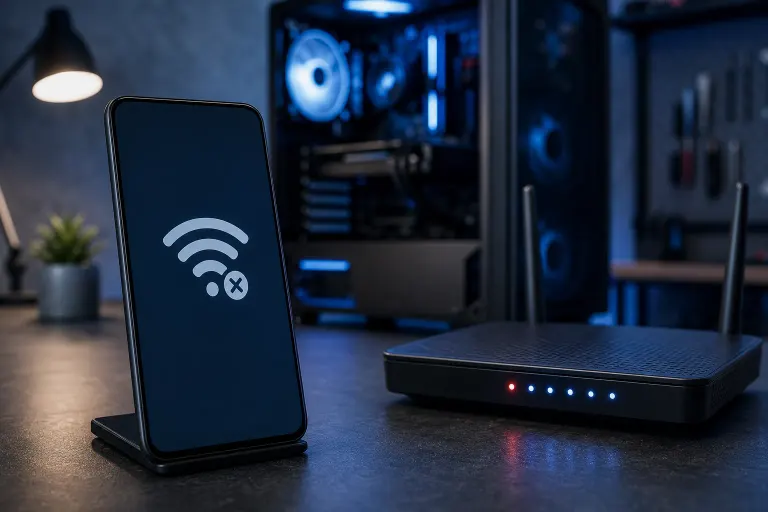
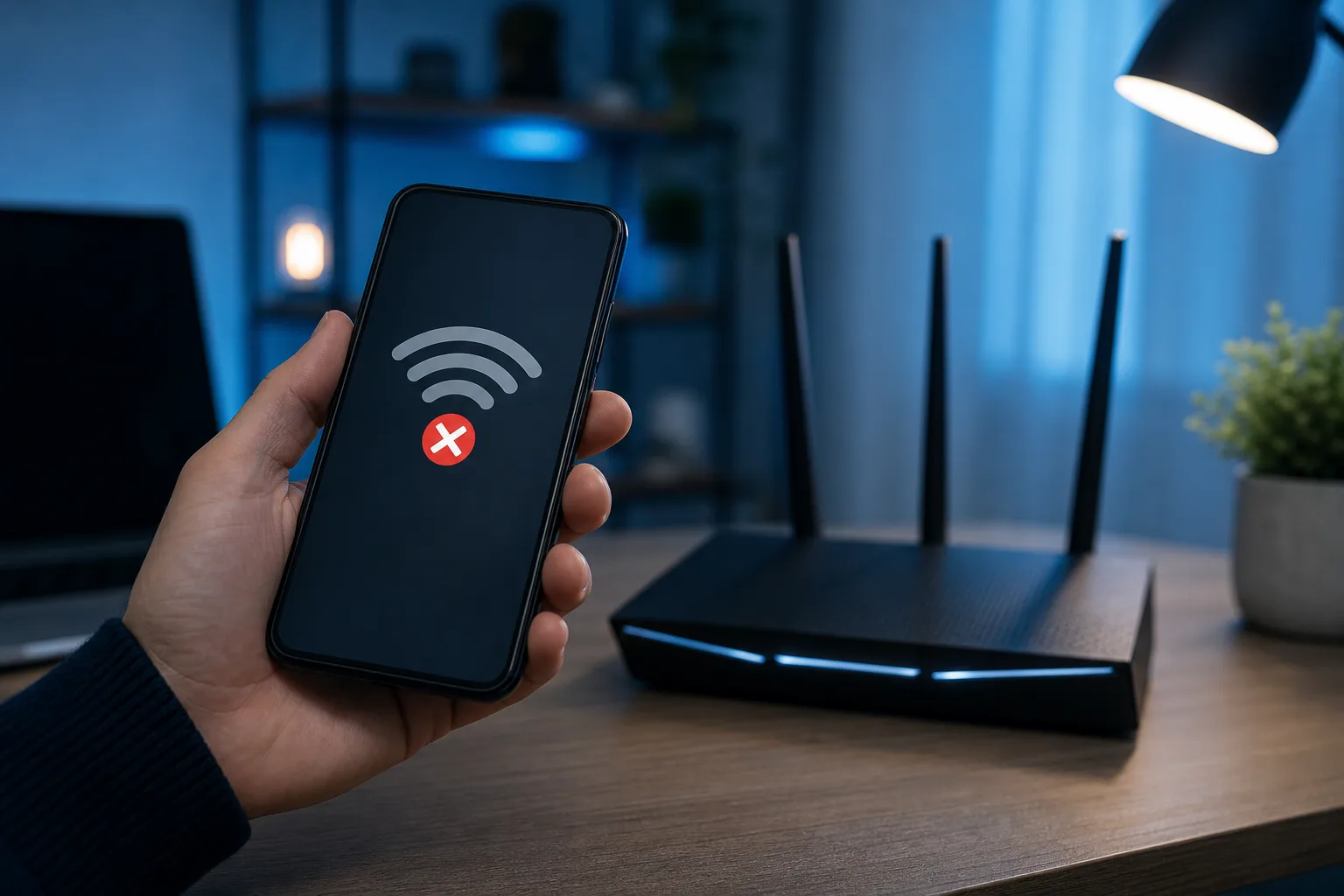
You enter your Wi-Fi password, your phone thinks for a moment, then shows "Authentication error," "Saved, secured," or just silently fails to connect. The password is correct, you are sure of it, yet the phone refuses to join.
This situation is more common than it sounds, and it almost never means the password is actually wrong. The phone is failing at a different stage of the connection process.
Wi-Fi joining has several distinct phases: scanning, authentication, IP address assignment (DHCP), and finally routing. A visible failure can originate at any one of those phases, but the error message on screen rarely tells you which one.
Why It Matters
Misdiagnosing the phase wastes time. Rebooting the router repeatedly when the real problem is a stale saved credential on the phone fixes nothing. Knowing which phase is failing points you to the right fix immediately.
Here is a structured diagnostic sequence you can run in order:
Forget the network and re-add it. Saved credentials on Android and iOS can become corrupted or mismatched, especially after a router password change. Forgetting the network wipes that stale data. Go to Wi-Fi settings, tap the network name, choose Forget, then reconnect from scratch.
Check that you are connecting to the right network. Neighboring networks with identical or similar names (SSIDs) are a surprisingly common trap, especially in apartment buildings and dense neighborhoods in South Florida. Confirm the SSID exactly, including capitalization and spaces.
Restart the phone, then the router. A full power cycle clears the phone's networking stack. Restart the router separately, wait 30 seconds, then try again. Do not skip the phone restart; it matters.
Check the router's DHCP table or client list. If the router has run out of available IP addresses, a new device cannot join even with a valid password. Log into your router's admin panel and look for a DHCP lease table. If it is full, increase the lease pool or disconnect unused devices.
Check for MAC address filtering. Some routers are configured to only allow specific devices by hardware address. If MAC filtering is on, your phone's address may not be on the allow list. Android 10 and later and iOS 14 and later also randomize MAC addresses by default, which can break an existing filter rule.
Try switching the router's security protocol. A mismatch between what the router advertises (WPA3, for example) and what an older phone supports can cause authentication failures that look like password errors. Temporarily enabling WPA2/WPA3 mixed mode on the router often resolves this.
Reset network settings on the phone. On iOS: Settings, General, Transfer or Reset iPhone, Reset Network Settings. On Android: Settings, General Management, Reset, Reset Network Settings. This clears all saved Wi-Fi networks, Bluetooth pairings, and VPN configurations. It is a clean-slate step, so use it after the others.
Test with a different device. Connect another phone or laptop to the same network. If that also fails, the problem is the router or the ISP connection, not your phone.
Cracked screen or a phone that won't hold a charge? Get a repair quote
What We Don't Know Yet
If you have run through all eight steps and the phone still will not connect, the remaining possibilities are harder to diagnose without more information:
- A corrupted Wi-Fi chip driver or firmware issue on the phone (more common on Android after a major OS update).
- A router firmware bug affecting certain device types. Check whether the router manufacturer has released a firmware update.
- An ISP-side issue blocking new device registrations on certain plan types (rare but documented with some business-grade ISPs).
- Physical damage to the phone's Wi-Fi antenna, which would explain why signal appears weak or the phone sees the network but cannot sustain a handshake.
If the phone connects fine to other Wi-Fi networks but fails only on one specific router, the problem is almost certainly the router configuration. If the phone fails on every network, the phone's hardware or software is the more likely culprit.
What to Do About It
For most people, steps 1 through 3 in the diagnostic sequence above will resolve the issue. The forget-and-rejoin step alone fixes the majority of "right password, still won't connect" cases.
If you have worked through the full list and the phone still fails on every network, that points toward a hardware or deep-software issue that is worth having a technician look at. A damaged Wi-Fi antenna or a corrupted network chip cannot be fixed through settings.
If you are in West Palm Beach or the surrounding area and the phone fails consistently across multiple networks, you can bring it into Fix My PC Store at 10140 Okeechobee Blvd for a free initial check. The shop handles phone and tablet repairs Monday through Friday 9 a.m. to 6 p.m. and Saturday 9 a.m. to 5 p.m. Advanced diagnostics are explained and approved before any work begins.
For a connectivity issue that is clearly the router or your business network, rather than the phone, business networking support is the more appropriate path.
Cracked screen or a phone that won't hold a charge?
Bring it in. Most phone and tablet repairs are same-day, with parts that actually last.