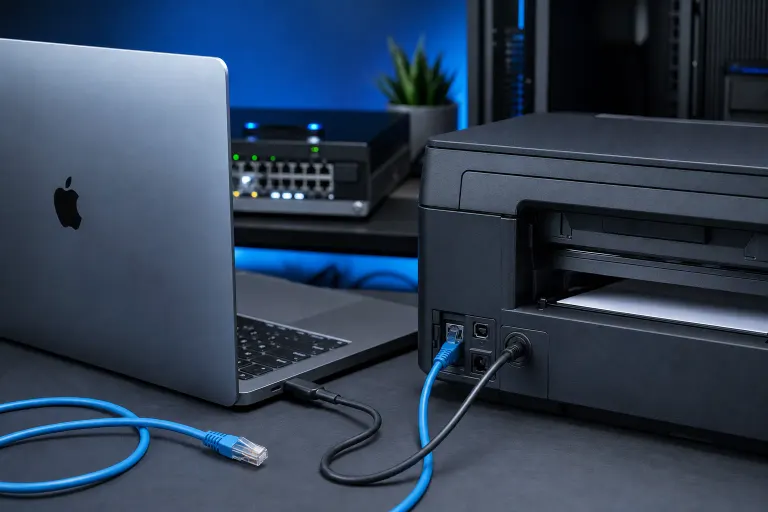
Why Is My Mac Printer Working on Wi-Fi but Not When Ethernet Is Plugged In?
TL;DR: When you plug Ethernet into your Mac, macOS may route network traffic through that wired interface instead of Wi-Fi, leaving your printer, which is on the Wi-Fi network, unreachable. The fix usually involves adjusting network interface priority, checking your printer's IP address, or setting a static route. Most people can resolve this in a few minutes.
What Happened
Your printer is connected to your Wi-Fi router. Your Mac was also on Wi-Fi, so they could talk to each other. Then you plugged in Ethernet.
macOS automatically ranks network interfaces. When Ethernet is active, it usually moves to the top of the priority list. Your Mac starts sending all its traffic, including printer discovery packets, through the Ethernet port instead of Wi-Fi.
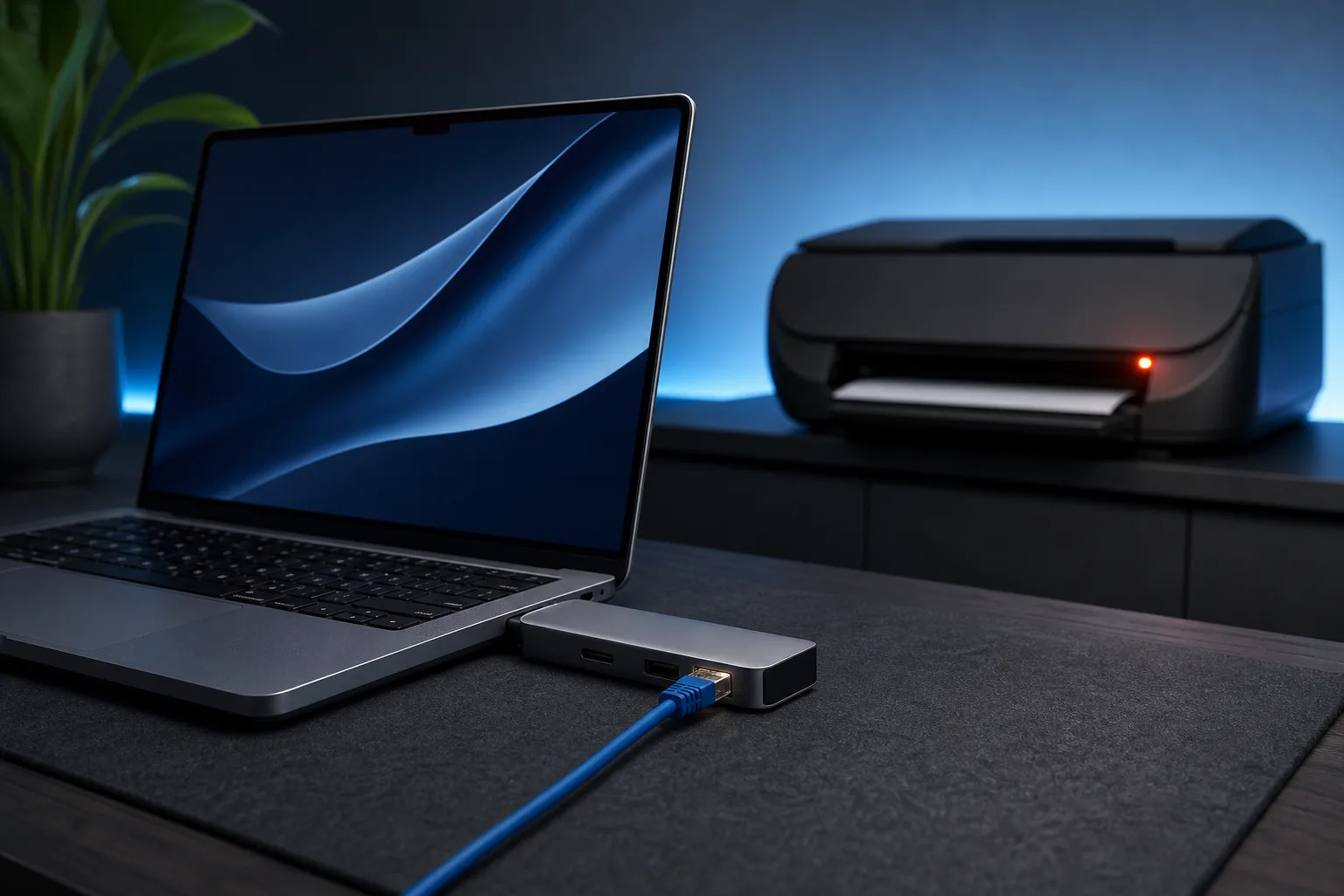
If your Ethernet cable connects to a different network (a switch, a corporate LAN, a modem port, or even just a different router subnet), your Mac is now on two different networks at once. The printer lives on the Wi-Fi network. Your Mac is talking through the Ethernet network. They can no longer see each other.
This is a routing conflict, and it's surprisingly common.
Why It Matters
This isn't just a printing annoyance. The same routing conflict can break:
- AirPlay and AirDrop discovery
- Shared drives and NAS devices on Wi-Fi
- Smart home devices accessed through your browser
- Any local service that relies on being on the same subnet
Understanding why it happens helps you fix it permanently, not just unplug the cable every time you need to print.
Computer acting up? Get a real diagnosis. Book a diagnostic
What We Don't Know Yet
Without seeing your specific setup, a few things could differ:
- Are both interfaces on the same subnet? If your Wi-Fi and Ethernet both connect to the same router, the conflict is less about routing and more about how the printer resolves your Mac's address. In that case the fix is different.
- Is the printer using Bonjour (mDNS) or a static IP? Bonjour discovery is interface-specific. If your Mac switches interfaces, Bonjour may not find the printer even if technically both are on the same network.
- Is your Ethernet connection using DHCP or a manual IP? A misconfigured manual IP can create a phantom default gateway that pulls all traffic off Wi-Fi.
Knowing those three things narrows the fix to the right one.
What to Do About It
Work through these steps in order. Stop when your printer comes back.
Step 1: Check which network each interface is on
- Open System Settings (or System Preferences on older macOS) and go to Network.
- Click Wi-Fi. Note the IP address, for example 192.168.1.45.
- Click Ethernet. Note that IP address, for example 10.0.0.12.
If the first three numbers of the IP differ (192.168.1.x vs 10.0.0.x), you are on two different subnets. That is your problem.
Step 2: Adjust network service order (interface priority)
- In Network settings, click the three-dot menu or look for Service Order (the exact label varies by macOS version).
- Drag Wi-Fi above Ethernet in the list.
- Click Apply.
This tells macOS to prefer Wi-Fi for general traffic while still using Ethernet where needed. Your printer should reappear.
Decision table: which fix matches your situation
| Situation | Best fix |
|---|---|
| Ethernet and Wi-Fi are on different subnets | Reorder services so Wi-Fi is on top |
| Both interfaces are on the same subnet | Delete and re-add the printer; let Bonjour rediscover it |
| Printer uses a static IP, not Bonjour | Add the printer by IP address directly in Printers & Scanners |
| Corporate Ethernet with no local subnet access | Use Ethernet for internet, keep Wi-Fi on; printer stays on Wi-Fi |
Step 3: If service order doesn't help, re-add the printer by IP
- Open System Settings > Printers & Scanners.
- Remove the existing printer entry.
- Click the + button, then choose Add Printer or Scanner.
- Select the IP tab.
- Enter your printer's IP address (check the printer's display or your router's device list).
- Choose the correct protocol (usually IPP or LPD) and add it.
Adding by IP bypasses Bonjour entirely. It works even when interface priority is causing discovery to fail.
Step 4: Assign your printer a reserved IP
If your printer's IP address changes, step 3 stops working. Log into your router and assign the printer a DHCP reservation (sometimes called a static lease). This pins the printer to the same IP address permanently.
Most home routers list connected devices in an Attached Devices or LAN section. Find your printer by name or MAC address and reserve its current IP.
When to call in help
If your Mac is connected to a business network, a managed switch, or VLANs are involved, the routing conflict may be enforced by network policy. Changing service order won't override that. That's a networking configuration issue, not a Mac settings issue.
For business setups in West Palm Beach and South Florida, Fix My PC Store's business networking team can audit the network and fix the conflict at the source. You can also try remote support if you want someone to walk through your specific settings without coming in.
For a hardware check or Mac-side diagnosis, the team at Fix My PC Store's Mac repair service can take a look at 10140 Okeechobee Blvd, Suite B, West Palm Beach, open Monday through Friday 9 a.m. to 6 p.m. and Saturday 9 a.m. to 5 p.m. Initial checks for most in-store visits are free. Call ahead at 561-819-9999 or book online.
Computer acting up? Get a real diagnosis.
Fix My PC Store has repaired thousands of machines across West Palm Beach. Honest pricing, no upsell games, and a free diagnostic for new customers with our email coupon.