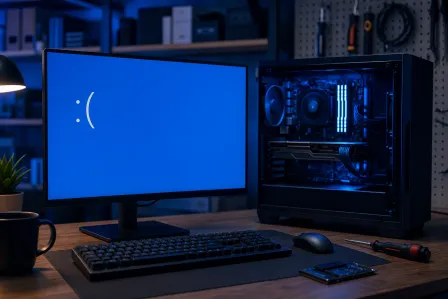
Why Is My PC Using 100% Disk Even When Idle?
TL;DR: 100% disk usage at idle is almost always caused by Windows Update, Superfetch/SysMain, a failing spinning hard drive, or malware. Check Task Manager first to find the guilty process, then follow the steps below. A new SSD fixes it permanently if the drive itself is dying.
What You Need
- A Windows PC with Task Manager access (Ctrl + Shift + Esc)
- About 20-30 minutes
- Administrative rights on the machine
- Optionally: CrystalDiskInfo (free) for drive health checks
1. Open Task Manager and Sort by Disk
Press Ctrl + Shift + Esc, click the Performance tab, then click Open Resource Monitor at the bottom. Under the Disk tab, sort by Total (B/sec).
You want the name of whatever process is hammering the disk. Write it down. Everything else in this guide flows from that answer.
Common offenders you'll see there:
- System or ntoskrnl.exe (Windows itself)
- SysMain (used to be called Superfetch)
- Windows Search (indexing)
- WaasMedicSVC or TiWorker.exe (Windows Update)
- Antivirus process (doing a scheduled scan)
- MsMpEng.exe (Windows Defender)
2. Check If Windows Update Is Running
Go to Settings > Windows Update and look at what it's doing. If it's downloading or installing updates, let it finish. It will stop on its own. Reboot when prompted.
Forcing it to stop mid-update creates more problems than it solves. (Yes, the timing is annoying. No, there's no clever fix for that.)
3. Disable SysMain If Your Drive Is a Spinning HDD
SysMain preloads apps it thinks you'll use. On a fast SSD it's mostly harmless. On an old spinning hard drive, it competes with everything else you're doing and causes exactly this symptom.
To disable it:
- Press Windows + R, type
services.msc, hit Enter - Scroll to SysMain
- Right-click > Properties
- Set Startup type to Disabled
- Click Stop, then OK
Reboot and check Task Manager again.
4. Reset Windows Search Indexing
If SearchIndexer.exe is the problem, the index may be rebuilding after an update or corruption.
You can pause indexing temporarily or rebuild the index:
- Open Control Panel > Indexing Options
- Click Advanced
- Click Rebuild under Troubleshooting
This takes a while to finish. Run it overnight if possible.
Computer acting up? Get a real diagnosis. Book a diagnostic
5. Run a Drive Health Check
Download CrystalDiskInfo (it's free and reputable). Open it and look at the overall health rating.
- Good in blue: the drive is probably fine
- Caution in yellow: the drive has reallocated sectors or other early warning signs
- Bad in red: back up everything immediately, the drive is failing
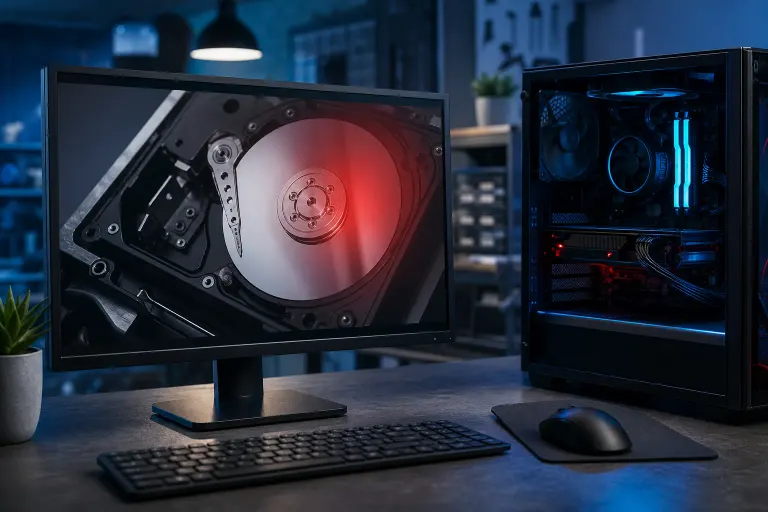
A spinning HDD that's starting to fail will often show 100% disk usage because the drive is constantly retrying bad reads. That's not a software problem. That's the drive telling you it's on the way out.
6. Scan for Malware
If no obvious Windows process is the culprit, run a full scan with Malwarebytes Free. Some malware specifically hides behind generic-looking process names and runs crypto mining or data exfiltration in the background.
Malwarebytes catches things Windows Defender misses, and the free version is enough for a one-time scan.
7. Check Your Virtual Memory Settings
If Windows is writing heavily to the pagefile, it shows up as disk usage from the System process. This happens when RAM is too low for what's running.
(See the related post on high RAM usage if this is also a symptom. The two problems often show up together.)
Quick check:
- Right-click This PC > Properties
- Click Advanced system settings
- Under Performance, click Settings > Advanced > Virtual Memory > Change
- Make sure Automatically manage paging file size is checked unless you have a specific reason it's not
Common Mistakes
Disabling Windows Update permanently. People do this because Update causes disk spikes, then they stop getting security patches. That's a bad trade. Delay updates, don't disable them forever.
Killing every background service without checking what it does. Some services sound useless and are actually load-bearing. Turning off the wrong one breaks things quietly.
Buying more RAM when the real problem is a dying HDD. More RAM helps with pagefile pressure, but if the drive itself is failing, no amount of RAM fixes that. Check the drive first.
Ignoring a Caution rating in CrystalDiskInfo. That's not "probably fine." That's early warning. Back up now and plan for a replacement drive soon.
Decision Table: What to Do Based on What You Find
| What Task Manager Shows | Most Likely Cause | First Action |
|---|---|---|
| TiWorker.exe / WaasMedicSVC | Windows Update running | Let it finish, reboot |
| SysMain | Superfetch on slow HDD | Disable SysMain |
| SearchIndexer.exe | Index rebuilding | Rebuild index, wait |
| MsMpEng.exe | Defender scan | Let it finish or schedule off-hours |
| System (ntoskrnl) | Drive errors or pagefile | Run CrystalDiskInfo |
| Unknown process name | Possible malware | Run Malwarebytes |
Bottom Line
Most 100% disk usage problems are Windows doing background work on a slow drive, and they're fixable in under an hour. Disable SysMain if you're on a spinning HDD. Let updates finish. Check the drive health before assuming it's software.
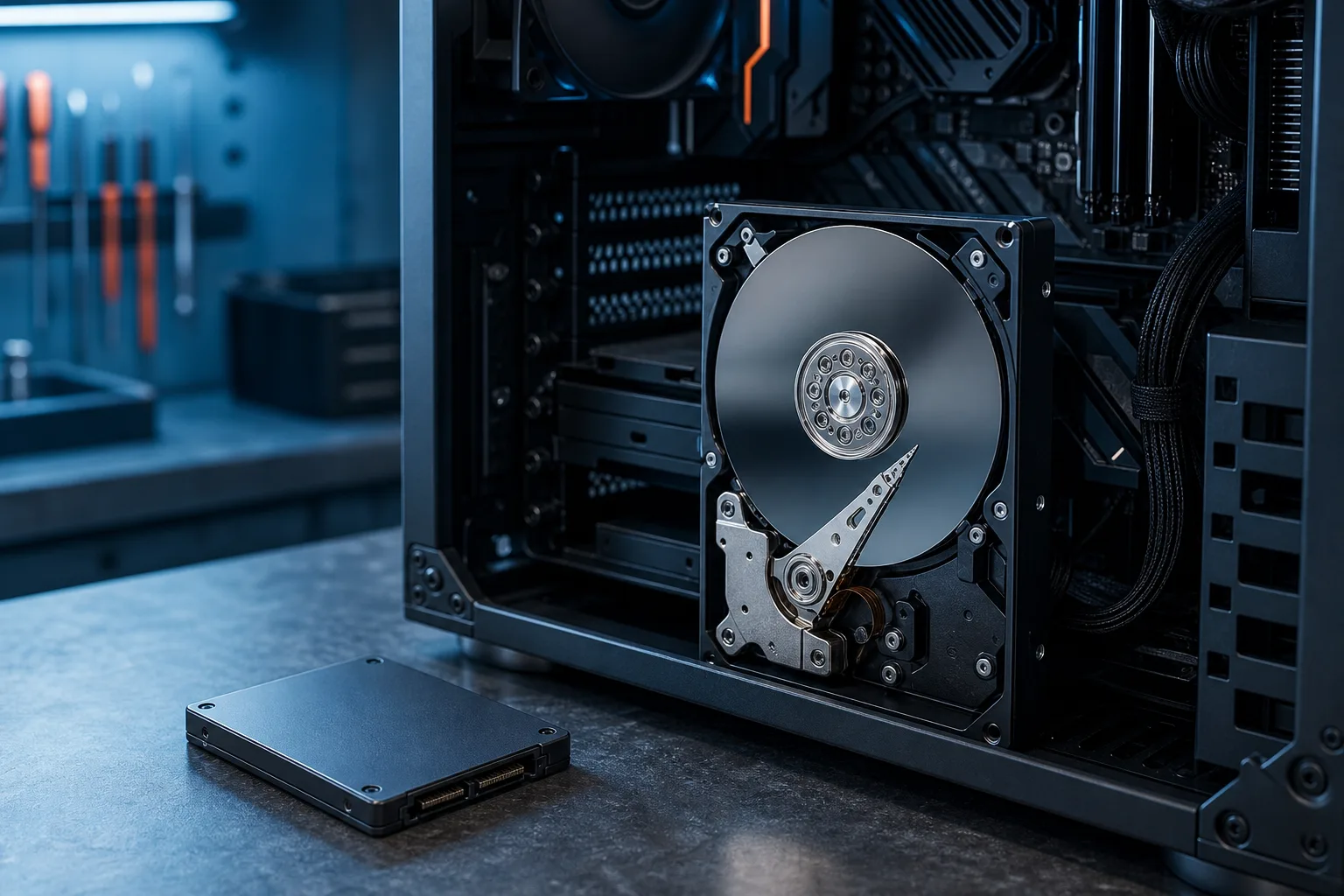
If CrystalDiskInfo shows Caution or Bad, stop troubleshooting and start backing up. A failing drive won't get better. Replacing it with an SSD fixes both the disk usage problem and makes the machine noticeably faster across the board.
If you've run through all of this and the disk is still pegged, or you're not comfortable digging into services and registry, remote support can walk through it with you without you having to drag the machine anywhere. If the drive itself needs replacing, the team at Fix My PC Store on Okeechobee Boulevard handles computer repair for West Palm Beach, Royal Palm Beach, and Wellington.
Computer acting up? Get a real diagnosis.
Fix My PC Store has repaired thousands of machines across West Palm Beach. Honest pricing, no upsell games, and a free diagnostic for new customers with our email coupon.